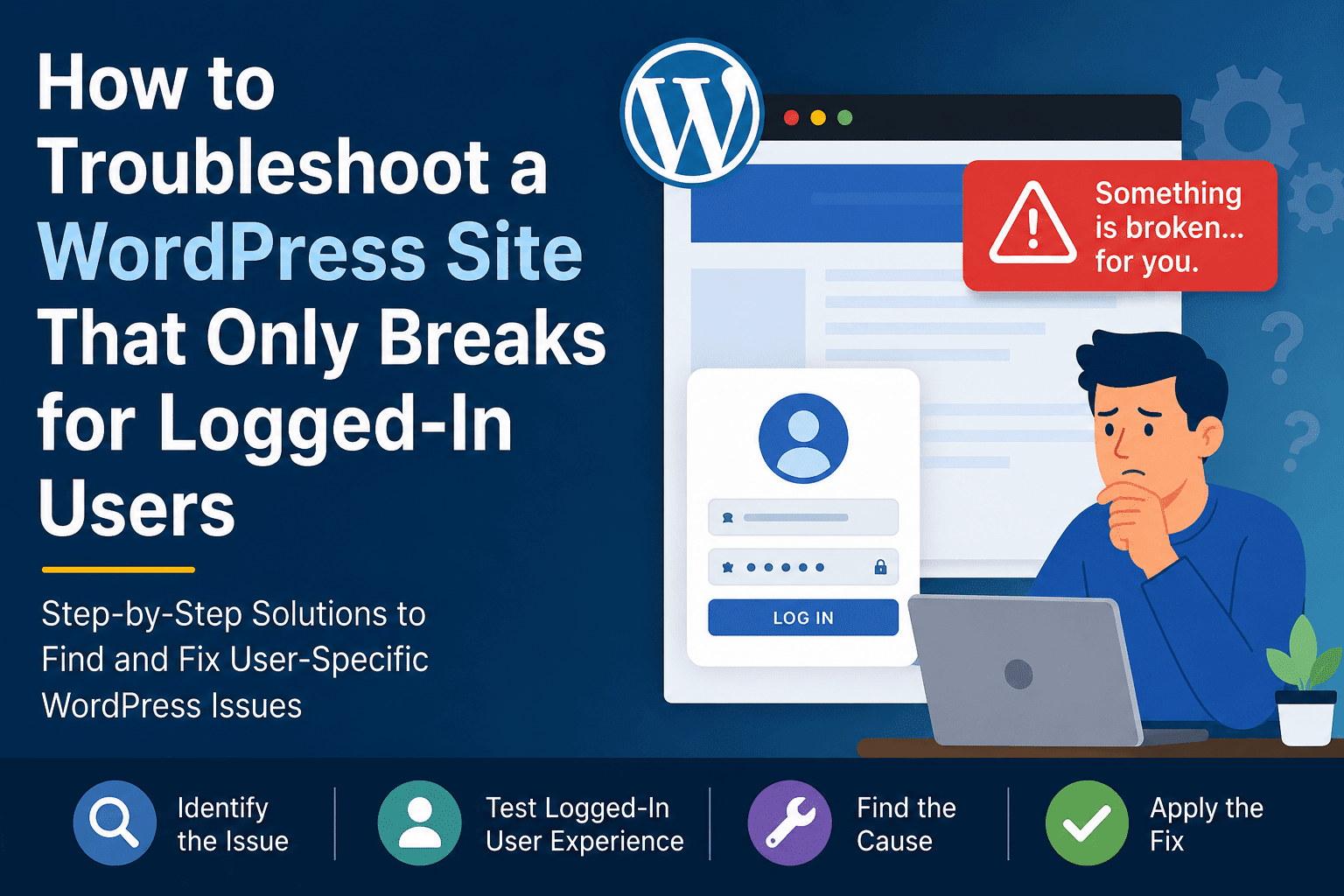

A WordPress site breaks for logged-in users when something behaves differently after WordPress recognizes a visitor as authenticated. The public version of the site may look perfect, but the moment an administrator, editor, customer, member, or subscriber logs in, the layout breaks, pages stop loading, menus disappear, checkout fails, the admin bar triggers errors, or the site shows a white screen.
This can feel confusing because many WordPress problems affect everyone. Logged-in-only issues are different. They usually happen because WordPress loads extra code, cookies, user permissions, admin toolbar assets, personalized content, membership rules, WooCommerce customer data, caching exclusions, or REST API requests only after login.
The good news is that this type of issue can be diagnosed in a clear order. Instead of randomly disabling everything, you can compare logged-out and logged-in behavior, capture errors, test roles, isolate plugins, check caching rules, review cookies, inspect browser console errors, and confirm whether the issue comes from the theme, server, database, or a user-specific plugin.
For related help, WP Fix It has several useful guides, including its guide to WordPress login troubleshooting, WordPress plugin conflict troubleshooting, fixing WordPress plugin conflicts, WordPress white screen troubleshooting, and WordPress 500 error troubleshooting.
Why a WordPress Site Breaks Only for Logged-In Users
When a visitor is logged out, WordPress serves a relatively simple version of the site. It loads the theme, public plugins, public scripts, public styles, public menus, and cacheable content. Once a user logs in, WordPress can load a different experience.
WordPress uses cookies to verify who a user is, and there are cookies specifically for logged-in users. That means a logged-in session can trigger code paths that logged-out visitors never touch. The official WordPress documentation explains that WordPress uses cookies to verify users and includes cookies for logged-in users and commenters. (WordPress Developer Resources)
WordPress also uses roles and capabilities to decide what different users can access. The default WordPress roles include Super Admin, Administrator, Editor, Author, Contributor, and Subscriber, and each role has permissions called capabilities. (WordPress.org)
That matters because a broken site may not break for every logged-in person. It might break only for administrators because the admin toolbar loads. It might break only for subscribers because a membership plugin redirects them. It might break only for customers because WooCommerce account or cart data loads. It might break only for editors because a page builder injects editing scripts.
Common causes include:
- Plugin conflicts that only run for logged-in users.
- Theme code that checks user roles incorrectly.
- Admin bar JavaScript or CSS conflicts.
- Membership, LMS, forum, or WooCommerce session issues.
- Page cache exclusions that behave differently for logged-in sessions.
- Object cache or database cache problems.
- Expired, corrupt, blocked, or mismatched login cookies.
- REST API or AJAX requests failing after authentication.
- Security plugin rules blocking logged-in requests.
- PHP memory limits reached only when extra logged-in features load.
WP Fix It’s own plugin conflict material recommends recording the symptom, checking whether the issue happens for logged-out users or only logged-in users, enabling debug logging, and then temporarily disabling plugins to confirm whether the issue disappears. (WP Fix It)
Step 1: Confirm the Issue Is Actually Logged-In Only
Before changing settings, confirm the pattern. Open the same page in three states:
Use your normal browser while logged in. Then open a private or incognito window while logged out. Then test in a different browser while logged in as another user.
You are trying to answer four questions:
Does the issue happen when logged out?
Does it happen for every logged-in user?
Does it happen only for one role, such as Administrator, Customer, Subscriber, or Editor?
Does it happen only in one browser, one device, or one network?
This first step is important because a “logged-in user issue” is sometimes just browser cache, a stale session, a role-specific permission problem, or a device-specific JavaScript conflict.
For example, if the site breaks only for your administrator account but works for another administrator, the problem may be related to user meta, dashboard preferences, a corrupted session, or a plugin storing account-specific data. If the site breaks for all administrators but not subscribers, the issue may involve the admin bar, admin-only scripts, capability checks, or dashboard-related plugin code.
If the site breaks for everyone once logged in, then the likely cause is a plugin, theme function, cookie/session problem, or caching rule that affects authenticated traffic.
Step 2: Clear Browser Cache, Site Cache, and Logged-In Session Data
Caching can make a logged-in WordPress issue look worse than it really is. Logged-in users often bypass page cache, but they may still interact with browser cache, object cache, CDN cache, opcode cache, and plugin-generated assets.
Start with the browser. Chrome’s developer documentation explains that with DevTools open, users can click and hold the reload button to access reload options such as hard reload. (Chrome for Developers) Chrome DevTools documentation also explains that cache data can be cleared from the Application or Storage area. (Chrome for Developers)
Then clear the WordPress cache from your caching plugin. If you use a managed host, also clear server cache from the hosting dashboard. If you use Cloudflare or another CDN, purge the affected URL or temporarily bypass cache while testing.
Next, log out completely and log back in. If needed, clear cookies for the domain and test again. Since WordPress depends on authentication cookies for logged-in users, a broken or stale cookie can cause redirect loops, missing permissions, failed AJAX requests, or inconsistent behavior.
Do not skip this step. Many logged-in-only problems are created when a caching system serves a stale file, combines scripts incorrectly, excludes the wrong URL, or stores a personalized page fragment that should never be cached.
Step 3: Turn On WordPress Debugging Safely
When a WordPress site breaks for logged-in users, guessing is slow. Debugging helps you capture the actual PHP warning, fatal error, deprecated function, memory error, or plugin conflict.
WordPress provides built-in debugging constants. The official WordPress developer documentation explains that WP_DEBUG is a PHP constant used to trigger WordPress debug mode and is usually set in the wp-config.php file on development copies of WordPress. (WordPress Developer Resources)
A safe debugging setup for troubleshooting is:
define( 'WP_DEBUG', true );
define( 'WP_DEBUG_LOG', true );
define( 'WP_DEBUG_DISPLAY', false );
This allows errors to be written to a log instead of displayed publicly on the website. After adding these constants, reproduce the issue as a logged-in user. Then check the debug log, usually located at:
/wp-content/debug.log
Look for the newest entries at the bottom of the file. The most useful lines often include words like:
Fatal error
Uncaught Error
Allowed memory size exhausted
Call to undefined function
Cannot modify header information
Permission denied
REST API
admin-ajax.php
WP Fix It’s white screen guide also emphasizes that turning on WordPress debugging is often the fastest way to identify the cause of a blank-page issue. (WP Fix It)
After troubleshooting, turn debugging off unless you are still actively diagnosing the issue. Debug logs can expose sensitive paths, plugin names, and server details if left accessible.
Step 4: Check Whether the Admin Bar Is Causing the Break
One of the most common reasons a site only breaks for logged-in users is the WordPress admin bar. Logged-out visitors do not see it. Logged-in users often do.
The admin bar adds markup, CSS, JavaScript, and toolbar items from WordPress core, the theme, and plugins. SEO plugins, security plugins, page builders, performance plugins, form plugins, LMS plugins, and WooCommerce extensions may all add admin bar nodes.
To test this, temporarily disable the admin bar for your user profile:
Go to Users > Profile.
Find Toolbar.
Uncheck Show Toolbar when viewing site.
Save the profile.
Now reload the broken front-end page while logged in. If the site works, the problem is likely related to toolbar output, admin bar CSS, JavaScript, or a plugin adding a broken toolbar item.
A developer can also test this temporarily with code:
add_filter( 'show_admin_bar', '__return_false' );
This should only be used as a test unless you intentionally want to hide the admin bar. If hiding the admin bar fixes the issue, continue isolating plugins. The admin bar itself is rarely the root cause; it usually exposes a plugin or theme conflict.
Step 5: Compare User Roles
A logged-in-only issue is not always universal. WordPress roles and capabilities can change what code runs, what menus show, what content appears, and what plugins allow.
Create or use test accounts for several roles:
Administrator
Editor
Author
Subscriber
Customer, if WooCommerce is installed
Member role, if using a membership plugin
Student or instructor, if using an LMS plugin
Then test the same URL with each account. Keep notes like this:
Logged out: Works
Administrator: Broken
Editor: Broken
Subscriber: Works
Customer: Broken
This pattern tells you where to look. If administrators and editors are affected, the issue may involve editing tools, admin toolbar scripts, or role-based theme logic. If only customers are affected, check WooCommerce sessions, account endpoints, cart fragments, subscriptions, memberships, and payment plugins. If only subscribers are affected, check membership restrictions, redirect rules, and user dashboard plugins.
The official WordPress roles documentation is useful here because it explains how each role maps to capabilities. (WordPress.org)
Step 6: Check Plugin Conflicts the Safe Way
Plugin conflicts are one of the top reasons a WordPress site breaks for logged-in users. A plugin may load extra scripts only for authenticated users, check capabilities incorrectly, conflict with another plugin’s AJAX request, or trigger errors only when account data is available.
The safe process is:
Take a backup.
Create a staging copy if possible.
Disable non-essential plugins.
Test while logged in.
Reactivate plugins one at a time.
Test after each activation.
WP Fix It has a detailed resource for WordPress plugin conflict troubleshooting and another guide on how to fix WordPress plugin conflicts. Its conflict troubleshooting guidance explains that a typical WordPress site may use many plugins, a customized theme, third-party integrations, and server-level optimizations, which makes safe isolation important. (WP Fix It)
Pay special attention to these plugin categories:
Caching and optimization plugins
Security plugins
Membership plugins
WooCommerce and checkout plugins
LMS plugins
Page builders
Form plugins
SEO plugins
User role editors
Redirection plugins
Custom dashboard plugins
Social login plugins
REST API restriction plugins
If disabling one plugin fixes the issue, do not immediately assume that plugin is “bad.” It may conflict with another plugin, the theme, PHP version, caching settings, or a custom snippet.
Step 7: Test the Theme
Themes can break only for logged-in users when they include conditional logic such as:
is_user_logged_in()
current_user_can()
wp_get_current_user()
This logic may control menus, member content, account links, dashboards, page builder templates, custom headers, or restricted content.
Switch temporarily to a default WordPress theme in staging. If the issue disappears, the active theme is involved. If you cannot access wp-admin, WP Fix It explains in its white screen troubleshooting material that switching themes can help identify whether a faulty theme is causing a white screen. (WP Fix It)
Check these theme areas:
functions.php
Header templates
Account menu templates
WooCommerce overrides
Membership dashboard templates
Page builder header/footer templates
Custom shortcodes
Custom role checks
Custom redirect functions
A common theme mistake is redirecting logged-in users without excluding wp-admin, admin-ajax.php, REST API URLs, checkout pages, account pages, or login endpoints. That can create loops or break authenticated requests.
Step 8: Inspect JavaScript Console Errors
If the site loads but buttons do not work, menus fail, modals freeze, dashboards break, or page builder elements disappear, check the browser console.
Open DevTools, go to the Console tab, reload the page while logged in, and look for red errors.
Common logged-in-only JavaScript problems include:
admin-ajax.php blocked
REST API returning 401, 403, or 500
jQuery conflict
Nonce verification failed
Mixed content error
Optimization plugin combining scripts incorrectly
Security plugin blocking requests
Page builder script loading twice
Admin bar script conflict
Logged-in users often trigger extra AJAX and REST requests. WordPress REST API documentation explains that cookie authentication is the standard authentication method included with WordPress, and logging into the dashboard sets up cookies correctly. (WordPress Developer Resources)
That means if authenticated REST requests fail, the front end may break only after login. This is common with block themes, page builders, WooCommerce, membership dashboards, and custom applications built on WordPress.
Step 9: Check Network Requests for 401, 403, 404, and 500 Errors
In DevTools, open the Network tab and reload the page while logged in. Filter by:
XHR
Fetch
JS
CSS
Doc
Look for failed requests. Status codes give strong clues.
A 401 usually means authentication failed.
A 403 usually means a security rule, permission issue, firewall, nonce failure, or role restriction.
A 404 means the file or endpoint is missing.
A 500 means a server-side PHP error occurred.
A 503 may mean server overload, maintenance mode, resource limits, or host-level blocking.
WP Fix It’s WordPress 500 error and wp-admin not loading guide recommends identifying whether the problem is site-wide or endpoint-specific and checking the most recent change, such as a plugin update, theme update, PHP version change, security rule, or migration. (WP Fix It)
For logged-in-only failures, pay close attention to these URLs:
/wp-admin/admin-ajax.php
/wp-json/
/wp-json/wp/v2/
/my-account/
/checkout/
/wp-admin/
/wp-login.php
If one of these fails only when logged in, you have a strong direction.
Step 10: Review Caching and Optimization Settings
Caching plugins are built to make sites faster, but logged-in sessions are more sensitive. A public page can be cached aggressively. A logged-in page often cannot.
Check whether your caching plugin excludes logged-in users. Many caching plugins have settings like:
Do not cache pages for logged-in users.
Do not cache pages with query strings.
Exclude WooCommerce cart, checkout, and my-account pages.
Exclude membership dashboard pages.
Disable JavaScript delay for logged-in users.
Do not combine admin bar scripts.
If your site uses WooCommerce, membership software, LMS dashboards, forums, or private portals, make sure user-specific pages are excluded from full-page caching.
Optimization settings can also break authenticated views. Temporarily disable:
JavaScript minification
JavaScript combination
Delay JavaScript
Defer JavaScript
CSS combination
Unused CSS removal
Lazy loading for background images
CDN rewriting
Object cache
Then test while logged in. If the issue disappears, re-enable features one at a time.
This is especially important when the public site works because cached logged-out pages may hide a problem that only appears when WordPress generates the page dynamically for authenticated users.
Step 11: Check Security Plugin and Firewall Rules
Security plugins can block logged-in users if they detect unusual behavior, failed nonces, role changes, suspicious query strings, REST API requests, XML-RPC calls, or admin-ajax traffic.
Temporarily review or disable rules related to:
REST API blocking
Admin area protection
Login protection
Bot protection
Country blocking
Two-factor authentication
Firewall rules
Rate limiting
User enumeration blocking
Query string filtering
If a security plugin logs blocked requests, review its logs while reproducing the issue. Match the timestamp of the break with the blocked URL.
WP Fix It also has a guide on WordPress security logs that explains why logs can help identify what happened when a site malfunctions or is affected by security issues. (WP Fix It)
Security tools are helpful, but overly strict rules can block legitimate logged-in requests.
Step 12: Check Cookies, Login Sessions, and Domain Mismatches
Because WordPress uses cookies for logged-in users, domain and HTTPS mismatches can create strange behavior.
Check these items:
WordPress Address URL
Site Address URL
HTTPS redirect rules
www vs non-www version
Cookie domain constants
Reverse proxy headers
Cloudflare SSL mode
Mixed HTTP and HTTPS assets
Multisite domain mapping
If WordPress thinks your site is at one domain but the browser is using another, cookies may not apply correctly. For example, logging in at www.example.com and browsing at example.com can create session inconsistencies if redirects and cookie domains are misconfigured.
Also check whether security headers, SameSite cookie behavior, or third-party login systems affect authentication.
A quick test is to log out, clear cookies for the domain, visit the canonical HTTPS version of the site, log back in, and test again.
Step 13: Check PHP Memory and Server Resource Limits
Logged-in users often load more dynamic code than logged-out users. Administrators load admin bar items, editing tools, plugin notices, page builder assets, and personalized queries. Customers load carts, orders, subscriptions, downloads, and account data.
If the site breaks only when logged in, PHP memory could be exhausted during authenticated page generation.
Common signs include:
White screen
500 error
Critical error
Partial page load
Debug log showing memory exhaustion
WP Fix It’s guide to the WordPress white screen of death notes that insufficient PHP memory is a common hosting issue that can lead to a WordPress white screen. (WP Fix It)
You can test by increasing memory in wp-config.php:
define( 'WP_MEMORY_LIMIT', '256M' );
define( 'WP_MAX_MEMORY_LIMIT', '512M' );
Your host may also need to adjust PHP memory, max execution time, CPU limits, or database resources.
Step 14: Review Recent Changes
Many logged-in-only WordPress issues begin immediately after a change. Check what changed in the last 24 to 72 hours.
Look for:
Theme updates
WordPress core updates
PHP version changes
New caching plugin settings
New security plugin rules
New custom code snippets
Membership rule changes
WooCommerce extension updates
Hosting migration
CDN activation
SSL changes
User role changes
If you have activity logs, hosting logs, Git history, or backup timestamps, compare them against when the issue started.
A recent plugin update is especially likely when the site breaks only for authenticated users. The update may have changed a script dependency, REST API permission check, session behavior, or dashboard integration.
Step 15: Check Custom Code Snippets
Custom snippets are powerful, but they often create logged-in-only issues because they target users.
Search custom code for:
is_user_logged_in()
current_user_can()
wp_redirect()
auth_redirect()
wp_get_current_user()
show_admin_bar
admin_init
template_redirect
init
wp_enqueue_scripts
rest_authentication_errors
Be careful with redirect snippets. A snippet like this can cause problems:
if ( is_user_logged_in() ) {
    wp_redirect( home_url( '/dashboard/' ) );
    exit;
}
Why? Because it may run everywhere, including admin pages, AJAX requests, REST requests, checkout pages, or login redirects.
A safer redirect must include exclusions for admin, AJAX, REST, and the target page. Poorly scoped redirects are a classic cause of “works logged out, breaks logged in.”
Step 16: Check WooCommerce, Membership, LMS, and Account Plugins
WooCommerce and membership sites are especially likely to break only for logged-in users because logged-in users have personalized account data.
For WooCommerce, check:
Cart fragments
Checkout page
My Account endpoints
Payment gateway scripts
Subscriptions
Memberships
Downloads
Customer session table
Object cache compatibility
For membership plugins, check:
Restricted content rules
Login redirects
Member dashboard pages
Role synchronization
Expired memberships
Access rules
Custom login pages
For LMS plugins, check:
Student dashboards
Course progress
Instructor roles
Quiz scripts
Certificates
Enrollment status
If the site breaks only on account-related pages, disable account plugins in staging one by one and test again.
Step 17: Look for Database or User Meta Corruption
Sometimes the issue follows one user account only. If every other logged-in user works, inspect the broken user’s metadata.
Possible causes include:
Corrupted user capabilities
Broken dashboard preference
Invalid serialized user meta
Plugin-specific user setting
Old membership status
Bad cart session
Stale customer data
Duplicated capabilities
You can create a new test user with the same role. If the new user works, the problem is likely account-specific. Compare the two users’ metadata carefully, ideally in staging.
Do not edit serialized database values manually unless you know what you are doing. A small formatting mistake can make the issue worse.
Step 18: Use a Staging Site for Deep Testing
A live business site should not be your testing lab. Use staging whenever possible.
On staging, you can safely:
Disable all plugins
Switch themes
Change PHP versions
Turn on debugging
Inspect logs
Disable caching
Test role changes
Remove custom snippets
Install troubleshooting tools
WP Fix It’s Conflict Finder guide describes the value of a centralized troubleshooting environment for diagnosing plugin conflicts, theme issues, debugging errors, and email delivery problems without permanently altering site configuration. (WP Fix It)
Staging keeps your visitors, customers, students, or members from seeing the troubleshooting process.
Step 19: Fix the Cause, Not Just the Symptom
Once you identify the cause, apply the narrowest fix possible.
If a plugin causes the issue, update it, roll it back, replace it, or contact the developer.
If a cache setting causes it, exclude the correct pages or disable the specific optimization feature.
If a theme causes it, patch the template or conditional logic.
If a user role causes it, repair capabilities.
If cookies cause it, fix domain, HTTPS, and redirect consistency.
If REST API requests fail, repair nonce, authentication, firewall, or endpoint permissions.
If memory causes it, increase resources and reduce unnecessary plugin load.
Avoid broad fixes like disabling all caching forever, hiding all errors without solving them, or permanently turning off security plugins. Those may make the site appear fixed while creating performance or security problems.
Quick Troubleshooting Checklist
Use this checklist when a WordPress site breaks for logged-in users:
Confirm the issue happens only after login.
Test multiple browsers and devices.
Test multiple user roles.
Clear browser, plugin, host, and CDN cache.
Clear cookies and log in again.
Enable WP_DEBUG_LOG.
Review the newest debug log entries.
Disable the admin bar as a test.
Inspect browser console errors.
Check Network requests for 401, 403, 404, 500, and 503 responses.
Disable optimization features temporarily.
Test security plugin and firewall logs.
Check REST API and admin-ajax requests.
Test plugins one by one in staging.
Switch to a default theme in staging.
Review recent updates.
Search custom snippets for login, role, and redirect logic.
Check memory limits and server logs.
Repair the narrow cause.
When to Get Help
A logged-in-only WordPress issue can be simple, but it can also involve multiple systems at once: cookies, roles, cache, REST API, plugins, theme code, and server rules. If your site handles sales, bookings, memberships, courses, client portals, or business leads, the safest approach is often to have the issue diagnosed quickly instead of experimenting on the live site.
WP Fix It offers fast WordPress support services for urgent issues, and its troubleshooting library includes helpful resources for WordPress login problems, WordPress white screen errors, WordPress admin blank page issues, turning off all plugins, and common WordPress errors.
Final Thoughts
When a WordPress site breaks for logged-in users, the key is to stop treating it like a normal public-facing error. Logged-in users trigger extra WordPress behavior: authentication cookies, roles, capabilities, admin toolbar assets, personalized content, private pages, account data, AJAX calls, REST API requests, and cache exclusions.
Start by proving the pattern. Then check cache and cookies. Enable debug logging. Compare roles. Inspect console and network errors. Test plugins and the theme in staging. Review security rules, custom snippets, and server logs. The issue almost always reveals itself once you compare what loads for logged-out visitors against what loads for logged-in users.
A calm, structured process will get you to the real cause faster and prevent unnecessary changes that could create new problems.
How to Restrict and Troubleshoot WordPress Forms for Logged-In Users
If a form should be available only to authenticated visitors, configure the restriction in the form plugin or membership system rather than relying on a hidden link. The exact setting name varies, and some form plugins do not include a built-in logged-in-user restriction. Look for options related to visibility, access, permissions, membership, user roles, or conditional display. If the plugin has no such option, the restriction may need to be handled by the membership plugin, a page-access rule, a shortcode condition, or custom code.
Test the form in each relevant state:
- Logged out in a private browser window: the form should be hidden or replaced with an appropriate login message.
- Logged in as a permitted role: the form should display and submit normally.
- Logged in as a restricted role: access should match the intended rule.
- Logged in with an expired or newly changed session: refresh after logging out and back in.
Do not assume that hiding the form prevents submission. Check the form’s processing endpoint as well. A logged-out visitor should not be able to submit directly through an old page, cached form, AJAX request, or REST request. If the form is visible to logged-in users but submission fails, inspect the browser Console and Network tabs while reproducing the problem. Pay particular attention to admin-ajax.php, REST requests, nonce errors, and responses with status codes such as 401, 403, or 500.
Caching can also produce an incorrect version of a restricted form. Purge browser, page, and server caches, then test again in a private window. Exclude personalized pages, account pages, and form responses from page caching when appropriate. If the form works for one role but not another, review the role’s capabilities and any membership, security, or form validation rules before changing the theme or disabling unrelated plugins.