
WordPress file permissions might seem like a small technical setting until one wrong change blocks your dashboard, breaks your theme, stops uploads, or exposes sensitive files. File permissions control who can read, write, and execute files on your server, and WordPress needs the right balance: enough access to function, but not so much access that attackers can abuse your site. WordPress.org explains that file and directory permissions determine who can read, write, modify, and access files, and that WordPress may need write access in areas such as wp-content for normal site functions. (WordPress Developer Resources)
When WordPress file permissions go wrong, the symptoms can feel random. You might see “Permission denied,” “Unable to create directory,” failed plugin updates, broken media uploads, 403 forbidden errors, 500 internal server errors, or a completely inaccessible admin area. The good news is that most permission issues can be repaired safely if you move carefully, avoid insecure shortcuts, and understand what you are changing before you change it.
This guide explains how to diagnose broken WordPress file permissions, restore common safe values, avoid dangerous settings like 777, and protect your site after access is restored. For serious access failures, malware concerns, or urgent website downtime, you can also use professional WordPress emergency support from WP Fix It.
What WordPress File Permissions Actually Do
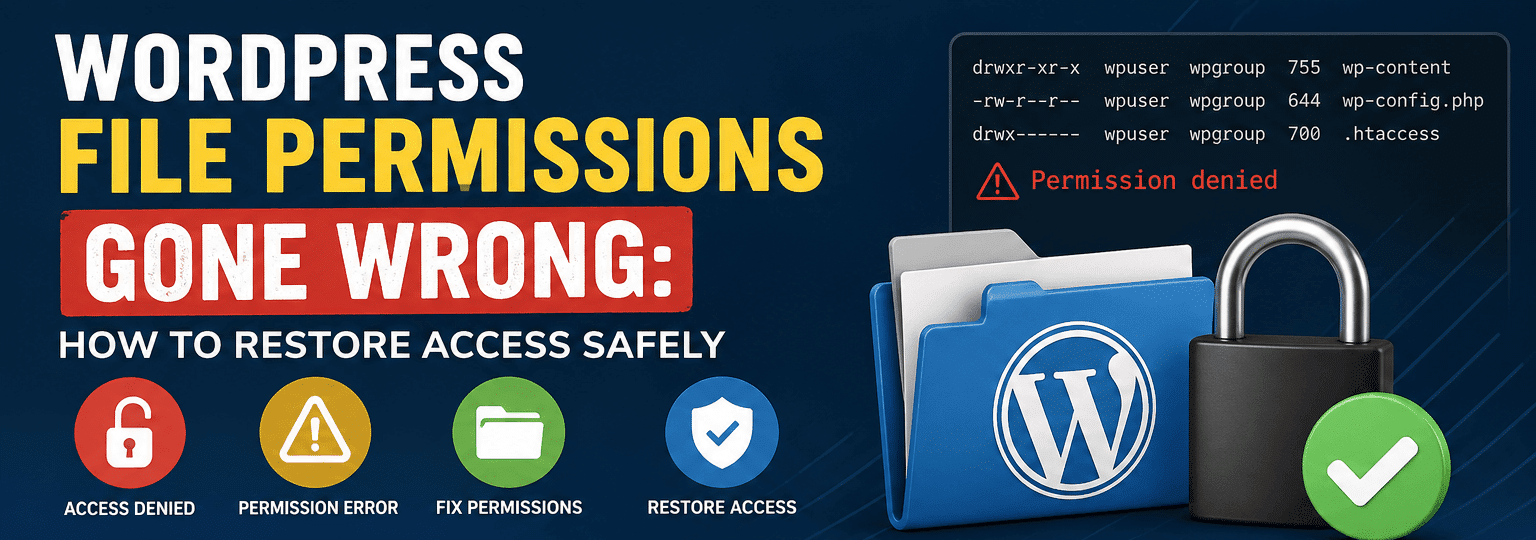
WordPress file permissions tell the server which users or processes can interact with each file and folder. On most Linux-based hosting environments, permissions are represented by three digits, such as 755, 644, or 600.
Each digit represents access for a different group:
Owner: the hosting account or system user that owns the file
Group: a server-level group assigned to the file
Public/Other: everyone else on the system
Each number is built from three possible rights:
Read = 4
Write = 2
Execute = 1
That means 755 gives the owner read, write, and execute access, while group and public users get read and execute access. For folders, execute access allows the directory to be entered or traversed. For files, execute access is only needed for executable scripts, not ordinary PHP, CSS, JavaScript, or image files in typical WordPress hosting.
A common healthy WordPress setup uses:
Folders: 755
Files: 644
Sensitive files such as wp-config.php: often stricter, depending on hosting configuration
cPanel support documentation also references common defaults where files use 644, and related support guidance describes folder permissions of 755 and file upload permissions of 644. (cPanel Support)
These values are not magic. They work because they usually allow WordPress and the web server to read what they need, allow the account owner to change files, and prevent unnecessary write access from other users.
Why WordPress File Permissions Go Wrong
WordPress file permissions usually break because something changed ownership or access rules unexpectedly. A site owner may change permissions in cPanel while trying to fix an upload error. A developer may run a command through SSH as the wrong user. A migration tool may copy files under a different owner. A security plugin may harden files too aggressively. A host may restore a backup with mismatched ownership. Malware cleanup may remove infected files but leave permissions inconsistent.
Permission problems also appear after failed updates. If WordPress cannot write to the right location during a core, plugin, or theme update, the process may stop halfway. That can leave files missing, folders locked, or temporary maintenance files behind. For update-related failures, WP Fix It’s guide on WordPress stuck in maintenance mode is a helpful related resource.
Another common problem is overcorrection. A site owner sees an error, searches quickly, and changes everything to 777. That may appear to solve an upload problem, but it creates a serious security risk because it can allow far more write access than WordPress should need. OWASP’s least privilege guidance explains that granting minimal permissions reduces the attack surface and limits the damage if something is compromised. (OWASP Foundation)
The safer approach is not “make everything writable.” The safer approach is “give WordPress only the access required for the task.”
Common Signs Your WordPress File Permissions Are Broken
Broken WordPress file permissions can show up in several ways. The exact symptom depends on which file or folder has the wrong setting.
You may notice that images no longer upload. WordPress may display an error like “Unable to create directory uploads” or “Is its parent directory writable by the server?” This often points to a permissions or ownership issue inside wp-content/uploads.
Plugin and theme updates may fail. You might see messages asking for FTP credentials, or WordPress may say it cannot copy files. That can happen when WordPress cannot write to wp-content/plugins, wp-content/themes, or temporary upgrade directories.
Your site may show a 403 forbidden error. This can happen when folder permissions are too restrictive or when .htaccess rules block access unexpectedly.
Your site may show a 500 internal server error. This is sometimes caused by incorrect permissions on PHP files, incorrect .htaccess permissions, or server rules rejecting unsafe permission values.
Your dashboard may become inaccessible. If WordPress core files, admin files, or plugin files cannot be read by the server, wp-admin may partially load, show a blank screen, or fail completely.
You may see missing styles or broken layouts. CSS and JavaScript files may exist on the server, but if the server cannot read them, the browser cannot load them.
A permission problem can also look like a hack. If permissions are too loose, malicious files may be added to writable locations. If you suspect that permissions changed because of malware, review WP Fix It’s WordPress malware removal guide before assuming this is only a server configuration issue.
The Safe Default WordPress File Permissions
For most standard shared hosting, VPS, and managed hosting environments, these are the starting points:
755 for directories644 for files600, 640, 400, or 440 for wp-config.php, depending on the server setup
Avoid 777 unless your host specifically instructs it for a short diagnostic reason
WordPress.org’s hardening documentation discusses protecting sensitive files and improving security posture, including tighter access for important configuration files. (WordPress Developer Resources)
The most important rule is this: do not blindly apply strict values without testing. For example, setting wp-config.php to 400 may work on one server and break another if the web server process cannot read the file. Setting it to 600 may be secure and functional on many setups, but hosting environments differ. If the site breaks after tightening wp-config.php, restore the previous safe value and check with the host.
For everyday WordPress file permissions, 755 for directories and 644 for files is the most common repair target. The owner should be able to write; the web server should be able to read; public users should not be able to write.
What Not to Do When Access Breaks
When a site is offline, speed matters, but panic repairs can make the damage worse. Avoid these common mistakes.
Do not set the entire WordPress installation to 777. This is one of the riskiest permission changes because it can allow broad write access. It may temporarily bypass an error, but it weakens the site and can make malware injection easier.
Do not randomly delete .htaccess. The .htaccess file may control permalinks, redirects, security rules, caching, and PHP behavior. If you need to test it, rename it temporarily instead of deleting it.
Do not change ownership recursively unless you understand the server user structure. Ownership problems can be worse than permission problems, and a recursive ownership command run as the wrong user can break multiple sites on the same server.
Do not change permissions from inside an unknown plugin if you are already locked out. Use SFTP, SSH, cPanel File Manager, or your host’s file manager so you can reverse the change.
Do not assume every permission error is harmless. A sudden permissions issue can be caused by a failed update, but it can also be caused by malware, a compromised FTP account, or a bad deployment process.
Step 1: Create a Backup Before You Change Anything
Before repairing WordPress file permissions, create a full backup of the site files and database. Even though permission changes do not normally edit file contents, a rushed repair can still cause downtime. A backup gives you a rollback point.
Use your hosting backup system, a trusted backup plugin, or manual SFTP and database export. If the site is already broken and you cannot access wp-admin, use your host’s backup panel or file manager. If you need ongoing protection, WP Fix It’s WordPress care plans include maintenance-focused services that help reduce the risk of update and access issues.
After the backup is created, avoid making many changes at once. Fix folders first, then files, then sensitive files, then test.
Step 2: Connect Through SFTP, SSH, or File Manager
To repair WordPress file permissions, you need server-level access. The safest options are:
SFTP client
SSH terminal
cPanel File Manager
Hosting control panel file manager
Use SFTP instead of plain FTP whenever possible because SFTP encrypts the connection. Once connected, locate your WordPress root directory. It is usually named public_html, www, htdocs, or the domain name. You should see familiar WordPress items such as:
wp-adminwp-contentwp-includeswp-config.php.htaccess
If you do not see .htaccess, enable “show hidden files” or “show dotfiles” in your file manager. Hidden files are often involved in WordPress access problems.
Step 3: Restore Directory Permissions to 755
Directories usually need execute permission so the server can enter them and read the files inside. The common repair is to set directories to 755.
If you are using cPanel File Manager, select a folder, choose permissions, and apply 755. Some file managers allow recursive folder-only changes. Be careful to apply 755 only to directories, not every file.
If you are using SSH from the WordPress root, this command sets folders to 755:
find . -type d -exec chmod 755 {} \;
This command means: find every directory from the current location and set its permission to 755.
After running it, test the front end and wp-admin. Some sites may immediately recover if the main problem was restricted folder access.
Step 4: Restore File Permissions to 644
Most WordPress files should be readable by the server and writable by the account owner, but not writable by everyone. The common repair is 644.
From SSH in the WordPress root, use:
find . -type f -exec chmod 644 {} \;
This sets ordinary files to 644.
After running this, reload the site and dashboard. Clear any server cache, CDN cache, and browser cache if styles or scripts still appear broken.
This is also a good time to check whether plugin and theme updates work. If updates still fail, the issue may be ownership rather than permissions. In that case, contact the host or check the user that owns the files.
Step 5: Secure wp-config.php Carefully
The wp-config.php file contains database credentials and important configuration constants. It should not be broadly writable. However, the correct strict value depends on hosting configuration.
Try a safer value such as:
chmod 600 wp-config.php
If that breaks the site, try:
chmod 640 wp-config.php
Some environments support even stricter values like 400 or 440, but those should be tested carefully. WordPress hardening recommendations recognize that sensitive configuration files deserve extra protection, but hosting environments vary. (WordPress Developer Resources)
After changing wp-config.php, immediately test the homepage and wp-admin. If you see a database connection error or white screen, restore the previous working permission and ask your host which user the web server runs as.
Step 6: Check the wp-content Folder
The wp-content directory is where uploads, plugins, themes, cache files, and many custom files live. WordPress often needs write access inside parts of this folder.
Start with:
wp-content = 755wp-content/uploads = 755
Files inside uploads = 644
Plugin folders = 755
Theme folders = 755
If image uploads still fail, the issue may be ownership. WordPress may be able to read the folder but not write to it. This happens often after migrations or manual file transfers.
Do not solve this by setting uploads to 777. Instead, ask your host to correct ownership so the proper account or web process can write to uploads safely.
If you discover suspicious PHP files inside wp-content/uploads, stop and investigate. Upload directories should normally contain media files, not random executable PHP files. For that situation, review WP Fix It’s step-by-step WordPress malware removal guide.
Step 7: Review .htaccess Permissions and Rules
The .htaccess file often sits in the WordPress root directory. Standard file permission is usually 644. Some hardened setups use stricter values, but 644 is a common functional default.
Use:
chmod 644 .htaccess
If your site shows 403 or 500 errors after permissions are fixed, .htaccess may contain invalid or overly restrictive rules. To test safely, rename it:
mv .htaccess .htaccess-backup
Then go to WordPress admin, open Settings, then Permalinks, and save the permalink structure. WordPress should generate a fresh .htaccess file if it has permission to do so.
If you cannot access wp-admin, create a temporary default WordPress .htaccess file manually, but keep the backup so you can restore custom redirects and security rules later.
Step 8: Fix Ownership Problems
Sometimes WordPress file permissions look correct but the site still cannot write files. That usually means ownership is wrong.
For example, files may be owned by root after a server command, while the hosting account user is exampleuser. Permissions of 644 and 755 may not help if the wrong user owns the files.
Ownership repair depends heavily on the hosting setup. On a VPS, the command may look like this:
chown -R accountuser:accountgroup /path/to/wordpress
But do not copy this blindly. The right user and group vary by server. On shared hosting, you may not have permission to run chown at all. Contact your host and ask them to reset file ownership for your account.
This is one of the main reasons WordPress file permissions can be frustrating: permissions and ownership work together. Correct permissions with wrong ownership can still break updates, uploads, and admin access.
Step 9: Test the Site in a Safe Order
After restoring WordPress file permissions, test in this order:
Load the homepage.
Load wp-admin.
Upload a small image to the Media Library.
Update one low-risk plugin.
Check a page using your active theme.
Clear caches.
Review error logs.
Testing in stages helps you identify exactly where a problem remains. If the homepage works but uploads fail, focus on wp-content/uploads. If uploads work but plugin updates fail, focus on wp-content/plugins and ownership. If everything works except permalinks, focus on .htaccess.
If the site returns after permissions are fixed but behaves strangely, run a malware scan. Permission issues sometimes appear after unauthorized file changes. WP Fix It has a guide on why you need a WordPress malware scanner that pairs well with this recovery process.
Safe Permission Cheat Sheet
Here is a practical WordPress file permissions cheat sheet for most sites:
WordPress root folder: 755wp-admin: 755wp-includes: 755wp-content: 755wp-content/uploads: 755
Directories inside uploads: 755
WordPress PHP files: 644
Theme files: 644
Plugin files: 644.htaccess: 644wp-config.php: 600 or 640, depending on host compatibility
Use this as a recovery baseline, not a universal law. Managed WordPress hosts, hardened VPS setups, and enterprise environments may require different ownership and permission models.
How to Prevent WordPress File Permissions From Breaking Again
Once access is restored, the next goal is prevention.
Use SFTP instead of FTP. SFTP is more secure and reduces credential exposure.
Limit admin and hosting access. Only trusted users should have file manager, FTP, SFTP, SSH, and WordPress administrator access.
Avoid editing live files casually. Use staging when possible. A staging site lets you test updates, permission changes, and plugin conflicts before touching production.
Keep WordPress updated. Outdated plugins, themes, and core files can increase security risk. WP Fix It’s guide on why you must keep WordPress updated explains why updates matter for security and stability.
Use the principle of least privilege. OWASP describes least privilege as allowing only the permissions needed to complete required tasks. That idea applies directly to WordPress file permissions. (OWASP Foundation)
Monitor file changes. A security plugin, host-level scanner, or maintenance service can alert you when unexpected files appear or permissions change.
Avoid shared credentials. If multiple people use the same FTP or hosting login, it becomes harder to know who changed what.
Choose reliable hosting. A good host can quickly reset ownership, review server logs, and explain the correct permission model for your environment.
When You Should Ask for Help
You should consider expert help if your site is down, your store cannot accept orders, wp-admin is locked, file ownership is wrong, malware is suspected, or permission changes keep reverting.
You should also get help if you see unknown admin users, suspicious PHP files in uploads, modified core files, repeated redirects, or Google security warnings. Those signs point beyond ordinary WordPress file permissions and may require a full cleanup.
For urgent repair, WP Fix It offers WordPress malware and infection removal and broader WordPress repair services for site access problems, broken updates, infection cleanup, and emergency troubleshooting.
Final Thoughts
WordPress file permissions are easy to overlook, but they are one of the most important parts of a stable and secure WordPress site. If permissions are too restrictive, WordPress cannot upload files, update plugins, load assets, or run properly. If permissions are too loose, attackers may have more room to modify files or plant malicious code.
The safest fix is usually simple: back up the site, restore folders to 755, restore files to 644, protect wp-config.php with a stricter compatible setting, check .htaccess, and confirm ownership with your host if updates or uploads still fail.
The goal is not just to restore access. The goal is to restore access safely. When WordPress file permissions are repaired with least privilege in mind, your site can function properly without giving away unnecessary control.
What to Check When WordPress Files Are Still Not Writable
Resetting directories to 755 and files to 644 may not resolve every WordPress permissions error. If WordPress still reports that files are not writable, or SFTP and SSH show a root directory access error, check the path, ownership, and server restrictions before changing permissions again.
- Confirm the WordPress root. The correct folder contains
wp-admin,wp-content, andwp-includes. On some hosts, the site is insidepublic_html,www, orhtdocs. If your hosting account only permits uploads inside anhtdocsfolder, do not try to create directories above that location. Ask the host which folder is assigned to the domain. - Check ownership. A file can have apparently correct permissions but still be unwritable if it belongs to a different hosting account or system user. This commonly happens after a migration, backup restore, deployment, or SSH command run as the wrong user. Ask the host to restore ownership for the site’s account rather than applying a recursive ownership command without knowing the correct user.
- Test the specific writable location. WordPress commonly needs to write to
wp-content/uploads, plugin and theme directories during updates, and temporary upgrade locations. Check the parent directory as well as the target folder. A writable child folder cannot be used if WordPress cannot traverse its parent directories. - Verify the connection account and path. SFTP may open the account’s home directory instead of the public web root. SSH may start in a different directory, and a restricted account may not be allowed to access the filesystem root. Use the hosting panel’s documented site path and avoid assuming that
/is the WordPress root.
If the error continues after ownership and path checks, contact the host with the exact file path, the WordPress error, and the operation that failed. Do not change the entire installation to 777; that can hide the underlying problem while granting unsafe write access.