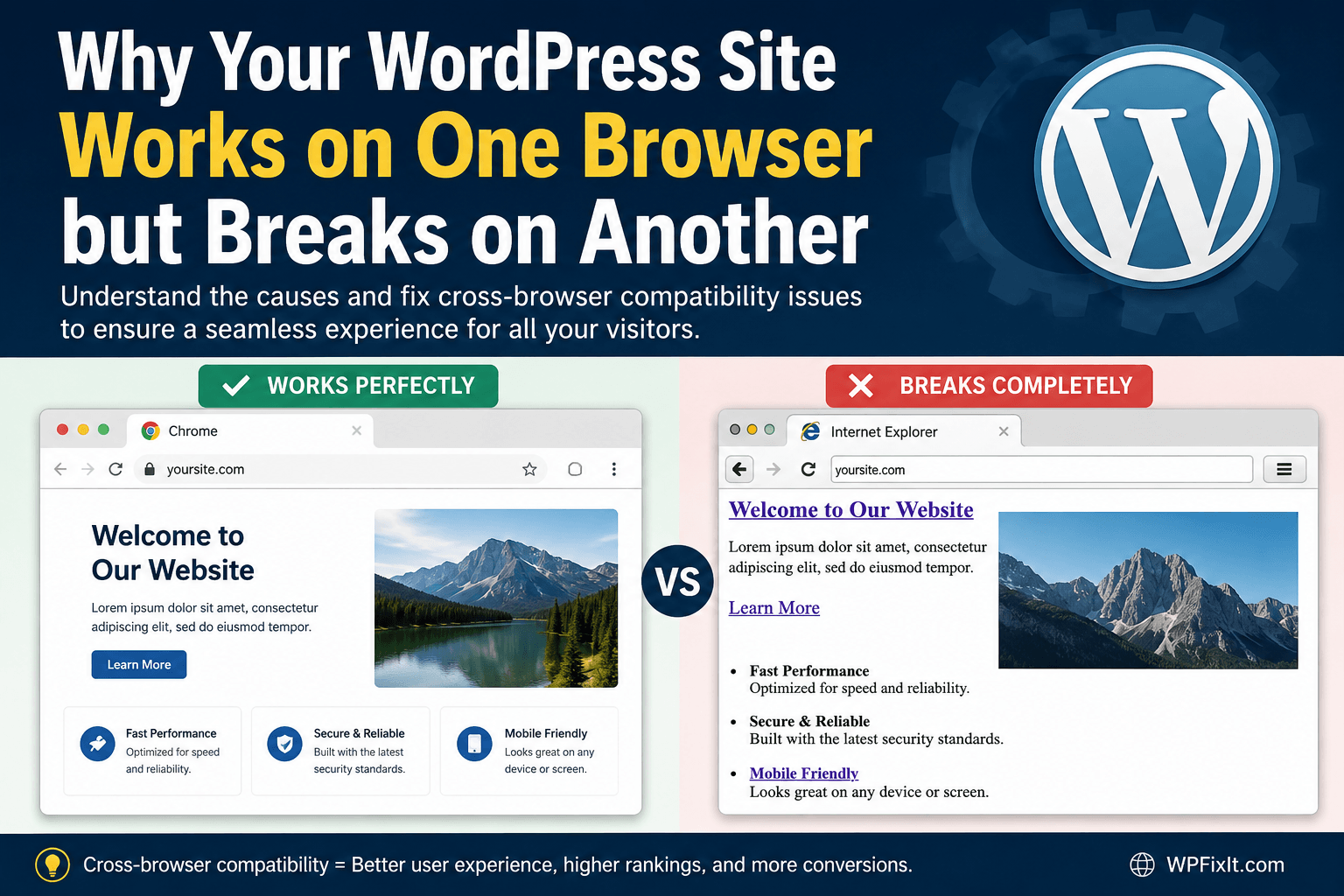

A WordPress site breaks on different browsers for reasons that can feel confusing at first. It may look perfect in Chrome but appear broken in Safari. It may load fine in Firefox but lose its layout in Microsoft Edge. Sometimes the issue is even stranger: your site works on your laptop but breaks for a customer, a client, or a mobile visitor using the same browser.
This is one of the most frustrating WordPress problems because it creates uncertainty. You cannot confidently say your site is fixed if it only works in the browser you personally use. For business owners, this can mean lost leads, abandoned carts, unreadable pages, broken forms, and a poor first impression.
The good news is that when a WordPress site breaks on different browsers, the issue usually has a logical cause. It may be browser cache, outdated CSS, unsupported code, plugin conflicts, JavaScript errors, CDN behavior, optimization settings, cookies, extensions, or mobile rendering differences. Once you understand where to look, the problem becomes much easier to isolate.
WP Fix It has been fixing WordPress issues since 2009 and offers 24/7 WordPress support for site owners who need fast help with problems like broken layouts, plugin conflicts, performance issues, and browser-specific display errors. You can explore their 24/7 WordPress support services or review their complete range of WordPress services if your site needs expert troubleshooting. (WP Fix It)
Why Browser Differences Matter for WordPress Sites
Your website visitors do not all use the same browser, device, operating system, screen size, browser extensions, internet connection, or privacy settings. A website that only works correctly in one environment is not truly stable.
Modern WordPress websites are built from many moving parts. WordPress core provides the foundation. Your theme controls layout and styling. Plugins add forms, sliders, popups, galleries, ecommerce features, analytics, security tools, and optimization settings. Your hosting server delivers the files. Your CDN may cache and rewrite assets. Your browser then interprets all of that HTML, CSS, JavaScript, images, fonts, cookies, and third-party code.
When one browser handles those files differently than another browser, the result can be a visible break.
Common symptoms include:
- Missing styles
- Broken menus
- Sliders not moving
- Forms not submitting
- Fonts displaying incorrectly
- Buttons overlapping
- Images stretching
- Mobile menus not opening
- Checkout pages freezing
- Layouts shifting
- Admin pages failing to load
- Pages showing old content
- Popups working in one browser but not another
MDN explains that cross-browser issues often come from unsupported modern features, layout problems, and differences in how browsers handle HTML, CSS, and JavaScript. Their documentation also recommends browser developer tools and compatibility checks when diagnosing these issues. (MDN Web Docs)
The Most Common Reason: Browser Cache
When a WordPress site breaks on different browsers, cache should be one of the first things you check.
A browser cache stores temporary copies of website files, such as CSS, JavaScript, images, and fonts. This helps pages load faster, but it can also cause a browser to display old files after you update your site. One browser may have the newest version of your stylesheet while another browser still loads an older version.
This is why your website may look fixed in Chrome but broken in Safari. Chrome may have refreshed the new files, while Safari may still be holding on to outdated CSS or JavaScript.
WordPress.com’s support documentation recommends force refreshing, trying an incognito/private window, and clearing browser cache when a site does not behave as expected. It also notes that an incognito window can help determine whether the issue is related to cache, cookies, or browser extensions. (WordPress.com)
Try these steps first:
- Open the broken page in a private or incognito window.
- Force refresh the page.
- Clear the browser cache.
- Test the page in another browser.
- Test the page on another device.
- Purge your WordPress cache plugin.
- Purge your hosting cache.
- Purge your CDN cache.
If the problem disappears after clearing cache, the issue was probably not the browser itself. It was likely stale files being served from one or more cache layers.
For additional help with WordPress issues caused by caching, plugin conflicts, or site instability, visit this WP Fix It guide on how to fix WordPress issues fast.
CSS Files May Not Be Loading Correctly
CSS controls the visual appearance of your WordPress website. It handles colors, spacing, typography, responsive layouts, buttons, columns, menus, headers, and more. When CSS does not load correctly, a site can look completely broken.
A CSS-related browser issue may look like:
- Plain text with no design
- Missing colors
- Huge images
- Stacked content that should be in columns
- Navigation menus appearing as bullet lists
- Mobile layouts appearing on desktop
- Desktop layouts appearing on mobile
- Buttons losing their design
- Fonts reverting to defaults
This often happens after theme updates, page builder changes, CSS minification, cache problems, or CDN issues.
Optimization plugins can also combine, defer, delay, or minify CSS files. These features can improve performance when configured correctly, but they can also break layouts when they alter files in a way that one browser handles differently.
If your WordPress site breaks on different browsers after enabling CSS optimization, turn off CSS minification, CSS combination, unused CSS removal, and critical CSS generation one setting at a time. Then clear every cache layer and retest.
Helpful external resource: MDN guide to common HTML and CSS cross-browser problems
JavaScript Errors Can Break Browser-Specific Features
JavaScript controls interactive elements on many WordPress sites. Menus, sliders, forms, accordions, popups, search filters, checkout steps, animations, and page builder widgets often depend on JavaScript.
When JavaScript breaks in one browser, the rest of the page may still appear normal, but interactive features stop working.
You may notice:
- Mobile menu does not open
- Contact form does not submit
- Add-to-cart button does nothing
- Checkout freezes
- Popup does not appear
- Slider is stuck
- Tabs do not switch
- Accordion sections do not expand
- Search filters do not update
- Page builder elements disappear
A JavaScript problem may be caused by unsupported code, a plugin conflict, a theme conflict, browser extensions, deferred loading, delayed scripts, blocked third-party scripts, or a caching/minification plugin.
MDN’s JavaScript cross-browser testing resources explain that browsers have historically handled scripting differences in ways that can create compatibility problems, especially when modern features or complex scripts are involved. (DevDoc)
To troubleshoot, open the browser’s developer tools and check the Console tab. If you see red errors, those messages can point to the file, plugin, theme, or script causing the problem.
Helpful external resource: MDN guide to common JavaScript browser problems
Browser Extensions Can Make a Site Look Broken
Sometimes the browser is not the problem. The visitor’s browser extensions are.
Ad blockers, privacy tools, script blockers, password managers, coupon extensions, translation tools, and antivirus extensions can interfere with WordPress features. They may block tracking scripts, hide popups, prevent forms from loading, disable third-party embeds, or stop JavaScript from running.
This can create a false alarm. Your website may be working correctly, but one extension makes it appear broken.
To test this, open the page in a private window with extensions disabled. Then test again in a clean browser profile. If the site works without extensions, the issue is not necessarily your WordPress installation. However, you may still want to adjust scripts or third-party tools if many visitors are likely to use blockers.
Theme Compatibility Issues
Your WordPress theme is responsible for much of your site’s front-end structure. If your theme uses outdated code, unsupported CSS, old JavaScript libraries, or browser-specific styling, your website may behave differently across browsers.
Theme-related browser problems are common after:
- Updating WordPress core
- Updating PHP
- Updating the theme
- Installing a child theme
- Adding custom CSS
- Editing template files
- Using an outdated page builder
- Switching optimization settings
- Adding new plugins that inject scripts or styles
A theme may look fine in one browser because that browser is more forgiving. Another browser may follow standards more strictly and expose the problem.
To test for a theme issue, temporarily switch to a default WordPress theme in a staging environment. Do not do this on a live business site unless you are prepared for layout changes. If the issue disappears with a default theme, your active theme or child theme likely needs attention.
If you need professional help finding whether the theme, plugin, browser, or cache layer is responsible, WP Fix It provides WordPress expert help for any task.
Plugin Conflicts Can Appear Browser-Specific
Plugins are one of the biggest strengths of WordPress, but they are also a common source of browser-specific problems.
A plugin can load its own CSS and JavaScript. Another plugin can load different CSS and JavaScript. Your theme loads more files. Your page builder loads even more. Then your optimization plugin combines or delays those files. The result can be a conflict that only appears under certain browser conditions.
Common plugin categories that can cause browser-specific issues include:
- Cache plugins
- Speed optimization plugins
- Security plugins
- Popup plugins
- Form plugins
- Slider plugins
- Page builders
- Ecommerce plugins
- Analytics plugins
- Cookie consent plugins
- Membership plugins
- Translation plugins
The best way to test plugin conflicts is to use a staging copy of the site. Disable plugins one by one, clear cache after each change, and retest in the affected browser.
Do not randomly disable plugins on a live ecommerce, membership, booking, or lead generation site without understanding the impact. You could interrupt payments, forms, logins, or customer access.
CDN and Server Cache Issues
A CDN can improve site speed by serving files from locations closer to your visitors. However, a CDN can also serve outdated or mismatched files if cache purging is not working correctly.
For example, your HTML may update, but the CDN may still serve an old CSS file. One browser may request a fresh file, while another browser may use a cached version. This creates a mismatch between the page structure and the styling or scripts required to display it.
This can make your WordPress site break on different browsers even though the real issue is cache synchronization.
Check these areas:
- CDN cache
- WordPress cache plugin
- Hosting page cache
- Object cache
- Browser cache
- Minified CSS and JavaScript files
- Generated page builder CSS files
- Font files
- Image optimization files
After major design changes, purge all cache layers. Then test in multiple browsers using private windows.
Mobile Browser Differences
Desktop browser testing is not enough. Mobile Safari, Chrome on Android, Samsung Internet, Firefox Mobile, and in-app browsers can all behave differently.
A site may work perfectly on desktop Chrome but break on iPhone Safari. That does not always mean Safari is “wrong.” It may mean your CSS, viewport settings, sticky elements, animations, or JavaScript events are not mobile-friendly.
Mobile-specific symptoms include:
- Menu icon does not respond
- Sticky header covers content
- Buttons are too close together
- Forms are hard to use
- Checkout fields zoom unexpectedly
- Popups cover the entire screen
- Images overflow the page
- Horizontal scrolling appears
- Font sizes look inconsistent
- Tap events do not trigger properly
Always test important pages on real mobile devices when possible. Browser emulators are helpful, but real devices often reveal issues that desktop tools miss.
Unsupported CSS or JavaScript Features
Modern web design often uses newer CSS and JavaScript features. Most current browsers support many modern features, but not all features are supported equally across every browser and browser version.
This can cause a design to work in one browser but fail in another.
Examples include:
- New CSS selectors
- Advanced grid or flexbox behavior
- Experimental CSS properties
- JavaScript APIs
- Lazy loading behavior
- Form input types
- Animation features
- Media queries
- Web fonts
- Image formats
MDN notes that browser compatibility data is available for documented web features and recommends checking browser support when using newer HTML, CSS, or APIs. (MDN Web Docs)
Helpful external resource: Can I Use browser support tables
Mixed Content and HTTPS Problems
A WordPress site may break in one browser because some files are loading over HTTP while the main site loads over HTTPS. This is called mixed content.
Some browsers may block insecure files more aggressively than others. If a blocked file is a stylesheet or JavaScript file, the page may lose its design or functionality.
Mixed content often happens after:
- Moving from HTTP to HTTPS
- Changing domains
- Migrating hosts
- Restoring old backups
- Hard-coding file URLs
- Using outdated theme settings
- Loading external scripts incorrectly
Check the browser console for mixed content warnings. Also review your WordPress Address and Site Address settings, database URLs, theme options, and page builder links.
Font Rendering Differences
Sometimes a site is not technically broken, but it looks different enough that the owner thinks something is wrong.
Fonts can render differently between browsers and operating systems. Chrome on Windows may display a font slightly differently than Safari on macOS. Line height, font smoothing, fallback fonts, and font loading behavior can all affect the final appearance.
If your design depends on exact text spacing, these differences can cause buttons, headings, or navigation items to wrap unexpectedly.
To reduce font problems:
- Use reliable web font loading
- Define fallback fonts
- Avoid overly tight spacing
- Test navigation labels at multiple widths
- Avoid fixed-height containers for dynamic text
- Use responsive typography
Image Format Compatibility
Modern image formats can improve performance, but not every browser handles every format the same way, especially on older devices.
If your site uses WebP, AVIF, lazy loading, CDN image rewriting, or responsive image generation, test across browsers. A broken image may not be a WordPress media library problem. It may be an image format, CDN, or optimization issue.
Make sure fallback images are available when using advanced formats.
Cookies, Privacy Settings, and Login Issues
Browser privacy settings can affect WordPress behavior. This is especially true for logged-in users, membership sites, ecommerce checkouts, learning management systems, and sites using third-party embeds.
A browser that blocks certain cookies may prevent:
- Logins
- Cart sessions
- Checkout sessions
- Form confirmations
- Admin previews
- Personalization
- Embedded tools
- Analytics-based features
WordPress.com’s browser troubleshooting documentation notes that cookies can affect WordPress functionality and that clearing browser-specific cache or cookies can help diagnose some issues. (WordPress.com)
How to Diagnose a WordPress Site That Breaks on Different Browsers
Use this practical troubleshooting process.
Step 1: Confirm the Problem
Test the same page in at least three browsers. Try Chrome, Firefox, Safari, and Edge when available. Also test on mobile.
Write down:
- Browser name
- Browser version
- Device
- Operating system
- Page URL
- What breaks
- Whether the issue happens in private mode
- Whether the issue happens when logged out
Step 2: Clear Cache Everywhere
Clear browser cache, WordPress cache, hosting cache, CDN cache, and generated CSS files from page builders or optimization plugins.
Then test again.
Step 3: Check the Browser Console
Open developer tools and review Console errors. JavaScript errors, blocked files, mixed content warnings, missing CSS files, and failed network requests can reveal the source.
Step 4: Disable Optimization Settings
Temporarily disable:
- CSS minification
- JavaScript minification
- CSS combination
- JavaScript combination
- Deferred JavaScript
- Delayed JavaScript
- Unused CSS removal
- Lazy loading
- CDN rewriting
Clear cache and retest after each change.
Step 5: Test Plugins Safely
Use a staging site when possible. Disable plugins one by one and retest the affected browser.
Start with cache, performance, security, popup, form, slider, and page builder add-ons.
Step 6: Test the Theme
Switch to a default theme in staging. If the issue disappears, inspect your theme templates, custom CSS, child theme edits, and theme JavaScript.
Step 7: Check External Scripts
Third-party scripts can break specific browsers. Review analytics, chat widgets, ad scripts, social embeds, maps, cookie banners, and marketing pixels.
Step 8: Get Expert WordPress Help
If the issue affects leads, sales, checkout, mobile users, or a client project, do not spend days guessing. Browser-specific issues can become expensive when they cost conversions.
WP Fix It offers fast WordPress issue repair and WordPress services for troubleshooting complex site problems.
How to Prevent Browser-Specific WordPress Problems
Prevention is better than emergency repair.
Use these best practices:
- Keep WordPress core updated
- Keep plugins updated
- Keep your theme updated
- Remove unused plugins
- Avoid poorly maintained plugins
- Use a staging site before major updates
- Test important pages after updates
- Test checkout and forms regularly
- Avoid aggressive optimization settings without testing
- Use browser-compatible CSS and JavaScript
- Purge all caches after design changes
- Monitor console errors
- Test on mobile devices
- Keep backups before major changes
Also avoid editing live theme files directly. Use a child theme or custom code management process when needed.
When This Problem Becomes Urgent
A browser-specific display issue may seem minor until it affects business-critical pages.
Treat it as urgent if it affects:
- Homepage
- Contact page
- Checkout page
- Cart page
- Login page
- Registration page
- Booking page
- Product pages
- Lead generation forms
- Landing pages
- Mobile navigation
- Paid ad traffic pages
If visitors cannot use your site, the issue is not cosmetic. It is a conversion and revenue problem.
Final Thoughts
When a WordPress site breaks on different browsers, the cause is usually hidden somewhere in the chain of browser cache, CSS, JavaScript, plugins, theme files, CDN settings, optimization tools, cookies, browser extensions, or unsupported code.
The key is to troubleshoot systematically instead of guessing. Start with cache. Test private windows. Check console errors. Disable optimization settings carefully. Test plugins and themes in staging. Review CDN behavior. Confirm the issue on real devices.
A stable WordPress site should work consistently for your visitors, not just for you. If your site looks fine in one browser but broken in another, fix it before it costs leads, sales, trust, or search visibility.
For fast professional help, visit WP Fix It’s 24/7 WordPress support team or explore their complete WordPress repair and support services.
How to Troubleshoot WordPress Problems in Chrome, Firefox, and Safari
When a WordPress site has a Chrome, Firefox, or Safari problem, first determine whether the failure affects the browser itself or a specific browser profile, device, or visitor condition. Test the same URL in a private or incognito window, with extensions disabled, and while logged out of WordPress. If the page works there, cached files, cookies, an extension, or a logged-in toolbar script may be involved.
- Record the exact difference. Note whether the problem is a missing layout, broken menu, failed form, blank area, old content, or checkout error. Test the same page and action in at least two browsers.
- Check the browser console. Open Developer Tools and review the Console for red JavaScript errors, blocked files, mixed-content warnings, or messages naming a plugin, theme asset, or third-party service. In the Network tab, reload the page and look for CSS or JavaScript files that return errors instead of loading successfully.
- Clear every relevant cache. Purge the browser, WordPress cache plugin, hosting cache, CDN cache, and generated page-builder files. A new HTML file combined with an old CSS or JavaScript file can make Chrome appear fixed while Firefox or Safari still shows the broken version.
- Test optimization settings. Temporarily disable CSS and JavaScript minification, combination, delay, or defer options. If the issue disappears, restore these settings one at a time and exclude the failing file or feature rather than leaving every optimization disabled.
- Test on the affected device. Safari on iPhone or Mac can expose viewport, touch, font, sticky-header, and mobile menu issues that desktop testing misses. Firefox may also reveal standards or compatibility problems hidden by another browser.
If the problem remains, reproduce it on a staging copy and deactivate plugins one at a time, then test with a default theme. Keep a record of each change and clear caches after each test so you can identify whether the cause is the theme, a plugin, custom code, or an external script.