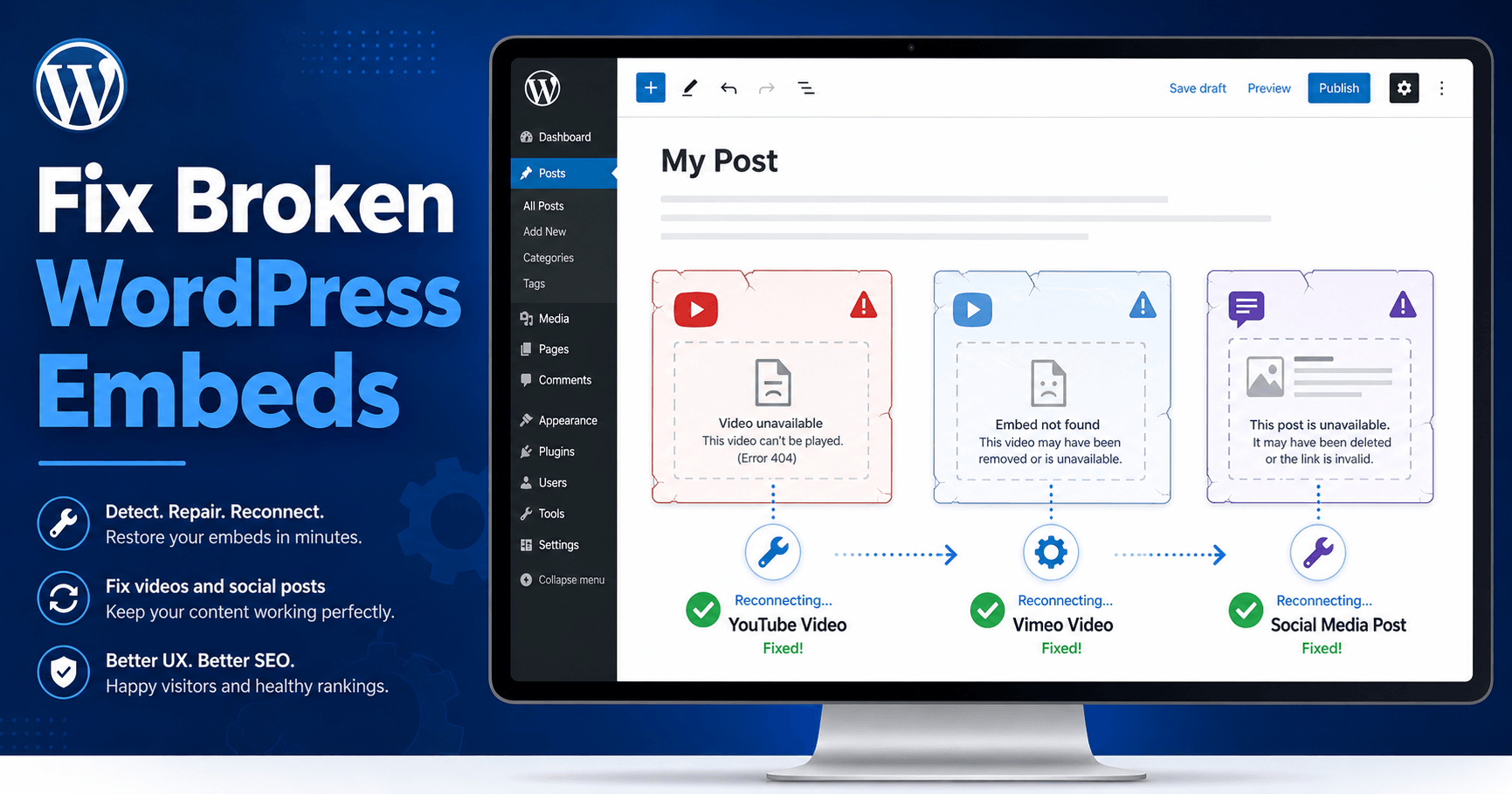

Fix broken embeds in WordPress quickly by checking the embed URL, confirming the platform still supports embedding, clearing cache, testing for plugin or theme conflicts, and making sure WordPress can connect to the external content provider. Broken YouTube videos, Vimeo players, Facebook posts, Instagram posts, X posts, TikTok embeds, podcast players, and other embedded content can fail for several different reasons, but most issues follow a predictable troubleshooting path.
WordPress embeds are designed to make publishing rich media simple. In many cases, you can paste a supported URL directly into the editor, and WordPress automatically converts it into an embedded video, post, playlist, or media card. WordPress.org explains that embeds let you display content from third-party sites without uploading that content directly to your own website. (WordPress.org)
That simplicity is great when everything works. But when embeds break, they can leave your page looking unfinished, slow, or untrustworthy. Instead of a video player or social post, visitors may see a blank space, a raw URL, a gray placeholder, a “sorry, this content could not be embedded” message, or a layout that shifts awkwardly as the page loads.
This guide walks through how to fix broken embeds in WordPress for YouTube, Vimeo, and social posts using a practical checklist you can follow even if you are not a developer.
Need expert help right away? WP Fix It offers fast WordPress repair services through emergency WordPress support and broader WordPress support services.
Why WordPress Embeds Break
Before you try random fixes, it helps to understand what WordPress is doing behind the scenes.
When you paste a YouTube, Vimeo, or social post URL into WordPress, your site often relies on an embed system called oEmbed. The basic idea is simple: WordPress sends the content URL to the provider, the provider returns the proper embed code, and WordPress displays that content in your post or page.
The problem is that several things can interrupt that process. The external platform may block the embed. The post may have been deleted or made private. A security plugin may block the connection. A caching or optimization plugin may delay or break scripts. A theme may apply CSS that hides the iframe. A privacy tool may block third-party cookies. A browser extension may interfere while you are testing.
Broken embeds are especially common after:
Recent WordPress core updates
Plugin or theme updates
Page builder updates
Security hardening changes
Migration to a new domain
Switching from HTTP to HTTPS
Changing CDN or caching settings
Adding cookie consent tools
Editing a reusable block or template
Changing social media post privacy settings
If the issue started after an update, migration, or plugin change, that recent change is the first place to investigate.
For general WordPress troubleshooting, WP Fix It’s guide on how to fix WordPress errors is a useful companion resource.
Common Signs of Broken WordPress Embeds
You may need to fix broken embeds in WordPress if you see any of these symptoms:
A YouTube URL appears as plain text instead of a video player
A Vimeo video shows a blank box
A Facebook or Instagram post no longer loads
A TikTok embed displays only a link
The editor says the content cannot be embedded
The front end looks different from the editor preview
The embed works while logged in but not for visitors
The embed works on desktop but not mobile
The embed loads only after refreshing the page
The video player appears but will not play
A privacy or cookie message replaces the embed
The embed disappears after saving the page
These symptoms do not all have the same cause, so the fastest approach is to narrow the issue step by step.
Step 1: Confirm the Original Embed URL Still Works
Start with the simplest possible test: open the original YouTube, Vimeo, or social post URL in a private browser window.
For YouTube, make sure the video is public or unlisted and still available. Deleted, private, age-restricted, region-blocked, or copyright-restricted videos may not embed correctly for all visitors.
For Vimeo, check whether the video owner has restricted embedding. Vimeo gives creators privacy and domain-level controls, so a video can be viewable on Vimeo but blocked from embedding on your website. Vimeo’s own WordPress embedding guidance recommends using the full video URL or a dedicated Vimeo block when embedding videos in WordPress. (Vimeo)
For social posts, check whether the post still exists and is publicly visible. Social embeds often fail when the account becomes private, the post is deleted, the platform changes its embed rules, or the post requires login to view.
A good rule: if the content does not work in a private browser window, WordPress is probably not the primary problem.
Step 2: Use the Clean Share URL, Not Tracking or Admin URLs
One of the easiest ways to fix broken embeds in WordPress is to replace messy URLs with clean public URLs.
For YouTube, use the normal watch URL or share URL. Avoid URLs copied from YouTube Studio, playlist management screens, analytics pages, or URLs loaded with extra tracking parameters.
Good YouTube examples:
https://www.youtube.com/watch?v=VIDEOIDhttps://youtu.be/VIDEOID
For Vimeo, use the public video page URL when possible:
For social posts, copy the public post URL directly from the platform’s share option. Avoid copying a logged-in admin, mobile app redirect, or notification URL.
After replacing the URL, update the page and test again in a private browser.
WordPress.com’s Embed Block documentation also notes that users can add videos, music, and social media content from supported platforms directly through the Embed block. (WordPress.com)
Step 3: Try the Correct WordPress Embed Block
WordPress can auto-convert URLs, but you may get better results by choosing the correct block manually.
In the WordPress block editor:
Click the plus button to add a block.
Search for YouTube, Vimeo, Embed, Facebook, Instagram, TikTok, or the relevant platform.
Paste the public URL into that block.
Click Embed.
Save or update the page.
Preview the page in a private browser window.
WordPress.org has dedicated documentation for embed blocks, including the general Embed block and Vimeo Embed block. (WordPress.org)
If the dedicated YouTube block fails, try the generic Embed block. If the generic Embed block fails, try the dedicated YouTube block. This small switch often forces WordPress to rebuild the embed correctly.
For YouTube specifically, WordPress.com’s YouTube block guide explains that users can add a YouTube block and paste a YouTube URL into the block to generate the embed. (WordPress.com)
Step 4: Clear Every Cache Layer
Caching is one of the most common reasons an embed looks broken even after you have fixed it.
Clear these cache layers in order:
Your WordPress caching plugin
Your page builder cache, if used
Your theme cache, if available
Your hosting cache
Your CDN cache
Your browser cache
Then test the page in a private browser window.
Caching can make troubleshooting confusing because you may be looking at an older version of the page. If your embed was broken yesterday, fixed today, but still appears broken to visitors, cache is a strong suspect.
WP Fix It has helpful cache and loading-related troubleshooting content, including fixing WordPress stuck on loading in wp-admin and resolving WordPress 500 and 503 errors.
Step 5: Check Mixed Content Problems After HTTPS Changes
If your site recently moved from HTTP to HTTPS, old embeds may still reference insecure HTTP resources. Modern browsers often block insecure content on secure pages.
To check this:
Open the page in Chrome, Firefox, or Edge.
Right-click and choose Inspect.
Open the Console tab.
Look for mixed content warnings.
If you see blocked HTTP resources, update the embed URLs to HTTPS. You may also need to run a safe search-and-replace on old content URLs.
Be careful with database search-and-replace operations. Always create a full backup before changing URLs across your site.
Step 6: Disable Lazy Loading for Problem Embeds
Lazy loading can improve performance, but aggressive lazy loading can break video iframes and social scripts.
Some performance plugins delay iframes, JavaScript, or third-party embeds until user interaction. This can cause blank spaces where YouTube, Vimeo, or social posts should appear.
Check your performance plugin settings for options such as:
Lazy load iframes
Delay JavaScript
Defer JavaScript
Optimize YouTube embeds
Replace YouTube iframe with preview image
Delay third-party scripts
Remove unused JavaScript
Combine JavaScript
Minify JavaScript
Temporarily disable these features and test the page again.
If the embed works after disabling optimization, turn settings back on one by one until the problem returns. Then exclude the affected embed, iframe, script, or page from optimization.
Step 7: Test for Plugin Conflicts
Plugin conflicts are another major reason you may need to fix broken embeds in WordPress.
Plugins that commonly affect embeds include:
Caching plugins
Performance optimization plugins
Security plugins
Cookie consent plugins
Ad blockers or ad management plugins
Page builders
Shortcode plugins
Social sharing plugins
Video gallery plugins
Membership plugins
Firewall plugins
WordPress Learn recommends troubleshooting plugin and theme conflicts as part of diagnosing common WordPress issues. (Learn WordPress)
A safe testing method is:
Create a full backup.
Use a staging site if available.
Deactivate non-essential plugins temporarily.
Test the broken embed.
Reactivate plugins one at a time.
Test after each reactivation.
When the embed breaks again, the last plugin you activated is likely involved.
Do not perform conflict testing on a busy live store or membership site without a backup or staging environment. If you are not comfortable doing this yourself, use WP Fix It’s WordPress troubleshooting service.
Step 8: Test Your Theme
Themes can break embeds through CSS, JavaScript, template overrides, or custom iframe styling.
To test this safely, switch temporarily to a default WordPress theme on a staging site. If the embed works with the default theme, your active theme is likely affecting the output.
Look for theme CSS that targets:
iframe.wp-block-embed.wp-block-embed__wrapper.is-provider-youtube.is-provider-vimeo.embed-responsive.video-container
Common theme-related issues include:
Iframe height set to zero
Overflow hidden cutting off the player
Z-index hiding the player behind another element
Lazy animation hiding the block
Mobile CSS collapsing the embed
Aspect ratio wrappers applied incorrectly
A quick CSS fix may solve the issue, but do not edit theme files directly unless you are using a child theme or custom CSS area.
Step 9: Check Cookie Consent and Privacy Tools
Cookie consent plugins can block YouTube, Vimeo, Facebook, Instagram, X, TikTok, and other embeds until a visitor accepts tracking or marketing cookies.
This may be intentional. Many embedded platforms set cookies or load third-party scripts. Your cookie plugin may replace the embed with a placeholder until consent is granted.
Check whether your cookie tool has settings for:
YouTube embeds
Vimeo embeds
Social media embeds
Marketing cookies
Third-party iframe blocking
Prior consent mode
Script blocking
Placeholder text
Allowed services
If the embed is not truly broken but blocked for privacy reasons, customize the placeholder message so visitors understand what to do.
For example:
“This video is blocked until you accept marketing cookies. Please update your cookie preferences to view it.”
This is better than a blank white area that looks like a website error.
Step 10: Verify the Embed Works Outside Your Page Builder
Page builders can add another layer of complexity. Elementor, Divi, Beaver Builder, WPBakery, and other builders may use their own video widgets or shortcode systems.
To isolate the problem:
Create a new draft post using the default WordPress editor.
Paste the same embed URL into a standard Embed block.
Preview the draft.
If the embed works in the default editor but not inside the page builder, the issue is probably related to the builder widget, builder cache, custom layout, or optimization settings.
Try replacing the builder’s video widget with a plain HTML block or shortcode only as a test. If that works, check the builder’s video module settings.
Step 11: Fix YouTube Embeds Specifically
YouTube embeds are usually reliable, but they can still fail.
To fix broken embeds in WordPress for YouTube:
Use the public YouTube watch URL.
Remove tracking parameters from the URL.
Confirm the video is public or unlisted.
Check for age, copyright, or region restrictions.
Use the YouTube block instead of a generic paragraph.
Disable iframe lazy loading temporarily.
Clear all cache layers.
Check browser console errors.
Test with a default theme.
Exclude YouTube scripts from JavaScript delay settings.
If your site uses a plugin that replaces YouTube iframes with preview thumbnails, temporarily disable that feature. Those features improve speed but can break if YouTube changes output, if JavaScript is delayed too aggressively, or if the preview image is blocked.
Step 12: Fix Vimeo Embeds Specifically
Vimeo embeds often break because of video privacy settings.
To fix Vimeo embeds:
Confirm the video is still live.
Check whether the video is private.
Ask the video owner whether domain-level embed restrictions are enabled.
Use the full Vimeo URL.
Try the Vimeo block.
Clear WordPress and CDN cache.
Disable iframe lazy loading temporarily.
Check whether your cookie consent tool blocks Vimeo.
Test from a different browser and network.
Vimeo’s WordPress guidance says users can embed by copying the complete video URL and pasting it into the WordPress editor or using the dedicated Vimeo block. (Vimeo)
If a Vimeo video works on Vimeo.com but not your website, privacy and domain restrictions are highly likely.
Step 13: Fix Facebook, Instagram, X, TikTok, and Other Social Embeds
Social embeds are more fragile than video embeds because social platforms frequently change privacy rules, APIs, and script behavior.
To fix social post embeds:
Confirm the post is public.
Confirm the account is not private.
Copy a fresh post URL.
Use the correct embed block or generic Embed block.
Disable script delay temporarily.
Check whether a cookie plugin blocks social scripts.
Clear cache.
Test while logged out of the social platform.
Test in a private browser window.
Try embedding a different public post from the same platform.
If one post fails but another works, the issue is likely the post itself. If all posts from that platform fail, the issue is more likely WordPress, a plugin, a theme, or a platform-wide change.
Step 14: Look for JavaScript Errors
Many broken embeds are actually JavaScript problems.
Open the browser developer tools, go to the Console tab, and reload the page. Look for errors related to:
Blocked scripts
Content Security Policy
Mixed content
CORS
Iframe loading
jQuery errors
Optimization plugin files
Cookie consent scripts
Page builder scripts
You do not need to understand every error, but you are looking for patterns. If the console shows errors from a performance plugin, security plugin, or theme file, that gives you a strong starting point.
Step 15: Check Security Headers and Firewall Rules
Advanced security settings can block iframes or external scripts.
Check whether your site, host, CDN, or security plugin uses headers such as:
Content-Security-Policy
X-Frame-Options
Permissions-Policy
Referrer-Policy
A strict Content Security Policy can block YouTube, Vimeo, or social scripts unless the provider domains are allowed. This is more common on hardened business sites, membership platforms, enterprise sites, and sites using advanced firewall/CDN rules.
If you recently added security headers and embeds broke immediately afterward, review those header rules.
Step 16: Repair Embeds After a Migration
Embeds may break after moving a WordPress site to a new domain, server, or staging environment.
Check for:
Old domain URLs in content
HTTP links on an HTTPS site
Serialized data issues from migration
Blocked staging URLs
Password-protected staging environments
CDN still pointing to old assets
Firewall blocking external requests
Database search-and-replace mistakes
If your embeds worked before migration and failed after launch, compare the old and new environments. The difference is usually in SSL, caching, firewall rules, or changed content URLs.
For migration-related repair help, WP Fix It’s WordPress migration services can help identify what changed.
Step 17: Replace Broken Shortcodes
Older WordPress sites often use embed shortcodes or plugin-specific shortcodes.
Examples include:
https://www.youtube.com/watch?v=VIDEOID[youtube]VIDEOID[/youtube][vimeo]VIDEOID[/vimeo]
Some old shortcode plugins are no longer maintained. If those plugins are removed or outdated, the shortcode may appear as plain text.
To fix this, replace old shortcodes with modern WordPress blocks where possible. This makes your content less dependent on a single plugin.
Step 18: Make Embeds Responsive on Mobile
Sometimes an embed is not technically broken. It just looks broken on mobile because it is too wide, cut off, or squeezed.
Check the page on several screen sizes. If the player appears on desktop but not mobile, inspect the CSS.
A common responsive wrapper looks like this:
.responsive-embed {
  position: relative;
  width: 100%;
  padding-bottom: 56.25%;
  height: 0;
  overflow: hidden;
}

.responsive-embed iframe {
  position: absolute;
  top: 0;
  left: 0;
  width: 100%;
  height: 100%;
  border: 0;
}
Use custom CSS carefully. Many modern WordPress themes already handle responsive embeds, so adding extra wrappers can sometimes create duplicate styling problems.
Step 19: Rebuild the Embed Block
If a single embed block is corrupted, rebuilding it may be faster than troubleshooting the whole site.
Open the page editor.
Copy the original URL into a temporary note.
Delete the broken embed block.
Save the page.
Clear cache.
Add a new embed block.
Paste the clean URL.
Update the page.
Test again.
This forces WordPress to regenerate the block markup.
Step 20: When to Use Manual Embed Code
Most of the time, pasting the URL is better than using manual iframe code. But manual embed code can help when the platform gives you special settings, privacy-enhanced options, or responsive parameters.
Use manual embed code only from the official platform source. Do not paste iframe code from unknown sites.
In WordPress, add a Custom HTML block and paste the official embed code. Then preview the page. If it works, the oEmbed request may be failing while direct iframe output still works.
Preventing Broken Embeds in the Future
Once you fix broken embeds in WordPress, take a few preventive steps.
Use public, clean URLs.
Avoid embedding content from accounts that may become private.
Keep WordPress, themes, and plugins updated.
Test important pages after optimization plugin changes.
Document performance exclusions for video and social embeds.
Use staging before major updates.
Keep a backup before database changes.
Avoid relying on abandoned shortcode plugins.
Review cookie consent behavior after privacy plugin updates.
For high-value landing pages, check embedded videos and social proof manually once a month. This is especially important for sales pages, webinar pages, course pages, portfolio pages, and homepage sections.
WP Fix It also provides WordPress maintenance services for site owners who want ongoing monitoring and support.
Quick Troubleshooting Checklist
Use this checklist when you need to fix broken embeds in WordPress fast:
Open the original URL in a private browser.
Confirm the content is public and still available.
Replace the URL with a clean share URL.
Use the correct WordPress embed block.
Clear WordPress, hosting, CDN, and browser cache.
Check HTTPS and mixed content warnings.
Disable lazy loading for iframes temporarily.
Pause JavaScript delay or defer settings.
Test plugin conflicts.
Test with a default theme.
Check cookie consent settings.
Look for JavaScript console errors.
Review firewall and security headers.
Rebuild the embed block.
Try official manual embed code if needed.
Final Thoughts
Broken embeds can make a polished WordPress page look neglected, but the fix is usually within reach. Start with the original content URL, then move through cache, block settings, plugin conflicts, theme styling, privacy tools, and security rules. Most YouTube, Vimeo, and social post embed problems come down to one of those areas.
The key is to troubleshoot in order. Do not change five things at once. Make one change, test in a private browser, then continue. That method helps you find the real cause instead of creating a new problem.
If you want the problem handled by WordPress repair specialists, visit WP Fix It for fast WordPress support or use their WordPress emergency service.
What “Embed Failure” and “Embedding Has Been Blocked” Mean
An embed failure means WordPress or the external platform could not load the media or post inside your page. It does not always mean that your WordPress site is broken. The source content may be unavailable, the provider may reject embedding, or a plugin, browser, cache, or privacy setting may interrupt the request.
If you see “Error 2013: Embed code time expired. Please reload this page”, the embed request did not finish before it expired. Reload the editor once, then confirm that the source URL opens in a private browser window. Replace the block with the clean public URL, save the page, and clear your WordPress, hosting, CDN, and browser caches. If the error returns, temporarily test with caching, JavaScript delay, lazy-loading, security, and cookie-consent features disabled. Re-enable them one at a time to identify the setting that interrupts the request.
“Embedding has been blocked” usually means the content provider, your privacy tool, or your browser refused to load third-party content. Check these possibilities:
- The video or post is private, deleted, age-restricted, region-restricted, or requires a login.
- The content owner has disabled embedding or limited it to approved domains.
- A cookie-consent plugin is waiting for marketing or third-party-content consent.
- A security plugin, firewall, browser extension, or network policy is blocking the iframe or script.
- Your page uses an outdated, redirected, or administrative URL instead of the public share URL.
Test the page while logged out and in a private browser window. If a consent message says you have not consented to third-party content embeds, the embed may be working as configured rather than failing. Accept the relevant consent category or use the site’s privacy settings, then reload the page. If the content appears after consent, adjust the consent plugin’s approved services and placeholder text rather than removing the protection entirely.
If the same public URL fails in a new Embed block and on a staging site with optimization features disabled, check the provider’s availability and embedding restrictions before changing theme files or site code.