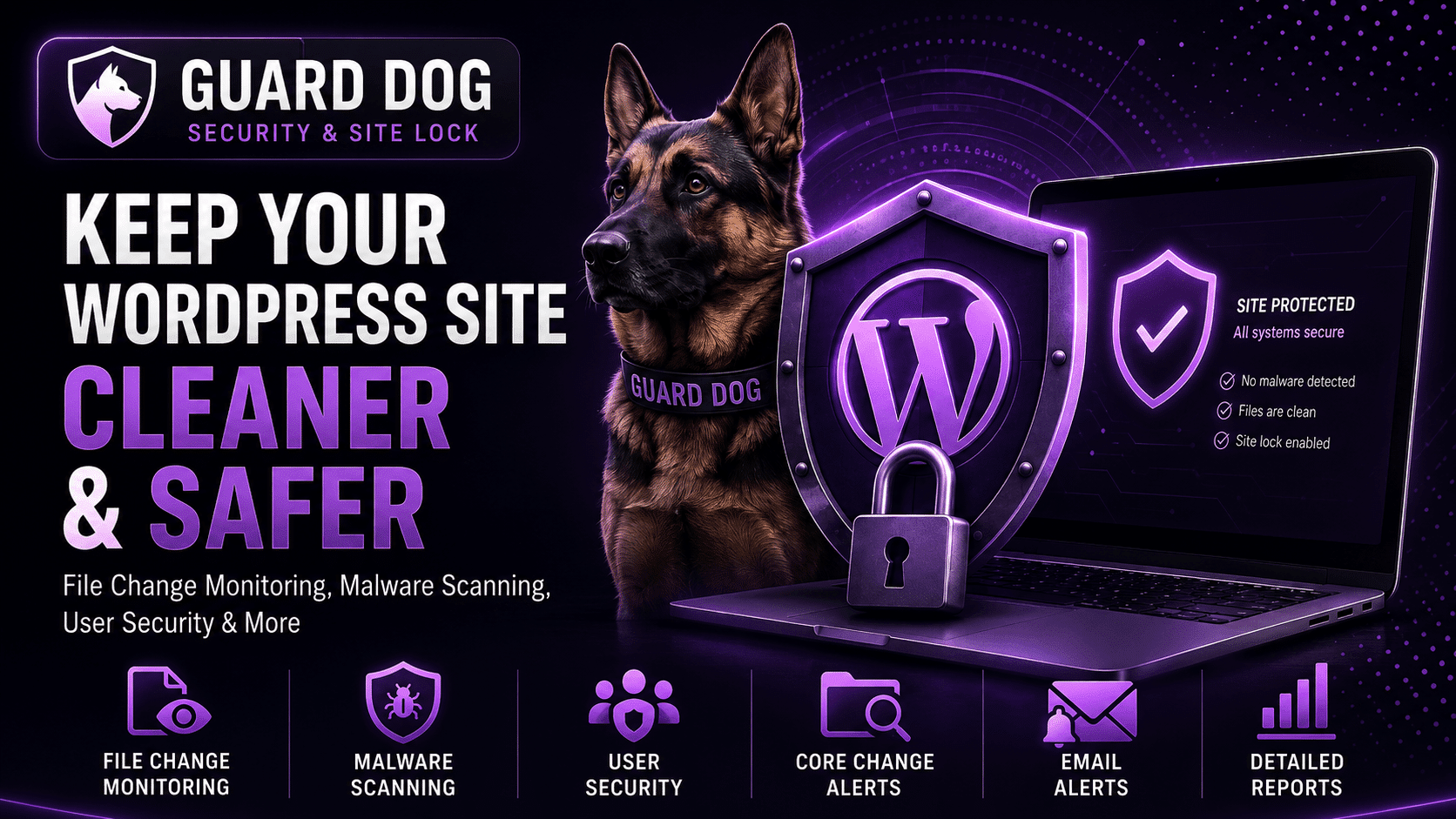

Guard Dog Security & Site Lock helps WordPress administrators keep websites cleaner, safer, and easier to audit from the dashboard. For many site owners, the biggest WordPress security concern is not always the obvious problem. It is the hidden folder, the leftover plugin directory, the unexpected PHP file in uploads, the modified core file, or the silent file change that no one notices until a bigger issue appears.
WordPress is powerful because it is flexible. Themes, plugins, uploads, database tables, media files, custom snippets, integrations, and server files all work together to create a complete website. That same flexibility also means a WordPress installation can collect clutter over time. Old plugin folders can remain after uninstallations. Theme files can be abandoned after redesigns. Upload directories can contain files that no longer belong there. The .htaccess file can be modified by plugins, migrations, malware, or server changes. A database can store suspicious content after an injection. When these areas are ignored, a WordPress site becomes harder to trust and harder to maintain.
That is where Guard Dog Security & Site Lock is useful. The plugin, available on WordPress.org, is built by WP Fix It and currently lists features including file and folder auditing, Site Lock protection, infection scanning, cleanup tools, database table scanning, security headers, user security settings, reporting, and tools for reviewing important WordPress directories. The WordPress.org listing says the plugin scans key locations such as the WordPress root, wp-content, plugins, themes, uploads, .htaccess files, and database tables. (WordPress.org)
Why WordPress sites need cleaner file visibility
A clean WordPress installation is easier to secure because administrators can understand what belongs and what does not. The problem is that the regular WordPress dashboard does not always show the full picture. The Plugins screen shows installed plugins that WordPress recognizes. The Themes screen shows recognized themes. The Media Library shows uploaded media. But those screens do not always reveal every folder and file that exists on disk.
For example, a plugin directory can remain inside wp-content/plugins/ after a failed uninstall. A theme folder can stay on the server long after the site has changed designs. A file can be uploaded outside the normal media process. A PHP file can exist where only images or documents should be present. A hidden or unfamiliar directory can sit quietly until someone investigates the file system.
The official WordPress hardening documentation emphasizes file permissions, access control, and protecting critical configuration files as part of a secure WordPress setup. It also notes that permissions that are too restrictive can break functionality, which is why administrators need visibility and care when changing file access. (WordPress Developer Resources)
Guard Dog Security & Site Lock gives administrators a dashboard-based way to inspect important parts of the installation instead of relying only on what WordPress lists in standard admin screens. That matters because WordPress cleanup is not only about deleting obvious junk. It is about knowing what exists, understanding whether it belongs, and making informed decisions before taking action.
For additional help when a site is already infected, WP Fix It offers a dedicated WordPress malware removal service and has published a WordPress malware removal guide that explains the importance of removing infections quickly and correctly.
What Guard Dog Security & Site Lock does
According to the WordPress.org plugin listing, Guard Dog Security & Site Lock takes a disk-first approach by crawling a WordPress installation and inventorying files and folders rather than only relying on what WordPress displays in the admin. The listing describes actions such as viewing contents, ignoring known items, deleting items that are not needed, or downloading a copy for backup or investigation. (WordPress.org)
The plugin’s listed scan areas include:
WordPress root directory
This is the main installation folder where core files, configuration files, and site-level server files can exist.
wp-content folder
This area contains themes, plugins, uploads, cache folders, language files, and other content-related directories.
Plugins folder
This area can reveal plugin folders that are no longer listed on the normal Plugins screen.
Themes folder
This area can show old, unused, invalid, or unfamiliar theme directories.
Uploads folder
This area deserves special attention because uploads should typically contain media and documents, not executable scripts.
.htaccess files
The .htaccess file can affect redirects, permalinks, access rules, and server behavior on Apache-based environments.
Database tables
The plugin listing also mentions database table scanning, which is important because infections and unwanted content are not always limited to files. (WordPress.org)
This combination makes Guard Dog Security & Site Lock more than a simple folder viewer. It is positioned as a WordPress security and auditing suite that helps site administrators review what is present, identify suspicious leftovers, and take cleaner control of the site structure.
The Site Lock feature and why it matters
One of the most important features in Guard Dog Security & Site Lock is Site Lock. The plugin listing describes Site Lock as a way to lock folders and files in the installation and make them read-only. The goal is to stop new files from being added, existing files from being changed, or files from being removed while the lock is active. (WordPress.org)
This is useful because many WordPress attacks involve unauthorized file changes. An attacker may try to add a backdoor, modify a plugin file, inject code into a theme, place a hidden script in uploads, or alter server configuration files. When a site’s file structure can be changed freely, a compromised admin account, vulnerable plugin, weak file upload process, or server misconfiguration can become more dangerous.
Site Lock does not replace strong hosting, updates, backups, firewalls, malware cleanup, or secure passwords. Instead, it adds another layer of control. When a site is stable and no file changes are expected, administrators can lock files. When updates or maintenance are needed, they can unlock the system, perform the work, and then reapply the lock.
This approach fits the principle of reducing unnecessary write access. WordPress documentation on file permissions explains that permissions should be set carefully because files must be accessible enough for the site to function but not so open that they create unnecessary risk. (WordPress Developer Resources)
For site owners who want professional help hardening a WordPress site after cleanup, WP Fix It’s WordPress security service is a strong internal link to include near this section.
Why leftover plugin and theme folders are a real concern
A leftover plugin folder might seem harmless, especially if the plugin is not active. But old files can create confusion during troubleshooting and may introduce avoidable risk. If a folder contains old code, vulnerable scripts, test files, or abandoned assets, it can become a place where unwanted files hide. Even when the folder itself is not actively loaded by WordPress, its presence can make audits harder.
A common WordPress maintenance mistake is assuming that the dashboard is the complete inventory. It is not. The dashboard tells you what WordPress recognizes. The server tells you what actually exists. Guard Dog Security & Site Lock helps close that visibility gap by comparing what is on disk with what administrators expect to see.
The same issue applies to themes. A site may use one active theme and keep a default fallback theme, but old commercial themes, custom redesign folders, staging remnants, and backup copies may remain. If those folders contain outdated scripts or forgotten files, they should be reviewed. Clean does not mean empty. Clean means intentional.
For related troubleshooting content, WP Fix It’s article on WordPress plugin conflict troubleshooting is a useful internal link because plugin conflicts and leftover plugin files often appear during maintenance reviews.
Upload folder auditing and malicious file risk
The uploads folder is one of the most important areas to audit because it is designed to receive files. Most normal uploads are images, PDFs, documents, videos, and other media. But attackers often look for ways to upload unexpected or executable files. OWASP explains that unrestricted file upload vulnerabilities can let attackers upload harmful files, and OWASP’s testing guide notes that unexpected file types can lead to serious impacts when files are executed or mishandled by the server. (OWASP Foundation)
In WordPress, the uploads directory should be reviewed carefully for PHP files, unknown scripts, suspicious filenames, encoded files, or unfamiliar folders. A single malicious file in uploads can sometimes act as a backdoor if the server allows execution. Even when execution is blocked, suspicious files can still indicate that something went wrong.
Guard Dog Security & Site Lock includes an uploads folder auditor and infection scanning features, according to the WordPress.org listing. This helps administrators spot items that do not belong in upload locations before those files become part of a larger security incident. (WordPress.org)
A strong content link here is WP Fix It’s guide on how to detect and remove malware with a WordPress scanner, because upload folder review and malware scanning often go together.
Infection scanning and database review
A proper WordPress security review should include both files and database content. Malware can appear in plugin files, theme files, uploads, server files, or database tables. Some infections inject spam links, malicious JavaScript, redirects, fake admin users, cron entries, or encoded payloads into the database. Others rely on modified files or hidden scripts.
The WordPress.org listing for Guard Dog Security & Site Lock says the plugin includes an infection scanner and database table scanning. Recent changelog notes also mention database infection scanning and scheduled infection scans with emailed reports. (WordPress.org)
This is helpful because a one-time visual review is not always enough. Site owners need repeatable scanning, reporting, and a process for reviewing suspicious findings. Even when a scanner flags a false positive, the review process can teach administrators more about what is normal for their site.
For sites that are already showing symptoms such as redirects, search warnings, strange files, or suspicious database content, a plugin audit should be paired with professional cleanup. WP Fix It’s fast WordPress malware removal article is a good internal resource for that situation.
Security headers and user security settings
The plugin listing also says Guard Dog Security & Site Lock can configure security headers and user security settings. (WordPress.org)
Security headers help browsers handle site content more safely. Depending on the header, they can reduce certain risks related to content loading, framing, MIME handling, and browser behavior. They are not a magic shield, but they are part of a layered hardening strategy.
User security is just as important. Many WordPress incidents begin with a weak password, reused credentials, abandoned administrator account, compromised email address, or excessive user permissions. File auditing helps with what is on the server, while user security helps protect who can make changes through the dashboard.
A strong WordPress security workflow should include:
Reviewing administrator accounts
Removing users who no longer need access
Using strong unique passwords
Enabling two-factor authentication where available
Limiting administrator privileges
Monitoring suspicious account activity
Keeping plugins, themes, and WordPress core updated
Auditing files after major changes
The official WordPress security page notes that the WordPress Security Team works to address issues in core software, harden WordPress against threats such as the OWASP Top Ten, and provide security guidance across the ecosystem. (WordPress.org)
Watch Dog monitoring and file change awareness
Modern WordPress maintenance is not only about cleaning once. It is about knowing when something changes. The plugin details you provided point to Guard Dog Security & Site Lock as a tool that includes Watch Dog file change monitoring, WordPress core integrity checks, infection scanning, cleanup tools, setup guidance, and security reporting. The WordPress.org listing also describes a security suite that helps administrators review files, folders, and security-related findings from the dashboard. (WordPress.org Sardu)
File change monitoring is valuable because timing matters. If a site owner knows a file changed right after a plugin update, that may be expected. If a file changes at 3:00 a.m. when no one was working on the site, that deserves investigation. If a PHP file appears in uploads, that deserves immediate review. If a core file differs from the expected version, that could indicate corruption, manual editing, failed updates, or compromise.
A file change alert does not automatically mean the site is hacked. But it gives administrators a chance to ask the right questions quickly.
Core integrity checks
WordPress core files should generally match the expected files for the installed WordPress version. When core files are modified unexpectedly, the site may be unstable, infected, or improperly updated. Core integrity checking helps identify differences between expected core files and what exists on the server.
This matters because attackers sometimes modify core files to hide malware, inject code, or maintain persistence. Site owners may also accidentally alter core files during troubleshooting, which makes future updates and debugging more difficult.
Guard Dog Security & Site Lock can support a better maintenance workflow by helping administrators notice when core files look wrong. Core file integrity should be paired with regular updates and backups. It should also be paired with careful investigation before deleting or replacing anything.
For more general security guidance, WP Fix It’s WordPress security practices article is a useful internal supporting link.
Blacklist checking and reputation protection
The plugin listing mentions a Blacklist Checker tool that can show domain or IP status across blacklist and reputation services. (WordPress.org)
This matters because WordPress infections do not always stay invisible. A hacked site may be flagged by search engines, browsers, email systems, security vendors, or hosting providers. Reputation problems can reduce traffic, damage trust, interrupt email delivery, and create warnings for visitors.
Blacklist checking is not the same as malware removal. It is a signal. If a site appears on a blacklist, the next step is to identify the cause, clean the infection, close the entry point, and request review where needed. If the site is not listed, that does not prove it is clean, but it is still useful information during a security review.
WP Fix It’s internal page on removing WordPress malware and infections fits naturally here because reputation recovery often begins with proper cleanup.
Plugin Refresher and cleanup tools
Another helpful feature listed for Guard Dog Security & Site Lock is Plugin Refresher, which can reinstall fresh plugin files when a current version is corrupted. The changelog notes that Plugin Refresher was introduced to reinstall fresh plugins when the current version is corrupted. (WordPress.org)
This can be useful after a suspicious scan result or a failed update. If a plugin file is damaged, modified, or incomplete, replacing it with a clean copy may be safer than manually editing unknown code. However, administrators should still back up the site first and confirm that the plugin source is legitimate.
Cleanup tools can also help find unwanted files, files with no extension, or suspicious filenames. These tools are especially valuable for older WordPress installations that have gone through many redesigns, migrations, plugin experiments, and hosting changes.
A practical Guard Dog Security & Site Lock workflow
A good way to use Guard Dog Security & Site Lock is to treat it as part of a regular WordPress maintenance routine.
Start by creating a complete backup. Before deleting files, changing permissions, refreshing plugins, or locking files, make sure you have a reliable backup of both files and the database.
Next, run the folder and file audit. Review the WordPress root, wp-content, plugins, themes, uploads, .htaccess files, and database tables. Do not delete items just because they look unfamiliar. Investigate them first.
Then review plugin and theme folders. Compare what is active with what exists on disk. Remove abandoned items only after confirming they are not needed.
After that, inspect uploads. Look especially for executable files, strange filenames, unknown directories, or recently modified suspicious items.
Then run infection scans. Review file and database results. Download suspicious files for offline investigation if needed.
Next, check .htaccess files. Confirm redirects, rewrite rules, and access rules are expected. If the file is broken, WP Fix It’s guide on how to repair a corrupted WordPress .htaccess file is a relevant internal resource.
Then enable Site Lock when the site is stable. Unlock only when making updates, installing plugins, changing themes, or performing maintenance.
Finally, schedule regular scans and reporting. A one-time cleanup is helpful, but ongoing visibility is better.
Who should use Guard Dog Security & Site Lock?
Guard Dog Security & Site Lock is especially useful for:
Site owners with older WordPress installations
Agencies managing many client sites
Administrators who want better file visibility
WooCommerce store owners who cannot afford silent compromise
Bloggers who have installed and removed many plugins over time
Developers who want to inspect real files on disk
Support teams troubleshooting suspicious folders
Site owners recovering from infection
Administrators preparing a site for handoff
Anyone who wants stronger control over file changes
The plugin is also useful for people who do not want to manage audits entirely through FTP, SSH, or hosting file managers. Server-level tools are still valuable, but dashboard-based visibility can save time and make reviews more approachable.
What Guard Dog Security & Site Lock should not replace
No WordPress security plugin should be treated as the only defense. Guard Dog Security & Site Lock can be a valuable part of a layered security plan, but site owners should still use secure hosting, strong passwords, two-factor authentication, regular backups, careful plugin selection, timely updates, and professional cleanup when needed.
It should not replace:
A reliable backup system
Secure hosting configuration
WordPress core, plugin, and theme updates
Careful user role management
Malware cleanup after confirmed compromise
Manual expert review for serious incidents
Server logs and hosting security tools
A web application firewall where appropriate
OWASP’s file upload guidance emphasizes that uploaded files require careful validation and safe handling. That broader lesson applies well to WordPress: one control is rarely enough. Good security comes from layered controls that reduce the chance of compromise and improve the ability to recover when something goes wrong. (OWASP Cheat Sheet Series)
Why cleaner WordPress sites are safer WordPress sites
A cluttered WordPress site is harder to secure because administrators cannot easily tell what matters. The more abandoned folders, unknown files, old themes, leftover plugins, unused scripts, and forgotten database entries a site has, the harder it becomes to spot danger.
A cleaner site has fewer hiding places. A cleaner site is easier to scan. A cleaner site is easier to back up. A cleaner site is easier to migrate. A cleaner site is easier to troubleshoot. Most importantly, a cleaner site gives administrators more confidence.
Guard Dog Security & Site Lock supports that goal by giving WordPress administrators a practical way to audit files, inspect folders, scan for suspicious items, review database concerns, lock file changes, and generate reports. It helps bridge the gap between what WordPress shows in the normal dashboard and what actually exists on the server.
For site owners who want help beyond the plugin, WP Fix It offers 24/7 WordPress support, complete WordPress services, and specialized infection removal.
Final thoughts
Guard Dog Security & Site Lock is a practical WordPress security plugin for administrators who want cleaner file visibility, stronger control over site changes, and a simpler way to audit important areas of a WordPress installation. Its strongest value is not just one feature. It is the combination of folder auditing, Site Lock protection, infection scanning, Watch Dog monitoring, core integrity checks, database review, cleanup utilities, blacklist checking, plugin refreshing, and reporting.
WordPress security is not only about reacting after something breaks. It is about finding weak spots before attackers use them, keeping unnecessary files out of the installation, and making sure changes do not happen silently. With Guard Dog Security & Site Lock, administrators get a focused way to inspect what exists, protect what should not change, and keep WordPress cleaner and safer over time.