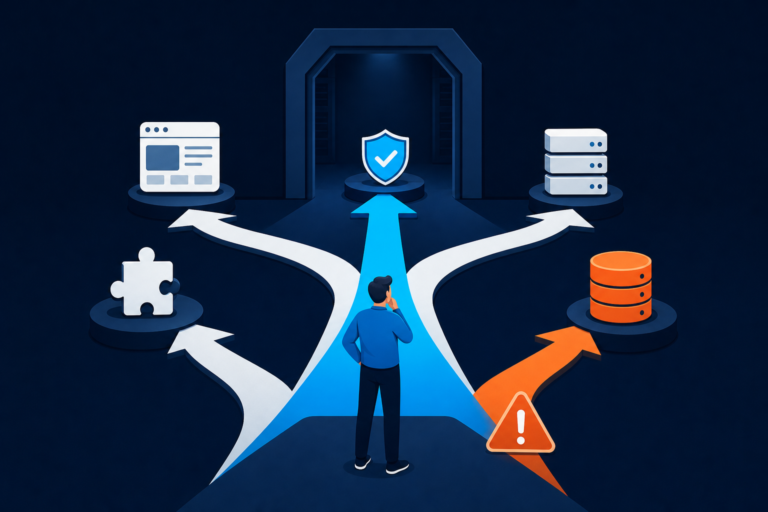
Seeing a WordPress 500 error, a 503 Service Unavailable, or finding that wp-admin is suddenly not loading can feel like an instant emergency—especially if your site generates leads, sales, or bookings. One moment everything is working, the next you’re staring at a blank screen, a generic server error, or a login page that won’t finish loading.
The good news is that most 5xx issues are fixable once you isolate the root cause. The tricky part is that a WordPress 500 error often hides what’s really going on because the server can’t safely display the underlying fatal error to visitors.
This guide explains what 500/503 errors mean in WordPress, why wp-admin fails, what you can safely do to troubleshoot, and when it’s smarter to bring in experienced help—especially if downtime is costing you money.
If you want an expert to take over and fix this quickly, WP Fix It can help right away. Start here:
https://www.wpfixit.com/contact-our-wordpress-experts/
What a WordPress 500 Error vs 503 Error Means
WordPress 500 error (Internal Server Error)
A WordPress 500 error is the server saying:
“Something went wrong on the server, and I can’t complete this request.”
It’s a generic response, which is why it’s frustrating: it doesn’t tell you the exact cause. In WordPress, the most common triggers include:
- Plugin conflicts (often right after updates)
- Theme or custom code errors
- A corrupted
.htaccessfile - PHP memory limits or fatal PHP errors
- Incorrect file/folder permissions
- Hosting configuration problems
If you want the “fast path” troubleshooting overview and an expert fix option, this resource is also helpful:
https://www.wpfixit.com/wordpress-500-internal-server-error/
503 Service Unavailable
A 503 error typically means the server is temporarily unavailable. That “temporary” could be minutes—or it can remain broken until the cause is resolved. A 503 can be triggered by:
- Resource exhaustion (CPU/RAM/process limits)
- Traffic spikes or bot attacks
- Security/firewall blocks
- A stuck maintenance mode file
- A misbehaving plugin causing heavy load
A common 503-related issue in WordPress is being stuck in maintenance mode. If you’re seeing “Briefly unavailable for scheduled maintenance,” this guide is worth a look:
https://www.wpfixit.com/briefly-unavailable-for-scheduled-maintenance/
Why wp-admin Suddenly Won’t Load (Even If the Site “Sort of Works”)
When wp-admin won’t load, you lose your easiest way to fix problems. But it’s important to know that wp-admin can break independently from the front end for a few common reasons:
1) A plugin breaks only in the dashboard
Some plugins run heavier code in wp-admin—security scanners, backup plugins, page builders, analytics dashboards, and SEO tools. A conflict can crash only the admin area while the homepage appears “kind of okay.”
2) Admin login/cookies get stuck
Sometimes the issue looks like wp-admin is down, but it’s actually a login loop, cookies failing, or caching interfering with the dashboard session.
3) Security or firewall rules block wp-admin endpoints
Some security setups block /wp-admin/, wp-login.php, or admin-ajax calls. When that happens, the dashboard may time out or show a 403/503 while public pages still load.
4) Core files are corrupted or partially updated
If WordPress core files are incomplete or corrupted after an interrupted update, wp-admin often fails first.
If your site shows “There has been a critical error on this website,” this guide is highly relevant:
https://www.wpfixit.com/how-to-fix-critical-error-on-this-website/
And if you’re seeing a blank page (classic “white screen”), check this:
https://www.wpfixit.com/white-screen-of-death-in-wordpress/
First Response Checklist (Before You Change Anything)
When a WordPress 500 error or 503 hits, your goal is to stabilize first, then diagnose. Here’s the safest order:
- Stop making changes
If you were updating plugins/themes or editing code, pause. More changes can make troubleshooting harder. - Confirm where it fails
- Is the front end down too, or only wp-admin?
- Does it fail for logged-out visitors, logged-in users, or both?
- Does it work in an incognito/private window?
- Check if it’s site-wide or endpoint-specific
Sometimes only/wp-admin/is blocked, which changes the fix path. - Identify the most recent change
The last action often reveals the cause:
- Plugin update
- Theme update
- PHP version change
- New security rules
- Migration to a new host
If your site is business-critical and you want this handled fast, WP Fix It offers rapid support services here:
https://www.wpfixit.com/fast-wordpress-support-services/
The Most Common Causes of a WordPress 500 Error (and How to Fix Them)
Cause #1: A corrupted or misconfigured .htaccess file
A broken .htaccess is a classic cause of a WordPress 500 error.
Safe test:
- Rename
.htaccessto.htaccess_old - Test your site again
- If the site loads, regenerate permalinks once wp-admin access is restored
For more detailed guidance, see:
https://www.wpfixit.com/wordpress-500-internal-server-error/
Cause #2: Plugin conflict (very common after updates)
Plugin conflicts are one of the most common reasons a WordPress 500 error appears—especially after updates. The fastest way to test this (even without wp-admin) is to disable plugins via FTP/SFTP or file manager.
Fast isolation step:
- Go to
wp-content/ - Rename the plugins folder:
plugins→plugins.off
This disables all plugins at once. If the site comes back, you’ve confirmed it’s plugin-related.
Then you can restore the folder name to plugins and disable plugins one-by-one by renaming each plugin’s folder until you find the culprit.
WP Fix It has a dedicated guide on plugin conflicts here:
https://www.wpfixit.com/fix-wordpress-plugin-conflicts-conflict-finder/
If you want an expert to take over and fix the conflict quickly, start here:
https://www.wpfixit.com/fix-wordpress-issues-hire-wp-fix-it/
Cause #3: Theme or child theme errors
If disabling plugins doesn’t fix the WordPress 500 error, the theme is the next likely culprit—especially after a PHP version change.
Safe test:
- Go to
wp-content/themes/ - Rename your active theme folder (example):
your-theme→your-theme.off
WordPress will attempt to fall back to another installed theme. If the site loads, the theme (or child theme) is the cause.
If the failure is tied to a critical error message, this guide can help:
https://www.wpfixit.com/how-to-fix-critical-error-on-this-website/
Cause #4: PHP memory limit or fatal PHP error
A WordPress 500 error can happen when PHP runs out of memory or hits a fatal error. Common signs include:
- Intermittent failures (works sometimes, fails sometimes)
- wp-admin fails more than the front end
- The issue starts after enabling a “heavy” plugin
Fixes often include:
- Increasing PHP memory limits
- Updating or rolling back the failing plugin/theme
- Fixing a broken function call or compatibility issue
If you want a pro to diagnose logs and fix this safely, contact WP Fix It here:
https://www.wpfixit.com/contact-our-wordpress-experts/
Cause #5: File/folder permission issues
Incorrect permissions can cause a WordPress 500 error or prevent WordPress from loading key files.
Because permissions vary by host and configuration, avoid mass-changing everything without a plan. If you’re unsure, this is a smart point to bring in expert help before creating security issues.
WP Fix It’s technical support services are here:
https://www.wpfixit.com/wordpress-technical-support-services/
The Most Common Causes of a 503 Service Unavailable Error in WordPress
Cause #1: Stuck in maintenance mode
During updates, WordPress creates a temporary maintenance file. If the update is interrupted, the site can get stuck—sometimes surfacing as a 503 or maintenance message.
If you’re seeing a maintenance-mode message, this guide is the fastest fix:
https://www.wpfixit.com/briefly-unavailable-for-scheduled-maintenance/
Cause #2: Server resource limits and overload
A 503 often means the server is overloaded or rate-limiting requests. Causes include:
- Traffic spikes (legit or bots)
- Cheap shared hosting limits
- Heavy plugins running scans/backups
- WooCommerce or membership sites under load
If you need fast stabilization and deeper troubleshooting, start here:
https://www.wpfixit.com/fast-wordpress-support-services/
Cause #3: Security/firewall blocks
Security plugins, WAF rules, or host firewalls can block wp-admin endpoints or admin-ajax.php, causing wp-admin failures and 503 errors.
If you suspect a plugin conflict or security conflict, this tool/guide can help isolate it:
https://www.wpfixit.com/fix-wordpress-plugin-conflicts-conflict-finder/
Cause #4: Hosting stack issues (PHP-FPM/web server/database)
Sometimes 503 errors are tied to the server stack—PHP-FPM pools, web server worker limits, or database slowdowns.
In these cases:
- Your host may need to restart/tune services
- A WordPress support provider can isolate the WordPress trigger and prevent repeat outages
WP Fix It can help diagnose and coordinate the fix:
https://www.wpfixit.com/contact-our-wordpress-experts/
A Step-by-Step Troubleshooting Sequence (That Minimizes Guesswork)
If your WordPress 500 error or 503 issue persists, use this order:
Step 1: Quick browser sanity checks
- Try incognito/private mode
- Clear cache/cookies
- Try a different device or network
Step 2: Check maintenance mode
Use this guide if you see a maintenance message:
https://www.wpfixit.com/briefly-unavailable-for-scheduled-maintenance/
Step 3: Disable plugins via folder rename
Then isolate the culprit plugin.
Use this plugin conflict guide while you troubleshoot:
https://www.wpfixit.com/fix-wordpress-plugin-conflicts-conflict-finder/
Step 4: Switch themes via folder rename
If plugins aren’t the cause.
Step 5: Check for core corruption
If WordPress core files are incomplete or corrupted, carefully restoring core files (without touching wp-content) may be needed.
Step 6: Review error logs for the real cause
Logs are usually the fastest way to pinpoint why a WordPress 500 error is happening. If you don’t have access or don’t want to risk changes, it’s time to escalate.
Contact WP Fix It to resolve it quickly:
https://www.wpfixit.com/contact-our-wordpress-experts/
When to Stop DIY and Bring in WordPress Support
DIY troubleshooting is great—until it starts costing you money or time. Consider escalating when:
- Your site is losing leads/sales right now
- You can’t access wp-admin and FTP feels risky
- You’ve tried the plugin/theme isolation steps and you’re stuck
- You suspect malware or suspicious redirects
- The issue keeps coming back (repeat 500/503 cycles)
WP Fix It specializes in getting WordPress sites back online quickly and safely. Start here:
https://www.wpfixit.com/complete-range-of-wordpress-services/
Or if you want to go straight to support, contact the team here:
https://www.wpfixit.com/contact-our-wordpress-experts/
How to Prevent WordPress 500 Errors and 503 Errors Long-Term
Once you’ve fixed the WordPress 500 error, prevention is how you avoid repeat downtime.
Best practices that reduce 5xx errors
- Don’t update everything at once (batch updates)
- Test on staging when possible
- Keep plugins/themes maintained and remove unused ones
- Use reliable backups
- Avoid stacking multiple heavy plugins that do the same job
- Monitor uptime and performance
If you’d rather have a team handle troubleshooting, maintenance, and emergency fixes, WP Fix It offers ongoing services here:
https://www.wpfixit.com/wordpress-technical-support-services/
FAQ: WordPress 500 Error, 503, and wp-admin Not Loading
Why do I see a WordPress 500 error only in wp-admin?
Because wp-admin loads additional scripts, admin-only plugin features, and heavier server-side processing. A plugin conflict can crash wp-admin while public pages still partially load.
Does a 503 always mean my host is down?
No. It can also be maintenance mode, a security rule blocking requests, or server resource limits.
What’s the fastest way to confirm a plugin caused my WordPress 500 error?
Rename the wp-content/plugins folder to disable all plugins. If the site returns, isolate the offending plugin one-by-one.
What if I don’t want to troubleshoot this myself?
That’s exactly what WP Fix It is for—fast recovery and a clean fix without guessing. Contact WP Fix It here:
https://www.wpfixit.com/contact-our-wordpress-experts/
Final Takeaway: Fix the WordPress 500 Error Fast (and Keep It From Coming Back)
A WordPress 500 error, a 503, or wp-admin not loading is usually caused by a handful of predictable issues: plugin conflicts, theme errors, .htaccess problems, resource limits, or interrupted updates.
You can often resolve it by following the troubleshooting sequence above—but if downtime matters, it’s often faster and safer to bring in expert help.
If you need your site back online ASAP, start here:
https://www.wpfixit.com/fix-wordpress-issues-hire-wp-fix-it/
And if you want to talk to a WordPress expert right now:
https://www.wpfixit.com/contact-our-wordpress-experts/
How to Find the Real Cause of a WordPress 500 or 503 Error
When the usual plugin and theme checks do not identify the problem, the next step is to determine whether WordPress, the web server, or the hosting environment is generating the failure. A status code alone is not enough to identify the cause.
- Check the server error log. Your hosting control panel may provide an error log, or your host can supply entries for the exact time of the failure. Look for a PHP fatal error, memory exhaustion, a missing file, a database connection problem, or a web-server configuration error. The last few lines recorded before the failure are usually more useful than older entries.
- Use WordPress debugging carefully. If you have access to the site files, enable logging rather than displaying errors to visitors. In
wp-config.php, debugging is commonly configured withWP_DEBUGandWP_DEBUG_LOG, whileWP_DEBUG_DISPLAYis disabled. Reviewwp-content/debug.log, then turn debugging off after testing. Do not leave sensitive error details visible on a live site. - Compare the failing URLs. If the homepage works but
/wp-admin/orwp-login.phpfails, inspect security rules, caching, cookies, and admin-only plugin features. A 403 points more toward access rules, while a 500 usually indicates an application or server-side failure. A 503 can indicate temporary resource exhaustion or an unavailable PHP service. - Ask the host to check server-side limits. Request confirmation of PHP-FPM status, process and memory limits, recent configuration changes, firewall events, and database availability. This is especially important when disabling plugins does not change the result or the error affects multiple sites on the same account.
Before restoring a backup or changing PHP versions, record what you tested and preserve the relevant logs. That makes it easier to reverse a change and gives your host or WordPress technician enough context to fix the underlying issue instead of repeatedly masking the symptom.