
Trying to fix WordPress site logs you out constantly can feel frustrating because the problem usually appears simple on the surface but can have several possible causes. One moment you are editing a post, updating a plugin, checking WooCommerce orders, or changing a setting, and the next moment WordPress sends you back to the login screen. You log in again, repeat the same action, and then get logged out again.
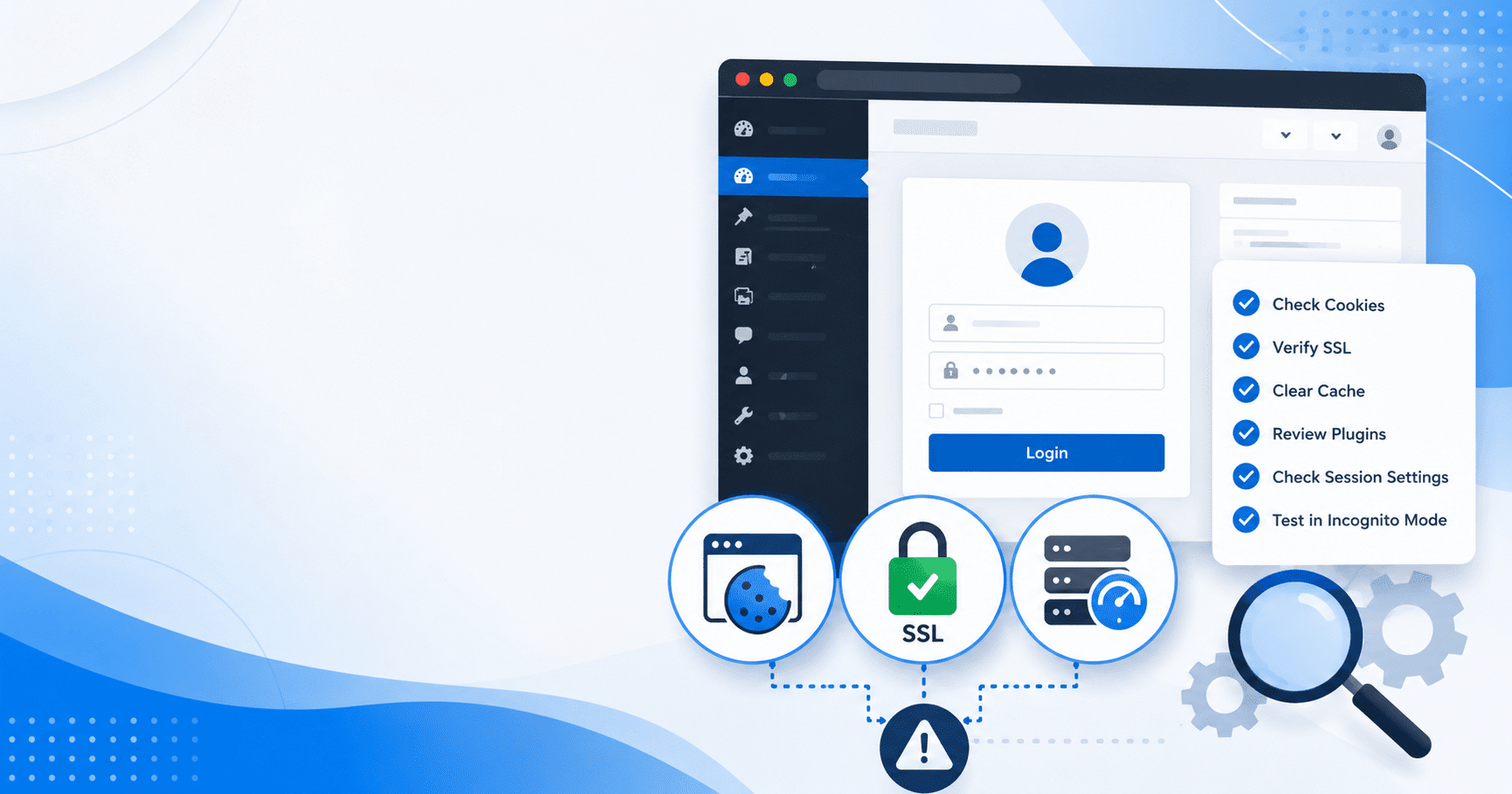
This issue is usually connected to cookies, mismatched WordPress URLs, SSL configuration, caching, browser settings, security plugins, hosting rules, or damaged user sessions. The good news is that you can often fix it without rebuilding your website or touching every file on your server.
WordPress uses browser cookies to remember authenticated users. If your browser, WordPress settings, domain, SSL setup, cache layer, or security plugin prevents those cookies from working correctly, WordPress may treat you as logged out even when your username and password are correct. WordPress also relies heavily on the WordPress Address URL and Site Address URL settings, which control how the admin and front end identify your site location. The official WordPress developer handbook notes that these URL settings are important because they control the display of the URL in the admin area and are used throughout WordPress code. (WordPress Developer Resources)
Below is a complete, practical guide to help you diagnose and fix the problem safely.
Why WordPress Keeps Logging You Out
Before jumping into repairs, it helps to understand what is actually happening. When you log in to WordPress, the platform creates authentication cookies in your browser. Those cookies tell WordPress, “This user has already logged in and is allowed to access the dashboard.”
If those cookies are rejected, deleted, overwritten, mismatched, or invalidated, WordPress sends you back to the login page.
The most common causes include:
- Your browser is blocking or deleting cookies.
- Your WordPress Address and Site Address do not match correctly.
- Your site switches between
httpandhttps. - Your site switches between
wwwand non-www. - A cache plugin or server cache is serving stale admin/session data.
- A security plugin is expiring sessions too aggressively.
- A plugin or theme conflict is breaking login sessions.
- Your host is using server-side rules that interfere with cookies.
- Your browser has corrupted cookies for the domain.
- Your WordPress salt keys are misconfigured or recently changed.
- A malware infection is interfering with login behavior.
- A reverse proxy, CDN, or SSL setting is not passing the correct protocol.
WordPress also includes a Site Health tool that checks important configuration details and flags critical issues or recommended improvements. You can access it under Tools > Site Health in the WordPress dashboard. (WordPress.org)
Step 1: Clear Browser Cookies and Cache
The fastest way to begin is by clearing your browser cookies and cache for your website domain. Since WordPress login sessions depend on cookies, a corrupted or outdated cookie can cause repeated logout loops.
Open your browser settings and clear cookies only for your website if possible. Clearing all browser data works too, but it will log you out of other websites. After clearing cookies, close the browser completely, reopen it, and try logging in again.
Also test the site in a private or incognito window. If WordPress works normally in private browsing mode, the issue is probably related to the original browser’s cookies, extensions, or cached data.
Try these quick browser checks:
Use another browser such as Chrome, Firefox, Safari, or Edge. Disable privacy extensions temporarily. Turn off strict cookie blocking for your domain. Make sure your browser is not set to delete cookies every time it closes. Check whether the issue happens only on one computer or device.
If WordPress logs you out only in one browser, your site is probably not broken. The issue is local to that browser environment.
Step 2: Check WordPress Address and Site Address
One of the most common ways to fix WordPress site logs you out constantly is to correct mismatched URLs in WordPress.
Go to:
Settings > General
Check these two fields:
WordPress Address (URL)
Site Address (URL)
They should usually match exactly unless WordPress is intentionally installed in a subdirectory.
For example, these are consistent:
https://example.comhttps://example.com
These can create login problems if not intentionally configured:
Or:
https://www.example.comhttps://example.com
Or:
https://example.comhttps://example.com/wordpress
The official WordPress migration documentation explains that the WordPress Address and Site Address settings control where WordPress is located and how URLs are used in both the admin area and front end. (WordPress Developer Resources)
If you can access your dashboard, correct the URLs in Settings > General, save changes, log out, clear browser cookies, and log back in.
If you cannot stay logged in long enough to update them, you can define the URLs in your wp-config.php file:
define('WP_HOME', 'https://example.com');
define('WP_SITEURL', 'https://example.com');
Replace https://example.com with your actual preferred domain. Use either www or non-www, but be consistent.
Step 3: Fix HTTP and HTTPS Conflicts
If your website has an SSL certificate but WordPress still stores URLs as http, you may be logged out whenever the site switches between secure and non-secure versions.
For example, you log in at:
But WordPress redirects or loads assets from:
http://example.com/wp-admin
That protocol mismatch can interfere with authentication cookies.
To fix this, make sure your WordPress Address and Site Address both use https. Then confirm your SSL certificate is active and valid. Next, force HTTPS redirects at the server or host level.
You can also check Tools > Site Health because WordPress Site Health helps identify configuration issues that may affect security and performance. (WordPress.org)
If your site is behind Cloudflare, a load balancer, a reverse proxy, or managed hosting proxy, check that the SSL mode is configured correctly. A common problem is setting a CDN to flexible SSL while WordPress expects full HTTPS. That can make the browser see HTTPS while the server sees HTTP, which may break cookies, redirects, and admin sessions.
Step 4: Choose Either WWW or Non-WWW
WordPress authentication cookies are tied to a domain. That means these can behave like different locations:
and
If your login page uses one version but the dashboard redirects to another, WordPress may not recognize your logged-in cookie.
Pick one preferred version. Most modern sites use non-www, but either is fine. The key is consistency.
Check these locations:
Your WordPress Address and Site Address settings. Your hosting control panel domain settings. Your CDN settings. Your .htaccess file if using Apache. Your Nginx server block if using Nginx. Your SEO plugin canonical settings. Any hardcoded URLs in the database.
After choosing the correct version, set up a redirect so all traffic goes to that version. Then clear all caching layers and test login again.
Step 5: Disable Cache for WordPress Admin and Login Pages
Caching is helpful for speed, but caching login pages, admin pages, or logged-in user sessions can cause serious problems. If a cache layer serves an old version of a page or strips cookies, WordPress may log you out repeatedly.
Make sure these paths are excluded from caching:
/wp-admin//wp-login.php/my-account/ if using WooCommerce/cart/ if using WooCommerce/checkout/ if using WooCommerce
Preview URLs
REST API requests where needed
Clear your cache in every place it exists:
Your WordPress cache plugin. Your hosting cache. Your CDN cache. Your object cache if enabled. Your browser cache.
If you recently installed or reconfigured a performance plugin, temporarily disable it and test your login again. If the logout issue stops, re-enable the plugin and adjust its settings carefully.
Be especially careful with settings that combine JavaScript, delay JavaScript, modify cookies, cache logged-in users, or minify admin assets. Admin caching should almost always be disabled.
Step 6: Temporarily Disable Security Plugins
Security plugins can protect your site, but strict settings may accidentally log users out too often. This can happen when features such as session control, IP detection, brute force protection, two-factor authentication, device verification, or login hiding are misconfigured.
If you can access the dashboard, temporarily disable your security plugin and test whether the problem stops.
If you cannot stay logged in, connect with FTP, SFTP, or your hosting file manager. Go to:
/wp-content/plugins/
Rename the security plugin folder. For example:
security-plugin-name
to:
security-plugin-name-disabled
This forces WordPress to deactivate the plugin. Then try logging in again.
If disabling the plugin fixes the issue, do not leave your site unprotected permanently. Re-enable the plugin and review settings related to login sessions, trusted IPs, cookie checks, two-factor authentication, and brute force rules.
If you suspect malicious activity or unexpected changes to your login system, review a trusted guide such as the WP Fix It resource on fast WordPress malware removal.
Step 7: Test for Plugin Conflicts
A plugin conflict can break WordPress sessions, especially if the plugin modifies login behavior, redirects, user roles, cookies, membership access, WooCommerce accounts, caching, or security rules.
To test plugins safely, create a backup first. Then deactivate all plugins and log in again. If the logout problem disappears, reactivate plugins one by one until the problem returns.
Focus first on plugins that affect:
Login pages. Membership access. WooCommerce accounts. Security. Caching. Redirects. SSL. User roles. Spam protection. Custom dashboards. Page builders with login widgets.
If you cannot stay logged in, rename the entire plugins folder:
/wp-content/plugins/
to:
/wp-content/plugins-disabled/
Then create a new empty folder named:
plugins
This disables all plugins. Try logging in. If WordPress works normally, restore the original plugins folder and test plugins individually.
This method is especially useful when the dashboard is inaccessible.
Step 8: Switch to a Default WordPress Theme
Themes can also cause login issues, though this is less common than plugin or URL problems. A theme may include custom login redirects, membership restrictions, broken functions, or outdated code that interferes with cookies and sessions.
Switch temporarily to a default WordPress theme such as Twenty Twenty-Four, Twenty Twenty-Five, or the latest bundled theme available on your site.
If you cannot access the dashboard, use FTP or your file manager and rename your active theme folder inside:
/wp-content/themes/
WordPress should fall back to another installed default theme if one exists.
If switching themes fixes the logout issue, check your theme’s functions.php file, custom login redirect snippets, membership integrations, and outdated template code.
Step 9: Check WordPress Salt Keys
WordPress salt keys help secure login cookies. They are stored in the wp-config.php file and look similar to this:
define('AUTH_KEY',         'unique phrase here');
define('SECURE_AUTH_KEY',  'unique phrase here');
define('LOGGED_IN_KEY',    'unique phrase here');
define('NONCE_KEY',        'unique phrase here');
define('AUTH_SALT',        'unique phrase here');
define('SECURE_AUTH_SALT', 'unique phrase here');
define('LOGGED_IN_SALT',   'unique phrase here');
define('NONCE_SALT',       'unique phrase here');
If these keys were changed recently, WordPress will log out all users. That is normal. But if a plugin, script, host, or malware keeps changing them, users may be logged out repeatedly.
Open wp-config.php and confirm the keys exist and are not duplicated. If they are missing, damaged, or suspicious, generate fresh WordPress security keys from the official WordPress salt key generator and replace the old values.
After changing salt keys, everyone will be logged out once. That is expected. But users should be able to log back in and stay logged in afterward.
Step 10: Review Cookie Domain Settings
Some WordPress sites define custom cookie settings in wp-config.php. These settings can be useful for advanced multisite or subdomain setups, but incorrect values can cause logout loops.
Look in wp-config.php for lines such as:
define('COOKIE_DOMAIN', 'example.com');
define('ADMIN_COOKIE_PATH', '/');
define('COOKIEPATH', '/');
define('SITECOOKIEPATH', '/');
If these were added incorrectly, they may force cookies onto the wrong domain or path. For most standard WordPress sites, you do not need custom cookie constants.
Before deleting anything, make a backup of the file. Then remove or comment out suspicious custom cookie constants and test login again.
This is especially important if your site recently moved from a staging domain, subdomain, temporary host URL, or development environment.
Step 11: Check Server Time and PHP Sessions
In some cases, login issues happen because the server time is incorrect or session handling is broken. WordPress authentication cookies rely on expiration times. If the server clock is wrong, cookies may expire immediately or behave unpredictably.
Ask your host to confirm:
The server time is correct. PHP sessions are working. File permissions are correct. There are no aggressive ModSecurity rules affecting login. There are no server-level cache rules affecting /wp-login.php or /wp-admin/. The site is not switching between multiple backend servers with inconsistent session handling.
This matters more on cloud hosting, load-balanced hosting, containerized environments, and sites using reverse proxies.
If your host recently migrated your website, changed PHP versions, enabled a firewall, or moved your account to another server, the timing of the issue may point to a server-level cause.
Step 12: Check CDN and Firewall Rules
CDNs and firewalls can cause WordPress login problems when they cache admin pages, challenge login requests, block cookies, or change request headers.
Review settings in tools like Cloudflare, Sucuri Firewall, hosting firewalls, enterprise WAF systems, and reverse proxies.
Check for rules that affect:
/wp-login.php/wp-admin/admin-ajax.php
REST API endpoints
Logged-in cookies
Country blocking
Bot protection
Browser integrity checks
JavaScript challenges
Rate limiting
If the CDN or firewall has a development mode, enable it temporarily and test login. If the problem disappears, adjust the firewall or cache rules before turning protection back on.
You should not permanently disable your firewall. Instead, create precise exceptions for WordPress admin and login behavior.
Step 13: Look for Redirect Loops
Redirect problems can look like logout problems. You may technically log in successfully, but WordPress immediately redirects you back to the login page.
Check for redirects in:
.htaccess
Nginx configuration
Hosting redirect tools
CDN page rules
SEO plugins
Redirection plugins
Security plugins
Custom code in functions.php
Membership plugins
WooCommerce account settings
A common redirect mistake is forcing all visitors to a login page or redirecting admin users to the wrong URL after login.
If you use a redirect plugin, temporarily disable it and test. If you use custom redirect code, remove it temporarily. If your host provides redirect rules, check for duplicate HTTP-to-HTTPS or www-to-non-www redirects.
Step 14: Confirm User Role and Account Status
Sometimes WordPress appears to log a user out when the real issue is account permission. This can happen if your user role was changed, your account was restricted by a membership plugin, or an admin security setting invalidated your session.
Check whether other administrators can stay logged in. If other admins have no issue, the problem may be specific to your user account.
Create a new administrator user and test with that account. If the new admin account works normally, your original user record may have corrupted metadata, plugin restrictions, or user-specific session issues.
Also check whether your username is being blocked by a security plugin due to repeated failed login attempts.
Step 15: Scan for Malware
Malware can modify login files, inject redirects, create fake admin users, change salts, alter .htaccess, or interfere with sessions. If the logout issue appeared suddenly without a clear plugin, theme, hosting, or SSL change, run a malware scan.
Look for warning signs such as:
Unknown admin users. Strange redirects. Modified wp-login.php behavior. Suspicious files in /wp-content/. Unfamiliar code in functions.php. Search engine warnings. Hosting malware alerts. Spam pages indexed in Google. Security plugin alerts.
A hacked site can behave unpredictably, and login instability can be one symptom. WP Fix It offers a dedicated remove WordPress malware and infections service for infected WordPress websites, and the company also publishes a step-by-step WordPress malware removal guide for site owners who want to understand the cleanup process.
If malware is present, do not only fix the login issue. Clean the infection, remove backdoors, change all passwords, update salts, patch vulnerable plugins, and review hosting access.
Step 16: Repair the WordPress Database
A damaged database can cause login instability if user metadata, options, transients, or plugin settings are corrupted.
Before touching the database, create a full backup. Then check the wp_options table for these values:
siteurlhome
They should match your correct domain and protocol.
Also check user-related tables:
wp_userswp_usermeta
If the site uses a custom table prefix, the table names may not start with wp_.
You can also ask your host to check and repair database tables. Some hosts provide a database repair tool in the control panel.
Avoid making random database edits if you are not comfortable with phpMyAdmin or database tools. A small mistake can break the website.
For broader WordPress repair help, see the WP Fix It WordPress site repair and fix service.
Step 17: Check Multisite Domain Mapping
If your WordPress site is part of a multisite network, logout problems may be related to domain mapping, cookie domain settings, or inconsistent network URLs.
Check:
Network Admin site URL settings. Mapped domains. Primary domain settings. Subdomain versus subdirectory configuration. Cookie domain constants. SSL settings for every mapped domain. CDN rules for each domain.
WordPress multisite authentication can be more sensitive to domain inconsistencies because users may move between network admin, subsite dashboards, and mapped public domains.
If the issue only happens on one subsite, compare that subsite’s settings with a subsite that works correctly.
Step 18: Update WordPress Core, Plugins, Themes, and PHP
Outdated software can contribute to login issues, especially when plugins are no longer compatible with your current WordPress or PHP version.
Update in this order:
Create a full backup. Update WordPress core. Update plugins. Update themes. Update translations. Confirm your PHP version is supported by your host and compatible with your plugins. Test login after each major change.
Use the WordPress Site Health screen to review your current WordPress, plugin, theme, server, and database information. WordPress documentation explains that Site Health includes both a Status tab for important issues and an Info tab with detailed configuration data. (WordPress.org)
Do not update a large WooCommerce, membership, LMS, or mission-critical site directly on production without a backup or staging copy.
Step 19: Check Hosting-Level Login Protection
Some hosts add their own login protection systems. These can include bot filters, rate limiting, password-protected admin pages, IP reputation blocking, geo restrictions, or server firewalls.
Contact your host and ask whether they see blocked requests when you try to log in. Provide the time of the test, your IP address, and the exact URL you are using.
Ask the host to check:
ModSecurity logs. WAF logs. Rate limiting. Server cache rules. PHP errors. Fatal errors. Redirect rules. Disk space. File permissions. Recent server migrations.
Low disk space can also create strange session and cache behavior. If your hosting account is full, WordPress may fail to write necessary files or update options correctly.
Step 20: Use a Safe Troubleshooting Order
When you need to fix WordPress site logs you out constantly, use a structured order instead of changing everything at once.
Start with the least risky steps:
Clear browser cookies. Test private browsing. Try another browser. Check WordPress URLs. Confirm HTTPS. Clear cache. Disable cache for admin pages. Temporarily disable security plugins. Test plugins. Test theme. Check salts and cookie constants. Review CDN rules. Ask host to check server logs. Scan for malware.
Changing too many things at once makes it harder to know what actually fixed the issue. After each change, test login in a clean browser session.
When to Get Expert Help
You should consider professional help if:
You cannot access the dashboard at all. The issue started after a migration. The site uses WooCommerce, memberships, LMS, or client portals. The problem affects customers or paid members. You see malware warnings. The login page redirects strangely. You are uncomfortable editing wp-config.php, .htaccess, or the database. You already tried the common fixes and the issue continues.
WP Fix It provides fast WordPress support through its WordPress site repair and fix service. You can also learn more about the company’s repair, malware removal, speed optimization, and maintenance support on the WP Fix It WordPress services page.
Final Checklist to Fix WordPress Site Logs You Out Constantly
Use this final checklist before closing the issue:
Your browser cookies are cleared. The issue was tested in a private window. WordPress Address and Site Address match. HTTPS is active and consistent. The site uses either www or non-www, not both. Admin and login pages are excluded from cache. Security plugin session settings are not too strict. Plugins have been tested for conflicts. The active theme has been tested. Salt keys are valid and stable. Cookie constants are not misconfigured. CDN and firewall rules are not blocking admin sessions. Redirect rules are clean. Your admin user role is valid. The database has correct home and siteurl values. WordPress, plugins, themes, and PHP are updated. Malware has been ruled out.
A WordPress site that keeps logging you out is usually fixable once you identify where the session is being interrupted. In most cases, the cause is a URL mismatch, cookie issue, cache conflict, SSL problem, security plugin setting, or server rule. Work through the steps carefully, test after each change, and document what you changed so you can reverse it if needed.
When you fix WordPress site logs you out constantly using a careful process, you not only solve the immediate login problem but also improve the stability, security, and reliability of the entire website.