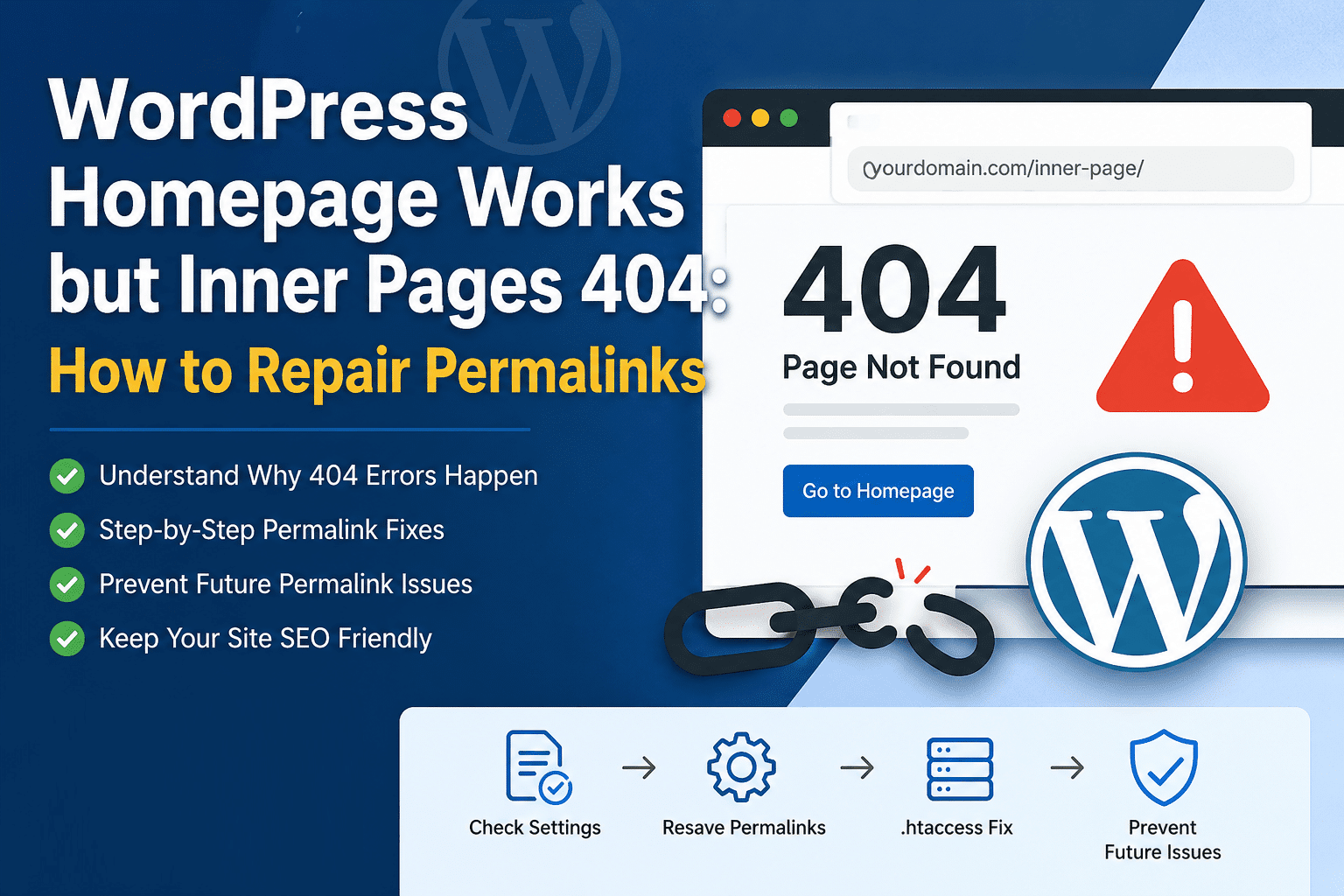

WordPress homepage works but inner pages 404 is one of the most common and confusing WordPress problems because the site looks partly alive. Your homepage loads, your logo appears, and visitors may even think the site is fine. Then they click a service page, blog post, category, product, landing page, or custom post type URL and get a “404 Page Not Found” error.
The good news is that when a WordPress homepage works but inner pages 404, the issue is usually not lost content. In most cases, your pages and posts are still in the database. The problem is usually the rewrite system that tells the server how to route pretty URLs to WordPress. That means the fix is often as simple as re-saving permalinks, repairing the .htaccess file, adjusting server rewrite rules, clearing cache, or finding a plugin conflict.
This guide walks through the safest repair path from easy fixes to deeper server checks. Start at the top and test after each step.
Why the Homepage Loads but Inner Pages Show 404
When a WordPress homepage works but inner pages 404, the root URL is usually loading because the server can find index.php directly. Inner pages are different. A pretty permalink such as /about-us/ is not a real folder in most WordPress installs. WordPress needs rewrite rules to receive that request, look up the matching post or page, and load the correct template.
If rewrite rules are missing, corrupted, ignored, cached incorrectly, or overridden by a plugin, the server may treat /about-us/ like a real folder that does not exist. That is when the 404 happens.
This is why permalink-related 404 errors often appear after updates, migrations, host changes, domain changes, SSL changes, staging pushes, security plugin changes, cache plugin changes, or manual edits to .htaccess.
For a related recovery guide, WP Fix It has a helpful internal walkthrough on how to repair a corrupted WordPress .htaccess file.
Step 1: Confirm It Is Really a Permalink Problem
Before changing anything, confirm the pattern. Visit the homepage. Then test several internal URLs: one page, one blog post, one category archive, and one media attachment if available.
If the homepage loads but every inner URL fails, you are probably dealing with a rewrite or permalink issue. If only one page fails, the problem may be a deleted page, changed slug, missing redirect, private status, draft status, or broken menu link. If only one post type fails, a plugin or custom post type registration issue may be involved.
Also test a plain WordPress URL. Try adding ?p=123 to your domain using the ID of an existing post. If plain URLs work but pretty URLs fail, that is a strong sign the WordPress rewrite rules need repair.
Step 2: Re-Save WordPress Permalinks
The fastest fix when WordPress homepage works but inner pages 404 is to flush rewrite rules from the dashboard.
Go to:
WordPress Dashboard → Settings → Permalinks → Save Changes
You do not need to change the permalink structure. Just click Save Changes. This tells WordPress to regenerate its rewrite rules. On Apache or LiteSpeed servers, this may also refresh the WordPress block inside .htaccess if the file is writable.
After saving, open an incognito window and test several inner pages again. Also clear any page cache if your site uses a caching plugin. This simple action fixes many cases where WordPress homepage works but inner pages 404 after a plugin update, migration, or permalink structure change.
Step 3: Clear All Cache Layers
Caching can make a fixed issue look broken. Clear cache in this order:
Browser cache, WordPress caching plugin cache, server cache, CDN cache, object cache, and firewall cache.
If you use a plugin such as LiteSpeed Cache, WP Rocket, W3 Total Cache, or another performance tool, purge everything. If your host has a cache button in the hosting panel, purge that too. If you use Cloudflare or another CDN, purge the affected URLs or the full cache.
Caching is especially important after a migration. A server may keep serving an old 404 response even after the WordPress permalink rules have been repaired. WP Fix It has related guidance on how to stop WordPress 404 visits when broken URL patterns keep appearing.
Step 4: Repair the WordPress .htaccess File
On Apache and many LiteSpeed hosting environments, WordPress relies on .htaccess for pretty permalink routing. If the file is missing, corrupted, blocked, or filled with conflicting rules, inner pages can fail.
Connect using your hosting file manager, FTP, or SFTP. Open the root folder where wp-config.php, wp-content, wp-admin, and wp-includes live. Look for .htaccess. Because it starts with a dot, you may need to enable “show hidden files.”
Before editing, download a backup copy of the current .htaccess file.
A standard single-site WordPress .htaccess block often looks like this:
# BEGIN WordPress
<IfModule mod_rewrite.c>
RewriteEngine On
RewriteRule .* - [E=HTTP_AUTHORIZATION:%{HTTP:Authorization}]
RewriteBase /
RewriteRule ^index\.php$ - [L]
RewriteCond %{REQUEST_FILENAME} !-f
RewriteCond %{REQUEST_FILENAME} !-d
RewriteRule . /index.php [L]
</IfModule>
# END WordPress
If your WordPress install is in a subdirectory, your rules may be different. Do not blindly replace custom multisite, subdirectory, membership, language, or security rules unless you know what they do.
A safe test is to rename .htaccess to .htaccess-old, then go back to Settings → Permalinks → Save Changes. WordPress may create a fresh .htaccess file. If the new file fixes the inner pages, the old file contained bad or conflicting rules.
If a bad .htaccess edit caused a server error instead of a 404, see the WP Fix It guide to fix a WordPress 500 internal server error.
Step 5: Make Sure the Server Allows Rewrite Rules
Sometimes WordPress generates the correct .htaccess file, but the server ignores it. On Apache, this often comes down to AllowOverride settings. If your server is configured to ignore .htaccess, WordPress permalink rules will not run.
This is more common on VPS, dedicated servers, custom Apache configurations, local development environments, and newly migrated sites. Shared hosting users may need to ask the host to confirm that Apache mod_rewrite is enabled and that .htaccess overrides are allowed for the site directory.
Use descriptive wording when you contact hosting support:
“My WordPress homepage loads, but inner pages return 404. Please confirm that Apache rewrite rules are enabled, .htaccess is being read in the document root, and the virtual host allows WordPress pretty permalinks.”
That wording helps support teams understand that the issue is server rewrite handling, not missing WordPress pages.
Step 6: Check Nginx Rewrite Rules
If your site runs on Nginx, .htaccess will not fix the problem because Nginx does not process .htaccess files. A WordPress homepage works but inner pages 404 issue on Nginx usually means the server block is not passing requests to WordPress correctly.
The core idea is that Nginx should check whether a real file or directory exists. If not, it should pass the request to WordPress through index.php.
A common WordPress Nginx pattern is:
location / {
    try_files $uri $uri/ /index.php?$args;
}
Do not edit Nginx configuration unless you are comfortable with server administration. A syntax mistake can break the site. On managed hosting, send the issue to your host and ask them to verify the WordPress try_files rule for pretty permalinks.
The official WordPress Nginx server configuration guide is the best external reference for this section.
Step 7: Check Plugin Conflicts
Plugins can register custom rewrite rules, change slugs, create virtual pages, force redirects, block requests, or flush rules at the wrong time. SEO plugins, redirection plugins, security plugins, multilingual plugins, membership plugins, learning management plugins, WooCommerce extensions, and custom post type plugins can all affect URLs.
Start with anything recently installed or updated. If you can access wp-admin, deactivate suspicious plugins one at a time and test inner pages after each change. If you cannot access wp-admin, use FTP or the hosting file manager and rename the plugin folder inside wp-content/plugins.
For example:
wp-content/plugins/security-plugin-name
Rename it to:
security-plugin-name-disabled
Then test the site. If inner pages start working, you found a likely conflict.
If the issue looks more like a fatal error, blank page, or critical error after disabling plugins, WP Fix It has a guide on how to fix the WordPress critical error message.
Step 8: Check Theme or Page Builder Routing
Themes usually do not control core permalink routing, but they can create custom templates, custom query handling, landing page systems, and rewrite changes. Page builders can also create special URLs or templates that behave differently from normal pages.
Temporarily switch to a default WordPress theme such as Twenty Twenty-Five or another default theme installed on the site. Then re-save permalinks and test the inner URLs.
If the problem disappears, the active theme or its companion plugin may be interfering with routing. This is common after theme updates, framework updates, or custom code changes in functions.php.
For broader troubleshooting, WP Fix It maintains a useful internal resource on how to fix WordPress errors.
Step 9: Custom Post Types and Taxonomies
Sometimes normal pages work, but custom post types return 404. This can happen with portfolio items, testimonials, properties, events, products, courses, documents, staff profiles, or any plugin-generated content type.
Custom post type 404 errors often happen when the plugin or theme registers rewrite rules incorrectly, changes a slug, or loads too late in the WordPress lifecycle.
Try this sequence:
Deactivate and reactivate the plugin that creates the custom post type. Re-save permalinks. Clear cache. Test the custom post type archive and a single item. Check whether the slug conflicts with an existing page slug.
For example, if you have a page at /events/ and a custom post type archive also wants /events/, WordPress may not know which route should win. Rename one slug, re-save permalinks, and test again.
Developers with SSH access can use the official WP-CLI rewrite structure command documentation to understand hard flushing rewrite rules.
Step 10: Check Redirects and Canonical Rules
A WordPress homepage works but inner pages 404 issue can also be caused by redirect rules that send visitors to the wrong URL. Check redirect plugins, .htaccess redirects, CDN page rules, host redirect settings, and SEO plugin redirect modules.
Look for rules that force:
HTTP to HTTPS, non-www to www, www to non-www, old domain to new domain, trailing slash changes, uppercase to lowercase changes, or subdirectory redirects.
One redirect is normal. A chain of several redirects is risky. A redirect to a URL that does not exist creates a 404. A redirect loop creates a browser error. A redirect to the wrong domain may make the page look missing even when WordPress is fine.
After major URL changes, consider creating a helpful 404 page. WP Fix It explains how to create a custom WordPress 404 error page so visitors have a better path when an old URL is truly gone.
Step 11: Check WordPress Address and Site Address
Go to:
Settings → General
Confirm that WordPress Address (URL) and Site Address (URL) are correct. They should use the correct domain, protocol, and subdirectory if applicable.
Common mistakes include:
Using http in one field and https in the other, mixing www and non-www, leaving a staging domain in place, adding or removing a subdirectory incorrectly, or using a temporary host URL after migration.
If the homepage works but inner pages 404 immediately after a migration, this check is essential. Also inspect the database for old domain references if the site was moved from staging to live.
Step 12: Check File and Folder Permissions
Incorrect file permissions can prevent WordPress from writing a fresh .htaccess file. In that case, re-saving permalinks may appear to work, but no rewrite rules are actually updated.
Typical permissions are often:
Folders: 755
Files: 644
Hosting environments differ, so follow your host’s guidance. Also check file ownership. On some servers, the file can have the right numeric permission but the wrong owner, which still prevents WordPress from writing.
If you see a message on the Permalinks screen saying WordPress cannot write to .htaccess, manually paste the rules WordPress provides or ask your host to correct permissions.
Step 13: Look for Security Rules Blocking Inner URLs
Security plugins and web application firewalls can block URLs that look suspicious. Sometimes they block valid inner pages because a slug includes a restricted word, encoded character, query string, or pattern that resembles an attack.
Temporarily disable the security plugin only long enough to test. Also check firewall logs in Cloudflare, Sucuri, Wordfence, iThemes Security, host-level WAF tools, or control panel security features.
Do not leave security disabled. The goal is to identify whether the firewall is involved, then adjust the specific rule safely.
Step 14: Repair After a Staging Push or Migration
Permalink 404 issues are extremely common after moving a site. The database may contain correct content, but the new server may not have matching rewrite rules.
After migration, run this repair sequence:
Re-save permalinks. Clear all caches. Confirm .htaccess exists. Confirm Nginx rules if applicable. Check site URLs. Rebuild redirects. Search for old domain references. Test custom post types. Test mobile and incognito views.
If the move also caused admin save errors, review WP Fix It’s guide to fix the WordPress not valid JSON response error, because REST API, permalink, SSL, and rewrite problems can overlap.
Step 15: Prevent Future Permalink 404 Problems
Once the site is fixed, take a few steps to prevent the same problem from returning.
Keep a backup of your working .htaccess file. Document your permalink structure. Avoid changing slugs unless you plan redirects. Test plugin updates on staging. Avoid stacking multiple redirect plugins. Clear cache after URL changes. Monitor 404 logs after migrations. Keep custom post type slugs unique. Ask hosting support before switching between Apache, Nginx, LiteSpeed, or proxy configurations.
If your WordPress homepage works but inner pages 404 repeatedly, something is flushing, overwriting, blocking, or ignoring rewrite rules. Repeated failures are a sign to investigate plugins, file permissions, server configuration, and scheduled tasks.
You can also review WP Fix It’s WordPress maintenance mode quick fix checklist if the permalink issue appeared right after a failed update.
Quick Repair Checklist
Use this checklist when WordPress homepage works but inner pages 404 and you need the fastest safe path:
- Test several inner pages and confirm the pattern.
- Re-save permalinks in Settings → Permalinks.
- Clear browser, plugin, server, CDN, and object cache.
- Back up and regenerate
.htaccess. - Confirm Apache rewrite support or Nginx
try_filesrules. - Deactivate recent plugins and test again.
- Switch temporarily to a default theme.
- Check custom post type slug conflicts.
- Review redirects and canonical rules.
- Confirm WordPress Address and Site Address.
- Check file permissions and ownership.
- Review firewall logs.
- Test after every change.
When to Get Expert Help
Get expert help if the issue keeps returning, wp-admin is also unstable, you cannot safely edit server files, the site uses multisite, the site runs on custom Nginx, you recently migrated from staging, or the 404 issue affects sales pages, checkout pages, lead forms, courses, or member areas.
WP Fix It provides a dedicated WordPress site repair and fix service for broken WordPress issues, plugin conflicts, server-related errors, and emergency troubleshooting.
Final Thoughts
When WordPress homepage works but inner pages 404, the content is usually not gone. The site is usually failing to route pretty permalinks correctly. Start by re-saving permalinks, clearing cache, and repairing .htaccess. Then move into server rewrite rules, plugin conflicts, custom post type slugs, redirects, and migration settings.
The key is to troubleshoot in order. Do not change ten things at once. Test after each fix so you know what solved the problem. Once the inner pages load again, document the working setup, keep a backup of your rewrite rules, and monitor 404 logs for a few days.
A clean permalink system protects user experience, SEO performance, internal links, ad campaigns, email links, and search visibility. Fixing the issue quickly means visitors can get back to the content they came for—and search engines can keep crawling the pages that matter.
What to Check When Only the WordPress Homepage Works
When only the WordPress homepage works and posts, pages, or internal links return 404, first determine whether the problem affects every pretty URL or only specific content. Test the homepage, a standard page, a blog post, and a category. If only one URL fails, check whether the content still exists, is published, uses the expected slug, and is not private or redirected. If every inner URL fails, the rewrite rules are the more likely cause.
To test the difference between WordPress content and pretty permalinks, open a known post using its plain query URL, such as https://example.com/?p=123, replacing 123 with the post ID. If the plain URL works but /post-name/ returns 404, flush the rewrite rules by going to Settings → Permalinks and clicking Save Changes. Do not change the permalink structure just to perform this repair. Clear WordPress, server, CDN, and browser caches before testing again.
If saving permalinks does not help, check whether the server is actually reading the generated rules:
- On Apache or LiteSpeed, confirm that
mod_rewriteis enabled and that the site directory allows.htaccessoverrides through the appropriateAllowOverridesetting. - Confirm that
.htaccessis in the document root alongsidewp-admin,wp-content, andwp-includes, and that hidden files are visible in the file manager. - On Nginx, do not edit
.htaccess; ask the host to verify a WordPress fallback such astry_files $uri $uri/ /index.php?$args;.
Also inspect menus and content links. A menu may point to an old slug, staging domain, HTTP version, or incorrect subdirectory even when permalinks are working. Copy the URL from the page’s current editor or browser address bar and compare it with the link. Test in an incognito window after each change so an old cached 404 does not obscure the result.