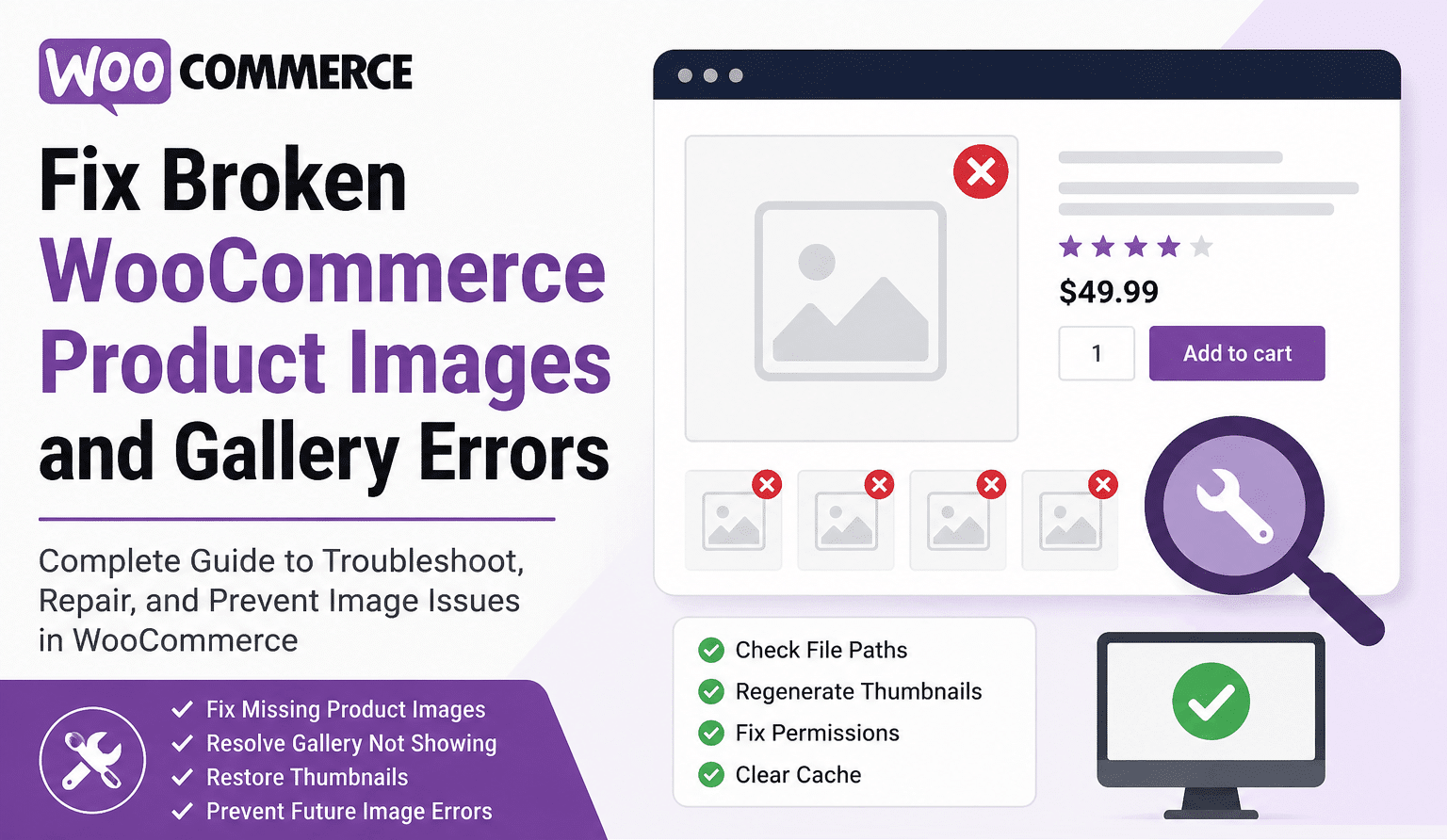

Fix Broken WooCommerce Product Images quickly and your online store instantly feels more trustworthy, professional, and ready to sell. When product photos disappear, thumbnails show as blank boxes, gallery images stop sliding, or variation images refuse to update, shoppers hesitate. They may wonder if the product is unavailable, if the store is broken, or if checkout will be just as unreliable.
WooCommerce product images are not just decoration. They are part of the buying decision. A customer cannot touch the product, compare textures, inspect colors, or confirm details in person. Your product image, gallery thumbnails, zoom behavior, and variation images do that work instead. When they break, conversion can suffer fast.
The good news is that most WooCommerce image and gallery errors are fixable. In many cases, the issue comes from one of a few common causes: missing image files, incorrect image URLs, outdated thumbnails, theme conflicts, plugin conflicts, CDN cache, file permission problems, mixed content after HTTPS changes, lazy loading issues, or WooCommerce gallery script conflicts.
WooCommerce stores product images and galleries inside product edit screens, and the main product image is reused across different areas of the store. WooCommerce also registers image sizes for catalog display, which means theme and thumbnail settings can directly affect how images appear. (WooCommerce)
This complete guide will help you diagnose, repair, and prevent WooCommerce image problems without guessing. For urgent store issues, you can also use the fast WordPress site repair service from WP Fix It, which is designed for broken WordPress and WooCommerce issues.
Why WooCommerce Product Images Break
To Fix Broken WooCommerce Product Images, you first need to understand where WooCommerce image display can fail. A product photo may look simple on the front end, but several systems work together behind the scenes.
A WooCommerce product image can depend on:
WordPress Media Library records
The original uploaded image file
Generated thumbnail files
WooCommerce image size settings
Theme templates
Gallery JavaScript
Caching plugins
CDN delivery
HTTPS settings
Server permissions
Variation image data
Optimization plugins
Lazy loading behavior
Page builder templates
If one part of that chain fails, the product image may disappear even though the product itself is still published.
For example, the image may still exist in the Media Library, but the thumbnail file WooCommerce is trying to display may be missing. Or the file may exist on the server, but a CDN may still be serving an older broken URL. Or the image may appear in the admin area but not on the live product page because a theme template is overriding the default WooCommerce gallery.
This is why random plugin switching can make the problem worse. A better approach is to isolate the exact failure point.
Common Signs of WooCommerce Image and Gallery Errors
You likely need to Fix Broken WooCommerce Product Images if you see any of these symptoms:
Product images show as blank boxes
Gallery thumbnails are missing
Only the first product image appears
Variation images do not change when options are selected
Images appear in the admin area but not on the live product page
Product photos show on desktop but not mobile
Images are visible in the Media Library but broken on shop pages
Catalog thumbnails are blurry, cropped badly, or the wrong size
Image zoom, lightbox, or gallery slider is not working
Recently uploaded product images fail to process
Old product images work, but new product images do not
Images broke after moving to HTTPS
Images broke after a theme, plugin, or WooCommerce update
Images broke after a migration to a new host
These symptoms often overlap. A store may have broken thumbnails on category pages, working full-size images on single product pages, and missing variation images on variable products. That usually means the image files exist, but WooCommerce, the theme, or cache is calling the wrong generated image size.
Step 1: Check Whether the Product Image File Actually Exists
Start with the simplest test. Open the product in your WordPress dashboard and inspect the product image.
Go to:
Products > All Products > Edit Product
Look at the main product image and gallery images. Click the image and open the attachment details. Copy the image file URL and open it in a private browser tab.
If the image opens directly, the file exists. The issue is probably related to thumbnails, theme display, cache, WooCommerce settings, or gallery scripts.
If the image URL returns a 404 error, permission error, blank page, hotlink protection warning, or server error, then WooCommerce is pointing to a file that is missing or blocked. WP Fix It also identifies missing files, restrictive server rules, and hotlink protection as common reasons WordPress images fail to load. (WP Fix It)
When the original image file is missing, you need to restore it from backup, re-upload it, or replace it on the product. Do not only regenerate thumbnails if the original file is gone. Thumbnail regeneration cannot recreate a missing original image.
Step 2: Confirm Product Images Are Assigned Correctly
WooCommerce has a main product image and a product gallery. They are related, but they are not the same.
The product image is the primary image used on the single product page, catalog areas, related products, upsells, cross-sells, and other store layouts.
The product gallery contains additional product photos that appear below or beside the main product image, depending on your theme.
To Fix Broken WooCommerce Product Images, open the product editor and confirm both areas are set correctly. WooCommerce documentation explains that product images and galleries are managed from the right side of the product edit screen. (WooCommerce)
Check these items:
Make sure the main product image is set
Make sure gallery images are added to the product gallery
Remove any broken gallery attachments
Re-add gallery images from the Media Library
Update the product
Clear cache
Test the product page in a private browser window
For variable products, also check each variation. A variation can have its own image. If a customer selects “Blue” or “Large,” WooCommerce may replace the main image with the variation image. If that variation image is missing or broken, the product gallery may look inconsistent.
Step 3: Regenerate WooCommerce Thumbnails
A very common way to Fix Broken WooCommerce Product Images is to regenerate thumbnails. WordPress creates multiple image sizes when an image is uploaded. WooCommerce and your theme use those sizes in different places.
If you changed themes, adjusted WooCommerce image settings, migrated the site, restored a backup, changed cropping settings, or moved from one server to another, some generated image files may not match the current layout.
WooCommerce registers catalog image sizes for store display, and thumbnail dimensions affect how catalog and product images appear. (The WooCommerce Developer Blog)
You can regenerate thumbnails using a trusted thumbnail regeneration plugin or WP-CLI. WordPress WP-CLI includes a wp media regenerate command that can regenerate thumbnails for media files. (WordPress Developer Resources)
A common WP-CLI command is:
wp media regenerate
For large stores, regenerate during low-traffic hours because image processing can consume server resources.
After regeneration, clear all cache layers:
Browser cache
Caching plugin cache
Host cache
Object cache
CDN cache
WooCommerce transients if needed
Then retest product pages, category pages, cart thumbnails, and mobile views.
Step 4: Check WooCommerce Product Image Settings
WooCommerce image display is affected by product image settings and theme support. Depending on your theme, you may find image settings under:
Appearance > Customize > WooCommerce > Product Images
Some block themes and newer layouts may manage image presentation differently, but the principle is the same: your store must have sensible product image dimensions, cropping behavior, and thumbnail settings.
If thumbnails look blurry, stretched, or cropped incorrectly, the issue may not be a broken file. It may be a mismatch between uploaded image dimensions and WooCommerce display settings.
To Fix Broken WooCommerce Product Images that look distorted:
Use consistent product photo dimensions
Avoid mixing very tall, very wide, and square images without a layout plan
Set image cropping intentionally
Regenerate thumbnails after changing image sizes
Clear cache after regeneration
Check shop, category, single product, cart, and checkout image display
For stores with many products, consistency matters. If one product uses a 1200 x 1200 image and another uses a 500 x 900 image, the catalog grid may look uneven unless your theme crops thumbnails consistently.
Step 5: Clear CDN, Cache, and Optimization Plugin Output
Caching can make a fixed image look broken long after the real issue is solved. This is especially common on WooCommerce stores using performance plugins, image optimization tools, WebP conversion, lazy loading, or a CDN.
To Fix Broken WooCommerce Product Images after making changes, clear every cache layer.
Clear your WordPress caching plugin
Clear your host cache
Clear CDN cache
Clear object cache
Clear browser cache
Disable image lazy loading temporarily
Disable WebP rewrite rules temporarily
Test in a private browser window
Test on mobile data, not only office Wi-Fi
If you use a CDN, open the broken image in a new tab and inspect the URL. If the image URL points to a CDN domain, the CDN may be serving an outdated file or blocking the asset.
Image optimization plugins can also cause problems when they rewrite image paths, generate WebP files, or lazy load gallery images before WooCommerce scripts are ready. Temporarily disabling image optimization is a useful troubleshooting step.
Step 6: Fix HTTPS and Mixed Content Image Problems
If your product images broke after switching from HTTP to HTTPS, the issue may be mixed content or outdated image URLs. A store can have a valid SSL certificate but still contain old image references in product descriptions, builder layouts, widgets, custom CSS, or database fields.
WP Fix It notes that old HTTP image URLs, mixed content inside CSS or theme files, incorrect WordPress URL settings, CDN cache, hard-coded URLs, thumbnail issues, and permissions can all contribute to broken images after HTTPS migration. (WP Fix It)
To Fix Broken WooCommerce Product Images after HTTPS migration:
Confirm WordPress Address and Site Address use HTTPS
Search the database for old HTTP image URLs
Update product descriptions and custom fields
Check page builder templates
Check theme options
Check custom CSS background images
Purge CDN cache
Regenerate thumbnails if needed
Test direct image URLs
Use a safe search-and-replace tool that handles serialized data correctly. Never run a raw database replacement unless you know exactly what you are doing, because serialized WordPress data can break if string lengths are changed incorrectly.
Step 7: Check File Permissions and Server Access
Sometimes WooCommerce product images are assigned correctly, thumbnails exist, and URLs are correct, but the server refuses to serve the image files.
This can happen because of:
Incorrect file permissions
Incorrect folder ownership
Security plugin rules
Hotlink protection
Blocked file extensions
Server firewall settings
Corrupted .htaccess rules
Nginx rewrite issues
Migration ownership mismatch
WordPress warns that incorrect file permissions can take a site offline, and recommends understanding permission changes before using chmod. (WordPress Developer Resources)
For most standard WordPress environments, uploads should be readable by the web server. The common uploads path is:
/wp-content/uploads/
Check whether images inside that folder can be accessed directly. If not, the issue is server-level access, not WooCommerce.
A developer or host can inspect ownership and permissions. Avoid setting everything to overly permissive values. That may temporarily make images appear, but it can create security risk.
Step 8: Test for Theme Conflicts
WooCommerce themes often customize the product image area. They may override gallery templates, add custom sliders, replace zoom behavior, or modify thumbnail layouts.
To Fix Broken WooCommerce Product Images caused by a theme conflict, test carefully.
Create a staging copy of the site. Switch temporarily to a default WooCommerce-compatible theme such as Storefront or a clean default WordPress theme with WooCommerce support. Then test the same product.
If product images and galleries work correctly on the default theme, the issue is likely inside your active theme, child theme, custom template, or page builder product template.
Look for:
Outdated WooCommerce template overrides
Custom product gallery code
Conflicting JavaScript
Missing WooCommerce gallery support
CSS hiding the gallery
Page builder product image widgets
Child theme modifications
Custom functions changing image sizes
Do not make theme changes directly on the live store without backup. A small template edit can affect every product page.
Step 9: Test for Plugin Conflicts
Plugin conflicts are another common reason you need to Fix Broken WooCommerce Product Images. Gallery plugins, variation swatch plugins, quick view plugins, optimization plugins, lazy loading plugins, page builders, security tools, and CDN plugins can all affect image display.
The safest method is to test on staging.
Disable non-essential plugins one at a time
Retest the product gallery after each change
Check browser console errors
Check whether scripts are minified or delayed
Disable JavaScript delay features temporarily
Disable lazy loading temporarily
Disable gallery enhancement plugins temporarily
Restore plugins after testing
Pay special attention to plugins that change:
Product variation display
Product image zoom
Product gallery sliders
WebP image delivery
Image compression
Lazy loading
JavaScript optimization
AJAX add-to-cart
Quick view modals
Product page templates
If the gallery starts working after disabling a plugin, do not assume the plugin is bad. It may simply need different settings, an update, or exclusion rules for WooCommerce gallery scripts.
Step 10: Inspect Browser Console Errors
When product galleries stop sliding, thumbnails do not switch the main image, or zoom stops working, the image files may be fine. The problem may be JavaScript.
Open the product page in Chrome, Firefox, or Edge. Right-click the page, choose Inspect, and open the Console tab. Reload the page.
Look for red errors related to:
jQuery
WooCommerce gallery scripts
Flexslider
Photoswipe
Theme JavaScript
Optimization plugin scripts
Blocked CDN resources
Mixed content
404 script files
Lazy loading scripts
If a JavaScript error happens before the WooCommerce gallery initializes, the gallery may freeze. Product thumbnails may appear, but clicking them may do nothing.
To Fix Broken WooCommerce Product Images caused by JavaScript, disable script delay, exclude WooCommerce gallery scripts from minification, or resolve the plugin/theme causing the conflict.
Step 11: Repair Variation Image Problems
Variable products can be tricky because each variation may use its own image. A shirt may have red, blue, and green options, and each color may need a different image.
If variation images are broken:
Open the variable product
Go to Product Data > Variations
Expand each variation
Confirm the variation image is set
Remove broken variation images
Reassign images from the Media Library
Save changes
Update the product
Clear cache
Test variation selection on the front end
If variation images still do not switch, test for JavaScript conflicts. Variation image swapping depends on scripts and product variation data. Optimization plugins that delay scripts can interfere with this behavior.
Step 12: Fix Broken Images After Migration
Store migrations are a major cause of WooCommerce image errors. After moving hosts, domains, staging sites, or URL structures, product images may still reference old paths.
To Fix Broken WooCommerce Product Images after migration:
Confirm the uploads folder migrated completely
Compare image file counts between old and new hosting
Check file paths in the database
Update old domain references
Confirm HTTPS settings
Regenerate thumbnails
Flush permalinks
Clear all caches
Check CDN origin settings
Test direct image URLs
If only some images are missing, the migration may have skipped large files, folders by year/month, or files with unusual permissions.
Check paths such as:
/wp-content/uploads/2024/
/wp-content/uploads/2025/
/wp-content/uploads/woocommerce_uploads/
Product downloads and protected WooCommerce files may live in different upload locations than normal product images, so inspect carefully.
Step 13: Fix Gallery Layout Problems with CSS
Sometimes images are not broken at all. They are hidden.
A CSS rule can accidentally set product gallery elements to:
display: none;
opacity: 0;
visibility: hidden;
height: 0;
overflow: hidden;
This can happen after theme updates, page builder changes, custom CSS edits, or plugin styling conflicts.
Inspect the gallery area using browser developer tools. If the image URL loads and the HTML exists, but the image is invisible, CSS may be the issue.
To Fix Broken WooCommerce Product Images caused by CSS, identify the rule hiding or shrinking the gallery. Then adjust the theme, child theme, customizer CSS, or page builder styling.
Avoid quick CSS patches unless you understand the layout. A rule that fixes desktop may break mobile product galleries.
Step 14: Replace Corrupted or Oversized Product Images
Corrupted image files can upload but fail to process correctly. Oversized images can also cause server timeouts during thumbnail generation.
If new product image uploads fail:
Try uploading a smaller version
Convert the image to JPG, PNG, or WebP
Remove unusual characters from the file name
Avoid extremely large dimensions
Check PHP memory limits
Check upload limits
Check server error logs
Try a different browser
Test with a simple image file
A file named blue-shirt-front.jpg is better than a file named IMG_9999 final (copy) @ 300%.jpg.
Use clean, descriptive product image filenames. This helps organization and can support image SEO.
Step 15: Prevent WooCommerce Product Image Errors
Once you Fix Broken WooCommerce Product Images, build a prevention workflow.
Use consistent product image dimensions
Name image files clearly before upload
Compress images before uploading
Avoid deleting Media Library images used by products
Use staging before major updates
Back up before theme or plugin updates
Regenerate thumbnails after image size changes
Keep WooCommerce and themes updated
Avoid stacking multiple gallery plugins
Test product pages after optimization changes
Monitor 404 errors for image paths
Document CDN and WebP settings
Review product images after site migration
For ongoing protection, use the WordPress care plans for updates, backups, security, and performance from WP Fix It. A maintained store is less likely to suffer surprise image failures after updates.
When to Get Expert Help
You can Fix Broken WooCommerce Product Images yourself when the issue is simple: a missing product image, cache problem, or thumbnail regeneration need. But professional help is smart when the issue involves a live store, custom theme code, server permissions, database replacements, or checkout-impacting plugin conflicts.
Get help immediately if:
Product pages are broken across the store
Images disappeared after a migration
You see server permission errors
You are not comfortable with database search-and-replace
Gallery scripts show JavaScript errors
You suspect a theme override problem
You already tried multiple fixes with no result
Sales are being affected
WP Fix It offers a one-time WordPress issue fix service for broken WooCommerce store problems, including plugin and theme conflicts, and the service page lists fast repair options with a no-fix no-cost promise. (WP Fix It)
Final Checklist to Fix Broken WooCommerce Product Images
Use this checklist before closing the issue:
Confirm the image file URL opens directly
Confirm the product image is assigned
Confirm gallery images are assigned
Check variation images
Regenerate thumbnails
Review WooCommerce product image settings
Clear WordPress cache
Clear host cache
Clear CDN cache
Disable lazy loading temporarily
Disable image optimization temporarily
Check HTTPS and mixed content
Inspect file permissions
Test with a default theme on staging
Disable conflicting plugins on staging
Check browser console errors
Review custom CSS
Replace corrupted images
Test desktop and mobile
Test shop, category, product, cart, and checkout pages
When the images work across every part of the store, you are not just fixing a visual issue. You are restoring customer confidence.
A WooCommerce store with clean, consistent, working product images feels more reliable. Customers can compare products, inspect details, select variations, and move toward checkout with fewer doubts. That is why it is worth taking the time to properly Fix Broken WooCommerce Product Images instead of covering up the symptom.
For fast help, visit the complete range of WordPress services from WP Fix It or use the WooCommerce and WordPress repair service to get the problem diagnosed and corrected.
Why WooCommerce Product Images Look Inconsistent Across Collections
When product images look different across collections, the image files are not always the problem. WooCommerce may be displaying different generated sizes, cropping rules, templates, or variation settings on each shop, category, search, and product page.
Use the following checks to identify the source of the inconsistency:
- Compare the same product in several locations. Check the shop page, each relevant category, product search results, the single product page, related products, and cart. If the image is correct on the product page but wrong in a collection, inspect the catalog image size, theme template, and collection-specific page builder layout.
- Check the source image dimensions and proportions. Very tall, wide, or unusually small uploads may be cropped or padded differently. Use a consistent image format and size where possible, then regenerate thumbnails after changing WooCommerce or theme image settings.
- Review variation images. On a variable product, open
Products > Edit Product > Variationsand inspect the image assigned to each variation. A variation without its own image may continue using the parent product image, while a missing or inaccessible variation image can leave the featured image unchanged or show a blank result after an option is selected. - Test search and catalog templates. If variation images are missing only in search results, the search template or theme may not support variation image data. Compare the result with a default WooCommerce-compatible theme on a staging site.
- Test the lightbox separately. If the main image loads but clicking it does nothing, the file is probably available and the problem is more likely a JavaScript conflict, disabled zoom or lightbox setting, delayed scripts, or a theme gallery override. Temporarily disable optimization, script delay, and gallery plugins, then check the browser console for errors.
After correcting assignments or regenerated image sizes, clear the WordPress, host, CDN, and browser caches. Recheck desktop and mobile views, and test both a simple product and a variable product before restoring any disabled optimization features.