
SEO Package
Focus Keyword: fix broken canonical tags in WordPress
SEO Title: Fix Broken Canonical Tags in WordPress and Duplicate URL Issues
SEO Meta Description: Learn how to fix broken canonical tags in WordPress, remove duplicate URL issues, improve indexing, and help search engines choose the correct page version.
Post Slug: fix-broken-canonical-tags-in-wordpress
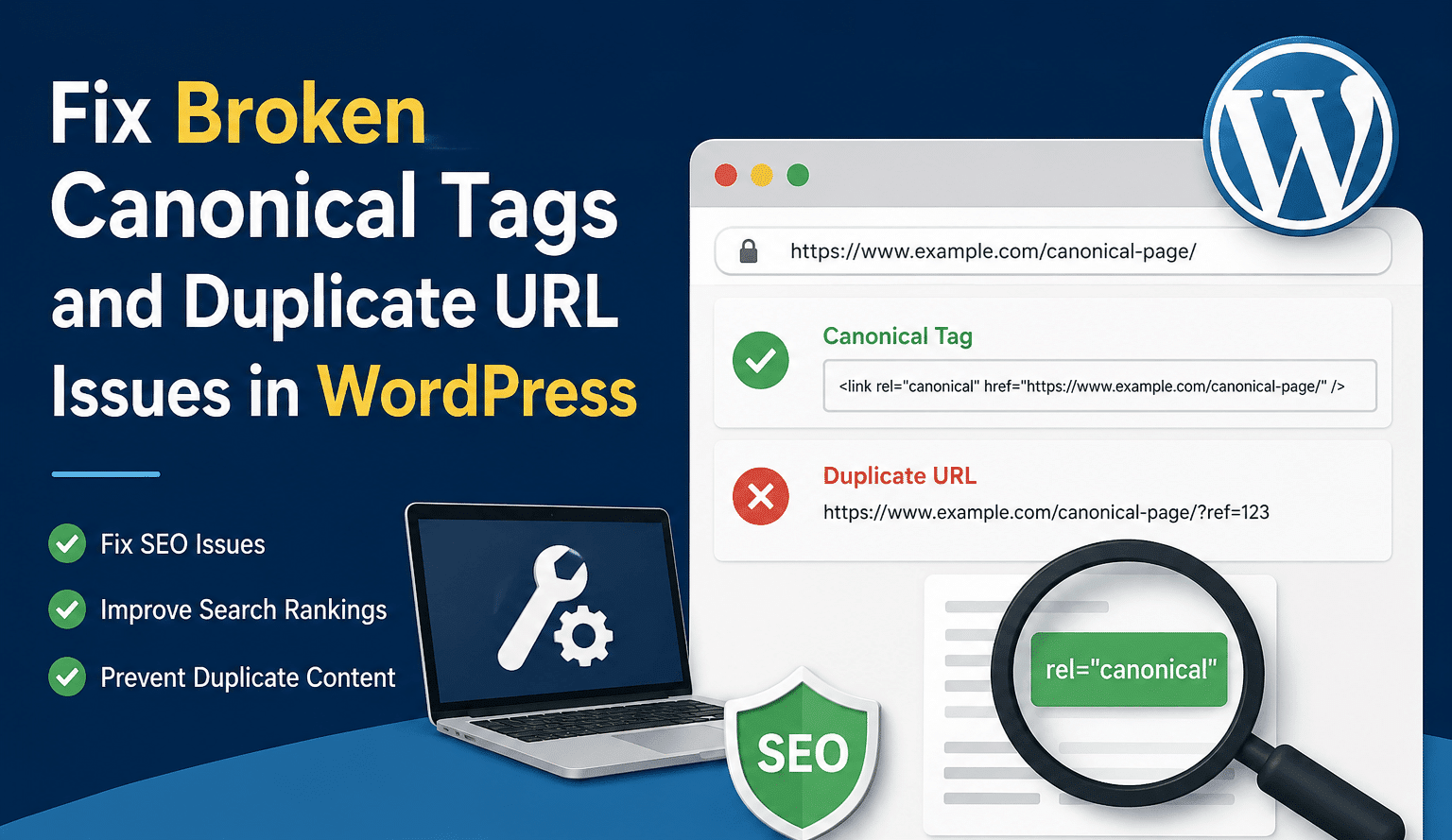
Featured Image: Rectangular featured image has been generated above.
Fix Broken Canonical Tags in WordPress and Duplicate URL Issues
Fix broken canonical tags in WordPress before duplicate URL issues confuse search engines, split ranking signals, and make the wrong version of your content appear in search results. Canonical tags are small pieces of code, but they can have a large impact on how Google understands your pages. When they are missing, duplicated, conflicting, or pointing to the wrong URL, your site can experience indexing problems that look much bigger than the actual cause.
A canonical URL is the preferred version of a page when several URLs show the same or very similar content. Google describes canonicalization as the process of choosing the representative URL from a set of duplicate pages, and it uses canonical signals to decide which version should appear in search results. (Google for Developers)
For WordPress site owners, duplicate URL issues often come from normal site behavior: category archives, tag archives, pagination, HTTP and HTTPS versions, www and non-www versions, trailing slash mismatches, tracking parameters, print pages, WooCommerce product paths, or SEO plugin conflicts. WordPress also has built-in canonical functions, including wp_get_canonical_url() and redirect_canonical(), that help return a post’s canonical URL and redirect duplicate URL versions in many common cases. (WordPress Developer Resources)
This guide explains how to fix broken canonical tags in WordPress, diagnose duplicate URL problems, clean up conflicting SEO signals, and create a stronger canonical structure for long-term search visibility.
Why Canonical Tags Matter for WordPress SEO
When two or more URLs show the same content, search engines need to decide which URL deserves to be indexed and ranked. That decision is not always the same as the URL you prefer. Google’s documentation explains that site owners can indicate their preferred canonical URL using redirects, rel="canonical" tags, sitemap URLs, and internal linking consistency. (Google for Developers)
For example, all of these URLs could show the same page:
https://example.com/wordpress-seo-guide/https://www.example.com/wordpress-seo-guide/http://example.com/wordpress-seo-guide/https://example.com/wordpress-seo-guide/?utm_source=newsletterhttps://example.com/category/seo/wordpress-seo-guide/
Without clear canonical signals, search engines may crawl several versions, index the wrong one, or mark the page as a duplicate. This is why it is so important to fix broken canonical tags in WordPress as part of your technical SEO process.
A proper canonical tag usually looks like this:
<link rel="canonical" href="https://www.example.com/preferred-page-url/" />
That tag tells search engines, “This is the main version of this content.” It does not guarantee Google will choose that URL, but it is an important signal. Google may still choose another canonical if redirects, internal links, sitemaps, content similarity, or page quality signals point elsewhere. (Google for Developers)
For a deeper internal resource on duplicate content, review this WordPress duplicate content cleanup guide.
Common Signs of Broken Canonical Tags in WordPress
You may need to fix broken canonical tags in WordPress if you notice any of these issues:
Your pages show “Duplicate without user-selected canonical” in Google Search Console.
Your pages show “Duplicate, Google chose different canonical than user” in Google Search Console.
The same article appears under multiple URLs.
The canonical tag points to a staging domain, old domain, HTTP version, or non-preferred www version.
A page has two or more canonical tags in the source code.
Canonical tags are missing from posts, pages, products, or custom post types.
Paginated content points every page back to page one incorrectly.
WooCommerce products have multiple category-based URLs.
Search, tag, date, author, or filtered archive pages are being indexed when they should not be.
Canonical problems are technical, but the symptoms often appear as ranking drops, unstable indexing, or search engines selecting unexpected URLs.
What Causes Duplicate URL Issues in WordPress?
WordPress is flexible, and that flexibility can create duplicate URL paths. The most common causes include taxonomy archives, plugin conflicts, permalink changes, eCommerce filters, tracking parameters, and inconsistent site settings.
1. Categories and Tags
A single WordPress post can appear on the post URL, category archive, tag archive, author archive, date archive, and homepage feed. Archive pages are not always bad, but they can create thin or highly similar pages when categories and tags overlap.
WP Fix It has previously noted that duplicated categories and tags can contribute to duplicate content issues when site structure is not organized carefully. The solution usually involves cleaning up taxonomy strategy, applying appropriate index settings, and keeping category names distinct and useful. (WP Fix It)
2. HTTP, HTTPS, www, and Non-www Versions
Search engines may treat different protocol and host versions as separate URLs unless the site redirects consistently. WordPress core’s redirect_canonical() function is designed to help redirect incoming links to the proper URL based on the site URL, including cases where www and non-www versions could otherwise be considered different URLs. (WordPress Developer Resources)
3. Trailing Slash Mismatches
Depending on your permalink settings, WordPress may prefer URLs with or without a trailing slash. If internal links, canonical tags, and redirects disagree, duplicate URL issues can appear.
4. Tracking Parameters
Marketing links often add parameters such as:
?utm_source=email?utm_campaign=sale?fbclid=example?gclid=example
These parameters can create many URL variations for the same page. Canonical tags help consolidate those variations back to the clean page URL.
5. SEO Plugin Conflicts
Most WordPress SEO plugins output canonical tags automatically. Problems happen when two plugins, a theme, or custom code all output canonical tags at the same time. A page should normally have one clear canonical tag, not multiple competing tags.
6. WooCommerce Product URLs
WooCommerce stores may create product URLs through different category paths, filter combinations, sorting parameters, and pagination. Product pages need especially careful canonical control because duplicate product URLs can weaken eCommerce SEO.
7. Staging Site or Migration Errors
After a redesign or migration, canonical tags may accidentally point to a staging URL, temporary domain, old domain, or development environment. This is one of the most damaging canonical mistakes because it can tell search engines that your live content belongs somewhere else.
For urgent technical problems related to broken pages, plugin conflicts, or site errors, use this WordPress emergency support service.
How to Check Canonical Tags in WordPress
Before you fix broken canonical tags in WordPress, confirm what your pages are actually outputting.
Step 1: View the Page Source
Open an important page, right-click, and choose “View Page Source.” Search for:
rel="canonical"
You should usually see one canonical tag. The URL should be absolute, clean, indexable, and consistent with the page you want ranked.
Good example:
<link rel="canonical" href="https://www.example.com/fix-wordpress-errors/" />
Bad examples:
<link rel="canonical" href="http://example.com/fix-wordpress-errors/" />
<link rel="canonical" href="https://staging.example.com/fix-wordpress-errors/" />
<link rel="canonical" href="https://www.example.com/old-page/" />
Step 2: Check the Rendered HTML
Some plugins inject tags after the original source loads. Use your browser’s developer tools and inspect the rendered <head> section. This helps you catch duplicate canonical tags created by JavaScript, optimization tools, or theme features.
Step 3: Use Google Search Console
Google Search Console can show which URL Google selected as canonical. If Google selects a different canonical than the one you declared, the page may have conflicting signals, insufficient similarity, poor internal linking, redirect problems, or sitemap inconsistencies.
Step 4: Crawl the Website
Use a technical crawler to export canonical data across the site. Look for:
Missing canonical tags
Multiple canonical tags
Canonical tags pointing to redirected URLs
Canonical tags pointing to 404 pages
Canonical tags pointing to non-indexable pages
HTTP canonicals on HTTPS pages
Non-www canonicals on www pages, or the reverse
Canonical loops
Canonicalized pages still listed in XML sitemaps
For general technical improvements, review this SEO cheat sheet for web developers.
How to Fix Broken Canonical Tags in WordPress
Now let’s walk through the repair process.
1. Choose One Preferred URL Format
Before changing tags, decide your official URL format. Choose one version for the whole site:
https://www.example.com/
orhttps://example.com/
Also decide whether your permalink structure uses trailing slashes. Your WordPress Address and Site Address settings should match your preferred format.
Go to:
WordPress Dashboard → Settings → General
Check:
WordPress Address URL
Site Address URL
Both should use the correct HTTPS and host version.
2. Enforce Redirects at the Server Level
Canonical tags are helpful, but redirects are stronger when duplicate URLs should not remain accessible. Google lists redirects as a strong canonicalization signal, stronger than canonical tags and sitemap inclusion. (Google for Developers)
Set redirects so that:
HTTP redirects to HTTPS
Non-www redirects to www, or www redirects to non-www
Old permalink paths redirect to new permalink paths
Trailing slash rules are consistent
Staging domains redirect or remain blocked from indexing
A redirect should point directly to the final destination, not through a chain of multiple hops.
3. Make Every Indexable Page Self-Canonical
A normal blog post, page, product, or service page should usually point its canonical tag to itself.
Example:
<link rel="canonical" href="https://www.example.com/service-page/" />
A self-referencing canonical helps confirm the preferred URL even when visitors arrive through tracking parameters or alternate paths.
4. Remove Duplicate Canonical Output
If a page has two canonical tags, identify which tool is outputting each one. Common sources include:
SEO plugin
Theme SEO settings
Custom header code
Page builder SEO feature
Schema plugin
Caching or optimization plugin
Custom functions.php snippet
Disable all but one canonical source. In most cases, let one primary SEO plugin manage canonical tags globally.
5. Correct Canonicals in SEO Plugin Settings
If you use an SEO plugin, inspect the advanced settings for affected posts and pages. Many SEO plugins allow custom canonical URLs per page. Remove incorrect custom canonicals unless there is a specific reason to canonicalize to another page.
Use custom canonicals only when content is intentionally duplicated or highly similar and one URL should be treated as the main version.
6. Clean Up Category and Tag Indexing
Do not index every taxonomy archive by default. Some category pages are valuable landing pages. Many tag archives are thin, repetitive, or unnecessary.
A strong setup often looks like this:
Index important category archives with unique descriptions.
Noindex low-value tag archives.
Noindex date archives unless they serve a real user purpose.
Noindex author archives on single-author blogs.
Merge overlapping categories.
Delete unused tags.
Redirect removed archive URLs when appropriate.
This helps fix broken canonical tags in WordPress by reducing the number of duplicate or near-duplicate pages that search engines must evaluate.
7. Fix WooCommerce Duplicate Product URLs
For WooCommerce stores, review product URL structure carefully. Product filters, categories, tags, sorting parameters, and pagination can create a large number of duplicate URLs.
Recommended actions include:
Make the main product page self-canonical.
Avoid indexing filtered parameter URLs unless they are valuable search landing pages.
Keep product URLs stable.
Use one preferred category path if category-based product URLs are enabled.
Noindex internal search results and low-value filtered pages.
Keep canonical tags away from out-of-stock variations unless the duplicate version truly matches the canonical page.
For performance issues that affect large WordPress or WooCommerce sites, see this WordPress database cleanup service.
How to Fix “Duplicate Without User-Selected Canonical”
“Duplicate without user-selected canonical” means Google found duplicate content but did not find a clear canonical preference from your site. The fix is usually one of these:
Add a self-referencing canonical to the preferred page.
Add a canonical from the duplicate page to the preferred page.
301 redirect the duplicate URL to the preferred URL.
Noindex low-value duplicate pages.
Remove duplicate URLs from the XML sitemap.
Improve internal links so they point to the preferred URL.
Make sure the canonical URL is indexable and returns a 200 status code.
Do not canonicalize to a page that is blocked by robots.txt, noindexed, redirected, or 404ing. The canonical target must be crawlable and eligible for indexing.
How to Fix “Google Chose Different Canonical Than User”
This message means you declared one canonical, but Google selected another. That can happen when your canonical tag conflicts with other signals.
To fix it, compare the declared canonical and Google-selected canonical. Ask these questions:
Is the declared canonical URL redirected?
Is the declared canonical noindexed?
Is the declared canonical blocked?
Is the declared canonical missing from the sitemap?
Do internal links mostly point to another URL?
Does the duplicate page have stronger content or links?
Are the two pages too different to canonicalize?
Does the page have multiple canonical tags?
Is the canonical pointing across domains without a clear reason?
Canonical tags work best when the duplicate pages are truly duplicate or very similar. If two pages are meaningfully different, Google may ignore your canonical because it does not see them as equivalent.
WordPress Developer-Level Canonical Fixes
Most site owners should use SEO plugin settings and redirects instead of custom code. However, developers may need to customize canonical output for special templates, custom post types, faceted navigation, or headless WordPress builds.
WordPress provides wp_get_canonical_url() to return the canonical URL for a post, and the function handles pagination arguments when appropriate. (WordPress Developer Resources)
WordPress also includes rel_canonical(), which outputs the canonical link element for singular pages, and its developer documentation notes that it was introduced in WordPress 2.9.0 and later adjusted to use wp_get_canonical_url(). (WordPress Developer Resources)
A developer might filter canonical output with code like this:
add_filter( 'get_canonical_url', function( $canonical_url, $post ) {
    if ( is_singular( 'product' ) ) {
        return get_permalink( $post );
    }

    return $canonical_url;
}, 10, 2 );
Use custom code carefully. A single mistake can create sitewide canonical damage.
Canonical Tags vs 301 Redirects vs Noindex
Canonical tags, redirects, and noindex tags are not interchangeable.
A canonical tag tells search engines which duplicate or similar URL you prefer.
A 301 redirect sends users and search engines from one URL to another.
A noindex tag tells search engines not to index a page.
Use a canonical tag when duplicate pages must remain accessible.
Use a 301 redirect when duplicate pages should not be accessible.
Use noindex when a page can exist for users but should not appear in search results.
Avoid using canonical and noindex together on the same URL as a routine strategy. A noindexed page may eventually stop being crawled regularly, which can weaken Google’s ability to see the canonical signal.
Internal Linking Helps Canonical Signals
Internal links are a powerful supporting signal. If your canonical tag says one thing but your internal links say another, search engines may trust the link structure more.
For example, do not link to all of these versions internally:
/service-page/service-page//service-page/?ref=homepagehttp://example.com/service-page/
Pick the preferred URL and use it everywhere.
Useful internal resources include:
WordPress duplicate content cleanup guide
SEO cheat sheet for web developers
WordPress database cleanup service
WordPress malware removal service
WordPress support service
External Resources for Canonical Tag Accuracy
Use official informational resources when validating canonical decisions:
Google canonical URL documentation
Google canonicalization explanation
WordPress canonical URL developer reference
WordPress canonical redirect developer reference
Google Article structured data documentation
Google’s Article structured data documentation explains that Article structured data can help Google understand article pages and show better title, image, and date information in Google Search experiences. (Google for Developers)
Canonical Tag Audit Checklist
Use this checklist to fix broken canonical tags in WordPress:
Confirm the preferred domain version.
Confirm HTTPS is enforced.
Check WordPress Address and Site Address settings.
Verify each indexable page has one canonical tag.
Remove duplicate canonical tags.
Make normal pages self-canonical.
Canonicalize duplicate parameter URLs to clean URLs.
Fix canonicals pointing to redirects.
Fix canonicals pointing to 404 pages.
Fix canonicals pointing to noindexed pages.
Remove old staging domain canonicals.
Clean up tag, date, and author archives.
Review WooCommerce product and filter URLs.
Check XML sitemap URLs.
Update internal links to preferred URLs.
Inspect Google Search Console after recrawling.
This process should be repeated after migrations, redesigns, permalink changes, SEO plugin changes, theme changes, and WooCommerce structure updates.
Final Thoughts
When you fix broken canonical tags in WordPress, you make it easier for search engines to understand your site. You reduce duplicate URL confusion, consolidate ranking signals, improve crawl efficiency, and help the correct pages appear in search results.
Canonical tags are not a magic ranking button. They are part of a larger technical SEO system that includes redirects, internal links, XML sitemaps, robots directives, page quality, and site architecture. The best results come from consistency. Your canonical tags, redirects, sitemaps, and internal links should all point to the same preferred URLs.
For expert help diagnosing duplicate URL problems, plugin conflicts, indexing issues, or technical SEO errors, visit the WP Fix It WordPress support service.
How to Add a Canonical Tag in the WordPress Header
Most WordPress SEO plugins add a canonical tag to the document <head> automatically. Before adding one manually, view the page source and search for rel="canonical". If a correct canonical already exists, do not add another. Multiple canonical tags can create conflicting signals.
For a site managed with an SEO plugin, set the canonical URL in that plugin’s advanced page settings when a custom canonical is genuinely needed. The URL should be absolute, use the preferred HTTPS and host format, return a successful page response, and point to the version you want search engines to evaluate.
If your site does not use a plugin that outputs canonicals, a developer can add one through the theme’s supported head hook rather than editing files that may be overwritten during updates. A typical tag is:
<link rel="canonical" href="https://www.example.com/preferred-page/" />
- Use one canonical source for each page.
- Keep canonicals consistent with redirects, internal links, and XML sitemaps.
- Do not point a canonical to a redirected, blocked, noindexed, or missing URL.
- Recheck the rendered HTML after plugin, theme, migration, or permalink changes.