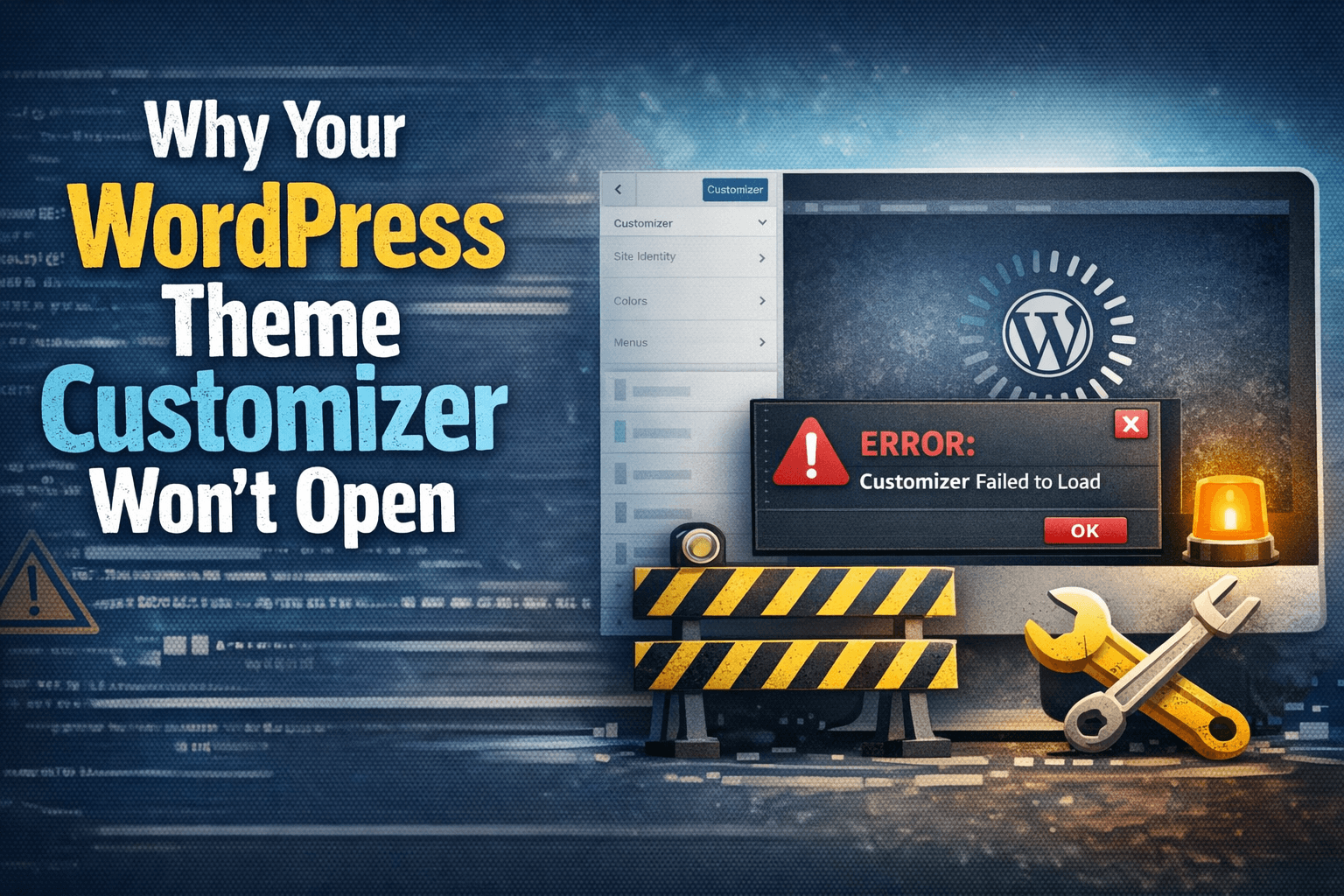

If your WordPress Theme Customizer won’t open, you are usually dealing with one of a small set of root causes: a plugin conflict, a broken theme function, a JavaScript error, low PHP memory, a caching problem, or a permission or role issue. WordPress documents that the Customizer is tied to theme support, and for block themes it may be hidden because customization happens through the Site Editor instead. That means the first step is not panic. The first step is figuring out whether the Customizer is actually broken, hidden by design, or blocked by something else in your environment. (WordPress.org)
The good news is that this problem is usually fixable without rebuilding your website. In many cases, the front end still works, posts are still there, and your database is fine. What fails is the admin-side loading process for the preview frame, controls panel, or the scripts that connect the two. WordPress’s own troubleshooting guidance consistently points to isolating plugins and themes first, then using debugging and Site Health tools to narrow the issue down. (Learn WordPress)
Before diving into the fixes, there is one important distinction to make.
The Customizer may not be missing because it is broken
WordPress introduced the Theme Customizer years ago as a way to preview design changes before publishing them. But modern block themes often move design controls into Appearance > Editor, also called the Site Editor. WordPress documentation explicitly notes that the Customizer is only available when the active theme supports it, and block themes often hide it unless a plugin still requires it. So if you recently changed themes and suddenly the Customizer is gone, your site may not be broken at all. You may simply need to use the Site Editor instead. (WordPress.org)
That is why the very first question should be:
Are you using a classic theme or a block theme?
If you are on a block theme, check Appearance > Editor. If you are on a classic theme and Appearance > Customize just spins, shows a blank page, or never loads the preview, continue with the steps below.
What usually causes this problem
When the WordPress Theme Customizer won’t open, these are the most common causes:
A plugin conflict is at the top of the list. Plugins can inject JavaScript, alter admin requests, enqueue conflicting scripts, or trigger fatal PHP errors that stop the Customizer from rendering correctly. WordPress learning resources and support guidance repeatedly recommend disabling plugins and reactivating them one by one to identify the culprit. (Learn WordPress)
A theme issue is the next likely cause. Since the Customizer is directly connected to your active theme, a broken function, outdated framework, bad Customizer registration, or theme-level JavaScript error can block the screen. WordPress also recommends switching to a default theme to test whether the active theme is the issue. (WP Fix It)
Caching can also get in the way. Browser cache, optimization plugins, CDN edge cache, and stale admin-side assets can all interfere with loading current scripts and styles. Browser reload behavior and cache validation are handled at the HTTP level, and a hard refresh or forced reload can sometimes pull in the missing or corrected assets immediately. (MDN Web Docs)
Memory and server limits matter too. If PHP memory is too low or the server times out while loading the preview frame or admin scripts, the Customizer may hang or go white. WP Fix It’s current troubleshooting content and WordPress debugging guidance both point to memory exhaustion and fatal errors as common admin-loading failures. (WP Fix It)
Permissions and user roles can also explain it. The customize capability is available to Administrators on standard installs, while user roles with fewer permissions may not be able to access the Customizer at all. (WordPress.org)
Step 1: Confirm whether this is a classic-theme problem or a block-theme workflow change
This is the fastest win.
Go to Appearance in your dashboard.
If you see Editor instead of Customize, or if the theme is marketed as a block theme, open the Site Editor and look there for design controls. The Site Editor handles templates, patterns, styles, navigation, and layout in block themes. That is now the expected workflow for many newer themes. (WordPress.org)
If your theme is a classic theme and Customize is present but will not load, move to the next step.
Step 2: Try the fastest low-risk fixes first
Before you touch files or disable anything, try these quick checks:
Open the dashboard in a private browser window.
Hard refresh the page.
Try a second browser.
Disable browser extensions temporarily.
Log out and back in.
Clear browser cache.
These simple tests matter because admin pages sometimes fail due to stale cached assets, extension interference, or corrupted local session data. Browser caching rules are designed to reuse resources until the browser revalidates or force reloads them, so a hard reload can fix problems that look much more serious than they really are. (MDN Web Docs)
If the Customizer suddenly works in an incognito window or different browser, your issue is probably local caching or an extension conflict, not WordPress itself.
Step 3: Disable plugins to test for a conflict
If the WordPress Theme Customizer won’t open, plugin conflict testing should happen early. This is one of the most reliable troubleshooting methods, and both WordPress educational resources and support forum responses recommend it. (Learn WordPress)
If you still have dashboard access:
- Go to Plugins > Installed Plugins
- Deactivate all plugins
- Reload the Customizer
- If it opens, reactivate plugins one by one until it breaks again
If you do not have stable admin access, rename the /wp-content/plugins/ folder through FTP or your host’s file manager. That temporarily disables all plugins at once and is a standard WordPress troubleshooting move when admin screens break. (WP Fix It)
For a related internal resource, link to WordPress plugin conflict troubleshooting because that article aligns closely with the same diagnostic path.
A good sentence for internal linking in the live post would be:
If you suspect a compatibility issue, follow this guide to WordPress plugin conflict troubleshooting before changing random settings.
Step 4: Switch to a default WordPress theme
If disabling plugins does not fix it, test the theme.
Activate a default WordPress theme like Twenty Twenty-Five if available. If you cannot access the theme screen, rename your active theme folder inside /wp-content/themes/ and let WordPress fall back to a default theme if one is installed. WordPress and WP Fix It guidance both use this method to separate theme problems from plugin and core problems. (WP Fix It)
If the Customizer works after switching themes, your original theme is the problem. That does not always mean the theme is bad. It may simply be:
- outdated for your current PHP version
- conflicting with a page builder or optimization plugin
- loading broken Customizer code
- using deprecated functions
- partially corrupted after an update
A helpful internal link here is unlock the power of WordPress customization and design, especially for users deciding whether to stay with their current theme or move to something more stable.
Step 5: Check your user role and permissions
Sometimes the issue is not technical at all.
WordPress role documentation shows that the customize capability is available to Administrators, while lower-level roles often do not have access to theme customization controls. On a single-site install, an Administrator should have the needed permissions. On multisite, the setup can be more restrictive depending on configuration. (WordPress.org)
If one admin account can open the Customizer and another cannot, compare roles, custom capability plugins, membership restrictions, and security tools that may alter admin access.
Step 6: Enable debugging and inspect errors
When the obvious checks fail, debugging is the fastest way to stop guessing.
WordPress includes built-in debugging constants such as WP_DEBUG, WP_DEBUG_LOG, and WP_DEBUG_DISPLAY. The official debugging handbook recommends using them to surface PHP warnings, notices, and fatal errors and to write issues into a debug.log file. (WordPress Developer Resources)
In wp-config.php, add or confirm:
define( 'WP_DEBUG', true );
define( 'WP_DEBUG_LOG', true );
define( 'WP_DEBUG_DISPLAY', false );
Then reload the Customizer and check:
/wp-content/debug.log
You are looking for clues like:
- allowed memory size exhausted
- call to undefined function
- syntax error
- failed opening required file
- deprecated function causing related code failure
- plugin file path mentioned repeatedly
- theme file path mentioned repeatedly
A great internal support article to link here is how to fix the white screen of death in WordPress because blank Customizer screens often trace back to the same underlying fatal-error patterns.
Suggested internal anchor use:
A blank Customizer preview can be a variation of the WordPress white screen of death, especially when a fatal PHP error is blocking output.
Step 7: Look for JavaScript errors in the browser console
Not every broken Customizer is caused by PHP.
The Customizer depends heavily on JavaScript to load controls, bind settings, and update the preview. WordPress’s Customize API includes both server-side and JavaScript components, and if a script fails in the browser, the screen may hang even when the server is technically responding. (WordPress Developer Resources)
Open the browser developer tools and check the Console tab while loading the Customizer.
Common clues include:
Uncaught SyntaxErrorjQuery is not defined- mixed content warnings
- blocked script by CSP or firewall
- 404 or 403 on admin JS files
- plugin script throwing an error before Customizer scripts initialize
If you see an error tied to a specific plugin or theme asset, you have likely found the culprit.
Step 8: Increase WordPress memory
Memory exhaustion is one of those issues that can produce weird, inconsistent admin failures. A site may look fine on the front end but break inside the dashboard where more scripts, previews, and admin requests run together. WP Fix It troubleshooting content specifically calls out low memory as a frequent cause of admin loading issues. (WP Fix It)
A common temporary test is adding this to wp-config.php:
define( 'WP_MEMORY_LIMIT', '256M' );
define( 'WP_MAX_MEMORY_LIMIT', '256M' );
Then confirm with your host that the server-side PHP memory limit is not lower than what WordPress requests.
This also pairs naturally with an internal link to fix WordPress stuck on loading in wp-admin because Customizer failures often overlap with broader admin loading problems.
Step 9: Clear plugin, server, and CDN cache
When the WordPress Theme Customizer won’t open, the problem may not be the code itself. It may be the old version of the code still being served somewhere between the server and your browser.
Clear:
- browser cache
- caching plugin cache
- host-level cache
- CDN cache
- Cloudflare cache if applicable
WP Fix It’s caching articles and redirect-loop troubleshooting both emphasize clearing every layer in the stack when diagnosing loading issues. MDN’s caching guidance also explains why stale resources may persist until forced revalidation or manual clearing happens. (WP Fix It)
A strong internal link here is what is WordPress caching.
Example sentence:
Before assuming your theme is broken, clear every cache layer using this guide to WordPress caching.
Step 10: Check .htaccess, security rules, and file permissions
A corrupted .htaccess file, aggressive firewall rules, or wrong file permissions can interfere with admin access and script loading. WP Fix It’s .htaccess guide recommends backing up the file, deleting it temporarily, and regenerating it by visiting the permalink settings screen and saving changes. That same guide also notes common WordPress permission defaults like 755 for directories and 644 for files. (WP Fix It)
If you use security plugins or a WAF, temporarily loosen admin protections long enough to test the Customizer. Some security layers block AJAX or preview requests and make the Customizer appear frozen.
Relevant internal link: Mastering htaccess for WordPress
Step 11: Use Health Check or a safer troubleshooting workflow
For sites you do not want to disrupt publicly, WordPress learning materials recommend using the Health Check & Troubleshooting plugin. Its troubleshooting mode can deactivate plugins and switch themes for your session only, letting you test conflicts without affecting visitors. (Learn WordPress)
That makes it especially useful for ecommerce stores, active membership sites, or business websites where live downtime is unacceptable.
Step 12: Restore from backup if the issue started right after an update
If the problem began immediately after a plugin, theme, or WordPress core update, and you have a recent backup, restoring the last known-good state may be the fastest path back. WP Fix It’s backup guidance repeatedly emphasizes that both your database and wp-content matter in recovery. (WP Fix It)
A relevant internal link is how to backup a WordPress site.
Suggested sentence:
If this issue appeared right after an update, make sure you can backup a WordPress site properly before testing bigger changes.
External informational links to include
These support the post without linking to direct WordPress service competitors:
- WordPress Customizer documentation
- WordPress Site Editor documentation
- Debugging in WordPress
- Troubleshooting plugin and theme conflicts
- WordPress roles and capabilities
- MDN HTTP caching guide
Recommended internal links for wpfixit.com
Use keyword-rich anchor text like these:
- WordPress plugin conflict troubleshooting
- Fix WordPress stuck on loading in wp-admin
- WordPress white screen of death
- What is WordPress caching
- Mastering htaccess for WordPress
- How to backup a WordPress site
- Fix WP Media Library not loading
Final thoughts
When your WordPress Theme Customizer won’t open, the mistake most site owners make is changing too many things at once. A better approach is to work in order: confirm whether your theme should even use the Customizer, test plugins, test the theme, clear cache, inspect JavaScript, enable debugging, and then move into memory, permissions, and server-level checks. That process matches official WordPress guidance and current troubleshooting patterns seen in WP Fix It content. (WordPress.org)
In most cases, the issue is not mysterious. It is just hidden behind the wrong symptom. The Customizer looks like it is broken, but the real problem is usually a conflict, a cached asset, a theme mismatch, or an error log waiting to be read.
What to Do When the WordPress Customizer Is Not Loading
If the Customizer opens but the controls or preview never finish loading, first identify which part is failing. A blank controls panel usually points to an admin JavaScript or PHP error. A missing or blank preview can indicate a blocked iframe, mixed-content issue, cache problem, or a theme error.
- Check the browser console and Network tab. Open developer tools, reload the Customizer, and look for failed requests with
403,404, or500responses. A request toadmin-ajax.phpthat fails can indicate a plugin, firewall, or server rule blocking the preview. - Test the site URL and HTTPS settings. If the dashboard uses
https://but the preview or stylesheet requestshttp://, the browser may block mixed content. Confirm that the WordPress Address and Site Address use the intended protocol, then clear caches. Do not disable browser security as a permanent fix. - Separate a loading problem from a theme workflow change. If Appearance > Customize is absent, check whether the active theme is a block theme and use Appearance > Editor instead. If Customize is visible but spins indefinitely, continue conflict testing.
- Use session-only troubleshooting when possible. Health Check troubleshooting mode can deactivate plugins and test a default theme for your user session without changing what visitors see. If the Customizer works there, re-enable extensions one at a time until the failure returns.
- Check whether the problem affects every administrator. If only one account is affected, review the user role, capability, security restrictions, and browser session. On multisite, network settings may also limit theme customization.
After each change, reload the Customizer in a private window and test both the controls and live preview. If the issue began immediately after an update, keep the affected plugin or theme inactive while checking its changelog or contacting its developer, and restore a known-good backup only after confirming that the backup is usable.