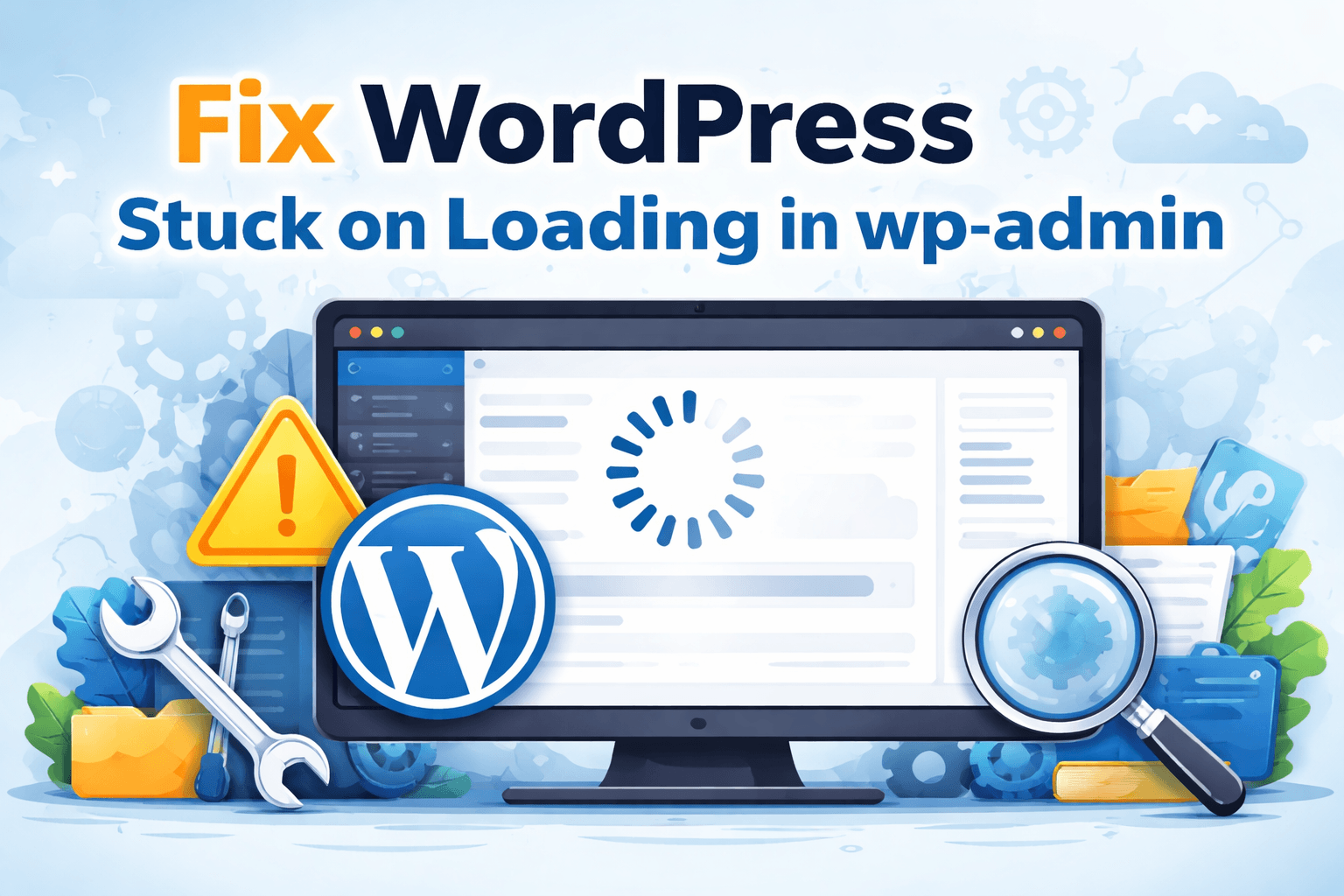

If you need to fix WordPress stuck on loading in wp-admin, the good news is that this problem is usually traceable to a small set of causes. In most cases, the endless spinner or half-loaded dashboard comes from a plugin conflict, a theme issue, low PHP memory, a failed update, a server timeout, or a fatal PHP error hidden behind a blank or loading screen. WordPress itself recommends isolating plugins and themes first when admin access breaks, and enabling debugging can reveal the exact cause. (WordPress Developer Resources)
This issue is frustrating because the front end of the site may still load while /wp-admin/ hangs forever. That makes many site owners think the problem is with their browser, when in reality the problem is often a bad update, a misbehaving plugin, a corrupted .htaccess file, or exhausted server resources. WP Fix It’s recent troubleshooting guides also note that admin-specific loading failures often point to plugin, theme, or endpoint-specific server problems rather than a total site outage. (WP Fix It)
Below is a practical, safe process you can follow to get back into your dashboard.
What “Loading…” in wp-admin usually means
When WordPress admin gets stuck on “Loading…”, it usually means the browser requested data from the server but the response never completed properly. That can happen when:
- A plugin creates a fatal error or JavaScript conflict
- A theme function breaks admin requests
- PHP memory is too low
- A recent core, plugin, or theme update failed
- A server firewall or rule blocks admin requests
- Cache or optimization settings break admin scripts
- A maintenance lock file was left behind after an update
- Database or file corruption interrupts admin page generation
WordPress documentation specifically points to plugin deactivation and theme switching as first-line troubleshooting for broken admin screens, and WP Debug logging is the preferred next step when the cause is not obvious. (WordPress Developer Resources)
Start with the fastest checks first
Before editing files, run these quick checks:
- Open wp-admin in an incognito window
- Clear browser cache
- Try a second browser
- Disable browser extensions temporarily
- Check whether the front end still loads
- Check whether only one admin page hangs or the entire dashboard hangs
- Think about the last change you made
That last question matters more than people think. If the problem started right after installing a plugin, updating a theme, changing PHP versions, or enabling a security rule, you already have your most likely culprit. WP Fix It’s latest admin-loading guide recommends identifying the most recent change early because it often shortens the troubleshooting path dramatically. (WP Fix It)
Step 1: Disable all plugins without using wp-admin
One of the most reliable ways to fix WordPress stuck on loading in wp-admin is to disable every plugin at once from the file system.
WordPress support guidance notes that if you cannot access the admin screens, you can deactivate plugins via FTP or file manager by renaming the plugins directory. (WordPress Developer Resources)
How to do it
Connect to your site with FTP, SFTP, or your hosting file manager.
Go to:
/wp-content/
Rename:
plugins → plugins.off
Now reload /wp-admin/.
What this tells you
- If wp-admin loads, a plugin is causing the problem
- If wp-admin still hangs, move to the next step
If the dashboard loads again, rename the folder back to plugins, then reactivate plugins one by one until the issue returns. That will identify the exact plugin causing the loading loop.
For deeper plugin isolation, see WordPress Plugin Conflict Troubleshooting on WP Fix It. That internal resource is useful when the admin problem comes from conflicting plugins, email issues, or troubleshooting a live site safely. (WP Fix It)
Step 2: Switch to a default WordPress theme
If disabling plugins does not solve the issue, test the active theme next.
WordPress documentation recommends switching to a default theme to rule out theme-related problems when admin screens fail or site errors appear. (WordPress Developer Resources)
How to do it manually
Inside /wp-content/themes/, rename your active theme folder:
your-theme-name → your-theme-name.off
If a default theme like Twenty Twenty-Five is installed, WordPress should attempt to fall back to it automatically.
Reload /wp-admin/.
What this tells you
- If admin starts working, your theme is the problem
- If not, continue troubleshooting
Theme conflicts can come from outdated functions, incompatible builders, custom code snippets, or a mismatch between your theme and current PHP or WordPress versions.
Step 3: Check for a stuck maintenance file
If the problem appeared during or after an update, your site may be stuck in maintenance mode even if you do not see the usual “Briefly unavailable for scheduled maintenance” message.
WP Fix It’s current maintenance-mode guides explain that WordPress creates a temporary /.maintenance file during updates, and if the process fails or times out, that file can remain and keep parts of the site or admin inaccessible. (WP Fix It)
What to do
Look in the root WordPress directory, the same place as:
wp-config.phpwp-adminwp-contentwp-includes
If you see a file named:
.maintenance
Delete it, then refresh /wp-admin/.
This is one of the simplest fixes and is often overlooked.
For a related internal resource, see WordPress Stuck in Maintenance Mode on WP Fix It. (WP Fix It)
Step 4: Enable WordPress debug logging
If the admin still hangs, stop guessing and collect evidence.
The official Debugging in WordPress documentation explains that WP_DEBUG and WP_DEBUG_LOG can be enabled in wp-config.php to record PHP warnings, notices, and fatal errors to a log file. (WordPress Developer Resources)
Add this to wp-config.php
Find this file in your WordPress root:
wp-config.php
Add or update these lines above the line that says “That’s all, stop editing”:
define( 'WP_DEBUG', true );
define( 'WP_DEBUG_LOG', true );
define( 'WP_DEBUG_DISPLAY', false );
Then reload the broken admin page and check:
/wp-content/debug.log
What you are looking for
Common clues include:
Allowed memory size exhausted- A plugin file path
- A theme file path
- A PHP fatal error
- A timeout or function error
- Deprecated or incompatible code after a recent update
This is often the fastest way to identify the exact file or plugin causing the loading problem.
Step 5: Increase PHP memory
Memory exhaustion is a common reason WordPress admin hangs or fails to complete requests. Support threads and WordPress troubleshooting references frequently point to raising the available memory limit when errors indicate exhaustion. (WordPress.org)
Add this in wp-config.php
define( 'WP_MEMORY_LIMIT', '256M' );
Some hosts may require a memory increase in php.ini, .user.ini, or server configuration instead, so if the change does not stick, ask your host to raise the PHP memory limit.
Why this helps
The wp-admin area often loads more plugins, more scripts, and more database queries than the front end. That means a site can look “fine” to visitors while the admin area times out or spins forever.
Step 6: Replace the .htaccess file
A corrupted .htaccess file can break WordPress behavior in strange ways, including admin access problems.
WP Fix It’s latest 500 and wp-admin loading guide specifically recommends testing for a broken .htaccess by renaming it and trying again. (WP Fix It)
What to do
In your WordPress root, rename:
.htaccess → .htaccess_old
Then test /wp-admin/.
If the admin works again, log in and regenerate permalinks by visiting:
Settings → Permalinks → Save Changes
If you still cannot log in, you can manually create a fresh default .htaccess later.
Step 7: Check server and firewall rules
Sometimes the issue is not WordPress at all. Security tools, WAF rules, ModSecurity, CDN rules, or host-level protections can break admin requests while leaving the public site accessible.
This is especially common when:
- Admin AJAX requests fail
- The dashboard partially loads, but never finishes
- Plugin pages hang
- Only certain admin screens get stuck
If you use a firewall, security plugin, reverse proxy, or CDN, temporarily disable or bypass it and test again. Also ask your host whether any recent ModSecurity or server rule blocked /wp-admin/ or admin-ajax.php.
Step 8: Review recent updates and roll back the likely culprit
If the problem started right after an update, there is a strong chance that the most recently updated plugin, theme, or PHP version caused the break.
Focus on:
- Plugins updated in the last day
- Theme updates
- Custom code snippets recently added
- PHP version changes in hosting
- Cache or optimization changes
- Security plugin rule changes
Roll back or disable the most recent change first. This targeted approach is faster than changing many things at once.
For broader recovery help, the internal guide WordPress 500 Error (and 503) + wp-admin Not Loading is closely related to this issue and worth linking internally because the root causes often overlap. (WP Fix It)
Step 9: Use Recovery Mode if WordPress emailed you
WordPress includes a built-in Recovery Mode system for fatal errors. Developer documentation confirms that WordPress can generate a recovery session so you can log in and troubleshoot after a crash. (WordPress Developer Resources)
If you received an email saying your site encountered a critical error, open that message and use the recovery link. It may allow you to enter the dashboard with the broken plugin or theme paused so you can fix the issue safely.
WP Fix It’s recent critical error guide also notes that this email often identifies the specific plugin or theme file involved, which can save a lot of time. (WP Fix It)
Step 10: Check for must-use plugins and drop-ins
If renaming the regular plugins folder did nothing, do not assume plugins are ruled out.
Look for:
/wp-content/mu-plugins/- cache drop-ins like
object-cache.php - advanced cache integrations
- host-specific platform plugins
Must-use plugins load automatically and are not disabled by renaming the normal plugins folder. A broken object cache drop-in can also freeze admin behavior.
Step 11: Inspect admin-specific optimization and caching
Some performance plugins are configured to optimize JavaScript, defer scripts, combine files, or cache admin requests improperly. That can break the dashboard loading flow.
Look for tools involving:
- JavaScript minification
- script delay
- CSS combination
- object caching
- Redis or Memcached
- Cloudflare admin caching rules
- browser-side optimization features
Disable these temporarily and test again.
Step 12: Scan the debug log and server error logs together
Your WordPress debug log tells you about WordPress-level problems. Your server error log tells you about server-level failures. You often need both.
Useful log entries include:
- PHP fatal errors
- max execution time exceeded
- memory exhausted
- permission denied
- 403 or 500 errors on
admin-ajax.php - file ownership issues
- blocked requests by ModSecurity
When the WordPress debug log is empty, your host’s error log becomes even more important.
Common root causes behind wp-admin loading forever
Here are the patterns seen most often:
Plugin conflict
Still the most common cause. A plugin can hang the admin through bad AJAX requests, heavy queries, JavaScript conflicts, or fatal PHP errors. WordPress troubleshooting materials and WP Fix It’s plugin conflict resources both emphasize isolating plugins first. (WordPress Developer Resources)
Theme conflict
Custom themes and page builders sometimes break admin screens after updates or PHP version changes.
Low memory
The admin area often uses more resources than the front end, so it can fail first when memory is tight. (WordPress.org)
Failed update
Interrupted updates can leave partial files, maintenance locks, or incompatible versions behind. (WP Fix It)
Corrupted .htaccess
A malformed rewrite or server instruction file can interfere with admin requests. (WP Fix It)
Server-side blocking
Security rules and host firewalls can silently interfere with wp-admin or AJAX endpoints.
A safe troubleshooting order that works well
When you want to fix WordPress stuck on loading in wp-admin without making things worse, use this order:
- Clear browser and try incognito
- Remove
.maintenanceif an update recently ran - Disable all plugins by renaming the plugins folder
- Disable the active theme
- Rename
.htaccess - Enable debug logging
- Raise memory limit
- Review server error logs
- Check firewalls, caches, and optimization settings
- Roll back the last update or code change
This order works because it moves from fastest, safest checks to deeper technical checks.
How to prevent wp-admin loading issues in the future
Once you restore access, take preventive steps:
- Update plugins and themes one at a time
- Keep a staging site for testing
- Avoid excessive plugins
- Remove abandoned plugins and themes
- Keep PHP and WordPress versions compatible
- Use uptime and error monitoring
- Keep regular backups
- Document changes before making them
- Avoid editing live code without rollback options
A safer long-term method is to use a controlled troubleshooting workflow instead of testing on a live site blindly. The internal WP Fix It resource Diagnose WordPress Plugin & Theme Conflicts Fast is relevant here because it focuses on isolating plugin and theme issues more safely. (WP Fix It)
Helpful resources
For official informational references, these are solid external sources:
- Debugging in WordPress for enabling
WP_DEBUGand log files. (WordPress Developer Resources) - Common WordPress errors for standard plugin and theme isolation steps. (WordPress Developer Resources)
- Troubleshooting your site: Plugin and theme conflicts for structured troubleshooting guidance. (Learn WordPress)
For internal reading on related issues at WP Fix It, these are the best contextual matches:
- WordPress 500 Error (and 503) + wp-admin Not Loading
- WordPress Plugin Conflict Troubleshooting
- WordPress Stuck in Maintenance Mode
- How to Fix “There Has Been a Critical Error on This Website”
Final thoughts
To fix WordPress stuck on loading in wp-admin, do not start by changing random settings. Follow a structured process. Disable plugins first, test the theme, check for a leftover maintenance file, enable WordPress debugging, review memory limits, and inspect server-level blocking. That method is grounded in WordPress’s official troubleshooting guidance and matches the most common causes seen in current WP Fix It support content. (WordPress Developer Resources)
Most importantly, isolate one variable at a time. The sites that take longest to recover are usually the ones where too many changes are made at once. The moment you identify the exact plugin, theme, update, or server rule causing the issue, the “Loading…” problem usually becomes very straightforward to resolve.
What to Check When WordPress Admin JavaScript Is Not Working
If WordPress admin is not loading but the page shell appears, the problem may be a failed JavaScript request rather than a PHP error. This often affects the dashboard, plugin settings, media screens, or any page that uses AJAX. You can confirm the difference before changing more files.
- Open the browser developer tools. In most browsers, press
F12or right-click the page and choose the inspection option. Select the Console tab, reload the affected wp-admin page, and look for red errors. - Check the Network tab. Reload the page and filter for
admin-ajax.php,load-scripts.php, or requests with a 403, 404, 500, or 503 status. A request that remains pending can indicate a server timeout, firewall rule, or plugin process that never completes. - Separate browser problems from site problems. Test an incognito window with extensions disabled and try another browser. If the error appears only in one browser, clear its cached files and review extensions before modifying WordPress.
- Test optimization settings. Temporarily disable JavaScript minification, combination, delay, and admin caching in performance plugins, CDNs, or security tools. These features can change the order or location of scripts that the dashboard expects.
A JavaScript error naming a plugin file usually points to that plugin or an interaction with another plugin. Disable plugins through the file system as described above, then restore them one at a time. If the console is clean but requests return server errors, review the PHP and server logs instead; increasing memory or changing browser settings will not resolve a blocked endpoint.
After the cause is identified, clear the relevant plugin, browser, CDN, and object caches, then test the same admin page again. Do not leave debugging enabled on a production site longer than necessary, and remove or protect any log files that may contain sensitive paths or request details.