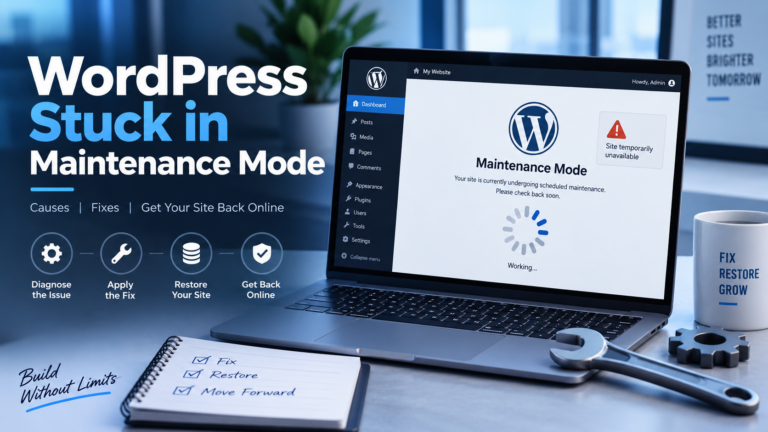

If your site is WordPress stuck in maintenance mode—but you don’t see the usual “Briefly unavailable for scheduled maintenance” screen—you’re not imagining things. This happens all the time: the maintenance flag is active (or something is behaving like it is), and visitors may see blank pages, partial layouts, endless loading, 500 errors, or weird admin issues instead of the classic message.
This guide walks through the real causes and the fastest fixes—from the simple .maintenance file removal to deeper problems like stuck updates, cache/CDN artifacts, permission issues, or failed auto-updates. By the end, you’ll know exactly what to check, what to delete (safely), and how to stop it from happening again.
If you’d rather skip the troubleshooting and have someone fix it for you, WP Fix It specializes in WordPress emergency repairs and recovery: https://www.wpfixit.com/ (bookmark that for later).
Why WordPress Gets “Stuck in Maintenance Mode” Without Showing the Message
Normally, WordPress enters maintenance mode during updates by creating a temporary file in your site’s root directory:
/.maintenance
When the update finishes, WordPress deletes that file. If the update process fails or times out, the file may remain—and your site stays in maintenance mode.
But what about cases where you’re WordPress stuck in maintenance mode and no message appears?
That’s usually one of these scenarios:
- The
.maintenancefile exists, but caching/CDN masks the default message - A plugin/theme update partially completed and broke the front end
- Object cache / page cache continues serving a “maintenance-like” state
- A hosting layer cache (or Cloudflare) is serving a stale response
- File permissions prevent WordPress from removing the
.maintenancefile - An auto-update left WordPress in an inconsistent state
- A custom maintenance plugin/page is active
- A fatal PHP error is occurring, so the maintenance message never renders
Let’s fix it methodically, starting with the fastest win.
Step 1: Check for and Remove the .maintenance File (Most Common Fix)
Where it is
The .maintenance file lives in your WordPress root directory—the same folder as:
wp-config.phpwp-content/wp-admin/wp-includes/
How to delete it (FTP / File Manager)
- Open your host’s File Manager (cPanel, Plesk, etc.) or connect via FTP/SFTP.
- Go to the WordPress root directory.
- Turn on “Show hidden files” (files starting with a dot).
- Delete the file named
.maintenance.
That’s it—often your site instantly returns to normal.
Important: Deleting .maintenance is safe. WordPress recreates it when needed during future updates.
Step 2: Clear Every Cache Layer (This Is Why You “Don’t See the Message”)
If .maintenance is gone but the site still acts broken or “maintenance-like,” caching is the next suspect.
Clear these, in this order:
- Browser cache (try an incognito/private window)
- WordPress caching plugin (WP Rocket, W3 Total Cache, LiteSpeed Cache, etc.)
- Server cache (host panel cache toggle—common on managed hosting)
- CDN cache (Cloudflare, Fastly, BunnyCDN, etc.)
- Object cache (Redis/Memcached) if enabled
Why this matters: the “maintenance mode” response (or a broken page during the update) can be cached and served long after the issue is fixed.
If you need a repair team that deals with caching edge cases constantly, WP Fix It is built for exactly this kind of problem: https://www.wpfixit.com/
Step 3: Confirm an Update Didn’t Half-Install (Plugins/Themes/Core)
When an update fails mid-stream, WordPress can be left with a mix of old and new files. That can cause fatal errors, white screens, or admin lockups—making it feel like maintenance mode even if it isn’t.
Quick checks
- Can you access
/wp-admin/? - Can you access
/wp-login.php? - Do you see a 500 error or blank page?
If your admin loads, go to:
Dashboard → Updates
and see if anything is still pending or stuck.
If wp-admin won’t load
Proceed to the next steps—especially plugin/theme isolation and debugging.
Step 4: Disable Plugins (A Plugin Update Can Trigger the “Stuck” Feeling)
Even if .maintenance is removed, a plugin that updated partially can break your site. Disabling plugins is the fastest way to confirm.
Disable all plugins via FTP/File Manager
- Go to
wp-content/ - Rename the folder
plugins→plugins.disabled
This disables all plugins at once.
- If your site starts working: the issue is plugin-related.
- Rename it back to
plugins, then disable plugins one-by-one (rename each plugin folder) until you find the culprit.
Pro tip: Security, caching, and page builder plugins are common offenders after failed updates—not because they’re bad, but because they’re deeply integrated.
Step 5: Switch to a Default Theme (Theme Update Failures Happen Too)
Theme issues can also cause blank pages or broken layouts after an update.
Switch theme without wp-admin
- Go to
wp-content/themes/ - Rename your active theme folder (e.g.,
mytheme→mytheme.disabled) - WordPress will fall back to a default theme like
twentytwentyfiveif installed.
If no default theme exists, upload one from WordPress.org (see external resources below).
Step 6: Turn On Debug Mode to Catch the Real Error
If your site still looks like it’s in limbo, you may be dealing with a PHP fatal error that prevents the maintenance message (or normal pages) from rendering.
Edit wp-config.php and set:
define('WP_DEBUG', true);
define('WP_DEBUG_LOG', true);
define('WP_DEBUG_DISPLAY', false);
Then check:
wp-content/debug.log
You’re looking for:
- “Fatal error”
- “Uncaught Error”
- “Allowed memory size exhausted”
- Missing file errors
If you find a plugin file listed in the fatal error, disable that plugin.
Step 7: Check File Permissions (WordPress Can’t Clean Up After Updates)
A sneaky reason WordPress becomes WordPress stuck in maintenance mode is that it can’t remove .maintenance or write updated files due to permissions/ownership issues.
Typical recommended permissions:
- Folders: 755
- Files: 644
wp-config.php: often 640 or 600 depending on host guidance
If your host uses suPHP or similar, incorrect ownership can also block writes.
If you’re unsure, ask your host to reset ownership/permissions—or use a WordPress repair service. (This is a common “site stuck after update” fix.)
Step 8: Fix a Stuck Core Update (Re-Upload WordPress Core Files)
If WordPress core itself was mid-update and got interrupted (timeout, dropped connection, server limits), you can safely refresh core files.
Safe core refresh (manual method)
- Download a fresh copy of WordPress from WordPress.org
- Extract it locally
- Upload and replace:
wp-admin/wp-includes/- All root files except:
wp-config.phpwp-content/(do not overwrite)
This replaces corrupted/missing core files without touching your content.
Step 9: Fix Stuck Updates in the Database (Less Common, But Real)
Sometimes WordPress believes an update is still in progress due to a lingering “lock” stored in the database.
What to look for
In your database (via phpMyAdmin):
wp_optionstable- Option names like:
_site_transient_update_core_site_transient_update_plugins_site_transient_update_themes- Sometimes an update lock transient
Deleting transients can force WordPress to re-check updates cleanly. If you’re not comfortable touching the database, skip this step and use safer methods like WP-CLI or professional help.
Step 10: Use WP-CLI to Clear Maintenance Mode and Finish Updates (Powerful Option)
If you have SSH access, WP-CLI is the cleanest way to resolve update weirdness.
Useful WP-CLI commands:
- Clear caches (if supported)
- Re-run updates
- Diagnose plugin issues
WP-CLI also helps when the admin is down but WordPress loads enough to run CLI commands.
(External resource links below.)
Step 11: Check Your CDN / WAF / Cloudflare Settings
If you removed .maintenance, cleared your WordPress cache, and it still looks stuck for some visitors, your CDN may be serving an old cached response globally.
Cloudflare checklist
- Purge Everything (temporarily)
- Disable “Cache Everything” page rules (if you use them)
- Bypass cache for
/wp-admin/*and/wp-login.php - Check WAF events for blocked requests during update
If your site is behind a host-level cache (common with LiteSpeed, Nginx microcache, or managed WP hosting), purge there too.
Step 12: Look for a Maintenance Mode Plugin or “Coming Soon” Setting
It’s easy to confuse real maintenance mode with:
- Elementor Maintenance Mode
- SeedProd Coming Soon
- WP Maintenance Mode plugins
- Theme-built maintenance templates
- Host “Site Offline” toggles
If you recently enabled a coming soon page, it may appear “stuck” even after you disable it due to caching.
To test quickly:
- Disable all plugins (Step 4)
- Switch theme (Step 5)
- Purge CDN cache (Step 2)
Special Case: WordPress Site Works for You, But Not for Visitors
This is classic cache/CDN behavior.
Why it happens
- You’re logged in, so you bypass cache
- Visitors see cached maintenance/broken page
- Different geographies hit different CDN edge nodes
Fix
- Purge CDN globally
- Purge host cache
- Purge plugin cache
- Test from:
- an incognito window
- a mobile network (not your Wi-Fi)
- a remote test tool (see external resources)
Prevention: How to Stop Getting Stuck in Maintenance Mode
Once you’ve fixed WordPress stuck in maintenance mode, do these to reduce the odds of a repeat.
1) Update in a safer order
- Update plugins one at a time (especially on busy sites)
- Avoid bulk updates on high-traffic production sites
2) Increase PHP memory and execution time (if your host allows)
Failed updates often happen due to timeouts or memory limits.
- Memory exhaustion
- Max execution time too low
- Upload limits too low for theme/plugin packages
3) Use staging
Update on staging first, then push to production.
If you manage sites professionally, this is the best practice that saves weekends.
4) Keep backups you can restore fast
If an update goes sideways, a quick restore beats hours of debugging.
If you need help recovering quickly, WP Fix It focuses on repairs, hacks, update failures, and emergency restores: https://www.wpfixit.com/
5) Avoid updating during peak traffic
If your server is already under load, updates can time out and leave .maintenance behind.
Fast Troubleshooting Checklist (Copy/Paste)
When WordPress stuck in maintenance mode hits, run this quick list:
- Delete
/.maintenancein your site root - Clear browser + plugin cache + host cache + CDN cache
- Disable plugins (rename
wp-content/plugins) - Switch theme (rename active theme folder)
- Enable debug log and check
wp-content/debug.log - Refresh core files (
wp-admin+wp-includes) - Check permissions/ownership
- Purge CDN/WAF cache and confirm visitors see the fix
Internal Links (WP Fix It)
If you want more WordPress troubleshooting guides and help options, these are good starting points:
- WP Fix It homepage (support and repairs): https://www.wpfixit.com/
- WP Fix It blog (tips and guides): https://www.wpfixit.com/blog/
External Links (Informational Resources)
These are non-service, informational references that can help you verify steps and learn more:
- WordPress official documentation (updating WordPress): https://wordpress.org/documentation/article/updating-wordpress/
- WP-CLI (official site): https://wp-cli.org/
- WordPress support forums (maintenance mode discussions): https://wordpress.org/support/
- WordPress.org plugin repository (to re-download default themes/plugins): https://wordpress.org/plugins/ and https://wordpress.org/themes/
- WebPageTest (test what visitors see from different locations): https://www.webpagetest.org/
When to Escalate (So You Don’t Waste Hours)
If you’ve removed .maintenance, purged caches, and the site still shows errors—or you see fatal errors in logs that you can’t resolve quickly—this is when it’s smart to hand it off. Update failures can cascade into corrupted files, broken dependencies, and security issues if you keep poking randomly.
WP Fix It is a dedicated WordPress repair team (not a generic host script) and can usually resolve “stuck after update” issues fast: https://www.wpfixit.com/
How to Fix WordPress Stuck in Maintenance Mode with WP-CLI
If you have SSH access and WP-CLI is installed, you can check and clear WordPress maintenance mode without relying on the dashboard. Run these commands from the directory containing wp-config.php.
- Check the current maintenance status: run
wp maintenance-mode status. This confirms whether WordPress itself still considers maintenance mode active. - Deactivate maintenance mode: run
wp maintenance-mode deactivate. If the command reports that maintenance mode is not active, the problem is likely a cache, maintenance plugin, failed update, or PHP error rather than the core maintenance flag. - Clear WordPress object cache: run
wp cache flushif your site uses persistent object caching. You should still purge any separate page cache, hosting cache, or CDN cache. - Review pending updates: use
wp plugin update --all,wp theme update --all, orwp core updateonly after confirming you have a current backup and the server meets the update requirements. If one update repeatedly fails, update it separately instead of rerunning every update at once.
WP-CLI does not bypass a fatal PHP error, missing files, incorrect ownership, or a maintenance-mode plugin. If commands fail, note the exact error and check wp-content/debug.log after enabling logging with display disabled. A message naming a plugin or theme gives you a likely starting point for isolation.
If wp maintenance-mode deactivate succeeds but visitors still see a maintenance page, test in a private browser window and from a different network. Then clear the WordPress, server, and CDN caches. If only logged-out visitors are affected, cached HTML is more likely than an active WordPress maintenance flag.