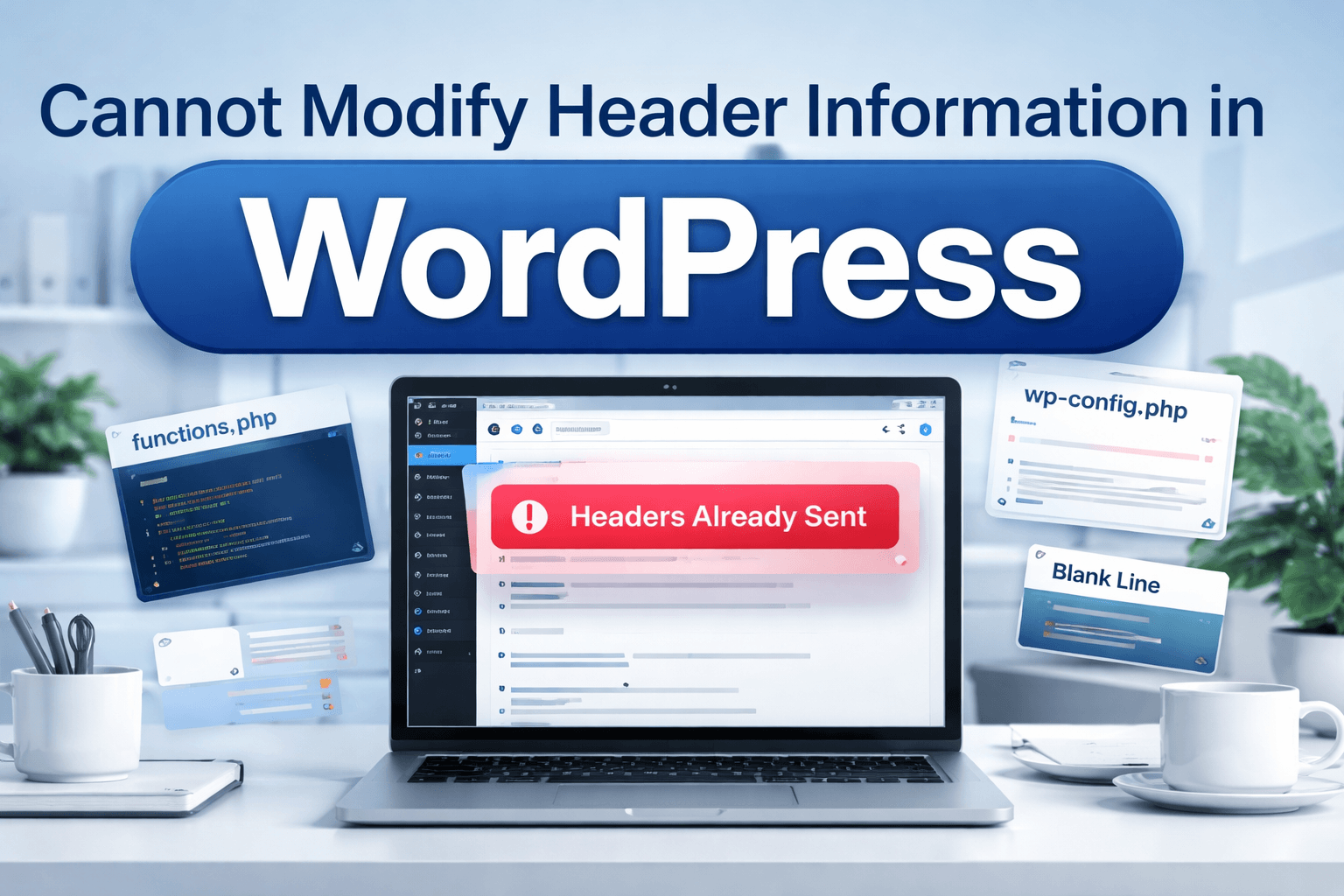

Cannot Modify Header Information in WordPress is one of those errors that looks intimidating at first, but in most cases it comes down to one simple issue: PHP output started before WordPress, a theme, or a plugin tried to send an HTTP header. PHP requires headers to be sent before any actual output, and once output begins, functions that try to redirect, set cookies, or change response headers can trigger this warning. WordPress debugging guidance and the PHP manual both describe this behavior clearly. (WordPress Developer Resources)
You will usually see the message in a format similar to this:
Warning: Cannot modify header information – headers already sent by (output started at /path/to/file.php:123) in /path/to/another-file.php on line 456
The good news is that this error usually tells you exactly where to start. It points to the file where output began and the file where WordPress later tried to send the header. That means the path to the fix is often much shorter than the message makes it seem. Kinsta’s walkthrough highlights the same pattern: find the file named in the first part of the message, inspect the exact line, and remove the output source. (Kinsta®)
What this error really means
When WordPress loads a page, it may need to send headers for redirects, logins, cookies, feeds, sessions, or admin behavior. PHP’s header() behavior is strict: it must happen before any visible or invisible output is sent. Even a tiny amount of unexpected output can break that flow, including:
- Extra whitespace before
<?php - Extra whitespace after
?> - UTF-8 byte order mark (BOM)
echo,print,var_dump(), or debug output- HTML printed too early
- PHP notices or warnings appearing before a redirect
- Plugin or theme files saving with the wrong encoding (PHP)
In WordPress, this often appears after a plugin update, a theme edit, a pasted code snippet, or a server/PHP version change that exposes warnings that were previously hidden. WP Fix It’s troubleshooting content on admin loading issues, critical errors, and update-related breakage points to plugins, themes, failed updates, and PHP-level problems as recurring causes when WordPress suddenly starts misbehaving. (WP Fix It)
The two file paths in the error matter
A lot of site owners read the warning but miss the most useful part.
In this example:
headers already sent by
/wp-content/themes/your-theme/functions.php:12in/wp-includes/pluggable.php on line 1435
The first file usually shows where output started.
The second file usually shows where WordPress tried to send the header.
That means you almost always start with the first file, not the second. The second file is often a WordPress core file like pluggable.php, and that usually is not the real cause. Kinsta’s guide emphasizes that the origin file is the important one to inspect first. (Kinsta®)
Most common causes of Cannot Modify Header Information in WordPress
1. Extra whitespace in a PHP file
This is the classic cause. A blank line before the opening <?php tag or after the closing ?> tag can count as output. That output may be invisible in the browser, but it still reaches PHP’s response stream.
This is especially common in:
functions.phpwp-config.php- custom plugin files
- manually edited theme files
- snippets pasted from tutorials or forums
2. UTF-8 BOM or bad file encoding
Some code editors save PHP files with a BOM. That hidden character can be sent before headers and cause the warning. This is one reason a file can look fine and still fail. Hosting and WordPress troubleshooting articles frequently point to encoding issues when no visible whitespace is found. (Kinsta®)
3. Debug output left in code
A forgotten echo, print_r(), var_dump(), or custom debugging line can trigger the error immediately. Stack Overflow’s widely referenced PHP explanation lists common output-producing functions that break header handling when used too early. (Stack Overflow)
4. Plugin conflict
A plugin may output something too early, trigger a notice, or send malformed content during admin, login, redirect, checkout, or AJAX workflows. If the warning appeared after a recent install or update, a plugin conflict is high on the list. WordPress troubleshooting guidance and multiple WP Fix It recovery articles recommend isolating plugins first when admin access or core functionality breaks. (WordPress Developer Resources)
5. Theme conflict or bad custom code
Custom theme development often introduces this error through functions.php, template partials, manual redirects, or copied snippets. If you recently edited the theme, changed a child theme, or added code from a tutorial, check there first. WordPress theme debugging documentation supports enabling debugging and reviewing warnings carefully when developing or modifying themes. (WordPress Developer Resources)
6. PHP notices or warnings displayed too early
Sometimes the site is not failing because of whitespace at all. A PHP notice or warning gets displayed before WordPress attempts a redirect or cookie operation. In that case, the visible warning is just the first symptom, and the real fix is resolving the earlier PHP issue. WordPress debugging guidance recommends logging errors to debug.log so you can see root-cause warnings without printing them on the screen. (WordPress Developer Resources)
How to fix Cannot Modify Header Information in WordPress
Step 1: Read the full error carefully
Start by copying the complete warning. Identify:
- The first file path
- The line number
- The second file path
- The second line number
Again, the first path is usually the source of the output. That is where you begin.
Common examples include:
/wp-content/themes/your-theme/functions.php/wp-content/plugins/plugin-name/plugin-file.php/wp-config.php
Step 2: Open the source file and inspect the exact line
Use your hosting File Manager, SFTP, or code editor to open the file listed in the message. Go directly to the line number named in the warning, then inspect a few lines above and below it.
Look for:
- Blank lines before
<?php - Blank lines after
?> - Accidental spaces before the opening tag
- HTML outside PHP
echo,print,print_r,var_dump- Closing PHP tag at the end of a pure PHP file
A best practice in WordPress and PHP is to omit the closing ?> tag in pure PHP files, because that prevents accidental trailing whitespace issues. The PHP header documentation also reinforces that any output, including blank lines, can cause header problems. (PHP)
Step 3: Remove closing PHP tags in pure PHP files when appropriate
If the file is entirely PHP, it is often safer to remove the closing ?> tag at the end. That reduces the chance that a stray space or newline after the tag will be sent as output.
This is especially helpful in:
wp-config.phpfunctions.php- plugin bootstrap files
Step 4: Re-save the file with UTF-8 without BOM
If you do not see any obvious whitespace or output, the file encoding may be the issue. Open the file in a proper editor and save it as:
UTF-8 without BOM
Editors like VS Code, Sublime Text, Notepad++, and PhpStorm all allow this.
Step 5: Disable the suspected plugin
If the source path points to a plugin, deactivate it. If you are locked out of wp-admin, WordPress support guidance shows that you can disable plugins directly through file access by renaming the plugin folder or the entire plugins directory temporarily. (Jetpack)
A good internal support link here would be Fix WordPress Stuck on Loading in wp-admin because it explains how to isolate plugin-related failures without relying on the dashboard. (WP Fix It)
If disabling the plugin removes the error, you have confirmed the cause.
Step 6: Switch to a default theme
If the error started in a theme file, switch temporarily to a default WordPress theme like Twenty Twenty-Four or another default theme available on the site.
If wp-admin is inaccessible, you can do this by renaming the active theme folder and letting WordPress fall back to a default theme if one is installed.
A relevant internal support link here is How to Fix the White Screen of Death in WordPress because theme and plugin conflicts often overlap with header errors, blank pages, and fatal behavior. (WP Fix It)
Step 7: Enable WordPress debugging the right way
To see what is really happening, enable debugging in wp-config.php:
define( 'WP_DEBUG', true );
define( 'WP_DEBUG_LOG', true );
define( 'WP_DEBUG_DISPLAY', false );
This tells WordPress to log warnings and notices to wp-content/debug.log instead of printing them on the page. That is often the fastest way to identify whether the visible header warning is actually caused by an earlier PHP notice. WordPress Developer Resources specifically documents these constants and the value of logging errors instead of displaying them on production sites. (WordPress Developer Resources)
A good external informational link here is WordPress debugging documentation. (WordPress Developer Resources)
Step 8: Check wp-config.php
wp-config.php is a high-risk file for this error because it loads very early. Open it and inspect:
- Any extra whitespace before
<?php - Any stray spaces after the final line
- Any accidental pasted code
- Incorrect encoding
- Debug constants added in the wrong place
Because wp-config.php is loaded so early, even one hidden character can trigger Cannot Modify Header Information in WordPress almost everywhere, including login redirects and cookies.
Step 9: Review recent changes
Ask what changed right before the error started:
- Did you update a plugin?
- Did you edit
functions.php? - Did you paste tracking code or a redirect snippet?
- Did your host change PHP versions?
- Did a security plugin start showing warnings?
- Did an automatic update partially fail?
WP Fix It’s recent recovery guides on failed updates, maintenance mode, and critical errors all point to recent changes as one of the fastest ways to narrow the real cause. (WP Fix It)
A strong internal link here is Auto-Update Broke the Site Overnight. (WP Fix It)
Step 10: Check for related errors like 500s, maintenance mode, or admin lockouts
Header warnings do not always appear alone. Sometimes they arrive alongside:
- 500 Internal Server Error
- White Screen of Death
- login redirect loops
- broken admin pages
- “There has been a critical error on this website”
- stuck maintenance mode after update
Those related symptoms can help you identify whether the root problem is a plugin conflict, failed update, corrupted file, or server-level issue. WP Fix It has supporting guides for each of these scenarios. (WP Fix It)
Useful internal links include:
- FIXED WordPress 500 Internal Server Error (WP Fix It)
- WordPress Maintenance Mode Quick Fix Checklist (WP Fix It)
- There Has Been a Critical Error on This Website (WP Fix It)
A fast troubleshooting checklist
When you need a practical workflow, use this order:
- Copy the exact error.
- Open the first file path named.
- Remove whitespace, debug output, or closing PHP tags where appropriate.
- Re-save the file as UTF-8 without BOM.
- Enable
WP_DEBUG_LOG. - Disable the related plugin or switch the theme.
- Review
debug.log. - Roll back the most recent change if needed.
- Check for companion issues like 500 errors or failed updates.
- Clear cache after fixing the source.
That sequence solves a large percentage of cases because it focuses on the real source of output, not just the place where WordPress eventually failed.
Can output buffering fix it?
Technically, output buffering can sometimes mask the symptom by delaying output, and the PHP manual notes buffering as an option in some cases. But for WordPress site health, buffering is usually not the best first fix for Cannot Modify Header Information in WordPress. The better approach is to remove the unwanted output and repair the source cleanly. (PHP)
Use buffering carefully and only when you fully understand why the output must happen and how it affects plugins, redirects, and caching.
How to prevent this error in the future
Prevention is mostly about workflow.
First, avoid editing production files directly unless necessary. Test changes on staging when possible.
Second, use a code editor that supports UTF-8 without BOM.
Third, never leave debug functions like var_dump() in live code.
Fourth, do not close PHP tags in pure PHP files unless you have a specific reason.
Fifth, log errors instead of displaying them on production. WordPress documentation strongly supports that approach because it reveals the real issue without breaking front-end output. (WordPress Developer Resources)
Sixth, keep a short rollback plan for updates. When a site breaks after an auto-update or code deployment, speed matters. Knowing how to disable plugins, inspect debug.log, and restore a known-good version will save time. (Jetpack)
Final thoughts
Cannot Modify Header Information in WordPress looks like a deep technical problem, but in most cases it is a very specific output issue. The error almost always leaves a breadcrumb trail in the file path and line number. Start with the first file named, not the WordPress core file that appears later in the warning. Then check whitespace, encoding, debug output, plugin conflicts, theme code, and early PHP warnings.
For users who are comfortable editing files, this is usually fixable with a careful review of one or two files. For users managing business-critical sites, the safer move is often to isolate the cause quickly, restore functionality, and then clean up the code properly.
How to Resolve “Headers Already Sent” in WordPress
To resolve the “Cannot modify header information – headers already sent by” warning, work from the first file named in the message. The file listed after headers already sent by is where PHP detected output. The later file is where WordPress attempted to send a redirect, cookie, login response, or another header.
- Copy the complete warning. Record both file paths and line numbers. Do not begin by editing a WordPress core file simply because it appears in the second part of the message.
- Inspect the source file. Check the named line and the surrounding lines for
echo,print,var_dump(), HTML outside PHP, or accidental characters before<?php. Also inspect the end of the file for whitespace after?>. - Remove unintended output. In a file containing only PHP, remove the closing PHP tag when appropriate. Save the file as UTF-8 without BOM, then upload the corrected copy.
- Check for an earlier PHP warning. If the file contains no visible output, enable
WP_DEBUG_LOGwhile keepingWP_DEBUG_DISPLAYset tofalse. Reviewwp-content/debug.logfor a notice or warning that appeared before the header error. - Isolate recent changes. If the path belongs to a plugin, deactivate that plugin. If it belongs to the theme, switch temporarily to an installed default theme. When the dashboard is unavailable, rename the suspected plugin or active theme directory through hosting File Manager or SFTP.
If the warning returns after editing, check whether a deployment, code snippet, plugin update, or server PHP change restored the faulty file. Take a backup before modifying files, and test the login, redirects, forms, and affected page after the warning disappears.