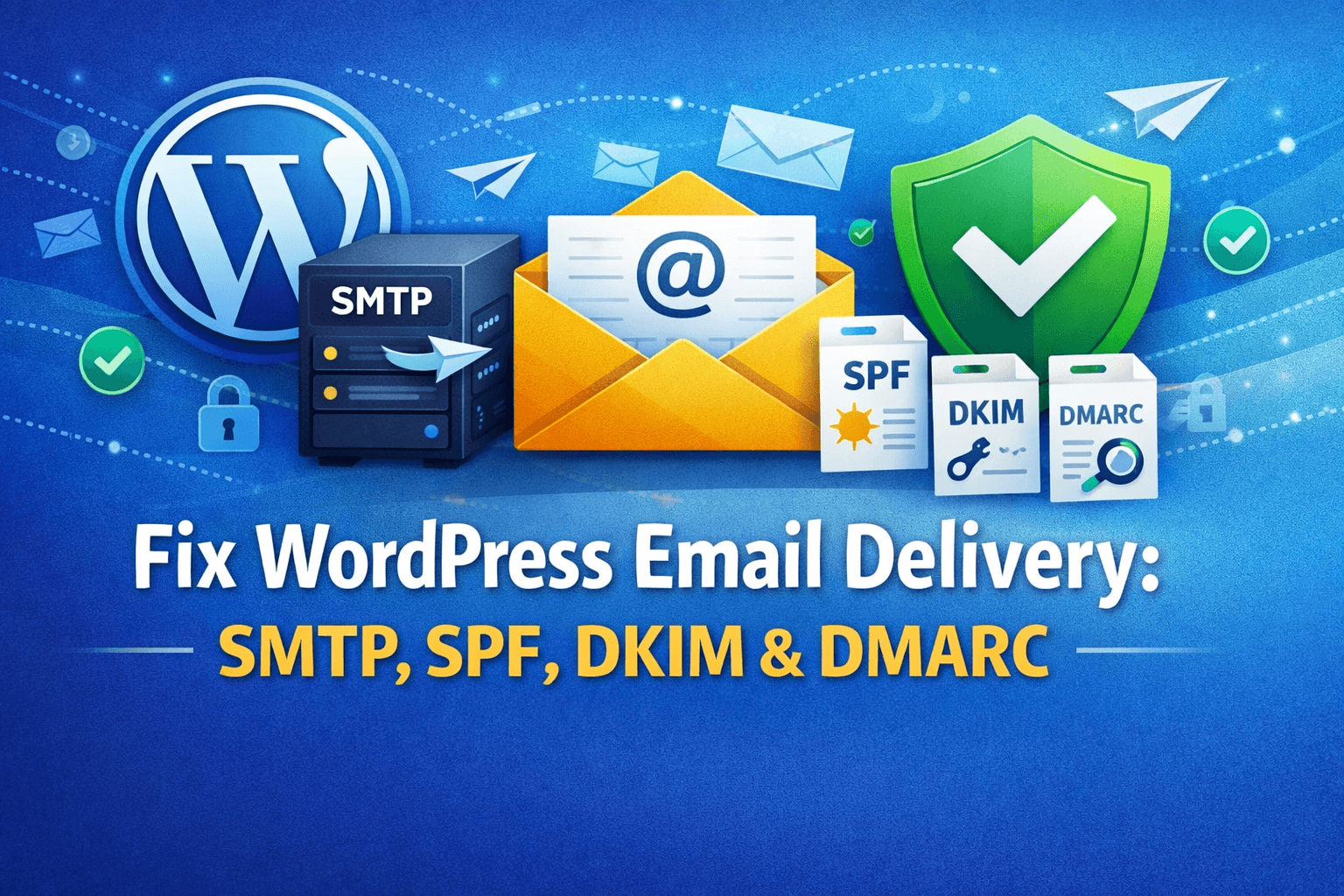

If you’re here to Fix WordPress Email Delivery, you’re probably dealing with one of these headaches:
- Contact form messages never arrive (or arrive “sometimes”).
- WooCommerce order emails vanish into the void.
- Password reset emails don’t show up.
- Your host says “mail is working,” but Gmail/Outlook keeps dumping messages into spam (or rejecting them outright).
The good news: most WordPress email problems come down to two fixable things:
- How WordPress sends mail (often through basic server mail that isn’t trusted), and
- Whether your domain is authenticated (SPF/DKIM/DMARC) so inboxes believe the message is legit.
This guide walks you through both—SMTP setup + SPF/DKIM/DMARC—in plain English, with copy/paste examples and practical testing tips.
Why WordPress email fails (the plain-English version)
By default, WordPress sends email using wp_mail(), which is essentially a wrapper around server-level mailing (often PHP mail) and the underlying mailer library. WordPress can report “success,” but that doesn’t mean the message was actually delivered to the recipient’s inbox. (WordPress Developer Resources)
Here’s what commonly goes wrong:
1) Your host’s “PHP mail” isn’t trusted
A lot of shared hosting servers send mail in ways that big providers (Google, Microsoft, Yahoo, etc.) treat as suspicious—especially if other sites on the same server have a spam history.
2) Your “From” address doesn’t match your domain’s rules
If your site sends as [email protected] but your server isn’t authorized to send for that domain, receiving servers may flag or reject it.
3) Missing or incorrect SPF/DKIM/DMARC
Even if SMTP is perfect, domain authentication is what helps inboxes trust your email. Without it, you’re relying on luck.
4) Plugin conflicts and mail hooks
A form plugin, security plugin, caching layer, or custom code can interfere with mail sending. If you want a fast “is WordPress sending at all?” check, WP Fix It’s Conflict Finder includes an Email Delivery Tool specifically designed to test WordPress mail functions. (WP Fix It)
The fix in one sentence
To Fix WordPress Email Delivery, you typically do this:
- Route WordPress email through SMTP (a real mail service), and
- Add SPF + DKIM + DMARC DNS records to prove the emails are authentic.
Let’s do it step-by-step.
Part 1: Fix WordPress Email Delivery with SMTP
What SMTP does (without the jargon)
SMTP is just the “mail truck” that delivers your messages. Instead of handing email to your web server and hoping it behaves, SMTP uses a dedicated, authenticated provider (like Google Workspace, Microsoft 365, SendGrid, Amazon SES, Mailgun, etc.).
Two important choices before you configure anything
Choice A (best for most businesses): Send mail through the same provider that hosts your mailbox
- If your business uses Google Workspace, use Gmail/Workspace SMTP.
- If you use Microsoft 365, use Microsoft’s SMTP or an approved relay.
This keeps your sending aligned with your domain’s authentication.
Choice B (best for high-volume sites): Use a dedicated transactional email provider
Perfect for WooCommerce and membership sites that send lots of automated emails.
Step 1: Pick an SMTP plugin
You have a few solid options. Most people use one of these categories:
- “Simple SMTP” plugins that just add host/username/password/port
- Provider-integrations (OAuth) for Gmail/Microsoft that avoid storing passwords
- Transactional email plugins that connect to SendGrid/Mailgun/SES APIs
Whatever you choose, make sure it supports:
- TLS encryption
- A “from email” override
- Logging (at least temporarily) for troubleshooting
Step 2: Use the correct SMTP host, port, and encryption
If you’re using Google Workspace/Gmail, typical settings include:
- SMTP server:
smtp.gmail.com - TLS port:
587 - Authentication: Yes
Those are standard Workspace SMTP details. (.)
If you’re using another provider, they’ll publish their own SMTP host/ports.
Common ports:
- 587 (TLS): most common for authenticated sending
- 465 (SSL): still used by some providers
- 25: often blocked by hosts (avoid unless you’re using a trusted relay)
Step 3: Set a clean “From” address
Use something like:
[email protected](for automated mail)[email protected](if replies should be read)
Avoid:
- random addresses that don’t exist
- free mailbox addresses (like
[email protected]) as the “From” for your domain
Rule of thumb: the From address should match the domain you’re authenticating with SPF/DKIM/DMARC.
Step 4: Send a test email (and don’t stop at “it sent”)
Many plugins will show “Test email sent.” That’s only step one. Remember: WordPress can return “success” even if the email never reaches the inbox. (WordPress Developer Resources)
Do these tests instead:
- Send to Gmail, Outlook, and a third mailbox (like Yahoo or a company address).
- Check spam/junk folders.
- Open the message headers and look for SPF/DKIM/DMARC results (we’ll interpret those soon).
If you want a quick “server vs WordPress vs plugin conflict” diagnostic, WP Fix It’s Conflict Finder Email Delivery Tool can help confirm whether WordPress can send using its normal mail functions before you chase DNS or provider settings. (WP Fix It)
Part 2: SPF/DKIM/DMARC (explained like you’re not a mail server)
Think of email authentication like proving you’re allowed to drive a company vehicle.
SPF = “These servers are allowed to send for my domain”
SPF is a DNS TXT record listing which services are authorized to send email “from” your domain. Google’s admin docs describe SPF as listing your approved senders, and provide a basic example record. (Google Help)
DKIM = “This email is cryptographically signed by my domain”
DKIM adds a digital signature to outgoing mail. Receiving servers can verify the signature using a public key published in DNS.
DMARC = “If SPF/DKIM fail, here’s what to do—and send me reports”
DMARC ties SPF and DKIM together and tells receivers what action to take if a message fails authentication (monitor, junk, or reject). Microsoft’s DMARC guidance explains policy outcomes like p=quarantine and p=reject. (Microsoft Learn)
The big “gotcha” before you edit DNS
When you switch WordPress to SMTP, you must align SPF/DKIM with your real sending source.
Example:
- If WordPress sends through Google Workspace, SPF must authorize Google.
- If WordPress sends through Microsoft 365, SPF must authorize Microsoft.
- If WordPress sends through SendGrid, SPF must authorize SendGrid (and you’ll likely set DKIM there too).
If you authorize the wrong sender, inboxes will say: “Nice try… not authorized.”
Step-by-step: Set up SPF for WordPress email
Step 1: Find who is sending your WordPress mail
After SMTP setup, your sender is usually:
- Google Workspace / Gmail SMTP
- Microsoft 365
- A transactional provider (SES/Mailgun/SendGrid/etc.)
Step 2: Create (or update) your SPF TXT record
SPF is a TXT record at your root domain (often @).
Google Workspace SPF example (from Google’s docs):
v=spf1 include:_spf.google.com ~all
Microsoft 365 SPF example (Microsoft recommends including this):
v=spf1 include:spf.protection.outlook.com -all
SPF rules you really need to know
- One SPF record per domain. You can’t have multiple separate SPF TXT records; you must combine them into one. (Google Help)
~allmeans “soft fail” (often used while testing).-allmeans “hard fail” (best once you’re confident).
If you send from multiple services, you combine includes, like:
v=spf1 include:_spf.google.com include:servers.mcsv.net -all
(That’s just an example format—use the includes your providers specify.)
Step-by-step: Set up DKIM for WordPress email
DKIM is usually configured inside your mail provider, not WordPress.
Where to set DKIM
- Google Workspace Admin console generates DKIM keys you publish in DNS
- Microsoft 365 does DKIM through its setup process (and DNS records)
- Transactional providers generate DKIM records in their dashboards
What DKIM looks like in DNS
You’ll typically add one or two CNAME or TXT records like:
selector1._domainkey.yourdomain.comselector2._domainkey.yourdomain.com
Don’t panic about the long strings. Just copy exactly what your provider gives you.
Step-by-step: Set up DMARC for WordPress email
DMARC is a TXT record placed at:
_dmarc.yourdomain.com
A basic DMARC record looks like:
v=DMARC1; p=none; rua=mailto:[email protected]
What the DMARC policy means
DMARC’s p= tag controls what receivers do with failures. It only supports:
nonequarantinereject(DMARC)
Microsoft’s guidance describes p=quarantine as “accept but mark” (often junk/spam) and p=reject as “reject/discard” depending on the destination system. (Microsoft Learn)
A sensible DMARC rollout (recommended)
To avoid accidentally blocking legitimate email, roll it out in stages:
- Start with monitoring
v=DMARC1; p=none; rua=mailto:[email protected]
- Move to quarantine
v=DMARC1; p=quarantine; pct=25; rua=mailto:[email protected]
Then raise pct gradually (50 → 100).
- Move to reject (strongest protection)
v=DMARC1; p=reject; pct=100; rua=mailto:[email protected]
If you want an authoritative checklist for avoiding common DMARC mistakes (like misspelling “quarantine”), dmarc.org’s guide on common problems is worth reviewing. (DMARC)
Putting it together: The “WordPress email trust” checklist
To Fix WordPress Email Delivery reliably, verify these in order:
1) WordPress is using SMTP
- Test email sends
- Logs show successful connection/auth
- “From” address is consistent and real
2) SPF authorizes the actual sender
- Google include if sending via Workspace (Google Help)
- Microsoft include if sending via Microsoft 365 (Microsoft Learn)
- Combine includes into a single SPF record (Google Help)
3) DKIM is enabled at the provider
- DNS DKIM records match provider output
- Test headers show “DKIM=pass”
4) DMARC exists and matches your rollout stage
- Start at
p=noneto monitor - Move toward
quarantineandrejectonce stable (Microsoft Learn)
How to read email headers (quick interpretation)
When you send a test email to Gmail, open it and view “Original” (or “Show headers”). You’re looking for:
SPF: PASSDKIM: PASSDMARC: PASS
If SPF fails:
- Your SPF record doesn’t include the service actually sending mail.
If DKIM fails:
- The DKIM record is missing, wrong, or the message is being modified in transit.
If DMARC fails:
- SPF and DKIM don’t align with the “From” domain, or one/both fail.
Alignment is the key DMARC concept: it’s not enough that some SPF passes; it needs to match the domain in the visible From address.
Common mistakes that keep WordPress email broken
Mistake 1: You added SPF but now you have two SPF records
This is huge. You must have one SPF record per domain. If you have two, receivers can treat SPF as invalid. (Google Help)
Mistake 2: You’re sending via SMTP, but SPF still authorizes your old host
If you moved sending from your web host to Google/Microsoft/SendGrid, update SPF accordingly.
Mistake 3: DMARC is too strict too soon
Jumping straight to p=reject can block real mail (like your CRM, newsletter tool, or billing system). Start with monitoring and ramp up.
Mistake 4: Your “From” is mismatched
If your site sends “From: [email protected]” but your SMTP provider signs as a different domain, DMARC may fail alignment.
Mistake 5: Plugin conflicts
If everything looks right but mail is intermittent, you may have a plugin conflict or a host-level block. WP Fix It’s Conflict Finder can help isolate whether SMTP is required, whether PHP mail is blocked, or whether a plugin is interfering with mail sending. (WP Fix It)
Practical “most common” setups
Scenario A: Small business site using Google Workspace
- Configure SMTP to send via Google (
smtp.gmail.com, TLS 587) (.) - SPF:
include:_spf.google.com(Google Help) - DKIM: enable in Workspace + publish DNS keys
- DMARC: start with
p=none, then quarantine/reject
Scenario B: Business site using Microsoft 365
- Configure SMTP/relay per Microsoft’s guidance
- SPF:
include:spf.protection.outlook.com(Microsoft Learn) - DKIM: enable in Microsoft 365 and publish DNS records
- DMARC: staged rollout
Scenario C: WooCommerce store sending lots of emails
- Use a transactional email provider for reliable delivery at scale
- SPF/DKIM provided by that service
- DMARC rollout once you’ve confirmed all senders
Testing deliverability the smart way (not just “send a test”)
Here’s a simple routine:
- Send 3 test emails (form submission, order email, password reset)
- Send to 3 inboxes (Gmail, Outlook, and one more)
- Check headers for SPF/DKIM/DMARC pass/fail
- Fix one thing at a time (SMTP first, then SPF, then DKIM, then DMARC policy)
If you’re troubleshooting under pressure (missing leads, password resets failing, store customers not getting receipts), WP Fix It’s email-focused troubleshooting tools can speed up the diagnosis phase so you’re not guessing. (WP Fix It)
Internal resources (WP Fix It) you might want next
If email delivery is part of a bigger “site reliability” problem, these are useful follow-ups:
- WP Fix It’s WordPress Care Plans (ongoing monitoring, updates, backups) can help prevent recurring issues that break email and site functions. (WP Fix It)
- If you suspect your site was compromised (spam sent from your domain can destroy deliverability), check WP Fix It’s WordPress Malware Removal resources. (WP Fix It)
- If you’re locked out and not receiving recovery emails, this guide on the critical error issue mentions deliverability failures as a common reason you don’t get WordPress emails. (WP Fix It)
(And if you’re diagnosing plugin-level weirdness, the plugin conflict troubleshooting post is a good companion.) (WP Fix It)
External references (informational, non-service providers)
If you want the “official” background behind the settings you’re adding:
- WordPress
wp_mail()behavior and caveats (WordPress Developer Resources) (WordPress Developer Resources) - Google Workspace SPF setup and example SPF record (Google Help)
- Microsoft guidance on SPF and DMARC policy behavior (Microsoft Learn)
- DMARC policy values and common record mistakes (dmarc.org) (DMARC)
Quick recap: the fastest path to fix it
To Fix WordPress Email Delivery without getting lost:
- Add SMTP (stop using unreliable server mail).
- Set SPF to authorize the service actually sending mail. (Google Help)
- Enable DKIM in your provider and publish the DNS keys.
- Add DMARC with
p=nonefirst, then ramp up to quarantine/reject once everything passes. (Microsoft Learn) - Test headers, not just “sent successfully.” (WordPress Developer Resources)