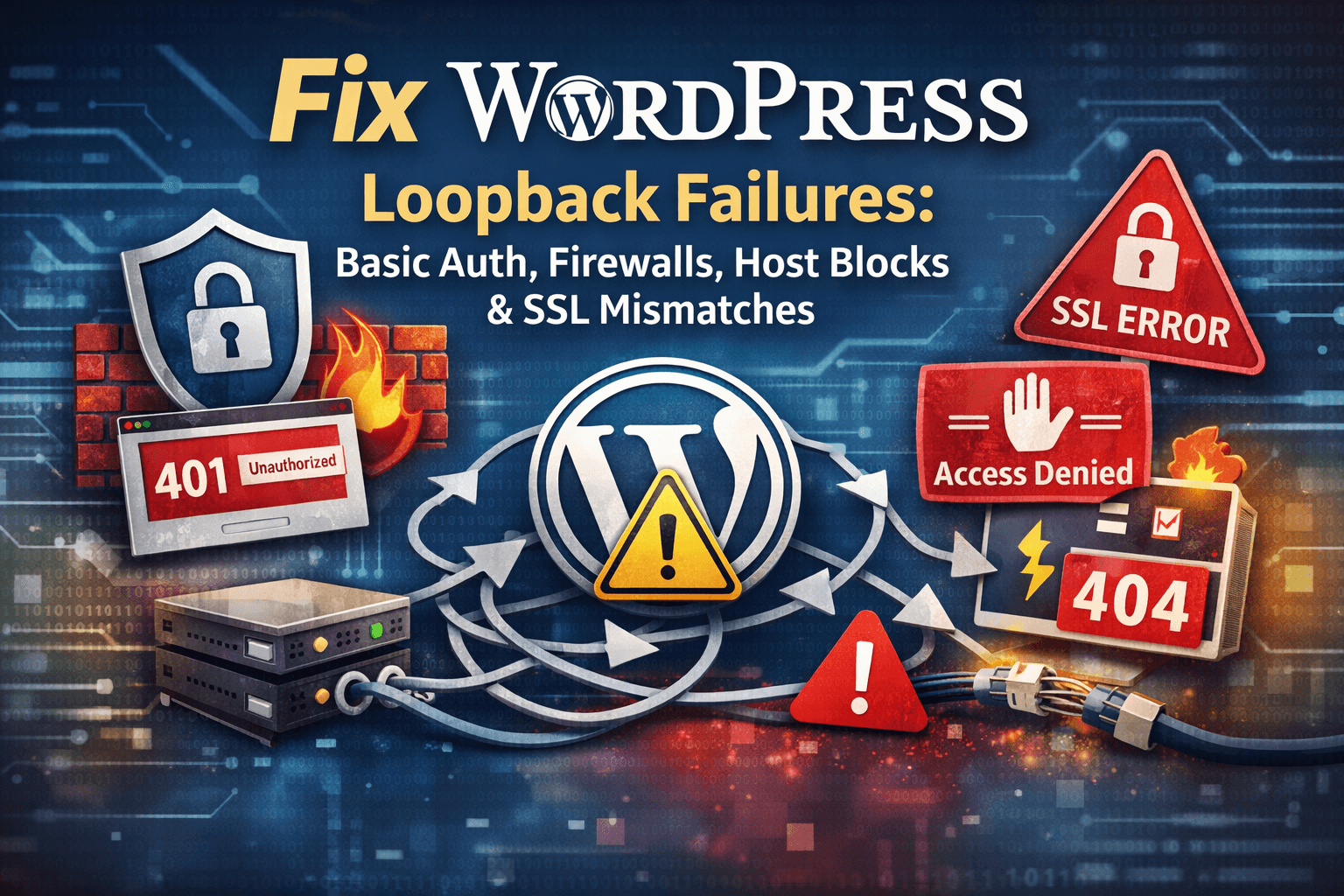

If you’re trying to Fix WordPress Loopback Failures, you’re in the right place. Loopback failures are one of those sneaky WordPress issues that can break important background processes while your site looks normal on the front end—until updates fail, scheduled posts don’t publish, backups stop running, or Site Health throws warnings.
In this guide, we’ll cover what loopback requests are, why they fail, and how to fix the most common root causes—Basic Auth prompts, firewalls/WAF rules, host-level blocks, and SSL mismatches. You’ll also get practical tests, copy/paste snippets, and a clean checklist you can work through quickly.
If you want extra context on WordPress troubleshooting and maintenance, you can also browse related guides on WP Fix It here: WP Fix It and search the site for more targeted help like WordPress SSL troubleshooting, WP-Cron issues, and Site Health errors.
What is a WordPress loopback request?
A loopback request is when your WordPress site sends an HTTP request to itself. WordPress uses these internal calls for things like:
- Running scheduled tasks (WP-Cron)
- Processing background actions for plugins (e.g., caching warmups, security scans, backups)
- Executing asynchronous jobs (Action Scheduler is a big one)
- Performing some Site Health checks
- Completing updates that rely on internal HTTP calls
Under the hood, WordPress typically uses the HTTP API (like wp_remote_post() and wp_remote_get()) to call your site’s own URL.
Helpful reference: the WordPress HTTP API is documented here: WordPress Developer Resources – HTTP API.
Why loopback failures matter
When loopbacks fail, you’ll often see symptoms like:
- Tools → Site Health reporting “The loopback request to your site failed”
- Plugin updates that hang or fail
- Scheduled posts not publishing
- WooCommerce actions (emails, order events) delayed
- Backups or security scans timing out
- “cURL error 28” (timeout) or “401 Unauthorized” errors in logs
Loopback issues are especially common on sites behind strict security layers, staging environments, or servers with mixed HTTP/HTTPS settings.
Quick triage: confirm it’s really a loopback failure
Before changing anything, confirm the failure and capture details. A little evidence up front saves time.
1) Check Site Health details
Go to Tools → Site Health → Status and open the loopback warning. Often WordPress shows error codes like:
- 401/403 (auth or firewall)
- cURL error 28 (timeout)
- cURL error 60 / SSL certificate problem (SSL mismatch)
- DNS/host resolution errors (server can’t resolve itself)
2) Check your error logs
Look in:
- PHP error log
- Web server error log (Apache/Nginx)
- Security/WAF logs (Cloudflare, Sucuri, ModSecurity, Wordfence, etc.)
If you want more WordPress debugging tips, see: WP Fix It search: enable debugging.
3) Run a direct test from the server (best test)
If you have SSH access, test the site URL from the server itself:
curl -I https://example.comcurl -I http://example.com
If one works and the other fails, that’s a big clue (often SSL mismatch or forced HTTPS misconfiguration).
For more on curl usage, see: curl documentation.
The most common causes (and how to fix each)
Loopback failures usually come from one of these buckets:
- Basic Auth blocks the internal request
- Firewalls/WAF rules block the server calling itself
- Host-level blocks (security daemons, network ACLs, /etc/hosts, disabled localhost routing)
- SSL mismatches (mixed scheme, bad cert chain, wrong SNI/hostname, forced redirects)
Let’s fix them one by one.
1) Fix loopback failures caused by Basic Auth
Basic Auth is a classic cause—especially on staging sites protected with a username/password prompt (often via .htpasswd, hosting panel protection, or a reverse proxy rule).
How to recognize it
You’ll see:
- 401 Unauthorized responses
- Site Health loopback failure referencing authentication
- Curl test returns
HTTP/2 401orWWW-Authenticate: Basic
Why it breaks loopbacks
WordPress doesn’t automatically know the Basic Auth credentials needed to “log in” to your own site from the server. So the internal request gets rejected.
Fix options (choose one)
Option A: Temporarily disable Basic Auth (fastest)
If it’s safe to do so (even briefly), disable the auth layer and re-test. This is often easiest during troubleshooting.
Option B: Allowlist loopback endpoints in Basic Auth rules
If you must keep Basic Auth, you can allow internal requests to certain endpoints.
Common endpoints used by loopbacks:
wp-cron.phpwp-admin/admin-ajax.phpwp-admin/admin-post.php- REST endpoints (sometimes) like
/wp-json/
Example approach (conceptual): adjust your .htaccess or server config so those endpoints don’t require auth. The exact rule depends on Apache vs Nginx and how your auth is set up.
For Apache auth basics: Apache HTTP Server – Authentication and Authorization.
Option C: Add application-level authentication (advanced)
Sometimes you can route loopback tasks through WP-CLI or server cron instead of relying on HTTP loopback calls. For example, you can disable WP-Cron and run it via system cron.
WordPress cron overview: WordPress.org – WP-Cron.
A common approach:
- Add
define('DISABLE_WP_CRON', true);inwp-config.php - Configure a server cron job to hit
wp-cron.phpor run WP-CLI cron events
This avoids some loopback scenarios—but not all (plugins may still use internal HTTP calls).
2) Fix loopback failures caused by firewalls or WAF rules
Firewalls can block loopback calls in multiple places:
- On the server (iptables/ufw)
- At the host (provider-level firewall)
- At the edge (Cloudflare WAF, Sucuri, etc.)
- In a security plugin (Wordfence, iThemes Security, etc.)
How to recognize it
Common clues:
- 403 Forbidden errors
- WAF logs show your server IP being challenged/blocked
- Cloudflare shows “Managed Challenge” or blocked requests
- Curl from server returns 403 while a browser works fine
Fix strategy: identify where the block occurs
Step 1: Test bypassing the CDN/WAF (if applicable)
If you use Cloudflare or another proxy, your server might be calling the public domain and hitting the WAF rules.
Try:
- Temporarily “Pause” the proxy (orange cloud off) or use a direct origin hostname
- Use a hosts-file override for testing (advanced)
- Hit the origin IP (only if your certificate/setup supports it)
Cloudflare WAF documentation: Cloudflare Web Application Firewall.
Step 2: Allowlist your server IP
If your loopback request originates from your server’s public IP (or NAT), allowlist it in:
- Cloudflare WAF rules (skip security for that IP)
- Security plugin allowlist
- Host firewall allowlist
Step 3: Check ModSecurity (common on shared hosting)
ModSecurity can block admin-ajax.php or REST requests that look “automated.”
ModSecurity overview: OWASP – ModSecurity Core Rule Set.
If ModSecurity is the culprit:
- Review audit logs for the rule ID
- Exclude/disable the specific rule for your domain or endpoint
- Ask hosting support to whitelist internal calls
Step 4: Check rate limiting and bot rules
Some setups block “bot-like” traffic patterns. Loopbacks can look like bots (same IP, repeated requests).
Look for:
- Rate limit rules
- Bot fight mode
- “Under Attack” modes
3) Fix loopback failures caused by host blocks (server-level issues)
Sometimes the issue isn’t WordPress at all—it’s the server failing to resolve or reach its own hostname.
Common host-level causes
- The server can’t resolve DNS for the site domain (resolver misconfigured)
/etc/hostsoverrides the domain incorrectly- IPv6/IPv4 routing issues (server tries AAAA record but can’t route IPv6)
- Outbound connections are restricted
- Security tools block self-requests (fail2ban, CSF, Imunify360 rules)
- The site is configured to only respond on certain interfaces
How to diagnose host-level blocks
Test DNS from the server
If you have SSH:
nslookup example.comdig example.com
If the domain doesn’t resolve, fix DNS resolver settings on the server (e.g., /etc/resolv.conf), or correct the hosting environment’s DNS configuration.
DNS basics reference: ISC BIND / DNS concepts.
Force IPv4 in curl tests
If your site has an AAAA record but the server can’t use IPv6:
curl -4 -I https://example.com
If IPv4 works but default fails, consider:
- Fixing IPv6 routing, or
- Removing/adjusting AAAA record (only if appropriate), or
- Configuring server to prefer IPv4
Check for blocked outbound HTTP/HTTPS
Some hosts restrict outbound traffic. Loopbacks require outbound access (even if it routes back locally).
If outbound is blocked, ask your host to allow outbound connections on ports 80/443, at least to your own domain.
Check local firewall rules
On Linux hosts:
ufw statusiptables -S(or nftables)
If 80/443 outbound is blocked or there are rules blocking the server’s own IP, fix those rules.
If you need help interpreting what you find, WP Fix It has general troubleshooting resources here: WP Fix It search: firewall.
4) Fix loopback failures caused by SSL mismatches (very common)
SSL mismatches are a top culprit. Even if your site loads fine in a browser, the server-to-server request can fail if:
- The certificate doesn’t match the domain (wrong CN/SAN)
- The chain is incomplete (missing intermediate)
- TLS settings are incompatible with the server’s curl/OpenSSL
- WordPress thinks the site URL is HTTP but redirects to HTTPS (or vice versa)
- There’s a redirect loop or HSTS mismatch
- SNI/hostname routing isn’t correct (multi-site or multi-tenant environments)
How to recognize SSL mismatch loopbacks
Site Health errors might mention:
cURL error 60: SSL certificate problemSSL: no alternative certificate subject name matches target host name- Timeout during TLS handshake
Fix checklist for SSL mismatch issues
Step 1: Confirm your WordPress URLs match reality
In Settings → General:
- WordPress Address (URL)
- Site Address (URL)
They should match the canonical scheme and hostname you use (usually https://www.example.com or https://example.com).
If you can’t access wp-admin, confirm in the database (wp_options), or define them in wp-config.php.
Step 2: Ensure SSL certificate is valid and complete
Run your domain through an SSL tester:
If it reports chain issues, fix by installing the correct intermediate bundle.
Let’s Encrypt documentation (cert chain and installation guidance): Let’s Encrypt Documentation.
Step 3: Watch redirects and canonicalization
If WordPress calls http://example.com and your server redirects to https://www.example.com, the loopback might still work—but it can fail if security rules block redirects or if it loops too many times.
From the server:
curl -I http://example.comcurl -I https://example.comcurl -I https://www.example.com
You want one clean canonical path.
Step 4: Check for “Flexible SSL” or incorrect proxy SSL mode
If you’re using a CDN/proxy, make sure SSL mode is set correctly (e.g., Full/Strict when appropriate). “Flexible” setups can create weird HTTP/HTTPS behavior at the origin.
Cloudflare SSL modes: Cloudflare – SSL/TLS encryption modes.
Step 5: Confirm your server trusts the certificate store
Sometimes older servers have outdated CA bundles, causing valid certs to fail verification.
This is especially relevant if:
- You’re on an old OS image
- Your curl/OpenSSL packages are outdated
OpenSSL project info: OpenSSL.
A practical step-by-step workflow to fix loopback failures fast
Here’s a workflow you can follow in order. This is the fastest “stop guessing” path.
Step 1: Record the exact error code
From Site Health or logs:
- 401 → Basic Auth
- 403 → Firewall/WAF
- 404 → Wrong endpoint/path or rewrite issue
- cURL 28 → Timeout (firewall, DNS, routing, WAF, or server overload)
- cURL 60 → SSL mismatch / cert trust issue
Step 2: Curl test from the server
Test your canonical URL and observe:
- Does it return 200/301/302/401/403?
- Does it hang?
- Does HTTPS fail but HTTP succeed (or the reverse)?
Step 3: Temporarily disable layers
Temporarily (one at a time):
- Pause CDN proxy/WAF
- Disable security plugin firewall features
- Remove Basic Auth
- Whitelist server IP
Re-test after each change.
Step 4: Lock in a stable canonical URL
- Confirm WordPress site URL settings
- Confirm redirect rules are sane
- Confirm cert validity and chain completeness
Step 5: Re-enable protections with allowlists
Once loopbacks work, re-enable your security layers and add exclusions:
- Allow
wp-cron.phpandadmin-ajax.php - Allow server IP
- Reduce over-aggressive bot rules for internal requests
Special cases and “gotchas” that trip people up
1) Loopback failures on staging environments
Staging sites often have:
- Basic Auth
- IP allowlists
- No public DNS
- Self-signed SSL certs
Those are almost guaranteed to cause loopback failures unless carefully configured.
If your staging has a self-signed cert, server-side requests will often fail SSL verification. The “right fix” is to use a valid cert (even for staging) or adjust the staging environment to avoid loopback-reliant processes.
2) WooCommerce + Action Scheduler delays
WooCommerce relies heavily on background tasks. Loopback issues can create a backlog (emails, subscription renewals, etc.). Fixing loopback failures often instantly improves store reliability.
WooCommerce uses Action Scheduler (open source): Action Scheduler on GitHub.
3) “But my site loads fine in the browser”
Your browser and your server are two different clients:
- Your browser may have cached DNS
- Your browser may bypass some blocks (or be allowed)
- Your server’s requests may be flagged by WAF/bot rules
- The server might fail SSL verification even if browsers are lenient
4) Resource exhaustion can look like a loopback failure
If your server is overloaded, loopback requests can time out:
- Slow PHP workers
- Database locks
- CPU spikes
- Too-aggressive caching plugin settings
If you suspect performance issues, search WP Fix It for speed and resource troubleshooting: WP Fix It search: speed optimization.
Hardening after you fix it (so it doesn’t come back)
Once you Fix WordPress Loopback Failures, you’ll want to prevent regressions.
Best practices
- Keep one canonical URL (scheme + hostname) everywhere
- Use a valid SSL certificate with a complete chain
- Avoid Basic Auth on production (use IP restrictions/VPN when possible)
- If you must use Basic Auth, exclude loopback endpoints
- Whitelist your server IP in WAF rules
- Review security plugin settings that block “unknown bots”
- Monitor Site Health and scheduled events periodically
Add monitoring signals
- Check Site Health weekly
- Monitor
wp-cron.phpexecution (or use server cron + logs) - Track Action Scheduler queue size (WooCommerce sites)
Troubleshooting checklist (copy/paste)
Use this checklist to keep your process tight:
- Confirm error code in Site Health
- Run
curl -Ito canonical URL from the server - Test HTTP vs HTTPS vs www vs non-www
- Disable Basic Auth temporarily and re-test
- Pause/adjust CDN/WAF and re-test
- Whitelist server IP and re-test
- Check ModSecurity / firewall logs for 403s
- Validate SSL via SSL Labs test
- Confirm WordPress URLs match canonical URL
- Check DNS resolution from server (dig/nslookup)
- Force IPv4 curl test if IPv6 might be broken
- Re-enable protections with exclusions after confirmed fix
When you want a clean, no-drama fix
Loopback failures can be deceptively time-consuming because the symptom is generic (“loopback failed”), but the cause could be auth, firewall, SSL, or hosting-level networking. The key is to isolate the layer that’s blocking the internal request—then apply the smallest, safest exception that restores functionality.
If you’d like more WordPress repair and diagnostics guidance, explore:
And for supporting technical references (non-service, informational sources):
- WordPress HTTP API
- WP-Cron documentation
- Qualys SSL Labs Test
- Cloudflare WAF docs
- Let’s Encrypt docs
- curl documentation
What to Do When WordPress.com Requests Are Blocked
Site Health may report that WordPress.com requests to your site are being blocked, usually by a firewall or security rule. This message commonly means a WordPress.com-connected service, such as Jetpack or another integration, cannot reach your site over HTTPS. It does not necessarily mean that WordPress.com is hosting your website.
First, open Tools → Site Health → Status and expand the warning. Record the URL, response code, and any timestamp or request details. Then check the logs for the same request in your CDN or WAF, hosting firewall, ModSecurity, and security plugin. A 403 usually indicates a blocked rule, while a timeout suggests routing, rate limiting, or server resource problems.
- Check the blocking layer. If the request appears in a Cloudflare, hosting, or security-plugin log, review the rule ID and reason rather than disabling every protection.
- Look for challenges and bot rules. CAPTCHA, JavaScript challenges, aggressive bot protection, geographic restrictions, and rate limits can reject automated WordPress.com requests even when the site works in a browser.
- Allow the required service safely. Use the integration’s current documentation or your provider’s guidance for approved WordPress.com or Jetpack IP ranges. Do not allowlist an unverified address based only on a log entry, and avoid broadly bypassing authentication for the entire site.
- Review Basic Auth and maintenance restrictions. Staging protection, password prompts, IP allowlists, or rules blocking
/wp-json/,wp-cron.php, oradmin-ajax.phpcan interfere with connected services. - Retest after one change. Recheck Site Health and the relevant integration after clearing temporary blocks. Re-enable protections that were paused during testing.
If no firewall records the request, ask your host whether outbound or inbound connections are restricted and whether the server can resolve and reach its own domain. Also confirm that the canonical HTTPS URL has a valid certificate and does not redirect through a password-protected or non-canonical hostname.