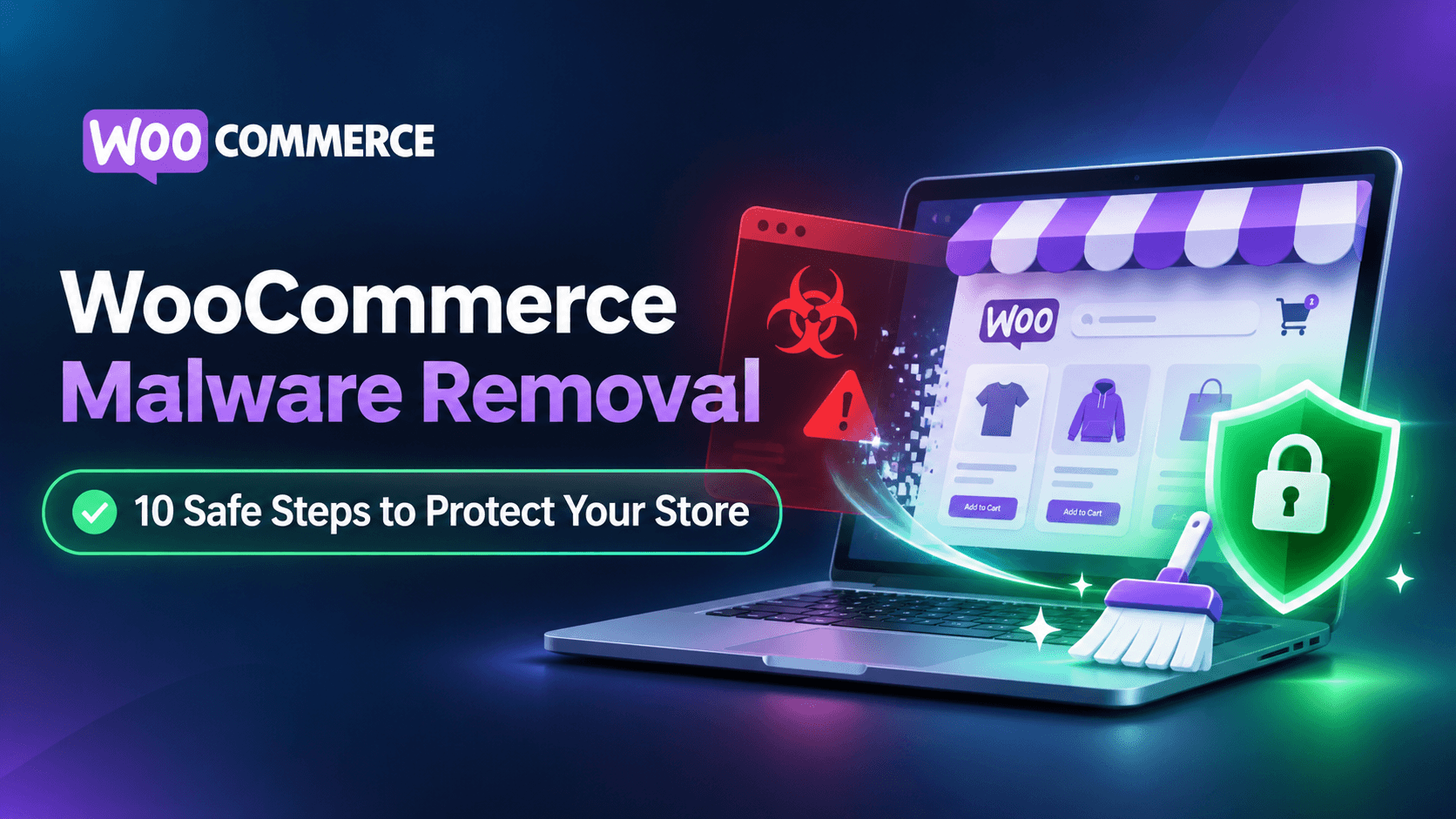

WooCommerce malware removal requires more than deleting a suspicious plugin or running one scan. An infected store may contain altered PHP files, hidden administrator accounts, malicious database content, injected checkout scripts, scheduled tasks, or compromised hosting credentials. Because WooCommerce handles orders and personal information, begin by containing the incident and preserving evidence before making changes.
In this guide
If customers can still place orders, temporarily pause checkout or put the store into maintenance mode after confirming that administrators can still access order records. Do not delete files, reset the database, or restore an old backup until you know which data must be preserved.
This guide focuses on a WooCommerce-specific cleanup: protecting customer and payment data, checking the checkout path, finding persistence mechanisms, and proving that the store is clean after recovery.
1. Confirm that the WooCommerce store is actually compromised
A security warning is important, but not every broken checkout or unfamiliar redirect is malware. First record the exact symptom, URL, time, browser, user account, and recent changes. Take screenshots and save relevant hosting, firewall, and security-plugin alerts.
Common indicators of a compromised WooCommerce store include:
- Customers are redirected from product, cart, or checkout pages to unrelated websites.
- Unknown JavaScript appears on checkout, payment, account, or order-received pages.
- Orders, products, prices, shipping settings, or payment settings change without authorization.
- New administrator accounts, unknown API keys, or unfamiliar WooCommerce webhooks appear.
- Customers report unexpected payment forms, browser warnings, spam emails, or suspicious order messages.
- Files change repeatedly after restoration or a security scan reports the same infection again.
- The site sends large volumes of email, creates unknown posts, or shows unfamiliar scheduled actions.
Test the public site in a private browser window and avoid entering payment details while investigating. A broken checkout caused by a plugin conflict is not automatically malware, but unexplained code or account activity should be treated as a security incident.
2. Contain the store before cleaning it
Containment limits damage while preserving the information needed to identify the entry point. Use the least disruptive option available, and coordinate with your host if the store is handling live orders.
- Restrict access. If the infection is active, temporarily enable a host-level maintenance or access restriction. Keep a trusted administrator route available so you can work safely.
- Pause risky transactions. Disable checkout temporarily if payment pages or order data may be altered. Do not assume a payment gateway’s hosted fields make a compromised checkout safe.
- Preserve evidence. Export security logs, access logs, malware scan results, suspicious file paths, and timestamps before they expire.
- Contact the host and payment provider. Ask whether they detected server-level malware, suspicious processes, or payment-page tampering. Follow the gateway’s incident process if card information may have been exposed.
- Use a clean device. Change credentials only from a trusted computer with current security updates. An infected administrator computer can immediately compromise the new passwords.
Do not repeatedly delete visible malware while the site remains online. If an attacker still has access, the files may return and the evidence may be overwritten.
3. Protect orders, customer data, and payment credentials
WooCommerce stores can contain names, addresses, emails, phone numbers, order details, and account information. The database may also contain payment-related metadata, although the exact exposure depends on the gateway and integration. Determine what data the store collects rather than assuming that no card data is involved.
Rotate access in a controlled order
- Hosting control-panel and server credentials
- WordPress administrator passwords
- Database credentials
- SFTP or SSH credentials
- WooCommerce REST API keys and webhooks
- Payment gateway, shipping, tax, email, CDN, and analytics credentials
- WordPress salts and keys after planning for all users to sign in again
Remove unknown users and sessions, but first record their usernames, roles, email addresses, and creation dates. If you cannot access the dashboard safely, ask the host to disable the account or use a documented database procedure after taking a complete backup. Database edits are risky: never run destructive SQL against production without a verified backup and a rollback plan.
Review the payment provider’s guidance and your legal or regulatory obligations if payment pages, customer records, or administrator credentials may have been exposed. Malware cleanup alone does not determine whether notification is required.
4. Create clean backups before changing anything
Create at least one full copy of the current site for investigation: WordPress files, the database, uploads, configuration files, and relevant logs. Keep it offline or in storage that is not writable by the website. Label it with the date and do not use it as the “clean” backup.
Also identify the newest backup from before the suspected compromise. Check that it can be downloaded, that the database is present, and that it includes recent orders and products. A backup is useful only if it restores successfully and is not already infected.
For a busy store, export or otherwise preserve orders created after the last known-clean backup. Do not overwrite those records simply to make restoration easier.
5. Find the infection source and persistence
A scanner can identify suspicious files, but a complete investigation compares changes against trusted originals and checks how the malware returns. Review:
- Recently modified PHP, JavaScript, and template files outside normal deployment windows
wp-config.php,.htaccess, web-server configuration, and unfamiliar server-side files- WordPress administrator accounts and users with unexpected capabilities
- Active plugins, themes, must-use plugins, and drop-ins
- WooCommerce webhooks, REST API keys, payment settings, and shipping or tax configuration
- Scheduled tasks, including WooCommerce action records and server cron jobs
- Database options, posts, widgets, snippets, checkout content, and injected scripts
- Hosting, SFTP, SSH, CDN, firewall, and email access logs
Pay special attention to persistence in the database or a writable uploads directory. PHP files hidden in uploads, unfamiliar must-use plugins, modified theme functions, and malicious scheduled actions can survive a plugin reinstall.
Do not identify malware solely by filenames, file age, or an unfamiliar string. Some legitimate WooCommerce extensions generate dynamic code or bundled libraries. Compare suspicious files with the official release of the same plugin or theme, and have a qualified technician review uncertain code.
6. Clean WordPress and WooCommerce safely
The safest cleanup method depends on whether you have a verified clean backup and how extensive the compromise is. A small, well-understood infection may be removable in place; widespread or repeated reinfection usually justifies rebuilding from trusted sources.
Option A: Restore a verified clean copy
Restore the files and database from a backup created before the compromise, then separately recover legitimate orders and content created afterward. Test the restored copy in a staging environment first when possible. Do not restore an old database over current orders without reconciling the difference.
Option B: Replace core, plugin, and theme files
Download WordPress core and every plugin or theme from its official source or a trusted vendor. Replace compromised code rather than manually editing dozens of files. Keep custom code and theme changes separate so they can be reviewed before reintroduction.
Remove unused plugins and themes instead of merely deactivating them. Reinstall extensions from trusted sources, verify their licenses and download origins, and update them only after confirming compatibility with the store.
Option C: Rebuild when trust cannot be established
If malware is widespread, the attacker had hosting access, or the site reinfects after cleanup, create a new clean WordPress installation and migrate reviewed products, orders, customers, media, and settings. Treat every migrated file and database value as untrusted until checked.
Never copy the entire old wp-content directory into a rebuilt site without inspection. The uploads directory may contain legitimate media, but it can also contain executable malware.
7. Inspect the database and WooCommerce-specific settings
Cleaning files does not remove malicious database content. Search reviewed database exports for unfamiliar administrator records, injected scripts, hidden iframes, encoded payloads, suspicious URLs, and unexpected options. The exact table prefix varies, so do not assume tables begin with wp_.
In the dashboard, review WooCommerce settings and extensions carefully. Confirm:
- Payment methods and webhook destinations are expected.
- Checkout, cart, account, and order-received pages point to the correct pages.
- Products, prices, coupons, taxes, shipping zones, and store email addresses were not altered.
- Unknown API keys, application passwords, and administrator accounts are removed.
- Emails and order statuses are not being redirected or changed by an unfamiliar automation.
Database cleanup is a high-risk task. Take a fresh backup before editing, work on staging when possible, and use a database professional if you cannot confidently identify the affected records.
8. Check the server, DNS, and security layers
WordPress may be clean while the hosting account, DNS, CDN, or server remains compromised. Ask the host to review shell users, cron jobs, virtual-host configuration, access logs, file ownership, and other sites under the same account.
Verify that DNS records, CDN rules, firewall redirects, SSL settings, and email forwarding are expected. Do not make arbitrary .htaccess, DNS, or server changes while troubleshooting; a bad change can cause downtime or conceal the real entry point. Save the current configuration before editing and have the host apply server-level changes where appropriate.
For background on safely managing a WordPress installation, consult the official WordPress Documentation.
9. Verify the cleanup before reopening checkout
Verification should be a separate phase, not an assumption based on one scan. Complete these checks in a staging copy and then repeat them on production:
- Run more than one reputable malware scan and investigate disagreements rather than ignoring them.
- Compare core, plugin, and theme files with trusted originals.
- Monitor file changes and server logs for several hours or longer, depending on the incident.
- Test the homepage, product pages, cart, checkout, account area, order confirmation, and transactional email flow.
- Place a controlled test order using the payment provider’s test mode where available. Never use real payment details for diagnosis.
- Confirm that checkout uses HTTPS and that no unexpected scripts or redirects load in a browser’s developer tools.
- Check the site from a clean browser while logged out and logged in.
- Review administrator, API, webhook, cron, DNS, hosting, and payment activity again after password rotation.
Ask the host to confirm that the account is no longer sending malicious traffic and request removal of any server-side block only after the site passes testing. Search-engine warnings can take time to clear; follow the relevant review process after technical cleanup rather than requesting review before the infection is gone.
10. Prevent reinfection after WooCommerce malware removal
- Keep WordPress, WooCommerce, extensions, and the server’s supported PHP version maintained.
- Use unique passwords and multi-factor authentication for administrators, hosting, email, and payment services.
- Remove unused plugins, themes, users, API keys, and integrations.
- Restrict administrator access and use separate accounts instead of sharing credentials.
- Maintain automated backups that are stored separately from the website and test restoration regularly.
- Monitor file changes, login activity, checkout behavior, and unexpected new administrators.
- Limit write permissions and prevent executable PHP files in directories that should contain media only, after confirming the rule will not break required functionality.
- Document the store’s plugins, payment integrations, DNS records, and recovery contacts so an emergency does not begin with guesswork.
Quick decision guide
- Only one suspicious plugin or file, no unknown accounts: isolate it, compare it with a trusted original, scan again, and investigate how it was modified.
- Checkout code or customer data may be exposed: pause transactions, contact the payment provider and host, preserve logs, and treat the incident as a potential data breach.
- Malware returns after cleanup: inspect hosting access, cron jobs, database persistence, must-use plugins, uploads, and other sites in the same account.
- You have a verified clean backup: test restoration first and reconcile newer orders before replacing production data.
- You cannot establish which files or database records are trusted: rebuild in a clean environment and migrate reviewed data rather than repeatedly patching the live site.
Questions store owners commonly ask
Can I just reinstall WooCommerce?
No. Reinstalling WooCommerce may replace its plugin files, but it does not necessarily remove malicious administrators, altered themes, injected database content, server cron jobs, compromised credentials, or malware in other plugins and uploads.
Should I delete all unknown orders?
Not immediately. Preserve order records as evidence and for reconciliation. Export them, document suspicious changes, and consult the payment provider or incident specialist before deleting anything.
Can a security plugin guarantee that my store is clean?
No single scan proves that every persistence mechanism is gone. Use scans alongside file comparison, account review, database inspection, hosting-log analysis, and controlled checkout testing.
When should I hire a specialist?
Get professional help when payment pages may be altered, the site repeatedly reinfects, the dashboard is inaccessible, the host reports account-level compromise, or you cannot safely distinguish legitimate WooCommerce code from malicious code. WP Fix It’s WordPress Malware Removal service can be considered when the incident needs a controlled investigation and cleanup.
For additional background, compare this store-focused process with WP Fix It’s general WordPress malware removal guide and its guide to malware removal plugins. Those resources are useful complements, but a WooCommerce incident still requires separate review of checkout, orders, payment integrations, webhooks, and customer data.