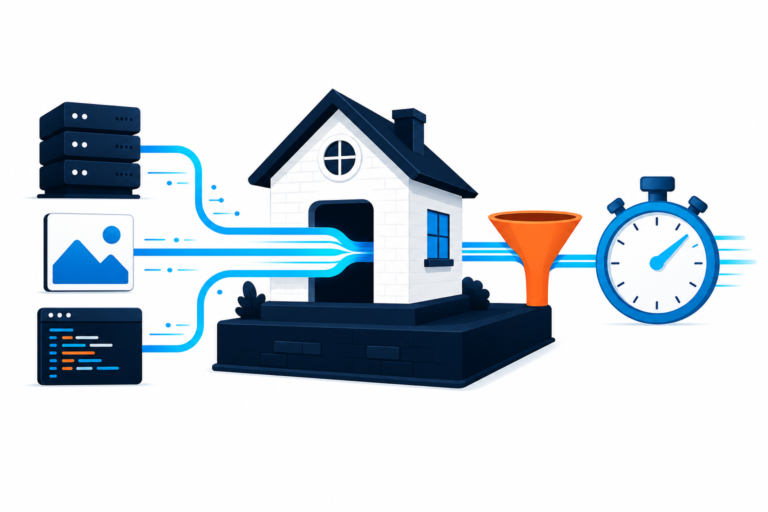


If your WooCommerce store is loading slow, do not begin by installing several optimization plugins or changing PHP and server settings at random. First determine whether the delay affects the whole page, only shop and product pages, or a specific action such as cart updates and checkout.
In this guide
The safest approach is to test the store as a customer, compare a cached page with a dynamic WooCommerce page, and then isolate the responsible plugin, query, image, request, or hosting limit. This guide walks through that process in order.
What a slow WooCommerce store usually means
WooCommerce pages cannot all be cached in the same way as a simple blog post. Cart, checkout, account, and some product-related requests may need current session, inventory, pricing, or customer data. A page can therefore feel slow because of either a long initial server response or because the browser is waiting for scripts, images, fonts, or third-party services.
Use the symptom as an initial clue:
- Every page is slow: investigate hosting resources, server response time, DNS, database health, and site-wide plugins.
- Only shop, category, or product pages are slow: check product queries, filters, variation data, related products, images, and theme templates.
- Cart or checkout is slow: inspect payment, shipping, tax, fraud-prevention, analytics, and session requests. This is different from a slow static page.
- The first visit is slow but repeat visits are faster: caching, cache warming, image delivery, or delayed third-party resources may be involved.
- Only logged-in customers are affected: personalized requests, account fragments, extensions, or uncached sessions deserve priority.
Before changing anything: take a safe baseline
Make a current backup of the database and files, and avoid testing changes directly on a busy store during a sales period. If your host provides staging, clone the site there before disabling extensions or editing configuration.
Test in a private browser window while logged out, then repeat while logged in. Record the URL, device, browser, approximate time, and whether the problem occurs on a product page, cart, or checkout. Also test more than one product: a simple product and a variable product can generate very different workloads.
Use a waterfall-based speed test or your browser’s developer tools. Look for:
- Time to first byte or server response: the server is taking too long before sending page content.
- Large images and fonts: the browser is downloading too much content.
- Long-running JavaScript: a theme or extension may be delaying interaction.
- Repeated admin-ajax.php or REST requests: a feature may be polling or recalculating unnecessarily.
- One slow external domain: payment, chat, reviews, advertising, maps, or analytics may be holding up the page.
For background on standard WordPress troubleshooting, consult the official WordPress Documentation.
1. Confirm whether caching is working correctly
Open a product or shop page in a private window and compare it with a repeat visit. If the first request has a long server response but the second is much faster, page or object caching may be helping inconsistently.
Do not cache cart, checkout, or account pages as ordinary public pages. A cache configuration that serves one shopper another shopper’s cart or account data is unsafe. Your caching plugin or host should document which WooCommerce cookies, URLs, and fragments are excluded; exact names and controls vary by product.
Purge caches only after recording the baseline. Clear the page-cache layer, server cache, CDN cache, and browser cache in a controlled order, then test again as a logged-out visitor and as a logged-in customer. If performance becomes worse after a purge, the site may be relying on cache warming or may have an origin-server bottleneck.
2. Test plugins and the active theme safely
WooCommerce itself is often blamed for a delay caused by an extension that adds product filters, subscriptions, bookings, feeds, analytics, shipping rules, or external synchronization.
On staging, temporarily disable nonessential plugins and test the same URLs. Re-enable them one at a time, testing after each change. If staging is unavailable, use a conflict-testing tool that can test plugins for your user session without changing what visitors see, or schedule a short maintenance window.
Pay particular attention to plugins that:
- add live product search, layered filters, or variation swatches;
- calculate shipping, taxes, discounts, or dynamic pricing;
- connect to an ERP, marketplace, email platform, reviews provider, or payment service;
- load scripts on every page instead of only on store-related pages;
- create scheduled actions, background jobs, or frequent AJAX requests.
Switching temporarily to a supported default theme on staging can reveal whether the theme’s product templates, page-builder elements, or header scripts are involved. Do not switch a production theme casually: custom layouts and theme-specific settings may not transfer cleanly.
If the slowdown is caused by a conflict, the solution is usually an update, configuration change, replacement, or developer fix—not leaving a critical store feature disabled.
3. Check product images, variation data, and page weight
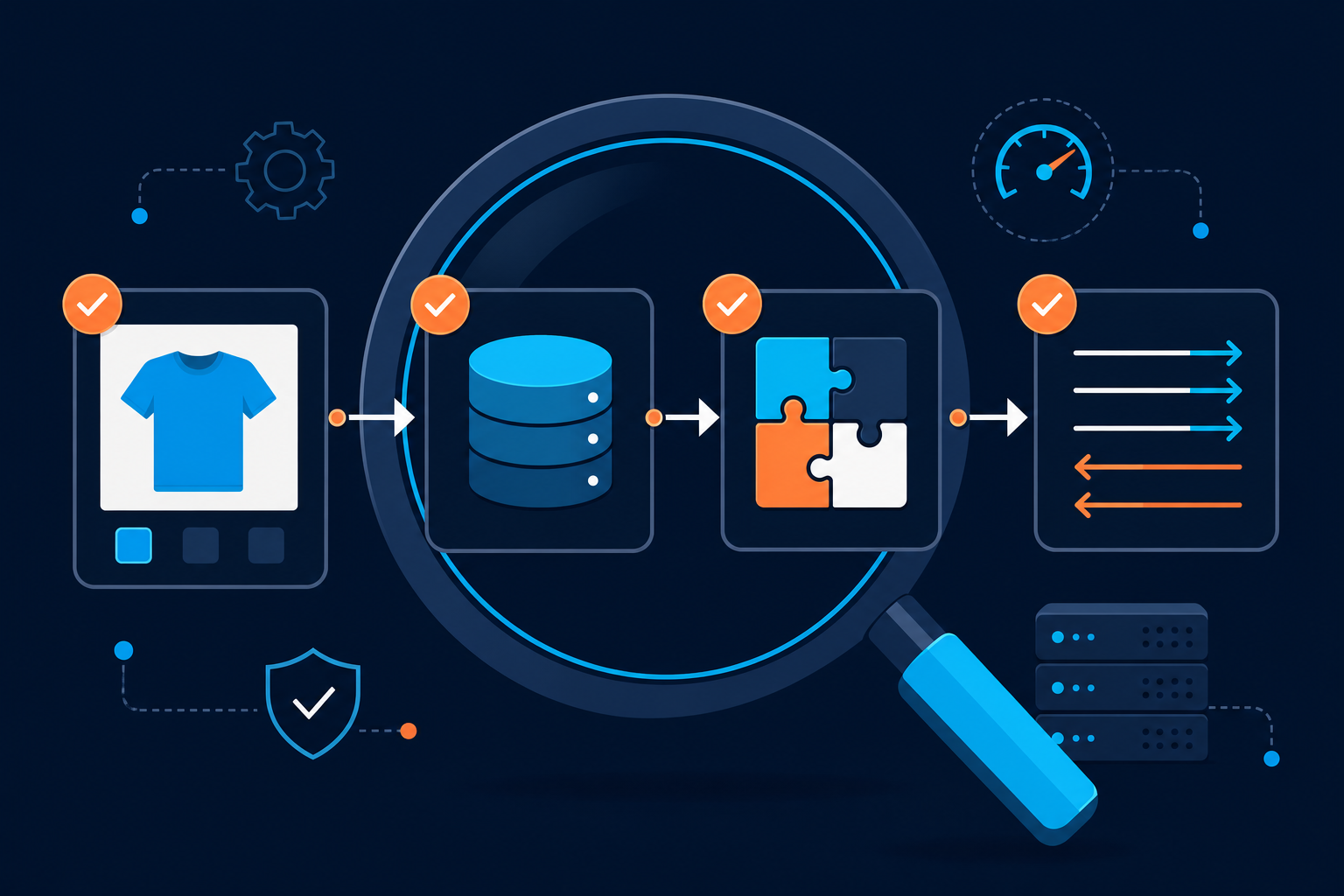
Product pages can become heavy when they load oversized originals, multiple gallery images, zoom assets, video, reviews, recommendations, and a large variation matrix.
- Inspect the largest files in the browser waterfall.
- Compare the displayed image dimensions with the downloaded file dimensions.
- Regenerate thumbnails only after confirming that the source images and registered sizes are correct.
- Use appropriately sized, compressed images and modern formats when your image workflow supports them.
- Reduce unnecessary gallery, animation, video, and recommendation content.
Do not disable image optimization blindly. Confirm that the replacement files preserve product detail and that images still work in the gallery, structured data, social sharing, and zoom views. For image-specific symptoms, see Fix Broken WooCommerce Product Images and Gallery Errors.
4. Investigate database and query bottlenecks
WooCommerce stores accumulate products, orders, sessions, logs, transients, action records, and metadata. A large database is not automatically a problem, but inefficient queries or unmaintained tables can increase server response time.
Look for these clues:
- the server response is slow before significant files begin downloading;
- the problem becomes worse on filtered category or search pages;
- the delay began after importing products or adding a reporting extension;
- scheduled tasks or logs have grown substantially;
- the host reports high CPU, memory, disk I/O, or database utilization.
Use a staging copy and a reputable database or query-monitoring tool to identify the slow query or component before deleting anything. Back up first. Do not manually delete order tables, post metadata, WooCommerce sessions, or action records from a production database based only on table size. Some cleanup tools label records as temporary, but retention and deletion rules vary by extension.
If the database is damaged, disk space is exhausted, or queries remain slow after a plugin is isolated, involve the host or a WordPress professional rather than repeatedly running repair operations.
5. Review scheduled actions and external requests
WooCommerce and its extensions may perform background work for payment updates, emails, inventory synchronization, subscriptions, feeds, imports, and cleanup. A backlog can consume resources even when no customer is browsing.
Check the scheduled-task screen supplied by WooCommerce or your task-management extension. Look for failed, repeated, or unusually large queues and identify which plugin owns them. Do not delete pending actions simply to make the queue look empty; determine why they are delayed first.
External services can also cause visible delays. Temporarily test on staging with nonessential chat, review, advertising, social, and analytics integrations disabled. If the waterfall shows one provider taking a long time, configure its script to load later, limit it to relevant pages, or contact that provider. Never disable payment or fraud services on production without confirming the effect on order processing.
6. Check hosting limits and PHP resources
WooCommerce needs more server work than a brochure site, particularly during product imports, checkout calculations, reporting, and traffic spikes. Ask your host whether the account is reaching CPU, memory, entry-process, worker, or database connection limits.
Confirm that the server’s PHP version is supported by your WordPress, WooCommerce, theme, and extensions. A newer PHP version can help, but compatibility must be checked before changing it. Test the change on staging and keep a rollback plan. WP Fix It’s WordPress PHP Compatibility service can help when extensions do not agree with the server environment.
Do not increase memory limits indefinitely in wp-config.php or hosting controls. A higher limit may prevent an immediate exhaustion error while hiding a plugin leak or inefficient query. Treat resource increases as a measured test, not the complete fix.
7. Check WooCommerce-specific cache exclusions
Performance tools need to distinguish public catalog content from customer-specific content. Review the documentation for your cache plugin, CDN, and host and confirm that:
- cart, checkout, and account pages are not served from a shared page cache;
- cart and customer session cookies bypass inappropriate caching;
- cached product pages are purged when prices, stock, or product content changes;
- AJAX and REST requests used by the store are not blocked or cached incorrectly;
- logged-in users and customers with active carts receive the correct responses.
A cache can make a store appear fast while silently showing stale stock or pricing. After changes, add an item to the cart, alter quantity, apply a coupon if applicable, and verify that the totals and checkout state remain correct in a private window.

8. Optimize only after finding the bottleneck
Once testing identifies the cause, apply the smallest relevant change. Examples include loading a review script only on product pages, reducing an oversized gallery, correcting a cache exclusion, updating a conflicting extension, replacing an inefficient filter, or moving a heavy scheduled job away from peak traffic.
Be cautious with broad JavaScript delay, CSS combination, database cleanup, object-cache, and image settings. Test product selection, variation changes, add-to-cart, coupons, shipping calculation, payment, order emails, customer login, and refunds after each significant optimization.
A performance plugin may help with caching, compression, or asset delivery, but installing multiple plugins with overlapping optimization features can create conflicts. For a structured audit, see 6 Plugins to Improve Your WordPress Performance and compare their functions before enabling anything.
9. Verify the fix with a repeatable checkout test
Do not declare success because the homepage feels faster. Repeat the original test on the same URL, device, browser state, and network where possible. Compare server response time, total page weight, request count, and the slowest resources.
Then run a functional test:
- Open a product page as a logged-out visitor.
- Select each required variation and confirm price, image, stock, and description changes.
- Add the product to the cart and change the quantity.
- Apply shipping, tax, coupon, and payment rules used by your store.
- Place a test order using your payment provider’s approved test process.
- Confirm the order, stock, email, analytics, and fulfillment integrations behave correctly.
Monitor the store after the change. If the delay returns, compare the time it returned with scheduled tasks, traffic, imports, backups, or third-party outages. This often separates a permanent code problem from a periodic resource spike.
Quick decision guide
- Slow before any files download: check hosting resources, database queries, PHP errors, scheduled actions, and uncached server work.
- Slow only on product pages: check images, variations, reviews, related products, theme templates, and product extensions.
- Slow after clicking or changing a field: inspect AJAX, REST, shipping, tax, payment, and JavaScript requests.
- Fast for visitors but slow when logged in: review personalized fragments, account data, admin-bar scripts, and cache exclusions.
- Fast after a cache purge, then slow again: investigate cache warming, origin capacity, scheduled tasks, or pages excluded from caching.
When to get professional help
Get help before editing production code or the database if checkout is unreliable, orders are duplicated, stock is incorrect, the server is repeatedly exhausting resources, or the bottleneck is not visible in a normal browser test. Preserve timestamps, affected URLs, test results, recent changes, and host resource graphs so the investigation starts with evidence.
For a store-wide performance investigation, WP Fix It’s WordPress Speed & Performance service is an option. The goal should be a measured diagnosis that improves speed without sacrificing cart accuracy, checkout reliability, or customer data.
Questions that help narrow the cause
Why is WooCommerce slow but my blog pages are fast?
Blog pages are often public and cacheable, while shop, product, cart, and checkout pages may run product queries, sessions, pricing, inventory, and extension logic. Compare the server response and request waterfall for one blog post and one product page.
Can too many WooCommerce products make the site slow?
Product count alone does not prove the cause. Slow filters, unindexed or inefficient queries, large variation sets, imports, and inadequate hosting are more useful suspects. Measure the affected archive or search request before changing the catalog.
Should I disable WooCommerce scripts on pages that do not sell products?
Possibly, but only after confirming which scripts are required by your theme, header cart, forms, or other extensions. Test navigation, menus, login, cart updates, and checkout after any asset removal.
What if speed tests disagree?
Different tests use different locations, devices, cache states, and network conditions. Repeat tests consistently and compare the waterfall and server response, not just one overall score. A real checkout test remains essential.