
If your WordPress website has been hacked, the safest first move is usually not deleting suspicious files. Preserve useful evidence, limit further damage, protect visitors, and record what changed before attempting cleanup. A rushed reinstall can remove clues, destroy legitimate customizations, or leave a backdoor behind.
In this guide
This guide focuses on the first response: what to do before cleaning an infected WordPress site. It complements a full WordPress malware removal process, but it does not replace professional forensic work when the site handles payments, private information, or business-critical traffic.
1. Confirm that the problem is probably a hack
Not every WordPress error is malware. A plugin conflict, expired SSL certificate, compromised hosting account, or damaged .htaccess file can look alarming. Confirm the symptoms from more than one location before changing production files.
- Open the site in a private browser window and check several pages, not just the homepage.
- Test from a different network or device. A local browser cache can display an old redirect or warning.
- Check whether unfamiliar administrators, posts, pages, plugins, themes, or scheduled tasks appeared.
- Look for redirects to unrelated domains, injected links, changed search results, pop-ups, or browser security warnings.
- Review hosting, CDN, and security-plugin alerts, but treat a scan result as a lead to verify rather than proof by itself.
A blank page or “critical error” alone does not prove an attack. For those symptoms, compare the guidance in How to Fix “There Has Been a Critical Error on This Website”.
2. Contain the hacked WordPress website without destroying evidence
Once compromise is reasonably likely, reduce exposure before investigating. Make a short incident log with the time, symptoms, affected URLs, alerts, and actions taken. Screenshots and copied URLs can be valuable later.
Safe containment actions
- Put the site behind a temporary maintenance or access restriction page if your host or CDN provides one. Ensure that administrators and necessary support staff can still reach the site through a controlled method.
- Pause high-risk functions, such as account registration, forms, file uploads, and checkout, if they may expose visitors or collect data.
- Notify your host. Ask whether other sites, databases, email accounts, or hosting-panel users show related activity.
- Preserve the current site. Request a full backup or hosting snapshot before modifying files. Keep an untouched copy separate from any cleanup copy.
- Warn affected stakeholders if the site may have exposed customer, employee, login, or payment information. Follow your organization’s legal and incident-response requirements.
Do not rely on a normal WordPress export as the only backup. An export may omit plugin files, theme files, server configuration, malicious files, and important metadata.
3. Preserve a usable backup and the installed plugin files
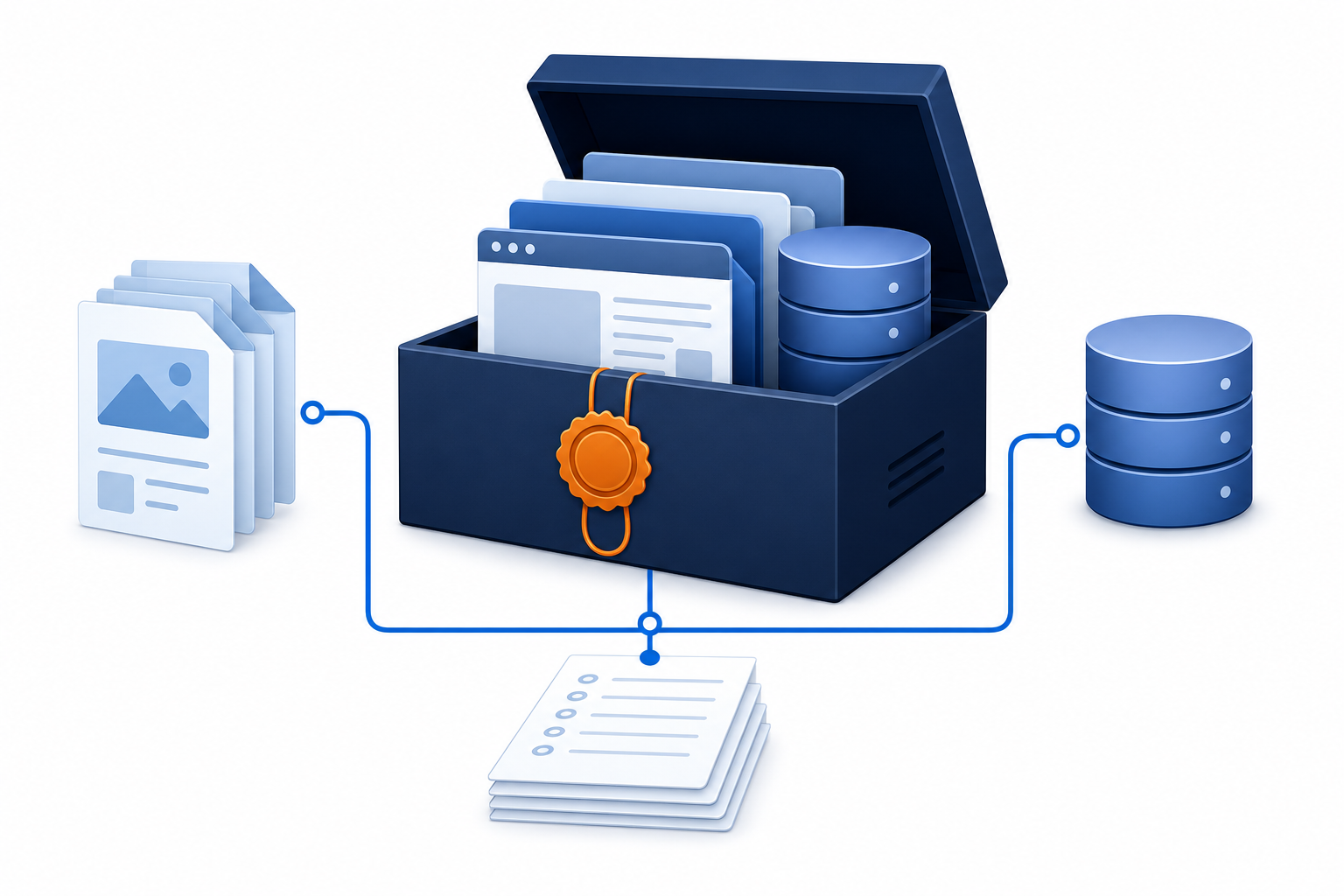
A good investigation needs more than a database dump. Preserve, where available, the WordPress files, database, upload directory, server logs, web-access logs, and configuration details. Ask your host how to create a read-only snapshot or downloadable archive.
Keep at least two clearly labeled copies, such as before-cleanup-files and before-cleanup-database. Do not store the only copy inside the compromised hosting account. Record the timestamp and source of each copy.
Do not overwrite the original backup with a “cleaned” version. If you need to test repairs, work on a staging clone or a separate copy. The article 3 Best WordPress Malware Removal Plugins can help compare scanning approaches, but automated tools should not be treated as a complete incident record.
What to preserve
- WordPress core files and checksums if available
wp-content/plugins,wp-content/themes, andwp-content/uploadswp-config.phpand.htaccess, stored securely because they may contain secrets- The database, including user and options tables
- Web server, PHP, firewall, CDN, and WordPress security logs
- Recent legitimate backups and the date each was created
Installed plugin files can include custom modifications or license-specific components. Preserve them before reinstalling anything; deleting first may remove information needed to identify the entry point.
4. Secure access from a clean device
Assume that passwords used on or near the infected site may be exposed. Change credentials from a trusted device, not from a computer that may contain malware or a browser session connected to the site.
- Change the hosting-panel, SFTP/SSH, database, WordPress administrator, CDN, DNS, email, and backup passwords that relate to the site.
- Use unique passwords and enable multi-factor authentication wherever the provider supports it.
- Review WordPress users and remove or disable unknown accounts. For known accounts, verify roles and recent activity.
- Revoke old SFTP keys, application passwords, API tokens, and active sessions when the relevant service allows it.
- Ask the host whether they can rotate database credentials and update the connection safely.
Changing only the WordPress administrator password is insufficient if an attacker entered through hosting, SFTP, a vulnerable plugin, stolen email access, or an exposed API token. Do not paste secrets into support tickets or public chat.
5. Find the likely entry point before removing files
Cleanup is more reliable when you understand how the compromise may have happened. The entry point may be an outdated plugin, stolen credential, vulnerable theme, insecure hosting account, writable upload directory, or another site sharing the same server account.
Check these sources in order
- Hosting and security logs: look for unusual logins, file changes, POST requests, uploaded files, and activity immediately before the first symptom.
- WordPress users: compare current administrators and editors with your records. Check unfamiliar email addresses and recently created accounts.
- Plugins and themes: identify anything abandoned, nulled, downloaded from an unofficial source, or installed shortly before the incident.
- Modified files: compare core, plugin, and theme files with trusted copies. Unexpected PHP files in uploads deserve particular attention, but do not delete them before preserving a copy.
- Scheduled activity: inspect WordPress cron events and hosting-level scheduled tasks for unfamiliar jobs.
File timestamps are clues, not proof. Automatic updates, deployments, cache operations, and server migrations can change timestamps. Correlate them with logs and known maintenance activity.
If the site is redirecting, review .htaccess, web-server rules, DNS, CDN redirects, and WordPress URL settings together. Avoid replacing configuration blindly; a malicious rule and a legitimate SSL rule can look superficially similar. For background on safe configuration review, see Mastering .htaccess for WordPress.
6. Decide whether to restore, clean, or rebuild
There is no universally safe “delete the bad file” solution. Use the available evidence to choose the least risky recovery path.
- Restore: appropriate when a trustworthy backup predates the intrusion, is complete, and the vulnerability or stolen credentials will also be fixed.
- Clean: appropriate when the site contains recent content or custom code that cannot be replaced easily and a qualified review can identify changed files.
- Rebuild: appropriate when the infection is widespread, the source is unknown, backups are untrustworthy, or the installation contains unofficial software.
A backup is not automatically safe because it is old. Scan and review it before putting it back online. Restoring an infected backup without closing the entry point can recreate the compromise.
7. Avoid these common first-response mistakes
- Do not reinstall WordPress over the existing site and assume the breach is gone. Malicious code may be in the database, uploads, configuration, user accounts, or another site in the same account.
- Do not delete all unknown files immediately. Preserve them first, including paths and timestamps.
- Do not install several security plugins at once on a failing production site. They may add load, alter files, or produce conflicting results.
- Do not restore an old backup without checking its date and contents. It may contain the same backdoor or erase legitimate orders and content.
- Do not edit
wp-config.php, DNS, or server rules casually. Make a secure copy first and ask the host to confirm syntax and rollback steps. - Do not treat a clean front page as proof of recovery. Attackers can hide payloads for logged-out visitors, search crawlers, specific locations, or later dates.
8. Verify the cleanup before reopening the site
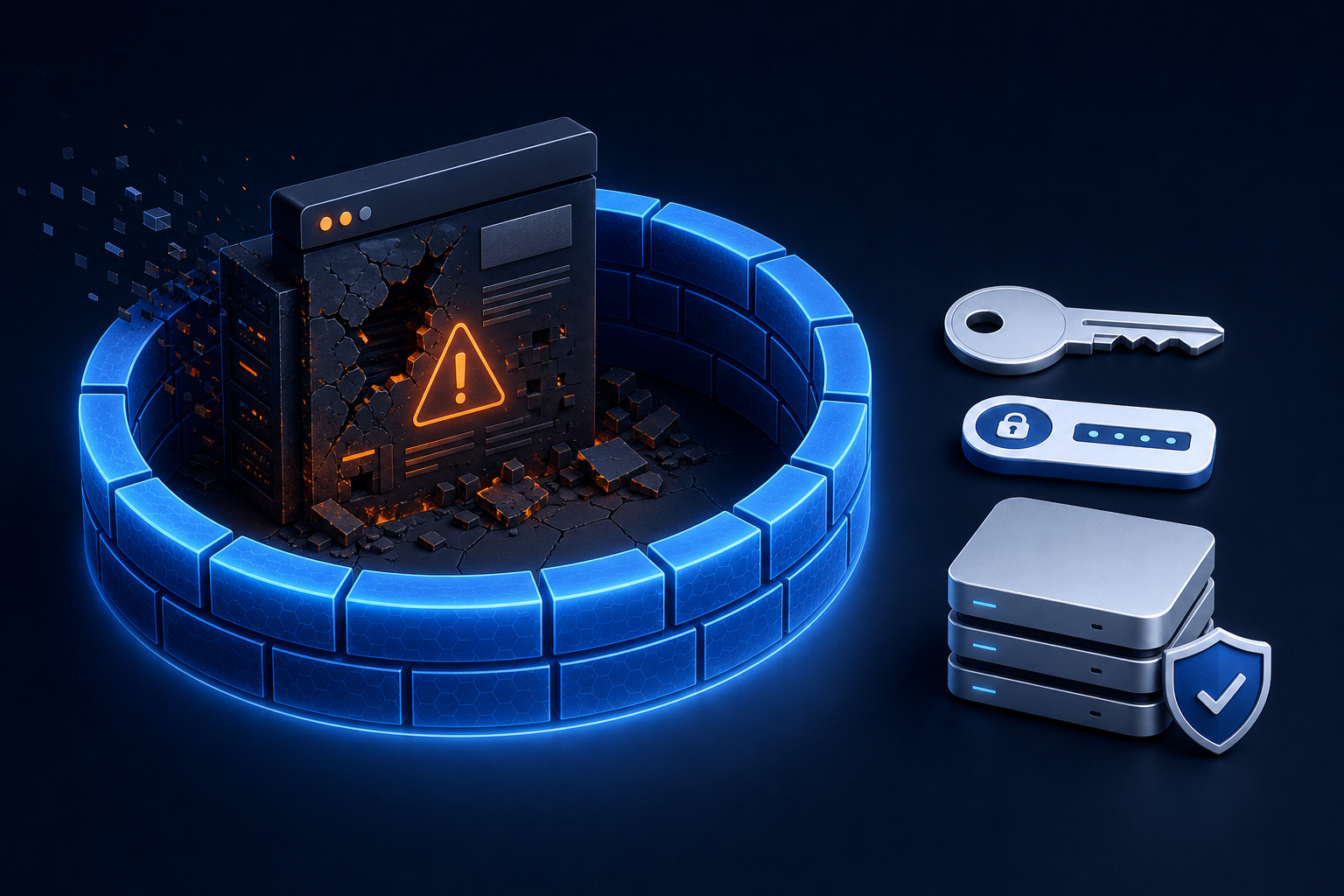
After a qualified cleanup or rebuild, verify from a clean device and more than one network. Check the public site, WordPress login, administrator accounts, forms, uploads, email delivery, redirects, checkout, and important integrations.
Confirm that:
- Only expected users, plugins, themes, and scheduled tasks remain.
- Core, plugin, and theme files match trusted packages or documented custom code.
- Passwords, keys, tokens, and database credentials were rotated.
- Security, hosting, CDN, and backup monitoring are active.
- New backups complete successfully and can be restored in a separate test environment.
- Search or browser warnings are addressed through the relevant provider after the site is actually clean.
Review the official WordPress Documentation for current guidance on core administration and secure configuration. Keep monitoring after reopening because delayed reinfection often indicates that an access path was missed.
9. When to bring in WordPress malware removal experts
Get specialist help promptly if the site processes payments, stores personal information, sends spam, has multiple unknown administrators, contains extensive custom code, or keeps reinfecting after a cleanup. The same applies when you cannot obtain reliable logs or a complete backup.
Before hiring anyone, ask whether they will preserve a forensic copy, explain what they found, identify the likely entry point, rotate credentials, check the hosting account, and provide verification steps. Be cautious of services that promise a clean site after deleting a few visible files.
For a hands-on response, WP Fix It offers WordPress Malware Removal. Provide the incident timeline, backups, hosting details, and any warnings rather than modifying the site repeatedly before review.
Practical decision guide
- Only a visual defacement, with a verified clean backup: preserve the current state, contact the host, then consider a controlled restore and credential rotation.
- Redirects, unknown users, or repeated reinfection: assume broader compromise and investigate files, database, hosting, and access credentials together.
- Payment or personal data may be involved: contain the site and involve hosting, security, legal, and payment specialists before destructive changes.
- No trustworthy backup or clear entry point: preserve what exists and use professional malware analysis before rebuilding.
Questions to answer before cleanup
Should I take the site offline immediately?
Take it offline or restrict access when it is serving malware, redirecting visitors, exposing private information, sending spam, or accepting risky submissions. If the evidence is uncertain, ask your host about a temporary access restriction while preserving normal administrative access.
Can I use a security plugin to clean everything automatically?
A scanner can identify suspicious patterns and known malware, but automated removal can miss database injections, compromised accounts, server-level access, and obfuscated code. Preserve a backup first and use scan results as part of a broader review.
Is changing my WordPress password enough?
No. Rotate every credential that could provide access, including hosting, SFTP/SSH, database, CDN, DNS, email, backups, API tokens, and application passwords. Remove unknown users and active sessions where possible.
How do I know the site is really clean?
Compare files with trusted sources, review the database and users, check logs and scheduled tasks, scan from more than one location, test important workflows, rotate secrets, and monitor for reinfection. A clean homepage alone is not sufficient.