
To fix a hacked WordPress website safely, do not start by deleting unfamiliar files or reinstalling WordPress. First contain the compromise, preserve a backup for investigation, identify how the attacker entered, remove malicious code and accounts, then verify the site from outside the dashboard. A rushed cleanup can destroy evidence, leave a backdoor behind, or restore an already-infected backup.
In this guide
This guide is for common signs such as unexpected redirects, spam pages, altered content, unknown administrator accounts, browser warnings, suspicious files, or a hosting provider’s malware notice. If customers are being redirected, payments are involved, or the site contains sensitive data, place it in maintenance mode or temporarily restrict access and involve your host or a qualified incident-response professional.
For a broader overview of cleanup options and pricing considerations, see WP Fix It’s WordPress malware cleanup service guide.
1. Confirm that the WordPress site is actually compromised
Not every warning means malware. A broken plugin, expired SSL certificate, DNS change, caching problem, or firewall block can look similar. Confirm the symptoms before changing production files.
Check these symptoms from more than one device
- Open the site in a private browser window and on a separate network. Note redirects, injected links, pop-ups, browser warnings, or unfamiliar pages.
- Check several URLs, including the homepage, a recent post, a login page, and a page that receives search traffic.
- View the page source and look for unfamiliar scripts, hidden iframes, or links that do not belong to the site. Minified code alone is not proof of an infection.
- Review Google Search Console or another monitoring service for security warnings, unexpected indexed URLs, or sudden changes in search appearance.
- Ask the host whether it has detected malware, unusual processes, changed files, or outbound email abuse.
Compare the visible problem with your access logs, file-change reports, and recent maintenance history. A single suspicious file is not enough to determine the scope of an attack; attackers often add persistence in more than one location.
2. Contain the compromise before cleaning
Containment limits damage while you investigate. It is safer to temporarily reduce site functionality than to let an attacker continue creating accounts or modifying files during cleanup.
- Tell your hosting provider that you suspect a compromise and ask about quarantine, temporary access restrictions, and server-level logs.
- Place the site behind a maintenance page or restrict public access if the host provides a safe method. Do not delete the entire web directory.
- Pause automated deployments, scheduled imports, third-party integrations, and payment-related jobs until you understand what is happening.
- Do not log in from a computer that may be infected. Use a trusted, updated device and a secure network.
- Do not repeatedly try passwords on a compromised login page. If credentials may have been stolen, change them from a trusted device as part of the coordinated reset later in this process.
Do not assume that taking the site offline removes the attacker. A malicious scheduled task, hosting account, database entry, or stolen credential can restore the infection when the site returns.
3. Preserve a clean investigation copy
Before removing anything, ask your host for a complete copy of the current files, database, and relevant access logs. Label it with the date and keep it separate from any backup you intend to restore. This copy may be needed to identify the entry point or determine whether customer data was accessed.
Also create a second working backup if your host can do so safely. Verify that the archive can be downloaded and that the database export is not empty. A backup made after malware has been removed is not a substitute for preserving the original state.
Backups are useful only when they predate the compromise or have been carefully inspected. Restoring the newest backup without checking it can reintroduce the same backdoor.
4. Find the likely entry point and scope
Cleanup without root-cause analysis often ends in reinfection. Review what changed shortly before the first symptom appeared.
Inspect the most common access paths
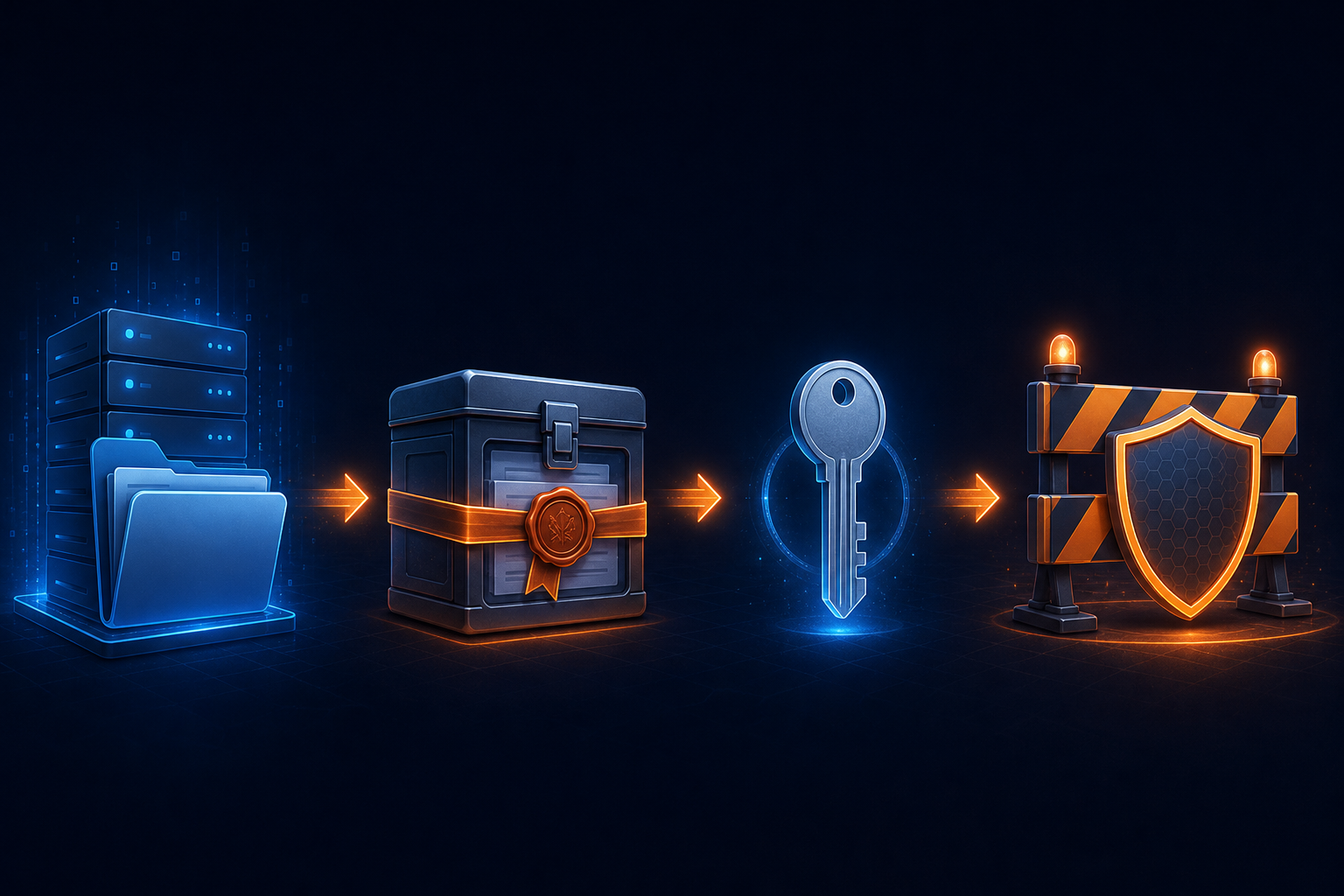
- WordPress accounts: Review users with administrator or other elevated roles. Confirm each account with the site owner and remove only accounts that are clearly unauthorized.
- Plugins and themes: List installed extensions, their sources, and their update history. Remove abandoned or nulled software. Replace compromised extensions with fresh copies from trusted sources.
- Hosting and FTP/SFTP: Review active hosting users, FTP accounts, SSH keys, control-panel logins, and recent login locations with your host.
- Database: Check for unfamiliar users, options, scheduled actions, injected content, and modified site settings. Database edits are risky and should be performed only after a verified backup.
- Server configuration: Have the host review
.htaccess, web-server configuration, cron jobs, PHP files outside expected WordPress locations, and writable directories.
Common evidence includes file modification times that do not match a legitimate update, new PHP files with random names, obfuscated code, unexpected administrator accounts, or redirects that appear only for search crawlers. None of these clues should be judged in isolation. Ask the host or a security professional to correlate them with logs.
5. Clean or rebuild from trusted files
The safest approach depends on the infection’s scope. A small, well-understood compromise may be cleaned; a site with widespread modified files is usually safer to rebuild from known-good packages and then restore carefully reviewed content.
For a limited compromise
- Download fresh WordPress core files from the official WordPress source or update through a trusted hosting or dashboard process after access is secured.
- Replace compromised plugins and themes with fresh copies from their original trusted sources. Do not overwrite a compromised extension with an unknown copy.
- Remove unused plugins, themes, old installation folders, temporary archives, and abandoned scripts.
- Compare custom code with a known-good version. Preserve legitimate customizations instead of blindly replacing files.
- Inspect uploads and other writable directories for executable files. Ask the host which file types and locations are expected before deleting anything.
- Search the database for injected content and unauthorized accounts. Make database changes only after exporting and testing a backup.
For a widespread or uncertain compromise
Use a clean staging copy or a fresh hosting directory, install clean WordPress core files, add only verified plugins and themes, and migrate reviewed media and content. Do not copy the entire old filesystem into the new installation. If the database is also affected, have it reviewed before importing it.
Editing random PHP files until the visible redirect disappears is not a complete cleanup. Hidden loaders can remain in another plugin, the database, a scheduled task, or the hosting account.
6. Reset every related credential
Reset credentials only after containment and preferably after malicious files have been removed. Otherwise, an attacker may capture the new passwords again.
- Change WordPress administrator passwords and review every user role.
- Reset hosting control-panel, FTP/SFTP, SSH, database, and deployment credentials.
- Rotate API keys, application passwords, SMTP credentials, payment integration keys, and CDN or firewall tokens where relevant.
- Change the password for the email account used by site administrators, especially if password resets or hosting notices may have been intercepted.
- Enable two-factor authentication wherever the provider supports it.
Use unique passwords and remove access for former staff, contractors, and unused service accounts. Ask your host how to invalidate existing sessions if you believe an administrator session was stolen.
7. Harden the recovered installation
Hardening should follow cleanup, not replace it. Security settings cannot reliably compensate for a hidden backdoor or stolen hosting credential.
- Update WordPress, active plugins, themes, PHP, and hosting software using compatible, trusted releases.
- Delete inactive extensions that are not needed, particularly those obtained from unofficial sources.
- Use least-privilege roles and avoid giving administrator access when an editor or shop-manager role is sufficient.
- Restrict file editing from the dashboard only if your maintenance workflow allows it and your host or developer understands the change.
- Keep reliable off-site backups with retention points that predate the incident.
- Set up file-change, uptime, login, and malware monitoring, then make sure alerts reach someone who will act on them.
- Ask the host to review permissions, PHP execution in upload directories, cron jobs, and web-application firewall rules.
Server-level changes to PHP configuration, firewall rules, DNS, or wp-config.php can take the site offline. Save the existing configuration and coordinate with the host before changing them.
8. Verify the fix from outside WordPress
A clean-looking homepage does not prove that the site is clean. Verify the recovery as an unauthenticated visitor and as an administrator.
- Open the homepage, important landing pages, forms, media URLs, login screen, and checkout or account flows in a private browser window.
- Test the site on mobile and desktop, from more than one network, and without relying on a previously cached page.
- Inspect redirects with a header-checking tool or command-line request. For example, a basic request such as
curl -I https://example.com/can show the initial HTTP response, but the output depends on your server and redirects. - Clear page, object, CDN, and browser caches only after confirming the files are clean. Otherwise, cached malware may make diagnosis confusing.
- Run a fresh security scan and compare its results with the pre-cleanup findings.
- Review logs for new unauthorized logins, file changes, suspicious requests, or outbound mail after the site is reopened.
- Request a review of any browser, hosting, or search-engine warning after the underlying issue is resolved.
Use the official WordPress Documentation for current guidance on core administration and maintenance. Exact dashboard labels and security-plugin screens can vary by WordPress version and provider.
9. What to do if the site becomes infected again
Reinfection usually means that an access path was missed rather than that the cleanup simply “did not work.” Take the site back to containment and compare the time of reinfection with your logs.
- If new administrator accounts appear, investigate WordPress, hosting, database, and email credentials together.
- If the same files return, inspect scheduled tasks, writable directories, deployment tools, and compromised plugins or themes.
- If redirects return only after cache purges or DNS changes, investigate CDN, DNS, and server configuration rather than editing theme files again.
- If a clean site is compromised after a plugin is installed, remove that extension and review its source and update history.
- If the host reports multiple infected accounts, request account-level isolation and a server scan.
At this point, rebuilding on a clean hosting account or engaging a specialist is often safer than repeated ad hoc edits. WP Fix It’s WordPress Malware Removal service is one option when you need professional investigation and cleanup.
Quick decision guide
- Only one suspicious redirect, no unknown users, and recent clean files: preserve a backup, inspect the affected files and plugins, then verify from multiple networks.
- Unknown administrator accounts or stolen credentials: contain the site, preserve logs, remove unauthorized access, and rotate all related credentials.
- Many changed files or repeated reinfection: prefer a clean rebuild and host-level investigation over manual file editing.
- Browser or search-engine warning: clean and verify first, then follow the relevant review or warning-removal process.
- Customer or payment data may be involved: stop guessing, preserve evidence, contact the host, and follow your privacy and incident-response obligations.
Questions to ask before reopening a hacked site
Should I delete the suspicious file immediately?
Not before preserving a copy and recording its path, timestamps, and contents. Deleting it may remove evidence and can hide how the attacker entered. If it is actively executing harmful code, ask the host to quarantine it while preserving a forensic copy.
Can I restore a backup to fix the infection?
Only after checking when the backup was created and scanning its files and database. A backup created after the compromise may contain the same backdoor. After restoration, rotate credentials and verify the site independently.
Is changing the WordPress administrator password enough?
No. Attackers may have used hosting, FTP, SSH, database, email, API, or application-password access. Reset every related credential and remove unknown accounts and keys.
How do I know the cleanup is complete?
You need more than a working homepage: fresh scans, clean file comparisons, reviewed accounts, checked scheduled tasks, tested redirects and forms, clean logs after reopening, and no recurring symptoms. If the scope remains uncertain, obtain a host-level or professional review.