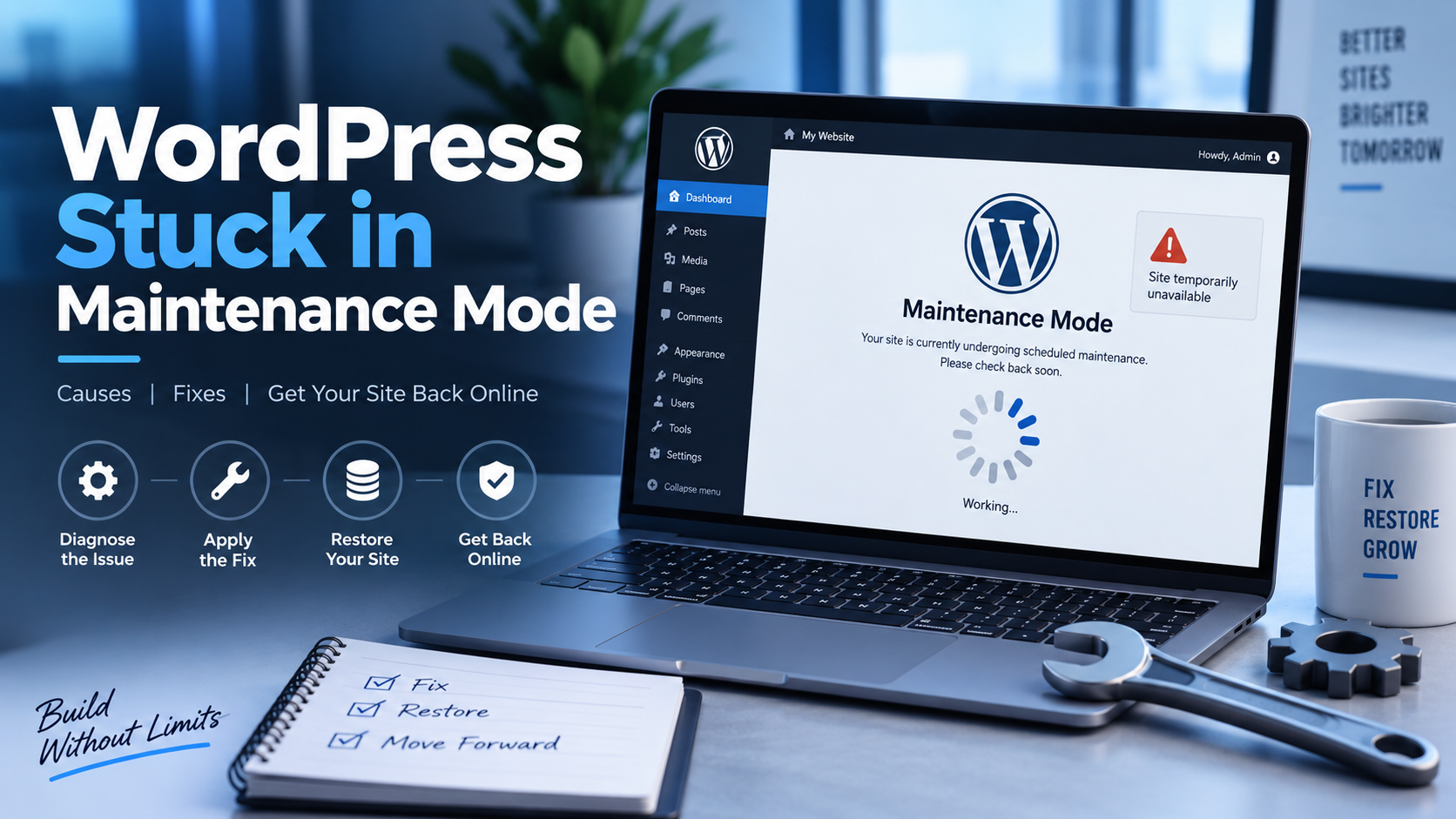

If WordPress is stuck in maintenance mode after a plugin, theme, or core update, the quickest safe recovery is usually to remove the hidden .maintenance file from your WordPress installation. Do not delete random files or repeatedly retry the update first: confirm the site is no longer actively updating, take a backup if possible, remove only that temporary file, and then check for an incomplete update or a plugin conflict.
In this guide
This guide focuses on the common post-update failure where visitors see a maintenance screen and the site does not return to normal. It also explains what to do when deleting .maintenance does not solve the problem.
Why WordPress gets stuck in maintenance mode
During an update, WordPress creates a small file named .maintenance in the site’s root directory. While that file exists, WordPress assumes an update is in progress and displays its maintenance message instead of loading the normal site.
The file should be removed automatically when the update finishes. A timeout, exhausted server resources, interrupted connection, PHP error, file-permission problem, or incompatible extension can prevent the cleanup step. The result is a site that remains in maintenance mode even though no update is still running.
Confirm that maintenance mode is the real problem
Open the site in a private browser window or a different browser. If the page says that the site is undergoing scheduled maintenance, the .maintenance file is the first thing to check.
Also test /wp-admin/. If both the public site and dashboard show maintenance mode, the issue is likely at the WordPress filesystem level. If only one browser or one visitor sees the message, clear that browser’s cache and any page cache before changing files.
Ask anyone who may have started an update to wait briefly before intervening. Removing the file while an update is actively writing files can leave WordPress incomplete. If the update has clearly stopped responding and there is no visible progress, continue with the recovery steps below.
Before changing files: protect the site
- Use a backup if one is available. Keep the latest database backup and a copy of the WordPress files before troubleshooting.
- Record what was being updated. Note whether the failure occurred during a core, plugin, or theme update.
- Use the least-invasive access method available. Hosting File Manager, SFTP, and SSH are common options. The exact names vary by hosting provider.
- Do not edit the database for this issue. The maintenance flag is normally a file, not a database setting.
If you cannot access files, ask your host for temporary File Manager or SFTP access. You can also use WordPress Site Repair when the site is business-critical and you do not have a safe recovery path.
Remove the .maintenance file safely
Option 1: Hosting File Manager
- Sign in to your hosting account and open the File Manager for the affected site.
- Open the directory containing
wp-admin,wp-content, andwp-includes. This is the WordPress root directory. - Enable an option such as Show hidden files if hidden files are not visible. The exact label differs between hosts.
- Locate the file named
.maintenance. - Download a copy of the file first if your File Manager supports downloading, then delete only
.maintenance. - Open the site and
/wp-admin/in a private window.
Do not delete the wp-content directory or other unfamiliar dotfiles. The file you are looking for is exactly .maintenance, with no additional extension.
Option 2: SFTP
Connect to the site with an SFTP client using credentials supplied by your host. Browse to the WordPress root, enable hidden-file visibility if necessary, download .maintenance as a backup, and delete that one file. Then disconnect and test the site.
Option 3: SSH or WP-CLI
If SSH access is enabled and you are comfortable using the command line, change to the WordPress root and inspect the file before removing it:
cd /path/to/wordpressls -la .maintenancerm .maintenanceReplace /path/to/wordpress with the actual site path. The rm command permanently removes the named file, so do not run it from an uncertain directory. If WP-CLI is installed, you can first confirm the site path with your host or deployment documentation rather than guessing it.
Verify recovery after removing the file
Check all of the following:
- Load the homepage in a private browser window.
- Open
/wp-admin/and sign in. - Visit the Updates screen and look for an incomplete or failed update notice. Exact labels vary by WordPress version.
- Open a few posts, pages, and media items.
- Test a key form, login, checkout, or other business-critical function.
- Purge the site or CDN cache only if the old maintenance page remains after the origin site is working.
If the maintenance message persists after the file is gone, the response may be cached or the site may have another failure. Check the response in a private window and ask your host whether a reverse proxy, CDN, or server-level cache is serving an old page.
Find what interrupted the update
Removing the file restores normal loading, but it does not prove that the update completed correctly. Identify the interrupted component before attempting another update.
If a plugin was updating
Open the Plugins screen and check whether the plugin is active and shows the expected version. If the dashboard reports a partial or failed update, do not keep clicking Update repeatedly. Take a backup, temporarily deactivate the affected plugin if the site remains accessible, and install a fresh copy from its trusted source or restore the previous version according to the plugin developer’s instructions.
If the plugin controls a critical function such as payments, forms, or security, test that function before reactivating it. A plugin update can finish copying files while still failing during activation.
If a theme was updating
Check the Themes screen and confirm which theme is active. If the active theme is broken, use a known-good installed theme only if you understand the design impact and have a backup. Avoid editing theme files directly as a first response.
If WordPress core was updating
Check the Updates screen for the installed WordPress version and any incomplete-update notice. Do not overwrite core files casually. If the core update failed, use the official WordPress Documentation for the version-appropriate recovery method, or ask your host to review the update logs and restore a clean backup.
Common causes and the next safe check
- Server timeout or low resources: Ask the host whether PHP workers, memory, disk space, or execution time limits were reached.
- File permissions or ownership: Have the host verify that the web server can write to the WordPress files without applying unsafe permissions broadly.
- Plugin or theme incompatibility: Review the update history and temporarily isolate the component associated with the failure.
- Security or firewall blocking: Check security-plugin and host firewall logs for blocked update requests. Do not disable protection permanently.
- Stale cache: Purge relevant page, object, and CDN caches only after confirming the origin is healthy.
- Low disk space: Check available hosting storage before retrying. Failed writes can affect more than the maintenance flag.
When the file is missing but the site still looks stuck
A missing .maintenance file means the maintenance flag is no longer present. The remaining symptom may instead be a cached page, a fatal PHP error, a server error, or a theme/plugin failure.
Check the browser’s developer tools only if you are comfortable interpreting network responses, and compare the site from a separate connection. Ask the host for the PHP and web-server error logs for the exact time of the failed update. Avoid enabling verbose debugging on a public production site unless errors are being logged privately and the exposure risk is understood.
If the dashboard is available, deactivate the component that was being updated and test again. If the dashboard is unavailable, use SFTP or your host’s recovery tools to make a targeted change, preferably after taking a file backup. For related dashboard loading failures, see how to troubleshoot WordPress stuck on loading in wp-admin.
How to prevent another maintenance-mode lockout
- Keep a recent, restorable backup before major updates.
- Update one high-risk plugin or theme at a time so the failing component is identifiable.
- Confirm available disk space before large updates.
- Use a staging site when your host provides one.
- Keep WordPress, PHP, themes, and plugins within supported compatibility ranges.
- Do not close the browser or interrupt an update while it is actively progressing.
Questions to ask before retrying the update
Can I delete .maintenance from the WordPress root?
Yes, when the update has clearly stopped and the file is exactly .maintenance. Download or copy it first when possible, and delete no other files.
Will deleting the file undo the failed update?
No. It only removes WordPress’s temporary maintenance flag. You must separately verify whether the plugin, theme, or core update completed.
Why does the maintenance page remain after deletion?
A cache may still contain the old response, or another error may be preventing WordPress from loading. Test privately, purge the appropriate cache, and review server logs.
Should I edit wp-config.php or the database?
Not for the normal maintenance-mode lockout. Editing either can create additional problems and is unnecessary when the cause is a stranded .maintenance file.
If the site remains unstable after a targeted recovery, stop retrying updates and preserve the current files and logs. A careful review of the failed component is safer than repeatedly changing production files.
What If WordPress Maintenance Mode or Recovery Mode Is Not Working?
WordPress core maintenance mode and a maintenance-mode plugin are different systems. A stranded .maintenance file normally affects the whole WordPress installation after an interrupted core, plugin, or theme update. A maintenance plugin may display its own page while WordPress itself is working normally. Removing .maintenance will not disable a plugin’s maintenance page.
If the site still shows a maintenance page after you remove the file, work through these checks:
- Identify the page source. View the page from a private window and compare the wording, logo, and design with the message produced by your maintenance plugin. If the page is branded or includes plugin controls, sign in to the dashboard and disable the plugin’s maintenance setting.
- Check whether the response is cached. Test the site from another connection, then clear the relevant page, object, host, or CDN cache. Purge caches only after confirming that the origin server is loading correctly.
- Check the plugin without the dashboard. If the dashboard is unavailable, use SFTP or File Manager to rename only the suspected plugin directory inside
wp-content/plugins. This temporarily deactivates that plugin. Restore the original directory name after testing if it is not the cause. Do not rename the entirepluginsdirectory unless you need a broader emergency isolation step. - Separate recovery mode from maintenance mode. Recovery Mode is intended to help isolate a fatal plugin or theme error; it is not required to remove
.maintenance. If a recovery link says recovery mode was not initialized, has expired, or never arrives, use the hosting file access and error-log checks instead. Do not repeatedly request recovery emails as a substitute for restoring file access.
When there is no maintenance file, no usable recovery link, and the site still fails, ask the host for the PHP and web-server logs from the time of the update. The remaining problem may be a fatal PHP error, incomplete files, permissions, low disk space, or a server-level cache. Preserve a backup before replacing files or retrying the update.