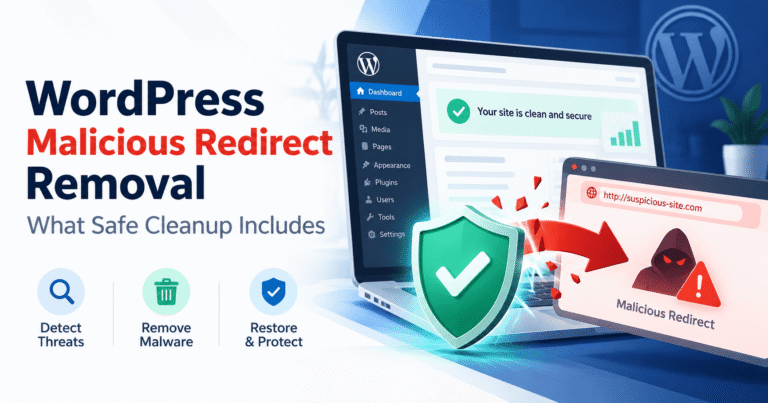

If your WordPress site has been hacked, the safest first move is usually not to reinstall WordPress or delete suspicious files. First contain the incident, protect your accounts, record what changed, and determine whether visitors are still being exposed to malware, spam, redirects, or stolen content.
In this guide
This guide covers the first response to a suspected compromise. It is intentionally different from a full malware-cleanup procedure: the goal is to stop the situation getting worse and prepare for accurate cleanup.
1. Confirm that this is a compromise
A strange page or warning does not always mean the WordPress files are infected. A caching problem, a compromised administrator account, a hosting suspension, a DNS change, or a firewall rule can produce similar symptoms.
Use a private browser window and test the site from a device that is not logged in. Record the exact URL, time, device, and result. Look for several of these signs:
- Visitors are redirected to gambling, pharmaceutical, adult, phishing, or unrelated websites.
- Search results show “This site may be hacked” or unexpected pages and titles.
- New administrator users, posts, pages, plugins, or scheduled tasks appear without permission.
- Your hosting provider, security plugin, or browser reports malware.
- Files, database content, or theme code contains unfamiliar scripts, obfuscated PHP, or injected links.
- Passwords, email settings, or DNS records changed unexpectedly.
Do not open suspicious links repeatedly from your normal computer. If the site is displaying a phishing page, collect a screenshot and URL instead. A single false positive from a scanner is not proof, but multiple independent symptoms should be treated as a real incident.
2. Contain the hacked WordPress site before editing it
Containment limits exposure while preserving information that can reveal how the attacker entered.
Temporarily restrict public access
If customers are being sent to malicious pages or the site is actively serving malware, place the site behind a host-provided maintenance or access restriction, or use a carefully configured firewall rule. Keep a known-safe contact or status page available if possible.
Do not rely on simply changing the homepage. A compromised site can serve malicious content from an uploaded file, a database entry, a plugin endpoint, or a different URL.
Do not destroy evidence
Before removing anything, save:
- Security alerts, browser warnings, redirect destinations, and screenshots.
- Hosting, CDN, and WordPress security-plugin logs if available.
- The approximate time the symptoms began.
- A list of recent administrators, plugins, themes, hosting users, and DNS changes.
- A full backup of the current state, stored separately and clearly labeled as potentially infected.
A backup made after the compromise can help investigation, but it should not automatically be restored as the “clean” copy. It may contain the same backdoor.
3. Secure accounts from a clean device
Assume that credentials may have been exposed. Use a trusted device with current operating-system and browser updates, and avoid changing passwords from an infected computer.
- Change the hosting account password.
- Change every WordPress administrator password, beginning with the account used for the investigation.
- Change the password for the database user if your host supports it safely.
- Change SFTP, SSH, control-panel, CDN, DNS, and registrar passwords that could modify the site.
- Change the email password associated with administrator accounts.
- Enable multi-factor authentication wherever the provider supports it.
Use unique passwords. Do not send passwords by email or paste them into support chats unless the provider has a secure credential-sharing process.
Password changes alone may not remove an attacker. A malicious administrator, application password, SSH key, scheduled task, or server-level account can provide continued access. Record and review these access methods during cleanup.
4. Check WordPress access and recent changes
If you can safely access the dashboard, go to Users and review every administrator and unfamiliar account. Remove unauthorized accounts only after recording their usernames and related activity. If an account belongs to a legitimate team member, confirm before deleting it.
Review:

- Users with administrator privileges.
- Application passwords and connected integrations.
- Recently published or modified posts and pages.
- Installed plugins and themes, including inactive ones.
- WordPress settings such as the site URL, administrator email, and membership options.
Dashboard labels vary by WordPress version and hosting setup. If the dashboard is unavailable, ask the host for access logs and a file listing rather than making random changes to production files.
Be especially cautious with unfamiliar plugins or themes. Deactivating a malicious plugin may stop one symptom while leaving a backdoor elsewhere. Do not download a replacement plugin from an unofficial site.
5. Check the hosting, DNS, and email layers
A WordPress compromise can involve more than the application.
Hosting and server access
Ask the host whether they can identify:
- Recently created control-panel, SFTP, SSH, or FTP users.
- Unexpected cron jobs or scheduled server tasks.
- Changed file ownership, permissions, or document-root settings.
- Suspicious processes, outbound mail, or unusual resource usage.
- Other sites affected under the same hosting account.
If multiple sites share one account, isolate them. Cleaning only one installation may allow the attacker to reinfect it from another site.
DNS and CDN
Sign in to the registrar and DNS provider and check for unauthorized nameserver, A, AAAA, CNAME, or redirect changes. Verify the CDN origin and SSL settings as well. If DNS was changed, fixing WordPress files will not restore the legitimate site until DNS is corrected.
DNS changes can take time to appear consistently. Confirm the current records with your DNS provider and compare results from more than one network before declaring the issue fixed.
Email and reputation
Inspect mailboxes, forwarding rules, contact-form recipients, and SMTP credentials. Attackers may use a compromised WordPress installation to send spam or alter form notifications. If customers may have received fraudulent messages, document the incident and notify the affected parties through a verified channel.
6. Identify the likely entry point
Finding the entry point prevents a clean site from being compromised again. Common possibilities include:
- An outdated vulnerable plugin, theme, or WordPress core installation.
- A reused or stolen administrator, hosting, FTP, or email password.
- An unauthorized plugin, nulled theme, or pirated software package.
- Insecure file permissions or an upload endpoint.
- A compromised hosting account or neighboring site.
- An exposed backup, development copy, or old installation.
Compare the earliest suspicious file or database change with hosting access logs, WordPress activity logs, and the site’s update history. Timestamps are clues, not proof: server clocks, cached files, and copied files can make dates misleading.
For background on safe WordPress administration and official troubleshooting resources, consult the WordPress Documentation.
7. Choose the safest recovery path
Use a known-clean backup when all of these are true
- The backup predates the first suspicious activity.
- The backup source and storage have not been writable by the attacker.
- You can identify and close the entry point before restoring.
- You can update core, plugins, and themes after restoration.
- You can rotate all relevant credentials.
Restore to a staging or isolated location first. Test the site, inspect the files and database, and verify that no unauthorized users or scheduled tasks remain. Restoring directly over production can erase useful evidence and reintroduce the compromise.
Do not trust a backup blindly
If the backup was created after the hack, came from an unknown source, or contains unexplained administrator accounts, treat it as potentially infected. A professional can compare backups, files, database records, and logs to build a safer recovery plan.
When professional help is the safer option
Escalate quickly if payment data, customer accounts, personal information, email accounts, or multiple sites may be involved; if the host has suspended the account; if the attacker returns after password changes; or if you cannot confidently distinguish WordPress core from malicious code.
WP Fix It’s WordPress Malware Removal service is an option when you need a specialist to investigate and clean an active infection. Keep the current backup and logs available before work begins.
8. Verify that the site is clean
Do not judge recovery by whether the homepage looks normal. Verify the complete installation:
- Check the homepage, important landing pages, login page, forms, checkout, and random deep URLs while logged out.
- Test from a private browser window and a second network or device.
- Review page source and network requests for unexpected external scripts or redirects.
- Confirm that WordPress administrators, plugins, themes, cron jobs, and hosting users are expected.
- Run a reputable malware scan and compare its findings with file and access logs.
- Check that DNS, SSL, CDN origin settings, and email routing are correct.
- Ask the host to review outbound spam, server logs, and any account-level compromise.
If search engines displayed a security warning, request a review only after the infection has been removed and the cause addressed. Removing the warning without fixing reinfection risk can lead to another incident.
Common symptoms and the next check
- Only search results look hacked: inspect the live URLs, server responses, database content, and hidden pages; do not assume the homepage is the only affected location.
- The site redirects only on mobile: test logged out with a clean device and review conditional code, injected JavaScript, caching, and CDN rules.
- The dashboard looks normal: check hosting files, database users, scheduled tasks, and access logs. A visible dashboard cannot prove the server is clean.
- The site becomes infected again: rotate all credentials, isolate other installations, inspect persistence mechanisms, and verify the original entry point was closed.
- The host suspended the account: ask for the exact abuse reason and required remediation evidence before repeatedly changing files.
Questions to answer before closing the incident
Should I delete the malicious files immediately?
Not before preserving a backup and relevant logs. Deleting files can remove evidence and may leave a hidden backdoor. If visitors are at immediate risk, contain public access first, then perform a systematic cleanup.
Is changing my WordPress password enough?
No. Change hosting, email, database, SFTP, SSH, CDN, DNS, and registrar credentials as applicable. Review users, application passwords, keys, scheduled tasks, and connected services.
Can I reinstall WordPress to fix the hack?
Reinstalling core may replace altered core files, but it does not clean the database, uploads, plugins, themes, hosting account, or stolen credentials. Use it as one part of a verified recovery plan, not as the entire solution.
What if I have no clean backup?
Preserve the current site, restrict exposure, rotate credentials, and obtain a forensic or malware-cleanup assessment. Rebuilding from a known-good source may be safer than repeatedly patching an active compromise.
After recovery: prevent a repeat incident
Keep WordPress, plugins, and themes updated through trusted sources; remove software that is no longer needed; use unique administrator passwords and multi-factor authentication; maintain tested off-site backups; limit hosting access; and monitor file, user, DNS, and outbound-email changes.
For broader security work, review the guide to safeguarding and fixing a hacked WordPress site. If the visible symptom is specifically an unwanted redirect, see the WordPress hacked redirect troubleshooting guide only if that URL is available from your site’s support resources; otherwise document the redirect and have the infection assessed rather than guessing at a fix.
The key principle is simple: contain first, preserve evidence, secure every access path, then clean and verify the entire environment—not just the page that exposed the hack.