
Urgent WordPress help starts with containment. If your site is down, showing a critical error, redirecting visitors, or failing during checkout, do not immediately delete plugins, edit wp-config.php, or replace .htaccess. First determine whether the problem affects everyone, preserve evidence, and make the least-invasive recovery attempt.
In this guide
This 30-minute emergency triage plan helps you separate a hosting outage from a WordPress, plugin, theme, database, security, or DNS problem. It is designed for a live site where every change can affect visitors, orders, forms, and data.
Before You Change Anything: Protect the Site
Take these precautions before troubleshooting:
- Open the site in a private browser window and test from a second connection, such as a phone network.
- Record the exact URL, error text, time the problem began, and the last change made.
- Do not repeatedly submit checkout forms, contact forms, or login attempts while the site is unstable.
- Confirm that you have current hosting, SFTP, database, and administrator access before making a recovery change.
- Ask the host whether a backup exists and whether restoring it would overwrite newer orders or content.
If the site may be hacked, avoid installing several security plugins or running aggressive cleanup from the live dashboard. Preserve a backup or hosting snapshot first. For a separate recovery process, see Fix a Hacked WordPress Website.
Minutes 0–5: Confirm the Scope of the Failure
Test the public site and administration separately
Check the homepage, one known inner page, the login page, and the specific feature that matters most—such as checkout, a form, or an API integration. Note whether each produces a timeout, a 4xx response, a 5xx response, a blank screen, a redirect, or a WordPress-generated message.
Then try /wp-admin/ in a private window. A working public site with a broken dashboard points toward an admin-only plugin, browser, firewall, or resource problem. If both are unavailable, hosting, DNS, PHP, database, or a broader application failure becomes more likely.
Check from outside your normal connection
If the site works on your computer but not on a phone network, the cause may be local cache, DNS propagation, a corporate firewall, a CDN rule, or an IP block. If it fails from multiple networks, treat it as a genuine site incident rather than a browser problem.
Check your hosting status and resource alerts
Sign in to your hosting account without changing settings. Look for service incidents, suspended accounts, disk usage warnings, CPU or memory alerts, PHP errors, and recent backup information. A full disk can make unrelated WordPress features fail because the site cannot write sessions, cache files, uploads, or database data.
Minutes 5–10: Classify the Most Likely Cause
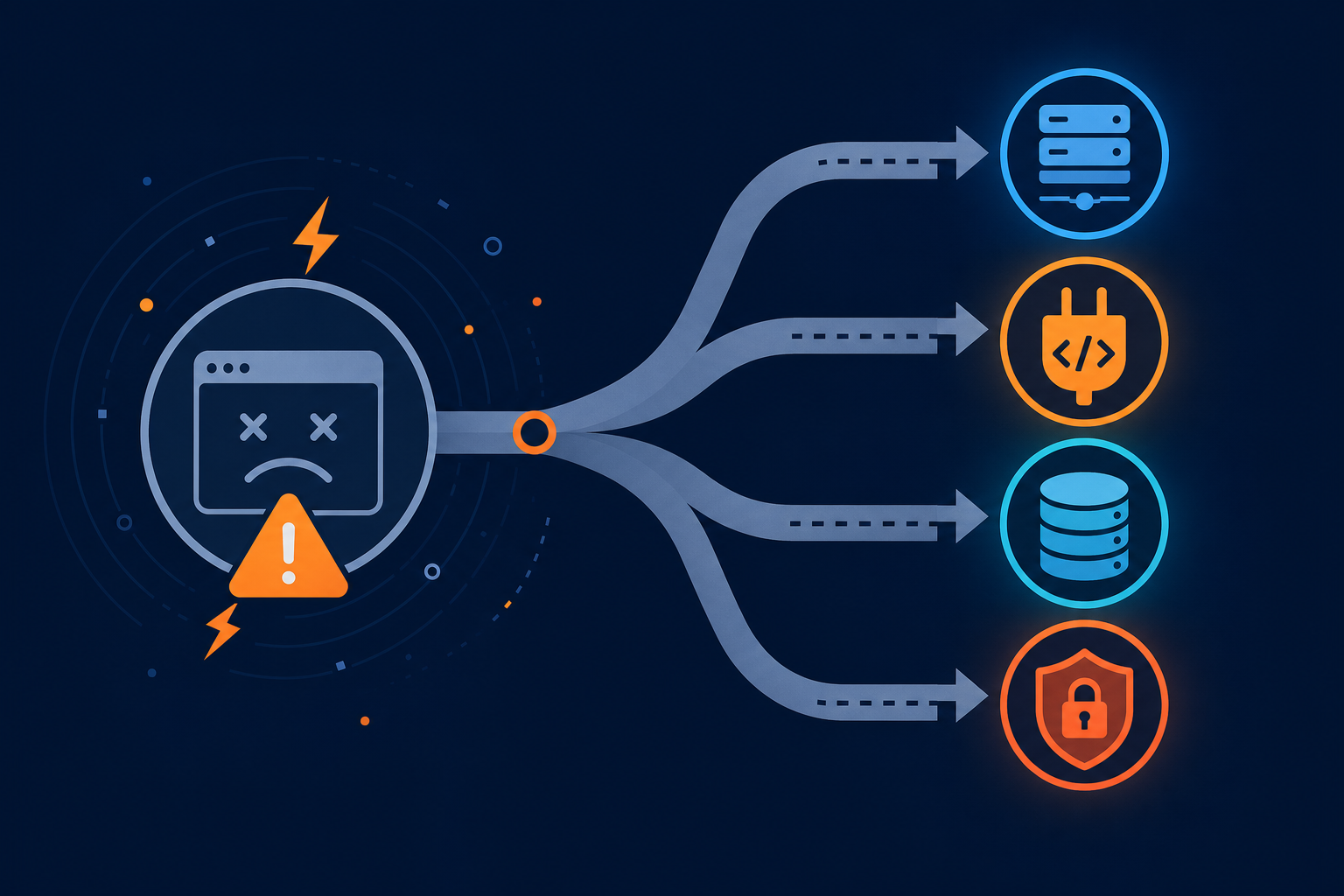
Use the symptom rather than the wording of the error as your first clue:
- Timeout or connection failure: investigate hosting availability, DNS, firewall rules, CDN configuration, database responsiveness, or exhausted resources.
- “There has been a critical error” or a blank page: suspect a PHP fatal error caused by a plugin, theme, custom code, or PHP compatibility issue. Use the critical error troubleshooting guide.
- 500 error after editing a server file: suspect a syntax or rewrite problem in
.htaccess, PHP configuration, or server rules. Do not keep adding rules until the original change is identified. - Redirect loop or unexpected redirect: check HTTPS settings, WordPress URL values, CDN SSL mode, and redirect plugins. Avoid stacking redirects from multiple systems.
- Only updates, editor saves, or REST-based features fail: check REST API access, security rules, permalinks, SSL validity, and response content. A “valid JSON” failure is not the same as a complete outage; use the valid JSON response guide.
- Orders or forms fail while pages load: test JavaScript errors, payment or email services, caching exclusions, webhooks, and recent plugin changes. Do not place repeated live orders as a test.
- Unknown files, new users, spam pages, or redirects: treat the site as potentially compromised. Stop making cosmetic changes and begin an evidence-preserving security response.
Minutes 10–15: Review Recent Changes
Write a short change timeline. Include plugin or theme updates, WordPress core updates, PHP changes, host migrations, DNS or CDN changes, SSL renewals, new snippets, and changes to caching or security rules.
If the failure began immediately after one change, reverse only that change if you have a backup and a safe method. A plugin rollback may be appropriate when the plugin is clearly implicated, but deleting its files can remove settings or make later diagnosis harder.
For a suspected plugin conflict, temporarily deactivate plugins using a controlled method and record the original activation state. If the dashboard works, reactivate plugins one at a time while testing the failed feature. If the dashboard is unavailable, ask your host about a staging environment or use SFTP only if you understand the consequences. Renaming a plugin directory can disable it, but it is a production change and should be documented.
Minutes 15–20: Use Safe Recovery Checks
Clear the right cache layers
Clear or bypass caches only after recording the current symptoms. Possible layers include the browser, WordPress cache plugin, host cache, CDN, and object cache. Purging a CDN will not repair a PHP fatal error, and clearing every cache at once can make the original behavior harder to reproduce.
Check WordPress Site Health
If the dashboard opens, review Tools → Site Health; exact labels can vary by WordPress version. Look for loopback failures, REST API errors, scheduled-task failures, HTTPS warnings, and critical recommendations. Treat these as clues, not proof of the root cause.
Inspect logs instead of guessing
Use the hosting control panel’s error log or ask the host for entries covering the incident time. Look for the first relevant PHP fatal error, database connection error, permission failure, or upstream timeout. The first useful error is usually more valuable than a long list of secondary warnings.
WordPress debugging can expose sensitive information if enabled on a live site. If a developer asks you to enable it, ensure errors are logged rather than displayed publicly, and disable public debugging after collecting the necessary evidence. Never publish log files that contain credentials, personal data, paths, or tokens.
Minutes 20–25: Choose Recovery or Investigation
Restore only when the restoration point is understood
A backup restore can be the fastest path when the site is completely unavailable and the last known-good backup is recent. It can also delete newer posts, customer accounts, orders, uploads, and configuration changes. Ask the host exactly what the backup contains and whether a database-only or file-only restore is possible.
For a small code change, reverting that specific file may be safer than restoring the entire site. For a database error, do not run repair or optimization commands on production without a verified backup and host or developer guidance.
Do not make high-risk emergency edits casually
Changing wp-config.php, DNS, PHP versions, database credentials, file permissions, or .htaccess can recover a site—but can also create a longer outage. Download a copy of the original file, change one thing at a time, and record the exact old and new values.
If you suspect a damaged .htaccess file, follow a controlled recovery procedure rather than copying rules from an unrelated site. The WordPress .htaccess guide explains what the file does and where server-specific differences matter.
Minutes 25–30: Verify the Fix

A site is not recovered merely because the homepage loads. Test the complete user path:
- Open the homepage and several inner pages in a private window.
- Sign in and confirm that the dashboard, editor, media library, and required admin screens load.
- Test the affected feature once with a safe, non-destructive action.
- For forms, confirm submission and delivery without sending duplicate customer messages.
- For WooCommerce, verify cart behavior, checkout, payment status, order creation, and confirmation email using the store’s approved test method.
- Check that HTTPS, redirects, images, scripts, and the browser console are normal.
- Review logs again for new fatal errors, database errors, or repeated requests.
Keep monitoring after recovery. A site that loads briefly and fails again may have an unresolved resource limit, scheduled task, cache problem, or recurring plugin error.
When to Stop DIY Troubleshooting
Escalate promptly when you lack a verified backup, the site handles payments, the database is damaged, the host account is suspended, the problem involves DNS or server configuration, or you see signs of malware. Also stop if each change produces a new symptom or you cannot identify what was changed.
Before contacting support, provide the site URL, affected URLs, exact error text, start time and timezone, recent changes, test results from different networks, hosting details, and relevant log excerpts with secrets removed. This gives an expert a usable incident record instead of requiring them to repeat every basic check.
If the site is business-critical and the cause is unclear, WordPress Site Repair can be a more controlled option than making multiple production changes under pressure.
Questions to Ask During an Emergency
Should I deactivate every plugin immediately?
Usually no. Deactivating everything can interrupt payments, security monitoring, caching, forms, and scheduled tasks. First identify the change and symptom. If a plugin conflict is likely, use a backup or staging site where possible, or deactivate in a documented, reversible sequence.
Is a 500 error always caused by WordPress?
No. It can come from PHP, the web server, a rewrite rule, resource exhaustion, a host configuration, or a proxy. Check hosting logs and whether static files respond before assuming a plugin is responsible.
Can I restore the newest backup without losing anything?
Not necessarily. A backup may contain files and database data from different times. It may omit uploads, recent orders, or external configuration. Confirm the restore scope and timestamp with the host first.
What should I send an emergency WordPress expert?
Send the exact symptoms, affected URLs, start time, last known-good time, recent changes, access limitations, backup information, hosting provider, and sanitized logs. Do not send passwords in chat or email; use the provider’s secure access process.
Keep an Emergency Record for the Next Incident
After recovery, save the working WordPress, PHP, theme, plugin, hosting, DNS, and CDN details in a secure location. Confirm that automated backups can actually be restored, document who has access, and note the correct escalation contacts. The official WordPress Documentation is useful for confirming current core procedures when dashboard labels or recovery tools differ by version.