

A WordPress REST API error usually means WordPress, your browser, or an external application cannot complete a request to an endpoint such as /wp-json/wp/v2/posts. The symptom may appear as a block editor that will not save, a failed plugin connection, missing content in a mobile app, or an HTTP response such as 401, 403, 404, 500, or 503.
In this guide
The safest fix is to identify the response code first. Do not immediately edit .htaccess, disable security controls, or change database values. Start with a REST API test, then check permalinks, URLs, plugins, caching, authentication, and hosting rules in that order.
What the WordPress REST API error means
The REST API is the HTTP interface WordPress uses to exchange structured data. The block editor relies on it, and plugins or external services may use it to read or update posts, users, media, and settings.
To test the public API, open this address in a private browser window, replacing the domain with your own:
https://example.com/wp-json/A working endpoint normally returns JSON containing information about the site and available API namespaces. You can also test a standard posts endpoint:
https://example.com/wp-json/wp/v2/postsA JSON response does not mean every authenticated endpoint is healthy, but it confirms that the basic API route can be reached. If the browser shows an HTML error page, a redirect, a login screen, or a server error, record that result before changing anything.
For an editor-specific warning, open the affected page, copy the complete error text, and note whether the problem affects one post, all posts, only administrators, or every visitor. If the issue is specifically that the API is blocked by a firewall or security layer, use our guide to find and fix a blocked WordPress REST API; this article focuses on broader API errors and failed responses.
Identify the error before applying a fix
Use the following compact guide to connect the response with the most likely cause:
- 404 Not Found: rewrite rules, permalinks, a changed WordPress URL, or a host configuration problem.
- 401 Unauthorized: missing or invalid authentication, application-password problems, or access controls.
- 403 Forbidden: a firewall, security plugin, host rule, or permissions policy is rejecting the request.
- 500 or 503: a PHP fatal error, plugin or theme conflict, exhausted resources, maintenance state, or server failure.
- 301 or 302 redirect: an HTTP/HTTPS mismatch, incorrect site URL, proxy configuration, or redirect rule.
- 200 with invalid JSON: unexpected PHP output, warnings, notices, whitespace, or a plugin adding content before the JSON response.
- Timeout or cURL failure: the server cannot complete the request, often because of a firewall, DNS, SSL, or resource problem.
Browser developer tools can provide more detail. In Chrome, Edge, or Firefox, open Developer Tools, select the Network panel, reproduce the problem, and inspect the request containing wp-json. Record its status code and response body. Do not share authentication headers or private tokens in a support request.
Safe first checks in WordPress
1. Confirm the site URLs and HTTPS
In the dashboard, open Settings → General and check the WordPress Address and Site Address fields. The exact labels can vary slightly by WordPress version or hosting setup. They should use the correct domain and the same intended protocol, normally HTTPS.
Do not change these values casually on a live site. An incorrect edit can cause redirects or lock you out of the dashboard. If the fields are disabled, the values may be defined in wp-config.php or controlled by the host. Ask the host to confirm the configured URLs instead of overriding them blindly.
2. Refresh the permalink rules
Go to Settings → Permalinks and note the current structure. Click Save Changes without changing the structure. This refreshes WordPress rewrite rules and often repairs a REST API 404 after a migration, domain change, or server configuration update.
Test /wp-json/ again. If the endpoint remains unavailable, do not repeatedly save the page; continue with the next checks.
3. Test with a clean browser session
Open the endpoint in a private window or another browser. This rules out stale authentication cookies, browser extensions, and cached editor scripts. If the API works privately but fails in your normal session, clear the site’s cookies and cache or temporarily disable extensions that modify requests.
4. Clear relevant caches
Purge the WordPress page-cache plugin, server cache, and CDN cache only when you know how each layer is managed. A cache should not serve a cached API response to logged-in users or POST requests. If your caching tool has separate exclusions for /wp-json/ or logged-in users, confirm them using that tool’s own documentation.
Do not disable every performance feature permanently as a first step. Temporarily bypass one cache layer, retest, and restore it if it is not responsible.
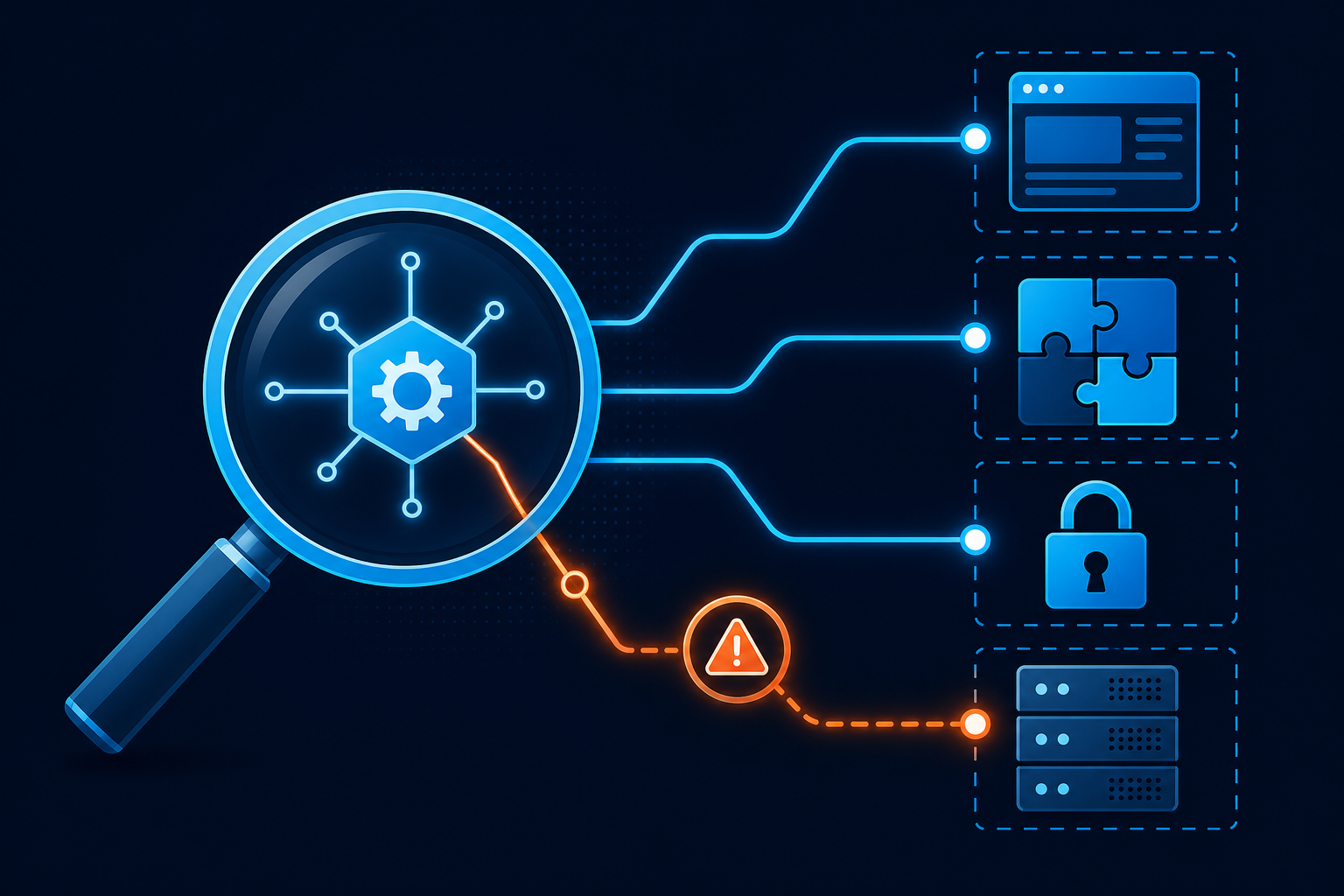
Find plugin and theme conflicts
A plugin or theme can alter REST responses, add PHP output, require authentication, or trigger a fatal error only when the editor calls a particular endpoint. The least risky test is to use a staging site or a WordPress troubleshooting mode that changes plugin activation only for your logged-in session. If your host provides staging, create a current backup or restore point first.
On a staging copy, deactivate plugins and switch temporarily to a standard WordPress theme. Test the same API request after each controlled change. If the error disappears, reactivate items one at a time until it returns. The last item changed is a lead, not automatic proof; check its settings, compatibility notes, and logs.
Security, redirect, cache, REST-control, membership, and optimization plugins deserve particular attention. If the error appears only in the editor, compare the failing request with a public /wp-json/ request. If only authenticated requests fail, investigate permissions and authentication rather than public routing.
For errors that occur only while saving content, also review browser console errors and the site’s PHP error log. A JavaScript failure may prevent the request from being sent at all. Our guide to WordPress JavaScript errors can help when the Network panel shows no request.
Repair common server and configuration causes
Permalinks and rewrite rules
If the front end works but /wp-json/ returns 404, the web server may not be passing requests to WordPress. Apache sites may have a damaged or incomplete .htaccess; Nginx sites use server-block configuration instead. Ask your host to compare the active configuration with the requirements for your WordPress installation.
Back up the existing file before editing it. A malformed production .htaccess can cause a complete outage. See the WordPress .htaccess guide for safer handling, but use host-specific documentation for Nginx or managed hosting.
SSL, reverse proxies, and redirects
If the API request changes from HTTPS to HTTP, redirects repeatedly, or returns an SSL error, verify the certificate, CDN SSL mode, and origin protocol. The browser address bar alone may not reveal a proxy mismatch. Your hosting or CDN provider can confirm which protocol reaches the origin.
Do not add another redirect rule as a guess. Existing WordPress URL values, CDN settings, and server redirects can interact and create a loop. For related HTTP/HTTPS URL problems, review safe WordPress URL and canonical diagnosis steps.
Authentication and permissions
Public GET requests may work while protected requests fail. Confirm that the WordPress user has the required capability and that the application is using valid credentials. For integrations, use the authentication method supported by that integration and store credentials securely.
Never paste passwords, application-password values, cookies, or authorization headers into a public forum. If an application password has been exposed, revoke it and create a replacement.
PHP errors and server resources
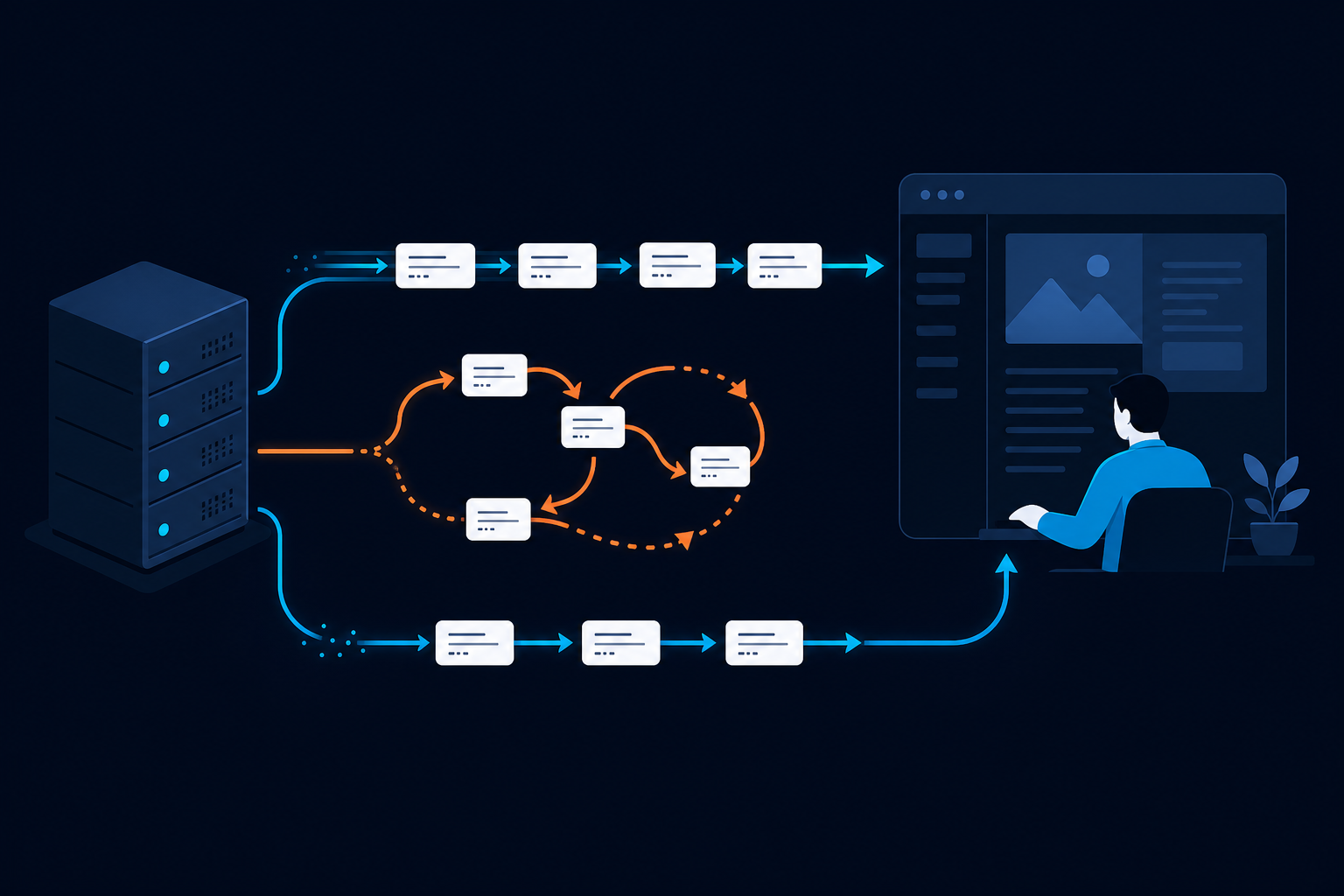
A 500 response often indicates a PHP error. Check the WordPress debug log or hosting error log around the exact time of the failed request. If you enable debugging, log errors without displaying them to visitors, and disable verbose logging after diagnosis. Avoid changing PHP memory or execution limits repeatedly without checking the host’s limits.
If the request times out, DNS, SSL verification, firewall rules, outbound connections, or server resource limits may be involved. A cURL timeout diagnosis is useful when the error appears during updates or a plugin’s outbound API call.
Fix invalid JSON responses
When WordPress reports that a response is not valid JSON, inspect the response body rather than assuming the REST API is disabled. A PHP warning, notice, deprecation message, unexpected whitespace, or output from a custom snippet can be inserted before the JSON data.
- Test the exact endpoint in the Network panel.
- Check the PHP error log and WordPress debug log.
- Temporarily test plugins and the theme on staging.
- Remove or correct code that prints output during REST requests.
- Retest saving, updating, or the affected integration.
Do not suppress errors by hiding the response alone. Fix the code or compatibility problem that produces the unwanted output. If the editor displays this exact message during updates, follow the more focused guide on “The response is not a valid JSON response”.
Verify the repair and prevent a recurrence
After each change, repeat the original failing action. Test the public endpoint, the editor, and any integration that reported the error. Verify both an unauthenticated request and an authenticated action when applicable.
Check that:
/wp-json/returns JSON over HTTPS.- The affected editor can load, save, and update content.
- Media, custom post types, or plugin-specific endpoints work if they were affected.
- No redirect loop, login screen, PHP warning, or HTML page is embedded in the JSON response.
- Security and caching controls remain enabled after testing.
Keep a record of the response code, endpoint, time, recent changes, and the successful fix. This makes future diagnosis faster and gives your host useful evidence. For a production site that remains broken after staging tests and log review, professional WordPress site repair can help isolate server, code, and configuration causes without experimenting directly on the live database.
Questions readers commonly ask
Why does the REST API work in my browser but not in the block editor?
The browser test may be a public GET request, while the editor sends authenticated requests using cookies and nonces. Check the failing editor request in the Network panel. A 401, 403, or nonce-related response points toward authentication, session, security rules, or a plugin conflict.
Can a security plugin cause a REST API error?
Yes. Security tools can restrict routes, block request patterns, require authentication, or rate-limit requests. Test on staging or use the plugin’s documented logging and allowlist controls. Do not permanently disable protection without identifying the specific rule.
Should I edit wp-config.php to fix the REST API?
Usually not as a first step. Incorrect URL constants, debug output, or custom code there can worsen the problem. Back up the file and confirm its current values with your host or developer before changing it.
Why does only one custom post type fail?
The post type or its associated plugin may not be registered for REST access, or its permission callback may reject the current user. Confirm the post type’s configuration and plugin documentation. Do not change database records to force registration; correct the code or setting that defines the post type.
For official background on WordPress administration and troubleshooting, consult the WordPress Documentation.