

To log into a WordPress site, open the site’s login page—usually https://example.com/wp-admin or https://example.com/wp-login.php—then enter a WordPress username or email address and password. After successful authentication, WordPress sends administrators to the dashboard.
In this guide
Replace example.com with the site’s real domain. Do not add www, a subdomain, or a different domain unless that is the address where WordPress is installed. If you do not know the login URL, start with the checks below rather than changing WordPress files or database values.
1. Open the standard WordPress login URLs
Try these addresses in your browser:
https://yourdomain.com/wp-adminhttps://yourdomain.com/wp-login.phphttps://yourdomain.com/wp-admin/
Use https when the site has an SSL certificate. If the website uses a subdirectory, include it. For example, a site installed at example.com/blog may use https://example.com/blog/wp-admin.
/wp-admin is a dashboard address. When you are not already authenticated, WordPress normally redirects it to the login form. /wp-login.php is the underlying login endpoint. Both may lead to the same sign-in screen.
What you should see
A normal login screen includes fields for a username or email address, a password field, a login button, and a password-recovery link. The exact design can vary because a theme, security plugin, or hosting provider may customize it.
Before entering credentials, check the browser address bar. The domain should be your own website, not a lookalike domain. Avoid signing in through a link sent by an unknown person.
2. Find the login link when the standard URL does not work
Some security plugins change or hide the public login URL. If /wp-admin and /wp-login.php show a 404 page, redirect elsewhere, or never display a login form, use one of these safer sources:
- Check the site owner’s documentation. A developer, agency, or previous administrator may have supplied a custom login address.
- Search your password manager. Saved entries often contain the exact login URL as well as the username.
- Ask the site administrator or host. Hosting support can often confirm the site address without exposing your password.
- Inspect existing site links. Some sites place a login link in the footer, account menu, or membership area.
Do not repeatedly guess custom login URLs. Several failed attempts can trigger a security lockout, rate limit, or firewall rule.
3. Use the correct WordPress account
WordPress credentials are separate from your hosting, FTP, domain registrar, email, and database credentials. A hosting login does not automatically log you into WordPress.
On the login form, try the WordPress username or email address assigned to your user account. If a site has multiple administrators, another administrator may need to create or restore your account. User roles also matter: an Editor can manage content but cannot access every administrator setting.
Never paste a password into a public support form or send it in ordinary email. If someone is helping you, create a temporary WordPress user with only the permissions they need, then delete or downgrade it after the work is complete.
4. Reset a forgotten WordPress password
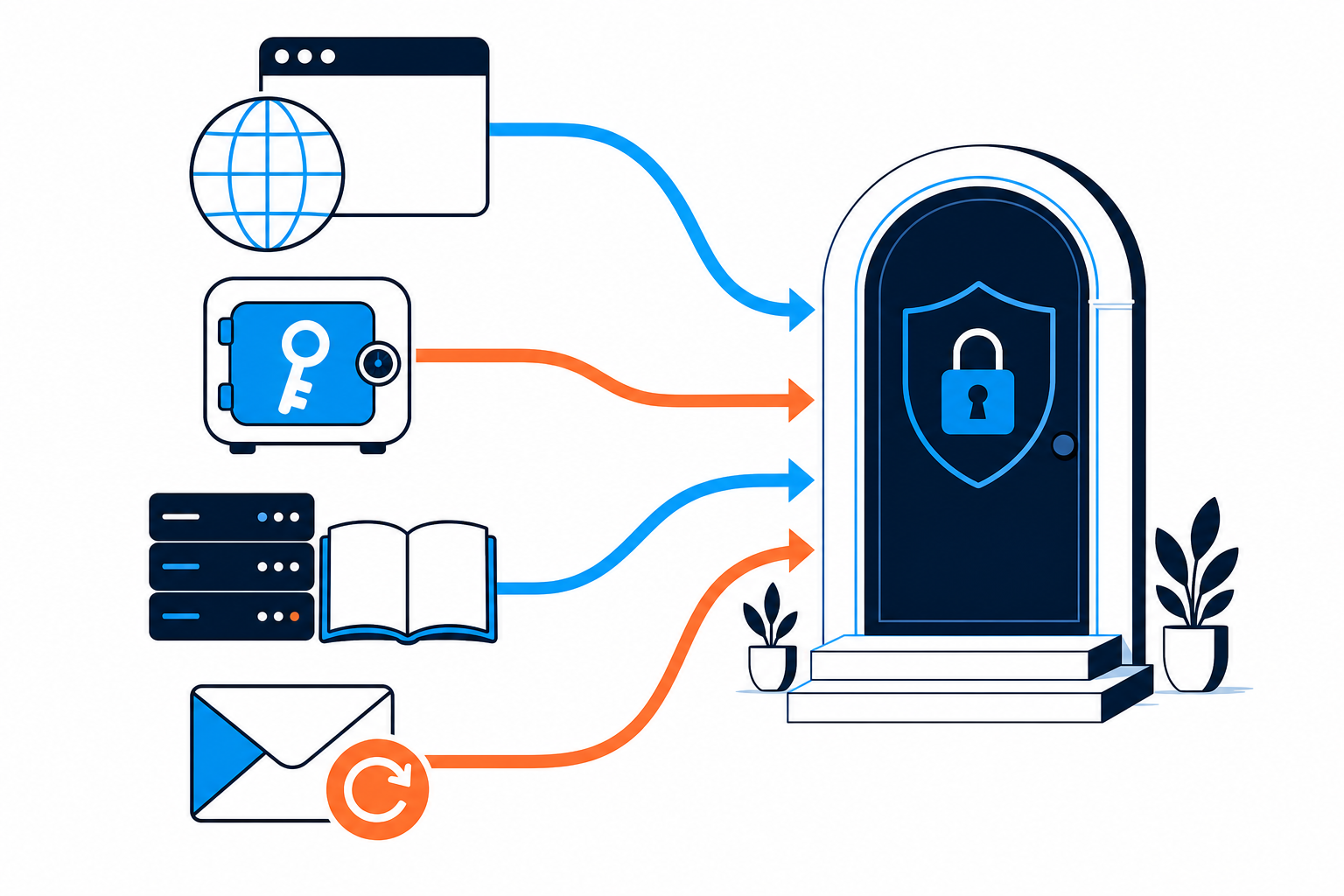
If you know the login URL but not the password, select Lost your password? or the equivalent recovery link on the login screen. Enter the account’s username or email address and follow the message WordPress sends.
- Open the password-reset link only if it points to your own domain.
- Create a unique password that is not reused elsewhere.
- Sign in again at the normal login URL.
- Update your password manager with the new credential.
If no email arrives, check spam and confirm that the site is sending mail correctly. A reset message may also be delayed or blocked by the site’s mail configuration. Do not keep submitting the form rapidly; that can create additional delays or lockouts.
If you no longer control the account email, contact another administrator or your hosting provider. Database-level password changes are possible, but they are risky and should be performed only after a verified backup and with the exact database identified.
5. Check why login redirects, fails, or returns an error
The login form itself can help identify the problem. Record the exact URL, error text, and whether the public website still loads before changing anything.
Login redirects in a loop
Clear cookies for the site or test in a private browser window. A stale authentication cookie, caching layer, SSL mismatch, or incorrect site URL can prevent a valid session from being created.
If the problem affects every browser and began after an HTTPS or hosting change, ask the host to check the site’s configured home and WordPress addresses, proxy or CDN SSL mode, and server redirects. Do not edit wp-config.php or .htaccess as a first step.
The page says 404 or the login URL is missing
A custom login URL may be active, or a security rule may be blocking the endpoint. Ask the administrator which security plugins are installed. If you have hosting file access, disabling a login-changing plugin should be done carefully and temporarily, preferably after a backup and with the host’s guidance.
You see “403 Forbidden”
A firewall, hosting security rule, IP block, incorrect file permission, or security plugin may be denying access. Test from a different trusted network and ask the host whether your IP address or wp-login.php is blocked. Do not broadly loosen file permissions or disable the firewall without understanding the cause. See how to diagnose a 403 on wp-login.php or wp-admin.
The dashboard is blank or will not load
If the login succeeds but the dashboard remains blank, the problem is no longer simply a missing password. Browser extensions, JavaScript errors, plugin conflicts, memory limits, or a damaged update may be involved. Test in a private window and another browser first. For a blank administration area, follow the safe blank wp-admin troubleshooting steps.
The site shows a critical error
A PHP fatal error in a plugin or theme can prevent the dashboard from loading even when your credentials are correct. Note the time and exact message, then contact the host or site administrator before disabling production components. The relevant next step is diagnosing the WordPress critical error.
6. Special cases: subdirectories, multisite, and membership sites
WordPress installed in a subdirectory
If the public site is at example.com but WordPress was installed at example.com/site, the login path includes that folder: example.com/site/wp-admin. Look at the site URL in links, browser history, or hosting documentation rather than guessing folders.
WordPress Multisite
In a multisite network, the network administrator uses the network dashboard, while site administrators may manage only an individual site. The login screen is generally still reached through the network’s domain and /wp-admin, but the available menus depend on the account’s role and the network configuration.
WooCommerce or membership accounts
A customer account page is not necessarily the WordPress administrator login. Use the customer login for orders and profile details; use the site’s WordPress login URL for content and settings. Never give a customer administrator credentials merely to solve an account problem.
7. Verify access and secure the account
After signing in, confirm that the address bar remains on your real domain and that the dashboard displays the expected site. Open the user profile and verify the account email and role. If you used a shared or temporary computer, sign out and avoid saving the password in the browser.
For ongoing protection, use a unique strong password, enable two-factor authentication if the site’s security setup supports it, and remove old user accounts. Keep WordPress, plugins, and themes maintained, but take a backup before major updates or configuration changes. The official WordPress Documentation provides current guidance for core administration tasks.
Quick decision guide
- You do not know the address: try
/wp-admin, then/wp-login.php, and check saved documentation. - You know the address but forgot the password: use the built-in password-reset link.
- The URL returns 404: investigate a custom login URL or a security rule.
- You receive a 403: ask the host to check firewall, IP, and permissions.
- You log in but the dashboard breaks: troubleshoot plugins, themes, browser errors, or server resources.
- Nothing works after a migration or SSL change: have the host verify domains, redirects, cookies, and proxy settings.
Questions to check before changing the site
Can I log into WordPress from my hosting control panel?
Some hosts provide a shortcut or single sign-on, but it is host-specific and may not be available for every plan. Treat it as an alternative route to the same WordPress account, not as a replacement for knowing your site’s login URL.
Why does WordPress reject a correct password?
Check that you are using the correct domain, username, and account email. Cookies, a custom login address, a locked account, a security plugin, or a changed account password can also cause rejection. Test the reset process rather than repeatedly guessing.
Should I edit the database to create a new administrator?
Only as a controlled recovery procedure with a complete backup and a clear understanding of the correct database and user tables. A mistake can grant unintended access or damage the site. Ask your host or a WordPress professional to handle database recovery if you are not comfortable restoring it.
What if I suspect someone changed the login details?
Contact another trusted administrator and your host immediately. Secure the hosting, email, and domain accounts as well as WordPress, preserve relevant logs or notifications, and avoid deleting evidence before determining whether the account was compromised. For hands-on recovery, WordPress Site Repair can be an appropriate next step.