
A WordPress urgent fix in Canada starts with one decision: is the site completely unavailable, or is one function failing? That distinction determines whether you should contact your host immediately, disable a recent change, investigate a security incident, or use a temporary workaround.
In this guide
Before changing anything, record the exact symptom, affected URL, approximate start time, and most recent change. Do not repeatedly update plugins, edit wp-config.php, or delete files while a live site is failing. Those actions can destroy useful evidence or make recovery harder.
This guide gives Canadian site owners a safe first-response process for outages, critical errors, hacked-site warnings, broken checkout, and urgent WordPress support requests. If you need professional intervention, gather the information in the final section before contacting a WordPress site repair service.
1. Confirm what is actually broken
Open the site from a private or incognito browser window and test it from a second connection, such as a mobile network. Ask someone outside your office or home network to check the same URL. A local DNS, browser cache, VPN, or office firewall can make a working site appear down.
- Test the homepage and at least one inner page.
- Open
/wp-admin/if the public site loads. - Test a contact form, login, search, and checkout if those functions matter to the business.
- Note the exact HTTP status or browser message, such as 403, 404, 500, 502, 503, a timeout, or a redirect loop.
- Check whether the failure affects visitors, logged-in users, or only one browser.
Do not assume that a blank page means the whole site is down. A single plugin, theme template, PHP error, CDN rule, or payment integration can affect only one route.
2. Take safe emergency steps first
Put business operations ahead of troubleshooting
If customers cannot place orders or submit important forms, publish a temporary contact method on a status page or social channel you control. If the site is displaying suspicious redirects, spam, or unfamiliar administrator activity, do not ask visitors to log in or enter payment information until the incident is contained.
Preserve evidence and access
- Capture screenshots of the error and copy the complete URL.
- Write down when the issue began, using your local Canadian time zone.
- List the last changes made, including plugin updates, theme edits, DNS changes, hosting moves, SSL changes, and firewall changes.
- Confirm that you can access the hosting account, domain registrar, WordPress administrator account, and backup system.
- Download or request a current backup only if your host or backup tool can do so without overwriting the existing backup set.
Use a password manager and a secure channel when sharing access. Never paste administrator passwords into a support ticket or public chat. A technician may need temporary access, but you should create a limited account where possible and remove it after the work is complete.
3. Match the symptom to the most likely cause
Use this quick decision guide before making a change:
- Every page is unavailable: check hosting status, DNS, domain expiry, server resource limits, SSL, and recent infrastructure changes.
- The site shows a critical error or white screen: suspect a PHP, plugin, theme, or custom-code failure. Review the recovery email or error log before disabling anything.
- Only the dashboard fails: investigate admin-specific plugins, browser conflicts, server rules, PHP limits, and permissions.
- Only checkout or forms fail: test the REST API, JavaScript console, payment provider, email delivery, caching, and security rules.
- Visitors see redirects, spam, or unfamiliar content: treat the site as potentially compromised. Avoid simply reinstalling WordPress over the existing files.
- The problem began after an update: use a staging copy or host snapshot to test a rollback rather than repeatedly updating production.
For a site-wide outage with a 500 or 503 response, your host can often confirm server logs, resource limits, PHP failures, and recent account changes faster than a WordPress administrator can. For a WordPress-only failure, a specialist can isolate plugin, theme, database, and configuration causes.
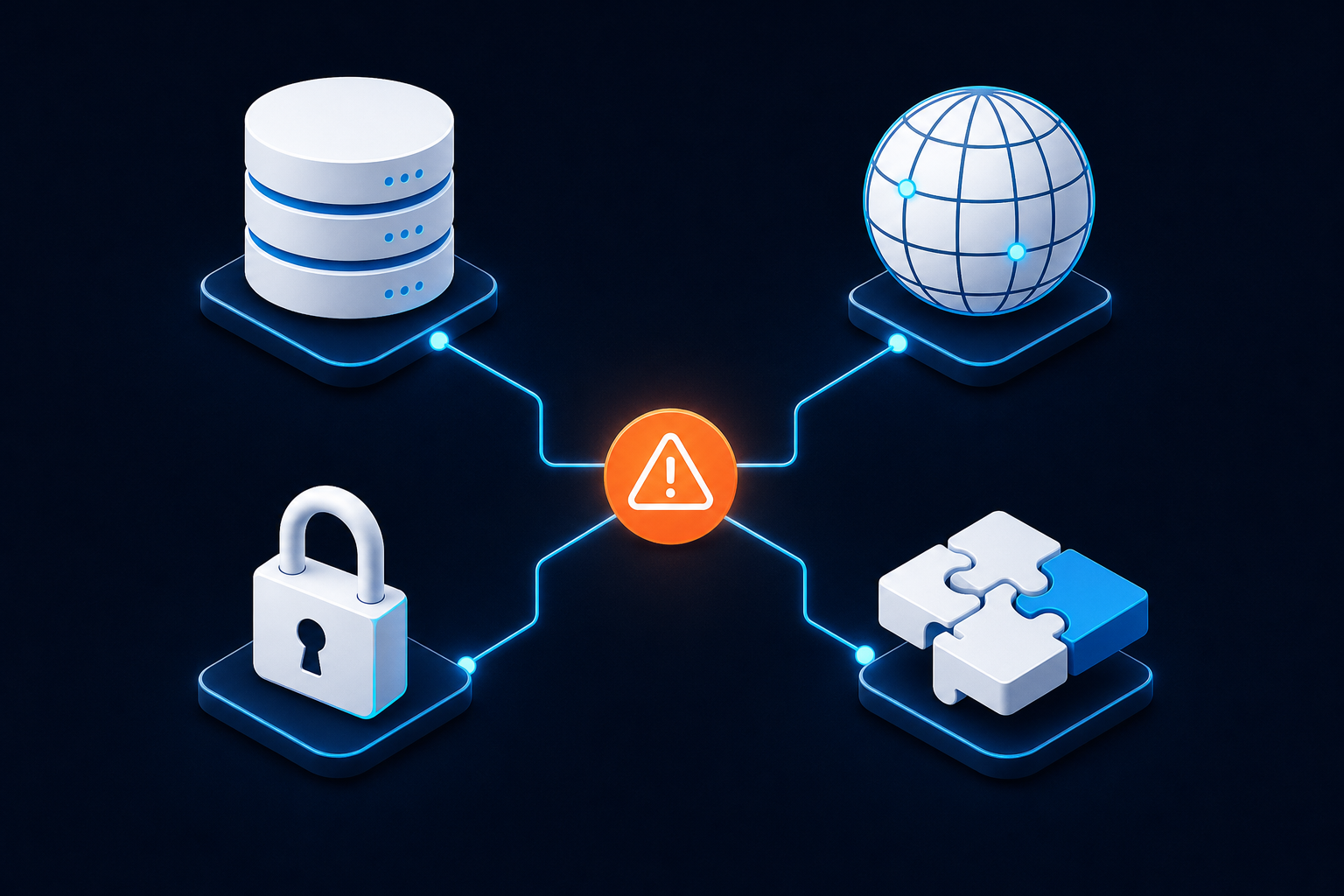
4. Check hosting, DNS, SSL, and CDN layers
Emergency WordPress work is often delayed because the problem is outside WordPress. Sign in to your host and look for a service notice, suspended account, disk-space warning, resource-limit alert, recent backup, or server error log. Exact labels vary by provider.
Check the domain registrar separately. Confirm that the domain has not expired and that its nameservers are still the intended ones. If DNS was changed recently, different Canadian users may reach different destinations while records update. Do not change nameservers again just to test a theory.
If the site uses Cloudflare or another CDN, temporarily compare the origin and proxied paths only when you understand the risks. Review recent firewall, bot-management, SSL-mode, cache, and rate-limit changes. A CDN can block WordPress.com requests, REST API calls, payment callbacks, or your own administrator IP.
Do not edit .htaccess, DNS records, or SSL settings on a production site without a backup and a known rollback. A malformed rewrite rule or mismatched encryption mode can make a working site inaccessible. For redirect loops and Cloudflare SSL problems, follow a focused troubleshooting process such as this guide to WordPress redirect loops after SSL or Cloudflare changes.
5. Investigate recent WordPress changes safely
If the failure started immediately after an update, first check whether WordPress sent an automatic recovery email. It may identify the plugin or theme that triggered a fatal error. If you can access the dashboard, review the update history and deactivate only the suspected extension.
If the dashboard is inaccessible, use your host’s file manager, SFTP, or support team—not a random online code snippet—to rename the suspected plugin directory temporarily. Renaming a plugin folder can deactivate it, but it is a production change: record the original name and restore it once testing is complete. Do not rename WordPress core directories unless a qualified technician directs you.
For a theme-related failure, switch to a known-installed default theme only if you have a safe way to restore the original theme and understand the effect on templates and page builders. Custom theme files can contain essential business logic, so do not delete them.
If an update failed with a JSON response message, the cause may involve the REST API, permalinks, security rules, SSL, or server configuration rather than the plugin itself. Use the dedicated guide for “The response is not a valid JSON response” instead of repeating the update.
6. Handle a suspected hack differently
Urgency does not make an in-place cleanup safe. If you see unknown administrator accounts, injected links, redirects, modified files, new scheduled tasks, or a hosting malware warning, preserve a backup and ask the host whether it can create a server snapshot. Do not overwrite the only copy of the evidence.
- Restrict access to the site or place it behind a maintenance or hosting-level block if customer safety requires it.
- Change hosting, WordPress, database, FTP/SFTP, and payment-related credentials from a clean device.
- Ask the host to check access logs, account activity, malware scans, and backup dates.
- Have a specialist identify the entry point, remove persistence, inspect administrator accounts, and verify core, plugin, and theme integrity.
- Change credentials again after cleanup if the incident may have exposed them.
Do not trust a single “clean” scan as proof that the site is safe. A compromised administrator account, cron job, database injection, or server-level issue may survive removal of visible files. For a suspected infection, use a dedicated WordPress malware removal service rather than combining several unrelated cleanup plugins.
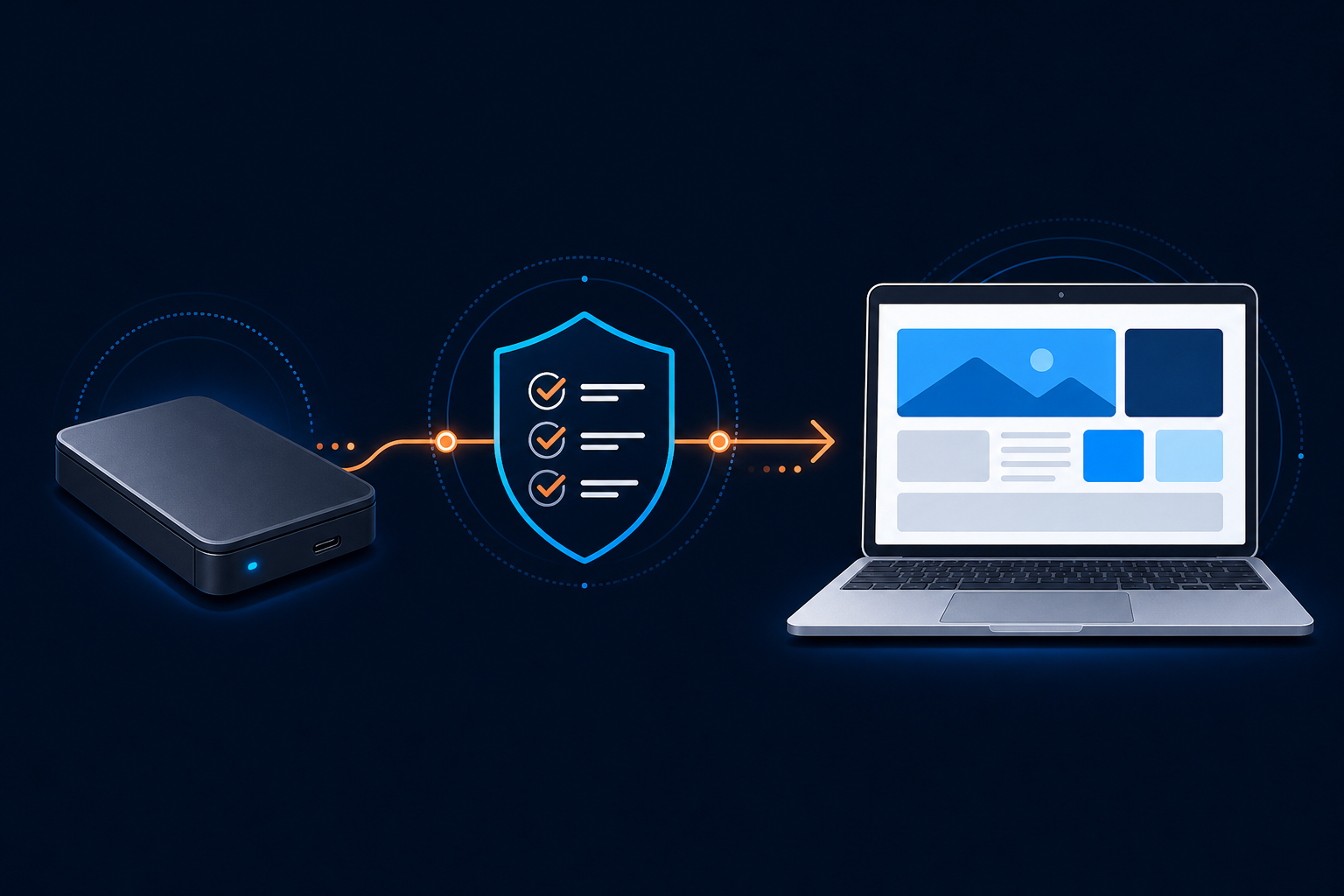
7. Verify the fix before reopening the site
A successful homepage load is not enough. Verify the change in a private browser window and from a second network. Then test:
- Homepage, key landing pages, and representative posts.
- WordPress login, logout, password reset, and administrator access.
- Forms, email notifications, search, media uploads, and embeds.
- WooCommerce cart, checkout, payment return, order email, and confirmation page.
- Mobile layout, HTTPS, redirects, canonical URLs, and critical JavaScript interactions.
- Scheduled tasks, backups, monitoring, and external integrations.
Clear the appropriate page, object, browser, and CDN caches only after confirming that the underlying issue is fixed. Then watch server and security logs for a period appropriate to the incident. If the same error returns, restore the last known-good backup to a staging environment and compare the changes instead of applying more live edits.
8. What to include when requesting urgent Canadian support
A complete first message reduces back-and-forth, especially when your host, developer, and support technician work in different time zones. Include:
- Website URL and the exact broken URL or function.
- Whether the issue affects all visitors, logged-in users, mobile users, or one network.
- Exact error text, HTTP status, screenshots, and a short screen recording if useful.
- Approximate start time and your Canadian time zone.
- Recent updates, deployments, DNS, SSL, CDN, hosting, or code changes.
- Hosting provider, CDN, PHP version if known, and whether you have a staging site.
- Last known-good backup and whether orders, forms, or customer data are at risk.
- What you already tried, including files renamed, plugins disabled, cache purges, or restores.
Ask the provider to clarify the scope before work begins: emergency response time, access required, backup and rollback plan, whether staging will be used, what is included in the repair, and how the result will be verified. “Urgent” should mean a controlled priority process, not permission to make undocumented production changes.
Questions Canadian WordPress site owners often ask
Should I contact my host or a WordPress specialist first?
Contact the host first when the domain, server, account, SSL certificate, disk space, DNS, or network appears involved. Contact a WordPress specialist when the failure follows a plugin, theme, custom-code, database, or WordPress configuration change. If uncertain, contact both and provide the same timeline so their investigations do not conflict.
Is it safe to disable every plugin during an emergency?
It can be a useful isolation test, but it is not always safe on a production store or membership site. Disabling security, payment, caching, or custom business plugins can create new problems. Use a staging copy when possible, or deactivate one suspected plugin at a time with a rollback plan.
Can I fix a down site by restoring yesterday’s backup?
Only after checking what data would be lost. A restore may remove recent orders, form submissions, accounts, or content, and it may reintroduce the original vulnerability. Confirm the backup date, create a current copy if possible, and ask the host how to restore to staging before replacing production.
What if the site works in Toronto but not for users elsewhere in Canada?
Compare DNS resolution, CDN points of presence, firewall rules, rate limits, and cached responses from affected networks. The WordPress files may be healthy while a regional DNS or security rule blocks traffic. Give your host the affected cities, networks, timestamps, and public IP addresses rather than changing DNS immediately.
Use official documentation for the final checks
WordPress screens and recovery options vary by version and hosting environment. The official WordPress Documentation is the safest reference for core settings and recovery guidance. When the problem involves server configuration, credentials, payment data, or a suspected compromise, stop experimenting on production and use a documented backup and escalation path.