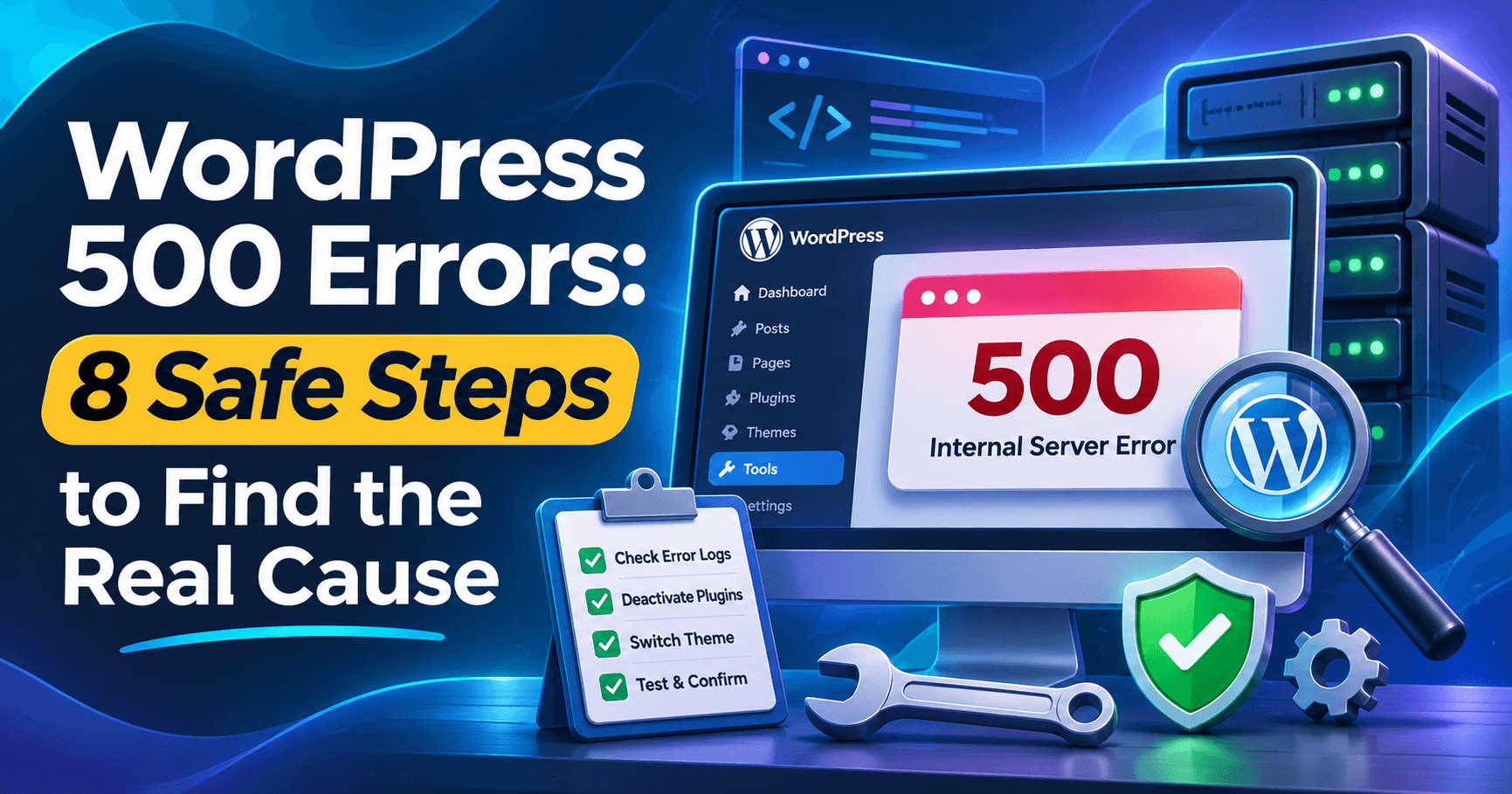

WordPress 500 errors are server-side failures: the web server received a request but could not finish it. The message may appear as “500 Internal Server Error,” a blank page, or a generic host error. It does not automatically mean WordPress core is broken.
In this guide
The safest approach is to record exactly where the error occurs, create a backup or staging copy, check the server’s real error log, and then test the most likely cause with the least disruptive change. Common causes include a PHP fatal error, exhausted memory, a plugin or theme conflict, damaged rewrite rules, incorrect permissions, or a hosting limit.
First, confirm what is actually failing
Before changing files, determine whether the error affects the entire site or only one request. Open the homepage, a few posts, /wp-admin/, and the specific URL that produced the error in a private browser window. Also test from a different network if possible.
- Every public page fails: suspect PHP startup errors, server configuration, memory, permissions, or a host-level outage.
- Only one page fails: suspect page-specific code, a shortcode, a template, a query, or content processed by a plugin.
- Only wp-admin fails: inspect admin-related plugins, PHP errors, authentication extensions, and server security rules.
- The error appears after a form, checkout, or update: identify the exact action and time; the matching log entry is often decisive.
Do not repeatedly refresh a failing form or checkout. Repeated requests can create duplicate orders, emails, or background jobs even when the browser shows an error.
Protect the site before making changes
Get a current database and file backup before editing wp-config.php, .htaccess, plugin files, or theme files. If your host provides staging, reproduce the problem there instead of experimenting on production.
Keep a short change log: note the failing URL, timestamp, recent updates, PHP version changes, and every file or setting you alter. If a change makes the site worse, reverse that specific change rather than adding several new ones.
Beginners can safely collect symptoms, clear a page cache, and ask the host for the relevant error-log lines. Editing server configuration, changing PHP limits, or disabling security controls is more appropriate for an administrator who has a backup and hosting access.
Check the PHP and server error logs
A 500 response is only a symptom. The server or PHP error log usually names the file, function, memory limit, or permission that failed. Look in your hosting control panel for an error-log or metrics area; exact labels vary by host. You can also ask support for entries matching the precise minute of the failure.
If WordPress can still load enough to process configuration, temporary debugging can record additional details. In wp-config.php, place the following settings before the line that says WordPress has stopped editing the file:
define( 'WP_DEBUG', true );
define( 'WP_DEBUG_LOG', true );
define( 'WP_DEBUG_DISPLAY', false );
This writes diagnostic messages to wp-content/debug.log on many installations while keeping details out of the visitor’s browser. Do not leave debugging enabled indefinitely on a public site, and do not publish the log: it can contain paths, usernames, queries, or other sensitive information. Restore the previous settings after collecting the evidence.
A line such as “Allowed memory size exhausted” points toward memory or an unusually expensive request. “Call to undefined function,” “syntax error,” or a path inside a plugin or theme points toward incompatible or damaged code. A timeout, permission denial, or upstream message may require the host rather than a WordPress change.
Test plugins without losing their settings
Plugins are a frequent cause when a 500 error begins immediately after an update, activation, or configuration change. If you can access the dashboard, deactivate recently changed plugins one at a time and retest the same URL. Do not deactivate everything at once unless you are performing a controlled staging test; isolating one change produces better evidence.
If /wp-admin/ is unavailable, use your hosting file manager or SFTP. Rename the affected plugin’s folder under wp-content/plugins/, for example from example-plugin to example-plugin.disabled. WordPress will treat it as unavailable. Retest, then restore the original folder name after the test.
Do not delete the plugin folder as a first step. Renaming preserves its files and makes rollback simple. If the error disappears, leave the plugin inactive while you check for an update, compatibility guidance, or a replacement. A plugin conflict can also involve a theme or another extension, so confirm the result by reactivating only after the failing request has been tested.
Test the active theme safely
If the log points to a theme file, or the failure affects templates and front-end pages, switch temporarily to an installed default WordPress theme from Appearance if the dashboard is available. Exact theme names and menu labels vary by WordPress version.
Do not switch themes casually on a production store or membership site: widgets, menus, page-builder layouts, and custom templates may display differently. Capture screenshots and note the original theme first. If the error disappears with the default theme, inspect the active theme’s recent changes, custom code, parent-theme compatibility, and child-theme files.
When the dashboard is inaccessible, a qualified administrator can change the active theme in the database, but this is a higher-risk operation. Take a database backup and ask the host or a WordPress professional if you are not comfortable identifying the correct theme options.
Check memory, PHP compatibility, and request limits
A site can return a 500 error when a request needs more PHP memory than the limit allows, even if smaller pages work. Confirm the PHP version and resource limits in your host’s panel or ask hosting support. Compare them with the requirements of your current WordPress version, theme, and plugins rather than choosing a version at random.
You may see a memory-related line in the log. A temporary increase can help confirm the diagnosis, but it is not a substitute for finding the code that consumes excessive memory. Memory settings can be controlled by the host, PHP-FPM, the web server, or WordPress, so a value added to wp-config.php may have no effect.
Large imports, image processing, backups, search requests, and complex WooCommerce queries may also hit execution-time, input-size, or process limits. If only one operation fails, provide the host with the URL, timestamp, request type, and log entry. Do not raise several limits simultaneously without knowing which one was exceeded.
Regenerate rewrite rules and inspect .htaccess
If the 500 began after a migration, redirect change, security rule, or manual edit, a malformed .htaccess file may be responsible on Apache hosting. First download a copy of the file. Do not overwrite it with a random snippet from the internet.
If you can reach the dashboard, go to Settings → Permalinks and select Save Changes without changing the structure. WordPress may regenerate its standard rewrite rules. The exact labels can vary, and this step does not repair custom server directives or a host-level configuration error.
If the dashboard is unavailable, rename .htaccess to something such as .htaccess.backup and test the site. This is reversible, but it may temporarily affect permalinks, caching, redirects, or security rules. Restore or rebuild the file carefully after identifying the bad directive. See WP Fix It’s guide to .htaccess in WordPress for safer context before editing it.
Verify permissions, ownership, and disk space
Incorrect permissions or file ownership can prevent PHP from reading WordPress files or writing required files. A failed deployment, migration, restore, or security cleanup often precedes this type of 500 error.
Ask your host to verify that the web server can read the WordPress installation and that required writable directories, such as the uploads directory, have appropriate ownership. Avoid applying broad permissions such as 777; they can create a security problem and may not fix ownership.
Also check available disk space and inode usage. A full account can cause uploads, logs, sessions, caches, and database operations to fail in ways that look like unrelated WordPress errors. Hosting support can confirm whether the account, database, or server filesystem is full.
Use this decision guide
- Log names a plugin file: deactivate that plugin, retest, then update, roll back, or replace it after confirming compatibility.
- Log names a theme file: test with a default theme and inspect recent customizations or child-theme code.
- Log says memory exhausted: identify the expensive request and confirm memory limits with the host before increasing anything.
- Failure follows a rewrite or redirect edit: back up and test
.htaccess; regenerate permalinks only when appropriate. - No useful WordPress log appears: request web-server and PHP-FPM logs from hosting support; the failure may occur before WordPress starts.
- Many sites on the same account fail: suspect hosting capacity, PHP service, disk space, or a server configuration issue rather than one plugin.
Confirm the fix before closing the incident
Retest the exact URL and action that failed, not just the homepage. Then check logged-out and logged-in views, desktop and mobile layouts, forms, checkout, scheduled tasks, and any API or webhook involved in the original request.
Review the logs again for new errors, purge only the relevant page or server cache, and confirm that the 500 response has stopped from more than one network when possible. If you disabled a plugin or theme, do not reactivate it until you have a compatibility plan. Remove temporary debugging, restore renamed files only when appropriate, and keep the backup until the site has operated normally through its important workflows.
For a broader checklist of WordPress symptoms, see common WordPress errors and fixes. If the 500 error remains after log-based testing, WordPress Site Repair can help investigate the application and hosting layers without relying on guesswork.
Questions that often matter
Why does only one WordPress URL return a 500 error?
A single URL can trigger a unique template, shortcode, database query, redirect rule, or plugin action. Compare its timestamp with the PHP and web-server logs, then test the responsible plugin or theme on staging. Do not assume the whole installation is damaged.
Can a 500 error be caused by malware?
Yes, malicious code can create fatal errors or resource exhaustion, but a 500 response alone is not evidence of an infection. Look for unexplained administrator accounts, modified files, redirects, unfamiliar scheduled tasks, and security-scan findings. If those signs exist, preserve evidence and follow a proper WordPress malware cleanup process.
Why does disabling a plugin not fix the error?
The plugin may not be the cause, its code may have run during an earlier request, or a cached response may still be displayed. Confirm the folder name, clear the appropriate cache, retest the exact URL, and inspect the timestamped server log. A theme, PHP version, permissions issue, or host limit may be responsible instead.
When should the hosting company investigate?
Contact the host when logs are unavailable, multiple sites fail, PHP-FPM or Apache/Nginx reports an upstream problem, disk space is exhausted, or changing WordPress files has no effect. Include the domain, failing URL, UTC timestamp, response status, and relevant log lines. The official WordPress Documentation is useful for confirming WordPress-side behavior, but hosting engineers must inspect server-side failures.