


WordPress database repair is appropriate when your site reports database errors, pages show missing content, queries fail, or your hosting panel identifies crashed or corrupted tables. The safest approach is to preserve the current database first, identify the affected tables, then use the least-invasive repair method available. Do not begin by deleting tables, importing an unverified backup, or editing wp-config.php on a live site.
In this guide
This guide covers a controlled repair workflow for common MySQL or MariaDB problems. It is different from routine database optimization: repair attempts to restore damaged table structures or indexes, while optimization removes unnecessary data or reorganizes tables.
Before you repair: protect the current database
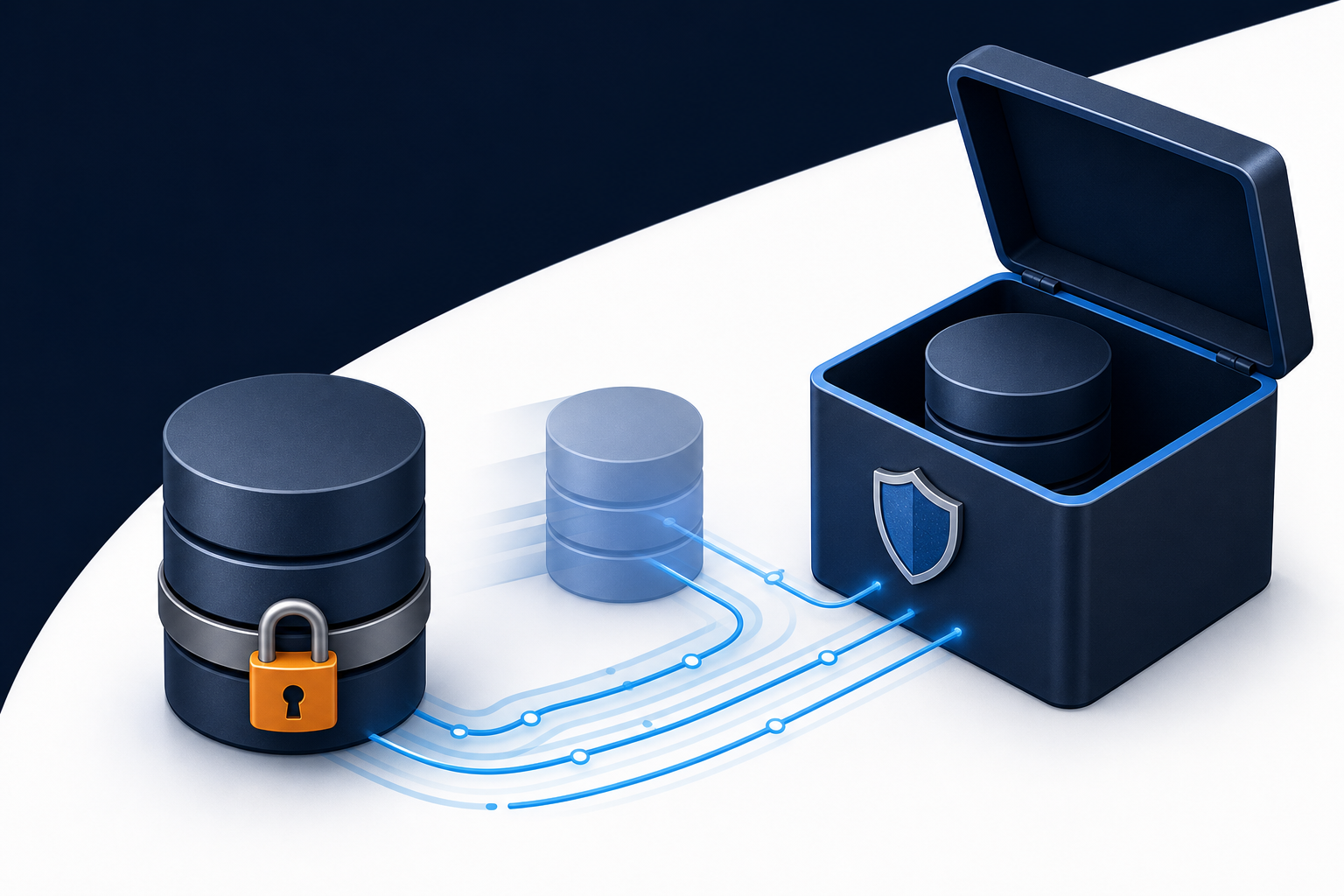
A repair can succeed, fail, or remove damaged rows that cannot be recovered. Before changing anything, make a complete database backup and, if possible, a backup of the WordPress files as well.
Use a backup that can actually be restored
- Put the site in a temporary maintenance state if a repair could affect orders, registrations, comments, or other live activity.
- Export the entire WordPress database from your hosting control panel, phpMyAdmin, a trusted backup tool, or a command-line tool supplied by your host.
- Download the export and confirm that it is not empty and has a plausible file size. Keep a copy outside the server.
- Record the database name, table prefix, hosting account, and the exact symptoms and time they began.
- If the site handles payments or important submissions, ask the host whether they can create a server-side snapshot before proceeding.
A backup that has never been tested is not proof of recoverability. If you cannot export the database, stop before running repair commands and ask your host for assistance.
Confirm that the database is really the problem
Not every WordPress failure is database corruption. A plugin fatal error, exhausted disk space, a blocked database connection, incorrect credentials, or a server outage can produce similar symptoms.
Look for these database-specific clues
- The front end or dashboard displays a database connection failure.
- Only particular pages, posts, comments, or administrative screens fail while the rest of the site works.
- Your hosting panel reports crashed tables or recommends table repair.
- Database logs contain messages such as a table being marked as crashed or a storage engine reporting corruption.
- A query, search, login, or form operation fails consistently while unrelated pages load.
Write down the exact error and the URL or action that triggers it. Check the hosting control panel’s database or error-log area, because the location and wording vary by host. Do not rely on a generic browser message alone.
If the site shows a PHP fatal error rather than a database message, use the relevant troubleshooting path for a WordPress critical error. If the dashboard is blank or never finishes loading, the cause may also be a plugin, theme, REST request, or server issue.
Identify the affected tables and storage engine
WordPress normally stores content across several tables, including posts, post metadata, options, users, and user metadata. Plugins can add their own tables. A damaged plugin table may break one feature without affecting the rest of the site.
Open phpMyAdmin or the database tool provided by your host. Select the database used by this WordPress installation, then review the table list and status information. The table prefix may not be wp_; use the prefix shown in wp-config.php or in the database tool rather than assuming it.
Look for an explicit error, a crashed status, or a table that fails when you browse or check it. Note the storage engine, such as InnoDB or MyISAM. The correct repair method depends on that engine. Do not run a MyISAM-specific repair command against an InnoDB table.
Check for a prefix or database mismatch
If every page suddenly reports that tables are missing, the database may be healthy but WordPress may be connected to the wrong database or using the wrong table prefix. Compare the database name and prefix in wp-config.php with the tables visible in your hosting tool. Editing this file is a production change, so download a copy first and change only the confirmed value.
Try the safest repair methods first
Once you have a backup and have identified the table or tables, use the method supported by your host. The labels in phpMyAdmin vary slightly by version.
Method 1: Check and repair a table in phpMyAdmin
- Open the correct database in phpMyAdmin.
- Select the suspected table, or select only the tables identified by the error.
- Use the table action menu to choose a check or repair operation, if available.
- Read the result carefully. A successful command may report that the table is already up to date; that does not prove another table is healthy.
- Repeat only for confirmed affected tables, then test the site.
Do not select every table and run arbitrary repair actions simply because they are available. Some tables use storage engines for which the displayed repair option is not appropriate.
Method 2: Use the hosting provider’s database repair tool
Many hosts provide a database check or repair utility in their control panel. It may be safer than manually entering SQL because the host can apply engine-specific handling. Select the documented database and table, save the result, and ask support what was changed if the report is unclear.
Method 3: Use WP-CLI when you have command-line access
If your host provides WP-CLI and you are comfortable using SSH, first confirm that you are in the correct WordPress directory and that the backup is complete. A site-specific table check may be available through the installed WP-CLI commands, but the exact command and options can vary with the WP-CLI version and database engine. Run wp help and the relevant command’s help output before executing it.
Do not paste an unverified command from a forum into production. WP-CLI can also modify data, and a command executed from the wrong directory or against the wrong site can affect an entirely different installation.
Use WordPress’s built-in repair mode only when necessary
WordPress includes a built-in database repair feature that can be enabled temporarily through wp-config.php. It is intended for situations where you cannot access the normal dashboard and should not be left enabled.
Before using it, make a copy of wp-config.php and confirm that you can access the file through secure hosting tools or SFTP. Add the documented repair constant in the correct location, visit the repair endpoint, and remove the constant immediately after the process finishes. The repair page may not require normal WordPress authentication, so leaving it enabled can expose sensitive functionality.
Consult the official WordPress Documentation for the current repair-mode instructions and confirm the exact constant and endpoint before editing the file. If you are not comfortable changing a production configuration file, ask your host or a WordPress professional to perform this step.
Repair versus restore: choose the safer recovery path
A repair is not always the best fix. Use the following decision guide:
- One table is reported as crashed: make a backup, confirm its storage engine, and attempt an engine-appropriate check or repair.
- Several core tables are damaged: stop repeated repair attempts and ask the host whether a known-good database snapshot is available.
- Important rows are missing: restore from a verified backup or recover selectively; a repair cannot recreate deleted content.
- The database connection fails everywhere: check credentials, database availability, disk space, and hosting status before repairing tables.
- Only one plugin feature fails: check the plugin’s own table and logs, but do not delete its data until you know what the plugin requires.
- The site was recently hacked: preserve evidence and treat the database as potentially modified; a table repair alone is not malware cleanup.
Restoring an older backup can overwrite newer orders, posts, users, or settings. Before restoring, compare the backup date with the incident and ask the host whether newer data can be exported or merged.

Verify the repair without creating new damage
After the operation, test both the front end and administrative functions. Use a private browser window or a separate user account where appropriate.
- Load the homepage and several pages that previously failed.
- Open the dashboard, media library, post editor, and the feature associated with the affected table.
- Search for an existing post, user, order, or form entry that was previously unavailable.
- Submit a non-destructive test, such as saving a draft rather than publishing content or placing a test order in the appropriate sandbox.
- Review the PHP, web server, and database logs for new errors.
- Clear only the relevant page, object, or persistent cache after confirming the database is responding.
- Take a fresh backup once the site is stable.
If the same error returns, note whether it affects the same table and action. Recurring corruption can point to storage exhaustion, failing hosting infrastructure, an incompatible plugin, interrupted writes, or an underlying disk problem.
What not to do during database repair
- Do not delete and recreate a table unless you have confirmed exactly what data it contains and have a tested recovery plan.
- Do not run broad SQL updates copied from an unrelated site. A wrong prefix, serialized value, or condition can damage many records.
- Do not edit serialized WordPress options manually in a text editor. Serialized data can become invalid when lengths change.
- Do not optimize before diagnosing. Cleanup plugins and optimization commands do not repair every form of corruption.
- Do not keep database repair mode enabled. Remove temporary configuration changes as soon as the operation ends.
- Do not continue if the server is out of disk space. Free space or involve the host first; failed writes can make the incident worse.
When to involve your host or a WordPress specialist
Contact the host before making changes when the database server is unavailable, the disk is full, multiple sites on the account show errors, or the provider has snapshots you cannot access. Ask for the affected table names, storage engine, relevant database logs, and the time the failure began.
Professional help is also sensible when the site handles orders, memberships, patient or customer records, or other data that cannot be safely reconstructed. A specialist can compare backups, export current data, inspect logs, and choose repair or restoration without guessing. WP Fix It’s WordPress Site Repair service is an option when the issue needs hands-on investigation.
Questions that often determine the next step
Can I repair the WordPress database from the dashboard?
Usually, the dashboard is not the right place to begin because serious database problems may prevent it from loading. Use a verified backup and your host’s database tools first. A plugin that offers repair or optimization may use different commands and should not be trusted blindly on a damaged production database.
Will database repair delete my posts or orders?
A repair may discard data that is already unreadable, and a restore can overwrite newer records. That is why a complete export and a restore plan are essential. If the records are business-critical, stop and ask the host about a snapshot or point-in-time recovery before proceeding.
Why does the error return after repair?
Repeated corruption often indicates an unresolved infrastructure or application problem, such as insufficient disk space, failing storage, interrupted writes, a database server issue, or a plugin repeatedly issuing problematic queries. Compare timestamps in the database and server logs instead of repeatedly running repair commands.
Should I repair every WordPress table?
No. Repair the confirmed affected tables using a method appropriate for their storage engine. A broad operation can make diagnosis harder and may affect tables that were not damaged. If several tables are involved, a host-assisted restore may be safer than repeated manual repairs.