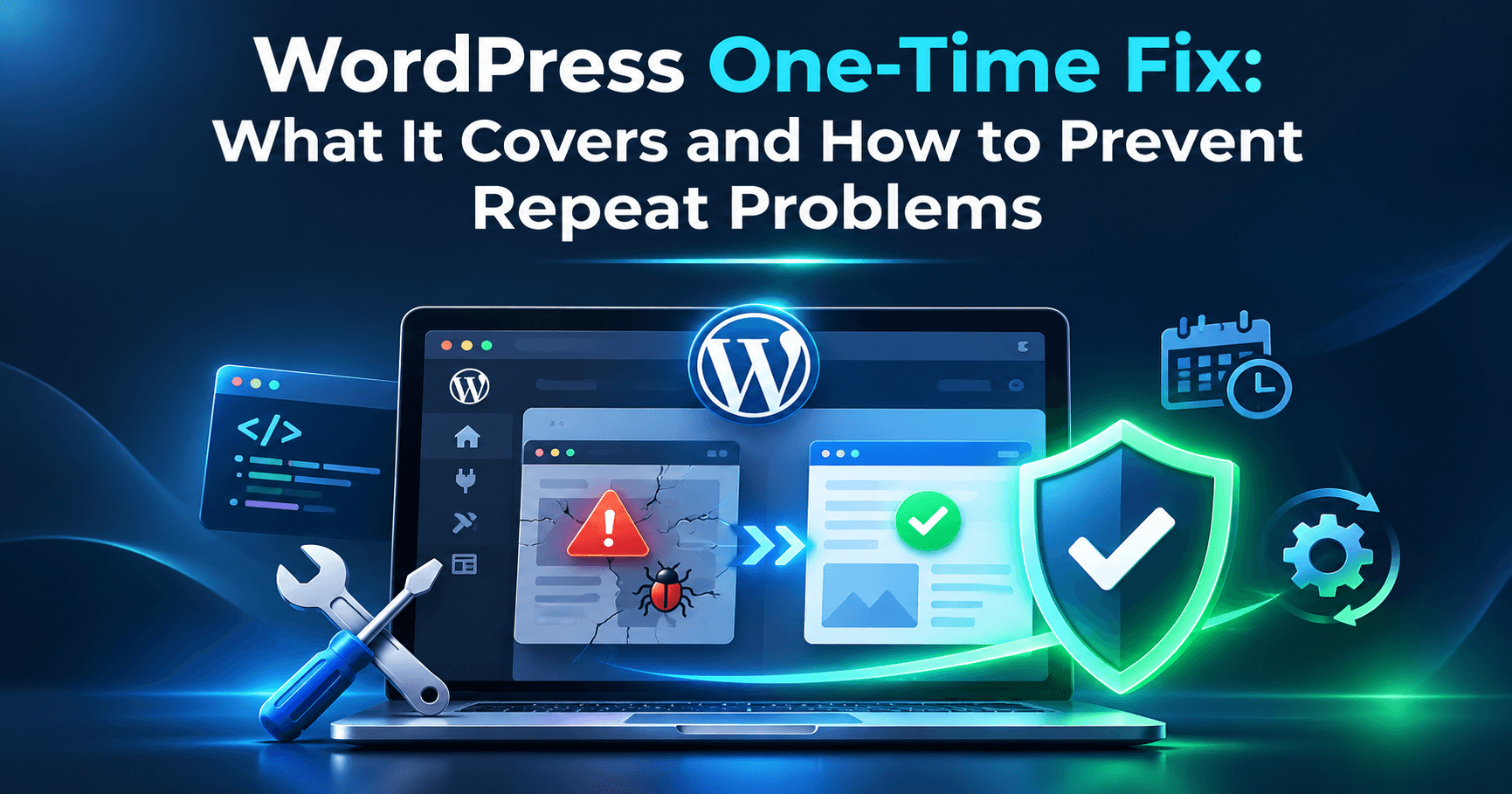

A WordPress one-time fix is appropriate when one identifiable problem needs a controlled repair: a broken page, failed update, plugin conflict, database error, redirect problem, or similar issue. It is not the same as changing random settings until the symptom disappears. The reliable approach is to preserve the site first, reproduce the problem, identify its likely cause, make the smallest safe change, and test the result from a visitor’s perspective.
In this guide
A one-off repair can solve a single incident permanently when the underlying cause is isolated—for example, an incompatible plugin version or damaged rewrite rules. It cannot guarantee that unrelated future updates, security incidents, hosting failures, or new configuration changes will never cause another problem. The steps below help you determine whether you need one repair or continuing WordPress care.
What a WordPress one-time fix should include
Before work begins, define the problem in observable terms. “The site is broken” is too broad. “The checkout returns a blank page after the payment plugin update” gives you something to reproduce and verify.
A properly scoped one-time repair normally includes:
- A description of the affected URL, feature, user type, and approximate start time.
- A backup or hosting snapshot made before production changes.
- Checks of recent updates, error logs, server status, and relevant configuration.
- A least-invasive repair aimed at the confirmed cause.
- Testing on the affected workflow, plus a short check of related site functionality.
- A record of what changed, which helps prevent the same mistake during the next update.
It usually does not include unlimited redesign, content editing, security monitoring, performance tuning, or future troubleshooting unless those services are separately agreed. If the site is hacked or repeatedly failing, a single symptom repair may leave the root problem in place; use a complete WordPress malware cleanup process instead of simply removing one visible redirect.
Start with prerequisites and a clear symptom
Do not edit production files or the database before collecting basic evidence. If visitors are actively losing orders or the site is unavailable, record the current state first and consider putting a temporary notice in place without changing the broken feature.
Collect these details
- The exact page or action that fails.
- The complete browser error, if one appears.
- Whether the issue affects logged-in users, logged-out visitors, mobile devices, or all users.
- When the problem began and what changed immediately beforehand.
- Whether the issue occurs in a private browser window and on another network or device.
Ask the hosting provider whether the server is reporting elevated errors, full disk space, PHP worker exhaustion, or a recent configuration change. These are server-side causes that cannot be safely diagnosed by repeatedly deactivating plugins.
Make a fresh backup of both the database and files, and confirm that the backup can actually be downloaded or restored. A backup that exists but cannot be recovered is not a dependable rollback. If you cannot access the dashboard, ask the host about a snapshot or use the host’s documented file and database backup method.
Use the least-invasive diagnosis first
Check whether the problem is real and reproducible before changing anything. Clear only the relevant browser, page, plugin, or CDN cache after recording the original behavior. Test the public URL while logged out, then test the same workflow while logged in if the issue involves the dashboard or account features.
Check recent changes
- Review recently updated plugins, themes, WordPress core, PHP, SSL, CDN, and firewall settings.
- Check whether the failure affects one template, one post type, or the whole site.
- Look for a matching entry in the hosting error log and, if enabled, the WordPress debug log.
- Compare the failing request with a known-working page or action.
For a dashboard problem, do not assume the front end is healthy. A blank admin screen, loading spinner, or missing controls can have a different cause from a public-page error. The WordPress dashboard troubleshooting guide explains how to separate browser, plugin, permission, and server symptoms safely.
If a REST request is failing, inspect the browser’s Network panel and the response status rather than guessing. A blocked REST API, authentication issue, malformed response, or server timeout requires a different fix. See how to diagnose a blocked WordPress REST API before editing rewrite rules.
Identify the likely root cause
Use the symptom pattern to narrow the repair. The following guide is deliberately conservative:
- Only one plugin feature fails after an update: suspect plugin compatibility, a changed API, or a plugin setting. Check the plugin’s documented requirements and test on staging when possible.
- The whole site shows a blank page or fatal message: suspect a PHP fatal error, exhausted resources, or an incompatible plugin or theme. Read the server or PHP error log before disabling components.
- Pages redirect, loop, or suddenly return 404: check site URLs, SSL or proxy settings, rewrite rules, and caching in that order. Do not paste unfamiliar
.htaccessrules into production. - Updates fail or the editor cannot save: inspect REST responses, authentication, security rules, SSL, timeouts, and available disk space. A JSON response error is not fixed by repeatedly clicking Update.
- The site works for administrators but not visitors: test cache, CDN, geolocation, firewall, and logged-out behavior. Administrator sessions can bypass the layer causing the public failure.
- Unexpected redirects, changed files, or unknown administrator accounts appear: treat the site as potentially compromised. Do not overwrite evidence or merely remove the redirect; follow a complete infection-response procedure.
For a broader plugin or theme conflict, use a staging copy or a controlled troubleshooting method that preserves visitor access. Deactivating every plugin on a busy production site can remove essential security, caching, payment, or form functionality. The WP Fix It conflict diagnosis approach can help isolate the component without treating every failure as the same problem.
Make the smallest safe repair
Once the evidence points to a cause, change one relevant variable at a time. Examples include rolling back the specific plugin that introduced the failure, correcting one URL value, regenerating rewrite rules through the normal WordPress settings screen, restoring a known-good file, or adjusting a documented server limit with the host.
Before changing wp-config.php, .htaccess, DNS, PHP versions, permissions, or database values, save the original and document the proposed change. These are not beginner-level edits when the site is live. A syntax error in a configuration file can take down the entire site, while an incorrect database replacement can alter URLs or content globally.
Configuration safety rules
- Database: export a verified backup and use narrowly targeted changes. Never run a global replacement without understanding serialized data and staging the operation.
- wp-config.php: preserve the original file, edit only the required constant or setting, and check for syntax errors.
- .htaccess: download the current file first. Add only documented rules and test both the homepage and several inner URLs.
- DNS: confirm the intended record, provider, and TTL before changing it. DNS changes can affect email and services beyond WordPress.
- Server settings: ask the host to confirm supported PHP, memory, timeout, permissions, and log settings rather than guessing from dashboard symptoms.
If the issue is a fatal error and you cannot reach the dashboard, do not keep refreshing the site while making unrecorded changes. Use the host’s file manager, SFTP, or documented recovery method to temporarily disable only the suspected component, then inspect the error log. For context, see the guide to recovering from a WordPress critical error.
Verify that the one-time fix worked
Removing the visible error is not enough. Verify the original failure and the surrounding workflow.
- Repeat the exact action that originally failed.
- Test the affected URL while logged out and logged in, where relevant.
- Check a representative homepage, inner page, form, login, search, and checkout or payment flow if the site uses them.
- Test on a second browser or device and bypass cached results where appropriate.
- Clear only the caches that could contain the old response, then test again.
- Watch the server and PHP logs for new matching errors.
- Confirm that email notifications, scheduled tasks, analytics, and external integrations still work if the repaired feature depends on them.
Keep a short change record containing the date, symptom, cause, file or setting changed, backup location, and verification steps. If the problem returns without another change, that is evidence that the repair addressed a symptom rather than the cause.
When a one-time repair is not enough
Choose ongoing maintenance when the site has repeated failures, many outdated components, no dependable backup, frequent security alerts, or several people making undocumented production changes. A recurring care plan does not replace diagnosis, but it can reduce avoidable incidents through updates, backups, monitoring, and documented recovery procedures.
A one-time fix is also a poor fit when the request includes several unrelated problems. For example, repairing a broken form, improving slow page loads, cleaning malware, and redesigning a header are separate scopes. Combining them under “one fix” makes it difficult to identify what was actually repaired.
If the site is business-critical and the cause is unclear, a professional WordPress site repair service can document the incident and work from a backup or staging environment before production changes are made.
Questions to ask before approving a one-time fix
Can I fix it by restoring a backup?
Possibly, but restoration reverses all changes since that backup, not only the broken change. Confirm the backup date, preserve current files and database data, and identify what orders, submissions, comments, or content could be lost before restoring.
Should I update everything while repairing one problem?
Usually no. Broad updates make cause and effect harder to identify and can introduce additional incompatibilities. Repair the incident first, then plan updates in a staging environment or controlled maintenance window.
How do I know whether the problem is hosting-related?
Compare the timing and scope with server logs, resource usage, SSL status, PHP errors, and other sites or services on the same account. Ask the host to confirm the relevant server condition; a WordPress error alone does not prove that WordPress caused it.
What should I do if the same issue returns?
Stop repeating the same workaround. Compare the change record and logs, identify what recreated the condition, and check updates, cron jobs, caching, security rules, and external services. Recurrence usually means the trigger remains active or the initial diagnosis was incomplete.
For general, version-sensitive WordPress instructions, consult the official WordPress Documentation. A safe one-time repair ends with a verified result, a recorded cause, and a clear boundary between what was fixed today and what still needs monitoring.