
HostGator malware protection works best as a layered system, not as one checkbox in your hosting account. Host-level scanning may identify suspicious files, while WordPress updates, strong account security, reliable backups, and monitoring reduce the chance that an attacker can enter or remain unnoticed.
In this guide
If HostGator or a security service has already reported malware, do not treat this prevention checklist as a cleanup plan. Preserve evidence, avoid deleting random files, and use a dedicated WordPress malware removal service when the infection affects a live business site.
What HostGator malware protection can and cannot do
Hosting security and WordPress security overlap, but they are not identical. HostGator may provide some combination of server protections, account isolation, malware scanning, backups, or an optional security product. The exact features depend on your hosting plan and current account configuration, so confirm what is enabled in your HostGator portal rather than assuming every site has the same coverage.
- Scanning looks for known suspicious files or patterns. It is useful, but a clean scan does not prove that credentials, database content, or third-party services are safe.
- Firewalls can block some malicious requests before they reach WordPress. They may also block legitimate administrators if rules are too aggressive.
- Backups give you a recovery option. A backup is only useful if it is recent, restorable, and stored separately from the infected site.
- WordPress hardening reduces vulnerable entry points inside the application, plugins, themes, and user accounts.
Before changing anything, record your hosting plan, active security products, last known-good backup, WordPress version, and the date you first noticed suspicious behavior. This makes later diagnosis much safer.
1. Confirm whether you have an alert or an active infection
A warning from a scanner is not automatically proof that the entire site is compromised. Conversely, a clean scan does not rule out malware. First, compare the report with what visitors and administrators actually see.
Signs that require investigation
- Unexpected redirects, especially on mobile devices or search results.
- New administrator accounts, unknown plugins, or unfamiliar theme files.
- Changed passwords, modified .htaccess rules, or unexplained hosting-account activity.
- Spam pages, suspicious links, browser warnings, or search-engine security notices.
- Unexpected outbound email, high resource usage, or repeated login attempts.
Take screenshots and save the scanner report before removing anything. If you still have dashboard access, review Users, Plugins, and recent content. Menu names can vary by WordPress version and hosting setup.
For a broader cleanup workflow, see Step-by-Step WordPress Malware Removal. It covers investigation and recovery rather than merely turning on prevention tools.
2. Secure the HostGator account before the WordPress site
WordPress protection cannot compensate for a compromised hosting account. Sign in through a trusted device and change the HostGator account password if there is any possibility that it was reused, exposed, or shared. Use a unique password stored in a reputable password manager.
Review the hosting account’s users, FTP or SFTP accounts, email accounts, databases, and connected services. Remove accounts you no longer recognize or need. Do not delete an account used by a developer, backup system, or application until you have confirmed its purpose.
Enable multi-factor authentication if it is available for your HostGator account and related services. Also protect the email account used for password recovery; an attacker who controls that mailbox can often regain access after you change the hosting password.
3. Update WordPress, plugins, and themes safely

Outdated software is a common source of avoidable risk. Make a fresh backup, confirm that it can be downloaded or restored, and then update WordPress core, active plugins, and the active theme from trusted sources.
- Open Dashboard > Updates and note what is outdated. Exact labels can vary by version.
- Check whether the plugin or theme is still maintained and obtained from a legitimate source.
- Update one group at a time when the site is important, beginning with a staging copy if your host provides one.
- After each update, test the homepage, contact forms, login, checkout, and any important integrations.
Do not install “nulled” themes or plugins. They may contain backdoors and cannot be made trustworthy simply by updating them. Remove unused software only after confirming that it is not needed for a rollback, staging process, or custom functionality.
If an update causes a failure, avoid repeatedly changing several components at once. The WordPress Site Repair service can be appropriate when a production site needs controlled diagnosis.
4. Reduce WordPress entry points
Use the least access necessary. WordPress users should have the lowest role that lets them do their work, and old administrator accounts should be removed or reduced after confirming ownership of their content.
Review plugins that expose login forms, file managers, database tools, or remote administration features. Keep only software with a clear purpose and a reputable update history. Security plugins can help with login protection and monitoring, but installing several overlapping security tools may create conflicts or excessive blocking.
Never edit wp-config.php, .htaccess, or server security rules without a backup and a way to restore access. A syntax error or an overly broad rule can take down the site or lock out legitimate visitors. WordPress’s official documentation is a safer starting point when you need to confirm a core setting.
5. Build backups that can actually recover the site
A backup stored only inside the same hosting account is not a complete recovery strategy. If an attacker gains access to the account, they may alter or delete both the site and its backups.
Keep at least one copy outside the live hosting account. Back up both:
- The WordPress database, which contains users, settings, posts, and orders.
- The files, including
wp-content, uploads, themes, plugins, and important configuration files.
Record the backup date and test restoration on a staging site or separate environment. A successful backup job is not the same as a verified restore. For a store or frequently changing site, confirm how orders, customer data, and uploaded files will be recovered before an emergency occurs.
6. Turn on monitoring and investigate changes
Protection is stronger when you know what changed and when. Use the monitoring options included with your hosting or security service, but confirm what they actually check: files, database content, uptime, login activity, or search-engine warnings.
Set alerts for new administrator accounts, plugin changes, unexpected file modifications, and repeated failed logins when those controls are available. Review alerts rather than automatically deleting every flagged file. A legitimate custom file can resemble malware, and deleting it may break the site while leaving the original access method untouched.
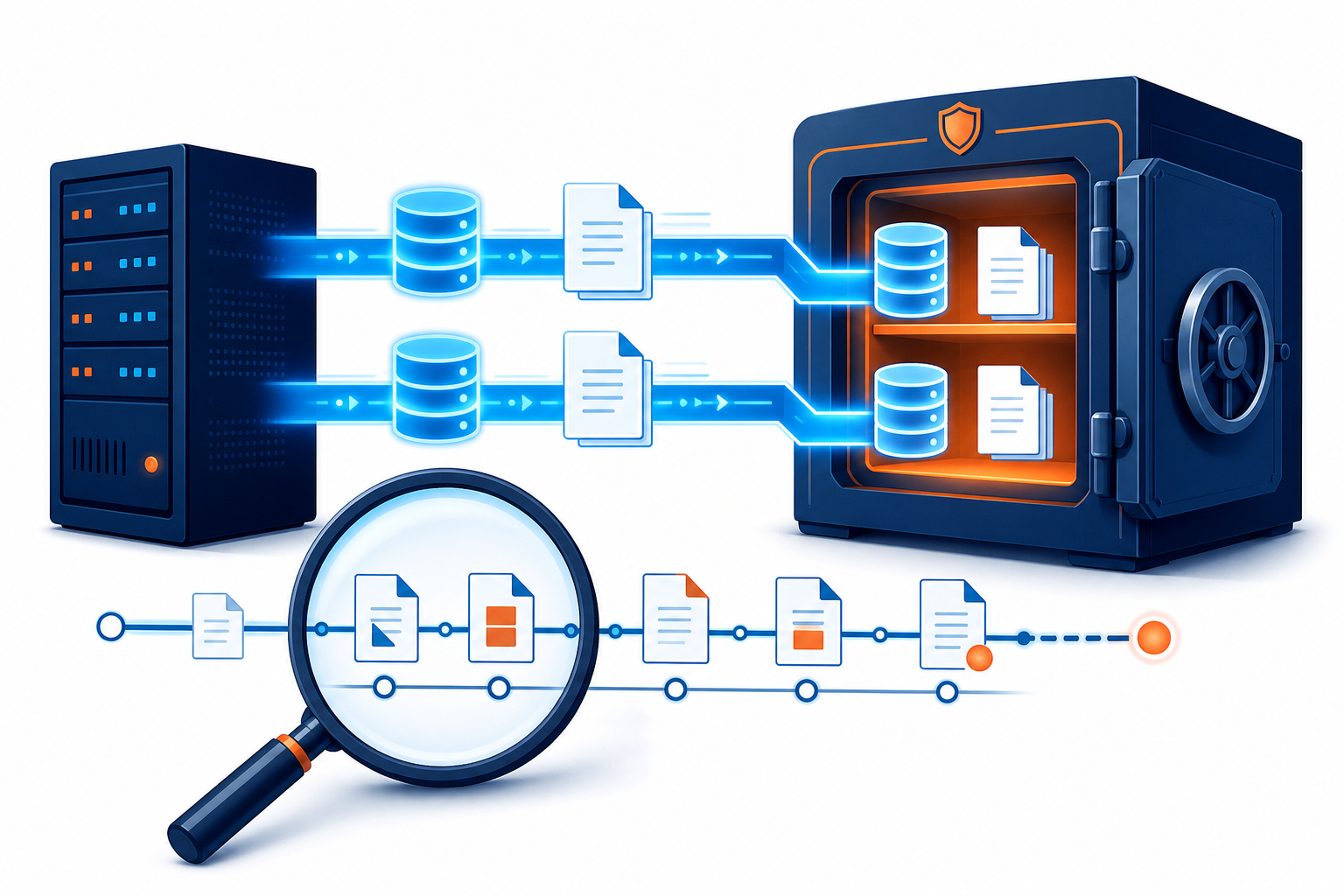
Monitor the site as a visitor in a private browser window and test important URLs from more than one device. If the site works for you but not for visitors, a cache, CDN, firewall, or geographic rule may be involved. That symptom does not by itself prove malware.
7. Use a simple HostGator protection decision guide
- Host reports a suspicious file, but the site behaves normally: save the report, identify the file’s owner and purpose, and request a qualified review before deleting it.
- Visitors see redirects or browser warnings: restrict risky access if necessary, preserve logs and backups, and begin a full malware investigation.
- You cannot access WordPress but hosting access works: do not repeatedly guess passwords; review account security, recent changes, and hosting logs.
- The scanner is clean but suspicious users or files remain: treat the site as potentially compromised and review credentials, database content, scheduled tasks, and third-party access.
- The site was restored but becomes infected again: look for the original vulnerable plugin, stolen credentials, infected backup, or an unclean neighboring account.
How to verify that protection is working
After making changes, test the public site, WordPress login, forms, email delivery, media uploads, and—if applicable—checkout and payment flows. Confirm that scheduled backups complete and that a recent backup can be accessed outside the live account.
Review the next available scan result and compare it with the earlier report. Check that unwanted users, files, redirects, and scheduled tasks have not returned. If a security rule blocks legitimate visitors, narrow the rule instead of disabling protection permanently.
Finally, document the active HostGator plan, enabled security features, backup location, update owner, and emergency contacts. That short record prevents uncertainty during the next alert.
Questions readers commonly ask
Does HostGator malware protection replace a WordPress security plugin?
No. Hosting controls and WordPress tools inspect different layers. Use only the tools you understand, confirm their coverage, and avoid assuming that one scan protects credentials, databases, plugins, and server settings equally.
Should I delete a file that HostGator marks as malware?
Not immediately. Preserve a backup and the scan report, then confirm whether the file belongs to WordPress, a plugin, a theme, or custom code. Deleting an infected file may be necessary, but deleting the wrong file can cause downtime and may not remove the attacker’s access.
Is a backup enough to protect my site?
A backup improves recovery but does not prevent compromise. Keep separate copies, test restoration, and make sure you know which backup predates the infection. Never assume the newest backup is clean.
When should I get professional help?
Get help when the site redirects visitors, receives a browser warning, repeatedly reinfects after cleanup, handles payments, or has unknown administrator access. These situations require evidence preservation and a coordinated credential, hosting, file, and database review.