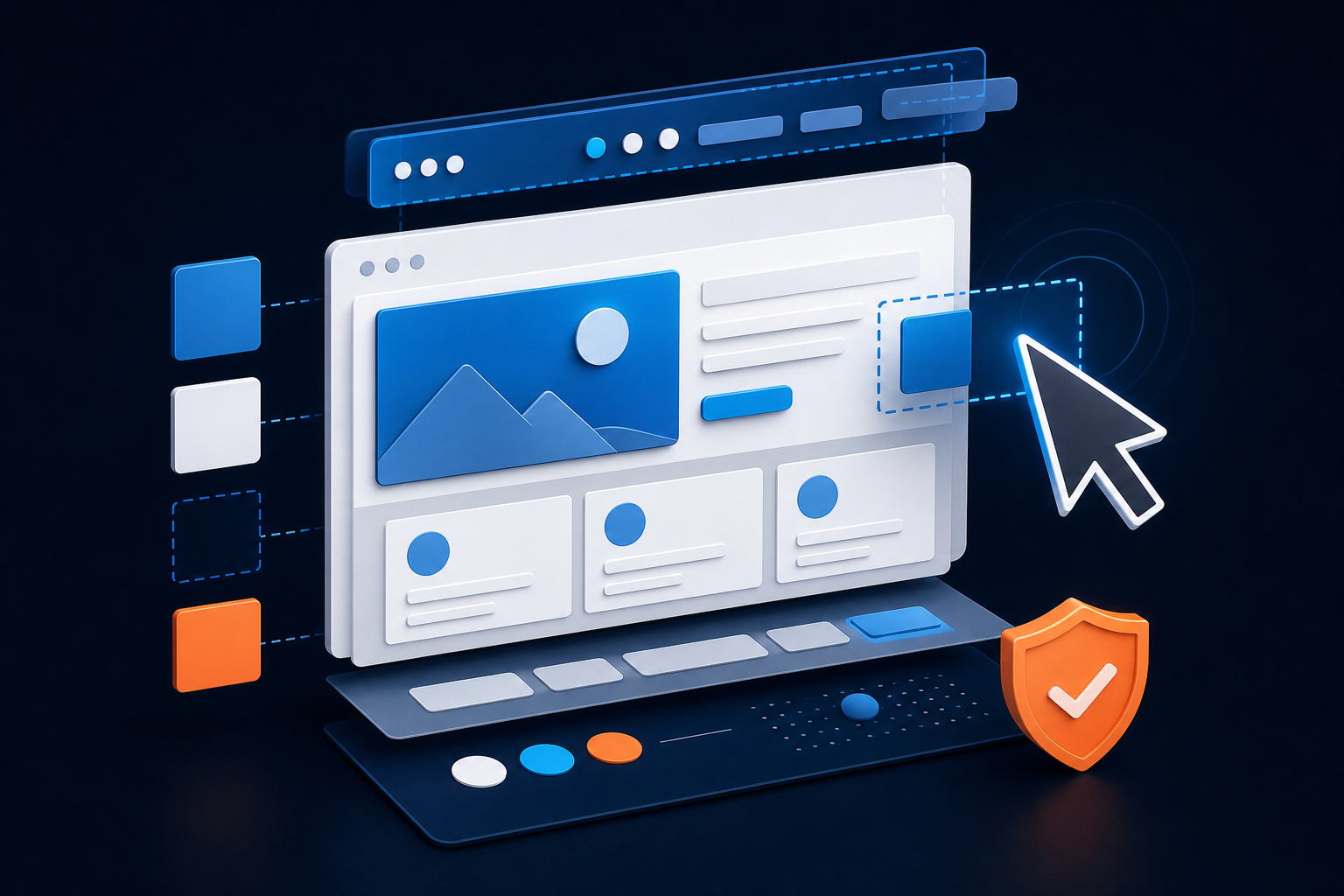

To edit a WordPress website, sign in to /wp-admin, open the content or design area you need to change, make the edit, preview it, and then save or publish it. The correct screen depends on what you want to change: page text is edited under Pages, blog content under Posts, uploaded files under Media, navigation under Appearance, and site-wide design through the Site Editor, Customizer, or theme settings.
In this guide
This guide explains how to edit a WordPress website without accidentally changing the whole site, overwriting a layout, or publishing an untested change. Before editing a live site, make sure you have an administrator or editor account, a recent backup, and a way to undo the change.
First, identify what you want to edit
WordPress separates content from the structure and appearance of the site. Identifying the correct area first is the safest way to avoid changing the wrong thing.
- Page text or layout: Open Pages, then select the page.
- Blog article: Open Posts, then select the post.
- Images or documents: Open Media to replace, edit, or inspect files.
- Navigation links: Use the menu or navigation management area under Appearance. The exact label varies by theme and WordPress version.
- Logo, colors, fonts, or global styles: Use the Site Editor for a block theme, or Customizer and theme settings for many classic themes.
- Footer, header, or reusable layout: Edit the relevant template or template part, not an individual page, if the change should appear across the site.
- Custom code: Use a child theme, a code-management plugin, or a developer workflow rather than editing a parent theme directly.
If you are unsure whether a change belongs to one page or the entire website, stop before saving. A template change can affect many URLs at once.
Make a safe editing plan before changing the live site
Simple text edits are usually low risk, but design, plugin, theme, and code changes can affect visitors immediately. Complete these checks before making anything more than a minor content update.
- Confirm your access. Make sure you can sign in and that your account has permission to edit the intended content.
- Record the current state. Note the page URL, take screenshots if the layout matters, and copy important text into a separate document.
- Check for a recent backup. A useful backup includes both the WordPress files and database. Confirm when it was created and how it can be restored; do not assume a backup plugin completed successfully.
- Use a staging site when available. Test theme, plugin, template, CSS, and code changes there first. Confirm that staging is not accidentally sending emails or indexing itself.
- Change one related group of settings at a time. This makes it possible to identify which change caused a problem.
Do not edit production database records, wp-config.php, server settings, DNS, or .htaccess merely to change page content. Those areas are powerful and mistakes can make the site unavailable. If a server-level change is genuinely required, download a copy first and ensure you have hosting or file-manager access for recovery.
How to edit a WordPress page or post
For ordinary website content, the block editor is the safest starting point.
- Sign in to the WordPress dashboard.
- Open Pages or Posts.
- Select the item you want to change, or choose the option to add a new one.
- Click the paragraph, heading, image, button, or other block you want to edit.
- Change the text or use the block settings panel to adjust options such as alignment, link destination, or image dimensions.
- Use Preview to inspect the result on the available device views.
- Save a draft, update the existing item, or publish the new item only after checking it.
Use blocks without damaging the layout
When a design looks complicated, click the surrounding blocks and inspect the block list or document outline. A column, group, cover, or reusable pattern may contain the element you need. Avoid deleting a parent group simply because the text inside it is difficult to select.
To move content, use the block toolbar arrows or drag the block in the outline. To duplicate a section, use the block’s options menu when available. Review mobile spacing after moving columns, buttons, or large images.
Check links and formatting before updating
- Open every new or changed link and confirm that it points to the intended URL.
- Use headings in a logical order instead of making ordinary paragraphs look like headings.
- Keep button labels descriptive and check that buttons remain visible against the background.
- Confirm that images have appropriate alternative text when they communicate information.
- Remove accidental extra spaces, empty blocks, and duplicated content.
For more advanced editor behavior, the official WordPress Documentation is the best place to confirm instructions when your dashboard labels differ.
How to edit images and other media
Open Media to upload a new image or select an existing file. You can edit basic attachment details such as the title, caption, alternative text, and description. The exact fields can vary depending on the WordPress version and plugins installed.
Changing an attachment’s details does not always change the image already inserted into a page. To replace an image in content, open the page or post, select the image block, and choose the replacement option if it is available. Then preview the page at desktop and mobile widths.
Before replacing an important image, note where it is used. A logo or featured image may appear in multiple templates, archive pages, social previews, or WooCommerce screens. If the problem concerns a featured image rather than an image inside the article, follow the separate featured image troubleshooting guide.
How to edit menus, headers, footers, and site-wide design
Site-wide edits require more care because one save can affect many pages.
Block themes and the Site Editor
If your theme supports full site editing, the site-wide design is commonly managed through Appearance and a Site Editor-related option. You may be able to edit templates, template parts, navigation, styles, headers, and footers. Labels vary by WordPress and theme version.
Before saving a template, identify whether you are editing a single page template, a post template, an archive template, or a shared template part. A footer template part, for example, can change the footer on the entire website.
Classic themes and the Customizer
Many classic themes use Appearance and Customize for the logo, colors, menus, widgets, and other theme options. Use the live preview where available, then publish only after checking the affected pages.
Navigation menus
Open the navigation or menu management screen provided by your theme. Check the menu location, item labels, URLs, and nesting. A menu item can be visible in the editor but absent from the header if it is assigned to the wrong location or a different header template is active.
If a menu broke after an update, do not immediately rebuild it. First check whether the theme is displaying a different menu location or template. You can also review the guide to fixing a broken WordPress navigation menu.
How to edit CSS, PHP, and plugin settings safely
CSS changes alter appearance, while PHP changes can alter how WordPress runs. Treat them differently from ordinary content edits.
- Small CSS adjustment: Prefer the theme’s additional CSS area or a child theme so an update does not erase your work.
- PHP or template change: Test on staging, keep a copy of the original file, and use version control or a child theme where appropriate.
- Plugin setting: Read the setting’s description, record its original value, and change one related option at a time.
- Theme file editor: Avoid using it for production code unless you have a tested backup and a recovery method. A syntax error can produce a critical error or blank page.

Never paste code from an untrusted source into a theme or plugin file. If a code change causes a critical error, the recovery path may require hosting file access or temporarily disabling the responsible extension. See how to troubleshoot a WordPress critical error before making additional changes.
Verify every WordPress edit after saving
Saving successfully does not prove that visitors see the intended result. Verify the published page from a logged-out browser or private window.
- Open the exact public URL, not only the editor preview.
- Test the page in a private browser window and at least one additional browser or device.
- Click changed links, buttons, navigation items, and forms.
- Check desktop and mobile layouts, especially columns, tables, images, and menus.
- Clear or bypass the relevant page, site, and CDN caches if the old version still appears. Purge only the necessary cache when possible.
- Review the page source or browser inspector only when you need to confirm that the new content, image, or styles are actually being delivered.
- Check one or two related pages if you changed a template, global style, widget, or header.
If the edit is not visible, compare the public URL with the URL you edited, confirm that the item is published, and check whether a cache or optimization layer is serving an older response. If only one browser is wrong, test extensions, cached assets, and browser-specific errors before changing WordPress settings.
Quick decision guide for common editing problems
- You cannot find the page: Check whether it is a post, page, draft, private item, or item in the trash. Search from the relevant content list.
- You can edit but cannot publish: Your user role or workflow plugin may restrict publishing. Ask an administrator to confirm permissions.
- Your change disappears: Check autosaves, revisions, editorial workflows, caching, and whether another user or synchronization process overwrote the edit.
- The editor is blank or keeps loading: Test in a private window, disable browser extensions, and review plugin or theme conflicts. Do not deactivate everything on a live site without a plan.
- The layout changes across the whole site: You likely edited a template, global style, widget, or template part instead of a single page.
- The old version remains public: Check page, object, browser, CDN, and hosting caches in that order, then verify the page’s publication status.
When professional help is safer
Ask for help before editing if the change involves a hacked site, a payment flow, custom theme code, a production database, DNS, server configuration, or a site with no usable backup. A professional can create a recovery point, reproduce the issue, and isolate the change instead of guessing on the live website. WP Fix It’s WordPress Site Repair service is an option when an edit has already caused a failure or the correct editing path is unclear.
Questions readers commonly ask about editing WordPress
Can I edit a WordPress website without coding?
Yes. Pages, posts, images, menus, and many visual design settings can be edited through the dashboard. Coding is only needed for some custom layouts, advanced styling, integrations, and theme behavior.
Why can I edit a page but not the header?
The header is usually controlled by a theme template, template part, Customizer setting, or header plugin rather than the page editor. Check the active theme’s documented editing area and confirm whether the site uses a block or classic theme.
How do I undo a WordPress edit?
For a recent page or post change, use the editor’s undo control or revisions if available. For a theme, plugin, database, or server change, restore the specific backup or reverse the documented setting. Do not restore an entire site when a smaller, verified rollback is sufficient.
Why does my WordPress edit show for me but not visitors?
You may be seeing an administrator-only preview or a cached version. Open the public URL while logged out, clear the relevant cache, and confirm that the edited item is published rather than saved as a draft.