


WordPress Facebook Groups integration can mean several different things: linking visitors to a group, sharing new posts automatically, displaying Facebook content, or adding a Facebook-based login. The safest approach depends on the result you want.
In this guide
In most cases, a simple group link or controlled sharing workflow is more reliable than installing a plugin that requests broad access to your Facebook account. This guide explains the practical options, their limitations, and how to troubleshoot the connection without compromising your WordPress site.
Choose the right Facebook Group connection
Before installing anything, define what should happen between WordPress and Facebook. These goals are different and should not be treated as one feature.
- Send visitors to your group: Add a button or text link to your navigation, page, sidebar, or footer.
- Share WordPress content to the group: Use Facebook’s sharing tools or an approved automation service.
- Show group content on your site: Use an official or supported embed where Facebook permits the content to be displayed.
- Let users sign in with Facebook: Configure a social-login solution and review its privacy requirements.
- Promote group membership: Add a clear call to action without automatically joining visitors or collecting unnecessary data.
Start with the least complicated method that meets your goal. A link is easier to maintain than an API connection, and a manual sharing process avoids many permission and token failures.
Method 1: Add a direct group link
A direct link is the most dependable form of integration. It does not require a plugin, Facebook API credentials, or a continuously running connection.
How to add the link in WordPress
- Copy the public URL of your Facebook Group from Facebook.
- In WordPress, open the page, post, menu, widget, or block pattern where the link should appear.
- Add a Button or Navigation block, then paste the group URL.
- Use descriptive link text such as Join our WordPress user community on Facebook.
- Open the link in a private browser window to confirm that visitors can reach the intended group.
If the group is private, visitors may need to sign in to Facebook and request membership. Do not describe a private group as publicly viewable.
Place the link where visitors already look for community resources: the header menu, contact page, account area, or a dedicated community section. Avoid adding the same promotional button to every paragraph.
Method 2: Share WordPress posts to the group
For occasional promotion, manual sharing is usually the safest workflow. Publish the WordPress article first, copy its canonical public URL, and share that URL in Facebook with a short explanation of why it helps the group.
Check the article in a logged-out browser before sharing it. Confirm that the page loads, images are visible, and visitors do not need administrator access. If Facebook shows an outdated title or image, refresh the page preview after correcting the article metadata and clearing the appropriate cache.
For automatic publishing, use a reputable connector that clearly explains its permissions and supported Facebook features. Social platforms can change their access rules, so a plugin that worked previously may stop publishing without a WordPress error.
Review an automation plugin before activating it
- Check when it was last updated and whether it supports your current WordPress environment.
- Read the permissions requested during Facebook authorization.
- Confirm whether it stores access tokens in WordPress.
- Look for a way to disconnect the Facebook account and revoke access.
- Test with one low-risk post before enabling automatic publishing site-wide.
- Make sure the plugin does not inject unwanted links, pop-ups, or tracking scripts.
Do not give a plugin your Facebook password. Proper integrations use Facebook’s authorization process rather than asking you to paste account credentials into a WordPress settings screen.
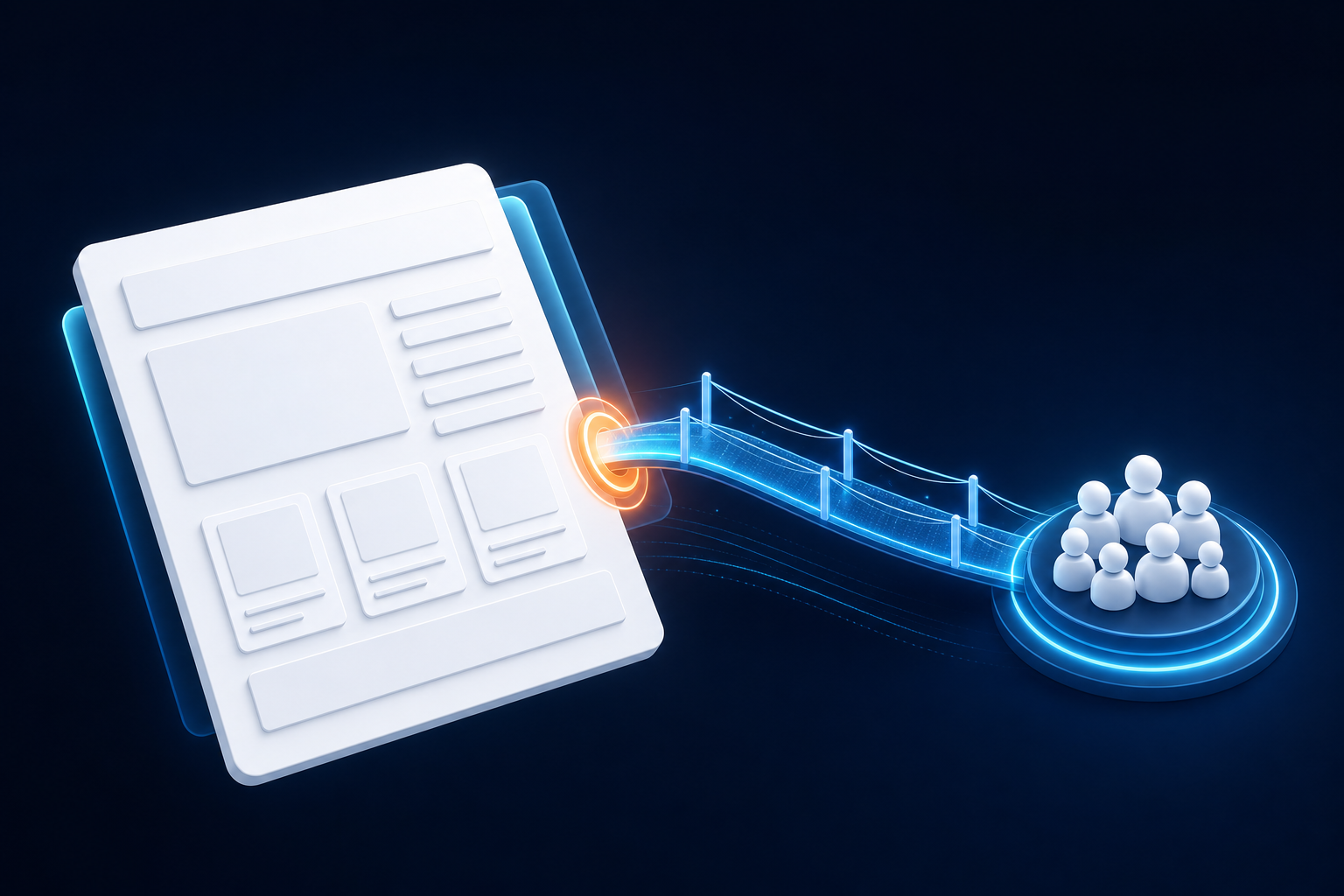
Method 3: Display Facebook content on a WordPress page
Displaying content from a Facebook Group is more restricted than linking to it. Facebook controls whether a particular post, video, or group page can be embedded, and private content may not be available to visitors who are not members.
When an embed is supported, use the sharing or embed option provided by Facebook and paste the resulting URL or code into the appropriate WordPress block. Exact block names vary by WordPress version and by the editor or plugin you use.
Keep important information in WordPress instead of relying entirely on an external feed. If Facebook changes the content, requires a login, blocks a request, or becomes unavailable, an external feed can leave an empty space on your page.
If an embed is blank or displays an error, review the troubleshooting steps in our guide to fixing broken WordPress embeds. Test the page while logged out, because an administrator’s Facebook session can make an embed appear to work when ordinary visitors cannot see it.
Method 4: Add Facebook login carefully
Facebook login is a separate integration from connecting visitors to a group. It can reduce registration friction, but it also introduces an external application, user-data considerations, redirect URLs, and another dependency during sign-in.
Before enabling social login, decide what account information WordPress actually needs. Request only the data required for account creation, provide a normal email-and-password registration option, and explain what happens if a visitor disconnects Facebook.
Check these items after setup
- New users can register without receiving an unclear or broken error.
- Existing users are not accidentally assigned to the wrong WordPress account.
- The callback or redirect URL matches the site address exactly.
- Login works on both desktop and mobile browsers.
- Password-reset and ordinary WordPress login still work if Facebook is unavailable.
- The privacy notice accurately describes the data collected by the integration.
If you need help accessing the dashboard while testing account integrations, see the WordPress login and dashboard troubleshooting guide.
Method 5: Build a simple community landing page
A dedicated WordPress page often produces a better experience than scattering Facebook links across the site. Explain who the group is for, what members can expect, and how to request access.
A useful community page can include:
- A short description of the group’s purpose.
- The type of questions, announcements, or discussions members will find there.
- Community guidelines and moderation expectations.
- A prominent link to the Facebook Group.
- An alternative contact method for visitors who do not use Facebook.
This approach keeps the permanent explanation on your own site while allowing Facebook to handle the community conversation. It also gives you a stable page to reference from email campaigns, menus, and support documentation.
Fix common WordPress Facebook integration problems
The group link opens the wrong page

Copy the URL again from the group’s current Facebook page rather than relying on an old bookmark. Remove tracking parameters when they are unnecessary, then test the final link in a private browser window.
The Facebook preview shows an old image or title
First verify the WordPress page itself. Correct its featured image, title, and public visibility, then purge the relevant page or CDN cache. Facebook may retain a previously fetched preview, so changing WordPress does not always update the preview immediately.
For broader featured-image diagnostics, read why WordPress featured images fail on posts or social shares.
The feed or embed works for administrators only
Log out of both WordPress and Facebook, then test in a private window. The content may be private, require group membership, depend on a consent cookie, or be visible only because your administrator session has extra access.
An integration plugin breaks the site
If the problem started immediately after activating a Facebook plugin, disable that plugin through the normal Plugins screen if possible. If the dashboard is inaccessible, use your host’s file manager or SFTP to rename only the suspected plugin directory, then contact the plugin author or your hosting provider.
Do not delete the plugin before preserving its settings and checking whether it created scheduled tasks or custom tables. If the failure is broader than the integration, professional WordPress site repair can help isolate the conflict without guessing.
Automatic sharing stopped
Check whether the Facebook connection expired, the page or group permissions changed, or the automation service reported a rejected request. Reconnect through the official authorization screen instead of entering credentials into a plugin form. Also confirm that the WordPress post is publicly accessible and not blocked by a maintenance, password, or security rule.
Security and privacy checks
Any third-party integration increases the number of systems that can access your site or visitor data. Keep the connection narrow and review it periodically.
- Use a current backup before installing a social integration.
- Install plugins only from sources you can evaluate and maintain.
- Limit administrator accounts and avoid sharing a Facebook login.
- Remove unused Facebook applications and disconnected plugins.
- Review privacy, cookie, and consent requirements for your audience.
- Keep WordPress, themes, and plugins updated from trusted sources.
For general WordPress guidance, consult the official WordPress Documentation.
Which method should you use?
Use a direct link when your priority is reliability. Use manual sharing when you publish occasionally and want control over the message. Use an embed only when the content is publicly available and the layout still works if Facebook is unavailable. Choose social login only when reducing registration friction justifies the additional maintenance and privacy work.
For most WordPress sites, a well-written community landing page plus a clear Facebook Group button provides the best balance of usability, security, and long-term maintenance.