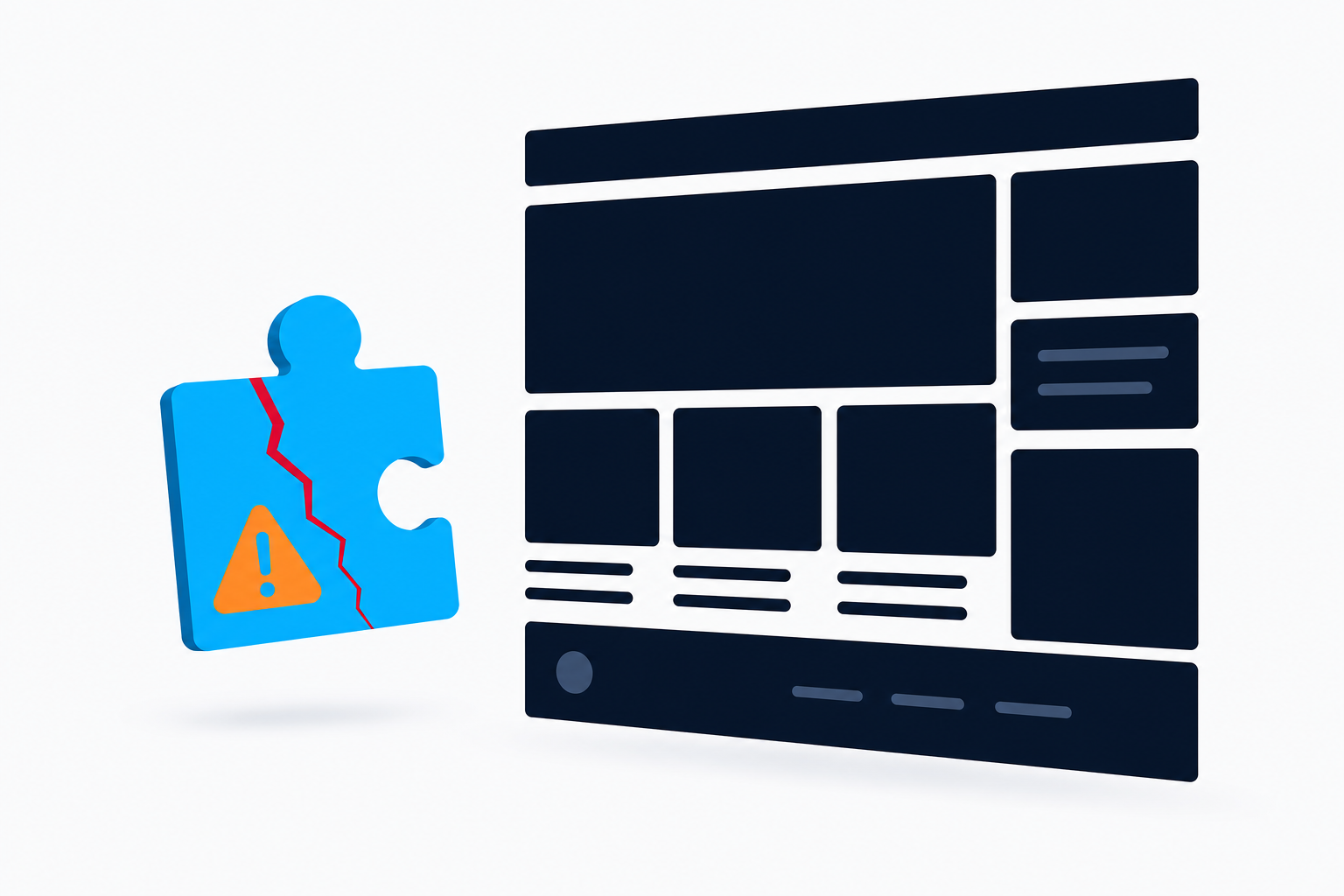

A fatal error in a WordPress plugin means PHP stopped executing code because the plugin encountered a condition it could not continue through. The result may be a blank page, a “There has been a critical error on this website” message, a broken front end, or an inaccessible dashboard.
In this guide
In most cases, your content is still in the database. The safest first move is not to delete files or edit the database: record the error, create a backup if possible, and temporarily deactivate the suspected plugin. Then update, roll back, or replace the plugin only after confirming the cause.
If the error blocks both your site and /wp-admin/, use the recovery email WordPress may send, your hosting control panel, or SFTP. This guide explains each route in the least-invasive order.
What a WordPress plugin fatal error looks like
The wording varies by PHP version, WordPress version, host, and plugin. Useful clues usually include the plugin directory, a PHP file, a line number, and an error type such as “Call to undefined function,” “Cannot redeclare,” “Allowed memory size exhausted,” or “Uncaught Error.”
- Only one feature fails: the plugin may be conflicting with a theme, another plugin, or a specific content type.
- The whole front end fails: the plugin may load on every request, or its update may be incompatible with your PHP version.
- Only the dashboard fails: an admin-only module, dashboard widget, or plugin settings screen may be triggering the problem.
- The error began immediately after an update: an incomplete update or compatibility change is a leading suspect.
Do not assume the plugin named in a visible message is always the only cause. A theme or extension can call a plugin function incorrectly, and memory exhaustion can expose a problem without identifying the original conflict.
1. Preserve the evidence before changing anything
Write down when the failure started and what happened immediately beforehand: a plugin update, PHP change, theme change, import, migration, or new integration. Save a screenshot or copy the complete error text.
Check the site owner’s WordPress recovery email. If WordPress generated one, it may contain a recovery link and identify the plugin that caused the crash. Recovery mode can allow an administrator to log in while the faulty extension is paused for that session.
Before editing files, make a backup of both the database and site files. If the dashboard is unavailable, use your host’s backup tool or ask the host how to create a restore point. Do not overwrite the only backup with a backup made after the failure.
2. Confirm whether the plugin is actually responsible
If you can access the dashboard, go to Plugins and deactivate the plugin named in the error. If the site immediately recovers, leave it inactive while you investigate. Do not reactivate it repeatedly on a production site just to reproduce the crash.
Test in a private browser window or after clearing the relevant page and object caches. Visit the page that failed and, where appropriate, open a few unrelated pages. A cached page can make a broken site appear fixed, while a stale cache can make a repaired site appear broken.
If the error remains after deactivating the named plugin, check whether an add-on, companion plugin, or theme depends on it. Deactivate only the related extension next, recording every change so you can restore the working configuration.
For a broader conflict test, temporarily deactivate all plugins and check the site. Reactivate them one at a time, testing after each activation. This is usually safe for files and content, but it can affect forms, scheduled tasks, commerce functions, and connected services. Perform it during a quiet period and avoid placing orders while WooCommerce-related components are inactive.
3. Recover when wp-admin will not open
Use hosting file access or SFTP
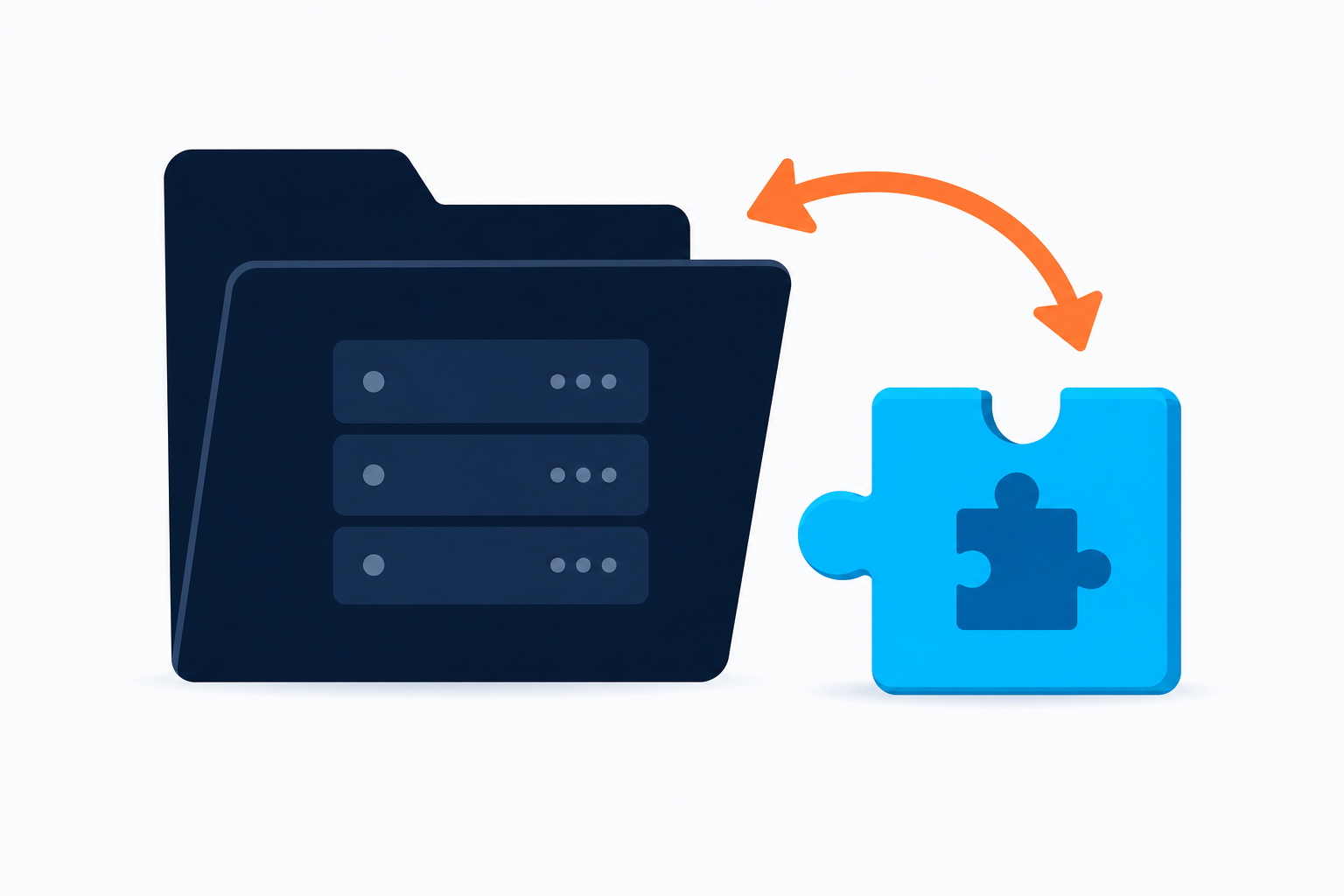
Ask your host for the document root if you are unsure where the installation lives. Using the host file manager or SFTP, open wp-content/plugins/. Rename the suspected plugin folder, for example from example-plugin to example-plugin.disabled. Renaming is reversible and normally causes WordPress to deactivate that plugin.
Do not rename the entire wp-content directory or delete the plugin folder as a first step. Keep the original files available for inspection, rollback, or reinstallation.
Deactivate all plugins only if necessary
If you cannot identify the plugin, rename wp-content/plugins/ to something temporary such as plugins.disabled. If the site recovers, create a new empty plugins directory and move plugin folders back one at a time, testing after each move. Confirm the exact folder names with your host or backup before making changes.
Once access returns, restore the normal directory name and use the dashboard to manage the plugins. If the error continues even with plugins disabled, the cause may be the active theme, a must-use plugin in wp-content/mu-plugins/, custom code, PHP configuration, or corrupted core files.
4. Read the error log without exposing it publicly
WordPress can log PHP errors to a file when debugging is enabled. If you need to enable logging, first create a backup and use a staging site when available. In wp-config.php, the settings commonly used for temporary logging are:
define( 'WP_DEBUG', true );
define( 'WP_DEBUG_LOG', true );
define( 'WP_DEBUG_DISPLAY', false );
These lines must be placed before the line that says WordPress has stopped editing the file. Exact configuration can vary by host. Confirm the file location and PHP error-log options with your hosting provider.
With display disabled, errors are written to wp-content/debug.log rather than shown to visitors. Protect that file from public access and turn debugging off after collecting the evidence. Never leave detailed errors displayed on a live site because they can reveal server paths, usernames, and configuration details.
Look for the first meaningful plugin path in the error, such as wp-content/plugins/plugin-folder/. The last file and line are where PHP stopped; they are not always the original design mistake. Keep the complete surrounding entries when asking the plugin developer or host for help.
5. Fix the most likely cause
Failed or incomplete update
If the error began during an update, check whether the plugin is fully installed and whether the host reported a timeout or file-permission problem. With the plugin deactivated, download a fresh copy from the original vendor or WordPress plugin directory and reinstall it through the dashboard or your host’s approved method.
Do not install a nulled or unofficial copy. It may be modified, unsupported, or unsafe. If the latest release is the cause, restore the previously working version from a trusted backup or use the vendor’s documented rollback process. Test the older version on staging first when possible.
PHP or WordPress compatibility
Compare the plugin’s requirements with your current WordPress and PHP versions. Your host usually shows the PHP version in its control panel, while WordPress may show environment information under Tools and Site Health; labels vary by version.
Do not change PHP on production solely to hide the error. A downgrade can create security and compatibility problems. If the plugin requires a different PHP version, test the change on staging and ask the host about a safe switch and rollback.
Plugin conflict
If the plugin works when other plugins are disabled, reactivate the others individually until the error returns. The last plugin activated is a strong suspect, but confirm by reversing the test. Check for duplicate features, outdated add-ons, and extensions that modify the same editor, checkout, membership, or caching process.
Memory exhaustion
An “allowed memory size exhausted” message means the request exceeded the PHP memory available to it. It may be caused by a plugin operation, a large import, image processing, or several resource-heavy plugins together. Ask your host what the account permits before changing WP_MEMORY_LIMIT or PHP limits. Increasing limits can mask an inefficient plugin and may not be allowed on managed hosting.
Custom code or a theme dependency
A plugin can fail because a theme or snippet calls a removed function, loads code too early, or assumes another plugin is active. Temporarily switch to a standard WordPress theme on staging or during a controlled maintenance window. If the fatal error disappears, inspect custom snippets and theme integrations rather than repeatedly reinstalling the plugin.
6. Verify the repair properly
- Clear page, object, CDN, and browser caches relevant to the site.
- Load the original failing URL while logged out and logged in.
- Test the dashboard screen that previously failed.
- Check a normal page, a form, search, and any plugin-specific workflow.
- Review the PHP and WordPress logs for new fatal errors.
- Confirm that scheduled tasks, webhooks, email notifications, and external integrations still work.
If the plugin is essential, test its main settings and output on staging before reactivating it on production. If the same fatal error returns after a clean reinstall, leave the plugin disabled and contact its developer with the exact error, plugin version, WordPress version, PHP version, theme, and conflict-test results.
Quick decision guide
- Started immediately after a plugin update: deactivate it, reinstall from a trusted source, or safely roll back.
- Only one plugin feature fails: test the related add-ons, theme integration, shortcode, or content item.
- Everything fails and the log names a plugin path: disable that plugin through recovery mode or SFTP.
- Multiple plugins fail with memory errors: check PHP limits, server resources, and the operation that triggered the crash.
- The error remains with all normal plugins disabled: inspect the theme, must-use plugins, custom code, core files, and hosting logs.
When file or database changes are too risky
Renaming one plugin folder is generally reversible. Editing wp-config.php, changing PHP versions, modifying .htaccess, deleting database rows, or restoring a backup can affect the entire site. Take a verified backup and confirm the rollback plan before attempting any of these actions.
Never delete plugin database tables to fix a PHP fatal error unless the plugin’s documentation specifically instructs you and you have a tested restore. Deactivation usually leaves settings intact, while deletion may remove data or make recovery harder.
If the site is a store, membership site, or lead-generation system and you cannot establish a safe staging copy, consider professional WordPress site repair before making production changes.
Answers to common plugin fatal-error questions
Will deactivating a plugin delete my content?
Normally, deactivation turns off the plugin’s code without deleting posts, pages, orders, or settings. A plugin may have its own cleanup behavior, so review its documentation before deleting it. Deactivation can still disable forms, layouts, shortcodes, or commerce functions until the plugin is restored.
Why does reinstalling the plugin not fix the fatal error?
The problem may be a conflicting plugin or theme, incompatible PHP version, damaged database data, a must-use plugin, or custom code. Reinstalling the same version cannot correct an environmental conflict. Use the error log and one-at-a-time testing to isolate it.
Can I fix the error by editing the line shown in the message?
Usually not safely. The displayed line is where execution stopped, and changing it can create silent data or security problems. Only edit plugin code when you understand the codebase, have a tested backup, and accept that updates will overwrite the change.
Where can I learn the official WordPress recovery and debugging practices?
Start with the official WordPress Documentation, then use the plugin developer’s support channel for plugin-specific compatibility questions. For a broader background on common failures, see WP Fix It’s guide to fixing common WordPress errors.