

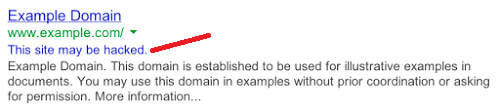
Are you seeing the message “This site may be hacked”?
We have heard numerous times from our customer that their sites have a message in Google search results expressing that they have been hacked. The actual message that will appear in the Google results will be “This site may be hacked”.
This message scares searchers away from visiting your site, in apprehension of getting some kind of infection or be diverted to spam or malware.
For some entrepreneurs, website admins, blog proprietors, and any individual who possesses a site, having your site hacked is a standout among the most troublesome issues to experience.
At the point when your WordPress website is hacked, it implies that somebody has accessed your site. This permits the hacker to perform any activity on your site. They can include spam content, divert guests to different destinations, introduce infections on guest’s computer, and gather sensitive data from your website.
On the off chance that the issue is not tended to, your site traffic will be influenced greatly and lead visitors away.
3 Steps to Getting Your Site Back to Safety
This is the approach to address the issue you are confronting. Here is the way you can begin on recuperating a site that has “This site may be hacked” message in Google.
1. Clean Up The Mess
This step is critical and must be completed first before you go any further. We can not ask Google to take a look at your site and verify it is not infected when there still may be malware or malicious code on your WordPress site. This post will not explain the detail of this step but you can follow the steps outlined in the link below for an easy clean out of the majority of infections that exist. We also can do the cleaning for you with our WordPress Infection Malware Virus Removal.
Quick Steps to WordPress Infection Cleanup:
https://www.wpfixit.com/oh-snap-my-wordpress-site-just-got-infected-now-what/
2. Verify Ownership of Site
You have to enlist and confirm your site in Google’s Search Console first. You can verify ownership of your site through meta label, HTML document or Google Analytics code.
When you’ve confirmed your site, you can check the security issues you are having. There is an area inside of the Search Console that will show you any security issues your site is having. Google will list actual URLs that are malicious and causing the “This site may be hacked” message.
Take action and make sure you examine any of those URLs for content that you have not added or approved for display on your site.
3. Request a Site Review from Google
If you are certain that all security issues on your site have been cleaned out or removed, it is time to been Google into the mix for a site review. This will prompt Google to double check that your site is in fact clean and there is no content that will trigger the “This site may be hacked” message is search results.
This site review process can take up to 72 hours to complete and once completed you will be notified at the email address on your Google Search Console account.
Hopefully if you did step #1 properly, Google Search Console will give your site a clean bill of health and remove the “This site may be hacked” message from all search results.
What to do if your WordPress site is clean but Google still shows the warning
Cleaning the visible malware is only the first step. If Google still displays “This site may be hacked” after cleanup, do not assume that the warning will disappear immediately. Google must recrawl the affected pages and confirm that the security issue is no longer present.
- Check the complete site in Google Search Console. Open the Security issues report for the verified property. Review every example URL and issue listed there, including pages you did not know existed. Hacked sites can contain injected posts, spam URLs, altered files, redirects, or malicious code that is not visible from the home page.
- Remove the cause, not only the warning. Scan the WordPress files, database, themes, plugins, administrator accounts, and server settings as appropriate. Update or remove vulnerable software, delete unauthorized users, and change relevant passwords after the site has been secured. If the infection is not fully removed, requesting another review is unlikely to resolve the warning.
- Request a security review. After all reported issues have been corrected, use the review request option in the Search Console security report. Describe what was fixed and provide enough detail for Google to understand the cleanup. Submit the request only when the site is ready for inspection.
A review is different from simply checking whether the site loads normally. Google evaluates the security problems it detected, and the warning may remain while its systems process the review and recrawl the affected content. If the review is unsuccessful, return to the Security issues report, investigate any remaining or newly identified URLs, complete the cleanup, and submit a new review request.
Also test the site while logged out and check important URLs directly. A site can appear clean to an administrator while visitors or search engines are redirected to spam or exposed to injected content. Keep the Search Console property verified so you can monitor the report after the warning is removed.