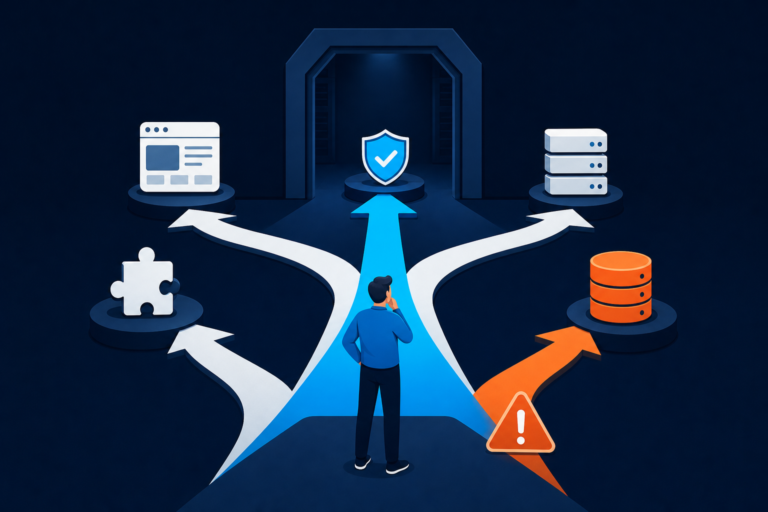

When a WordPress plugin or theme update breaks your layout, the cause is often not the page content itself. A browser, caching plugin, CDN, or server may still be loading an old stylesheet, while the updated theme or plugin expects a different file. In other cases, the update may have introduced a CSS conflict or failed to publish its stylesheet correctly.
In this guide
This guide explains how to fix broken CSS in WordPress without immediately editing theme files or reinstalling the site. Work through the checks in order, and take a backup before changing files, disabling extensions, or rolling anything back.
What broken CSS looks like after an update
CSS problems can affect the entire site or only pages that use a particular plugin or template. Common symptoms include:
- The page displays as plain text without colors, spacing, or columns.
- Menus, buttons, forms, or popups are incorrectly positioned.
- A page builder’s design disappears on the front end but remains visible in the editor.
- Only logged-out visitors see the broken layout.
- The desktop layout works while the mobile layout is unusable.
- Browser developer tools show stylesheet files returning 404, 403, or 500 errors.
First, open the affected page in a private browser window and perform a hard refresh. If the page looks correct there, the problem is probably cached CSS rather than a permanent theme failure.
1. Clear every relevant cache safely
Old CSS is one of the most common reasons a site looks broken immediately after an update. WordPress caching can exist in several separate places, so clearing only your browser cache may not be enough.
Clear caches in this order
- Use a private browser window to confirm the current appearance.
- Clear your browser’s cached files, then reload the page.
- Purge the cache in your WordPress caching or optimization plugin.
- Clear any host-level or server-side cache from your hosting control panel.
- Purge the CDN or reverse-proxy cache, if your site uses one.
- Regenerate CSS files if your theme or page builder provides that option.
Look for labels such as Purge Cache, Clear Cache, Delete Cache, Regenerate CSS, or Rebuild Assets. Exact labels vary by plugin and version.
If you use CSS and JavaScript optimization, temporarily turn off file concatenation, minification, and CSS loading optimization. These features can continue serving an outdated combined stylesheet even after the original files have been updated.
Do not permanently disable caching just because it is involved in the symptom. Once the layout is fixed, enable features one at a time and purge the cache after each change.
2. Check whether the stylesheet is missing or blocked
If clearing caches does not help, inspect the page’s stylesheet requests. In Chrome, Edge, or Firefox, right-click the page, choose Inspect, open the Console or Network tab, and reload the page. Filter the network requests by CSS.
Pay attention to the status of the stylesheet files:
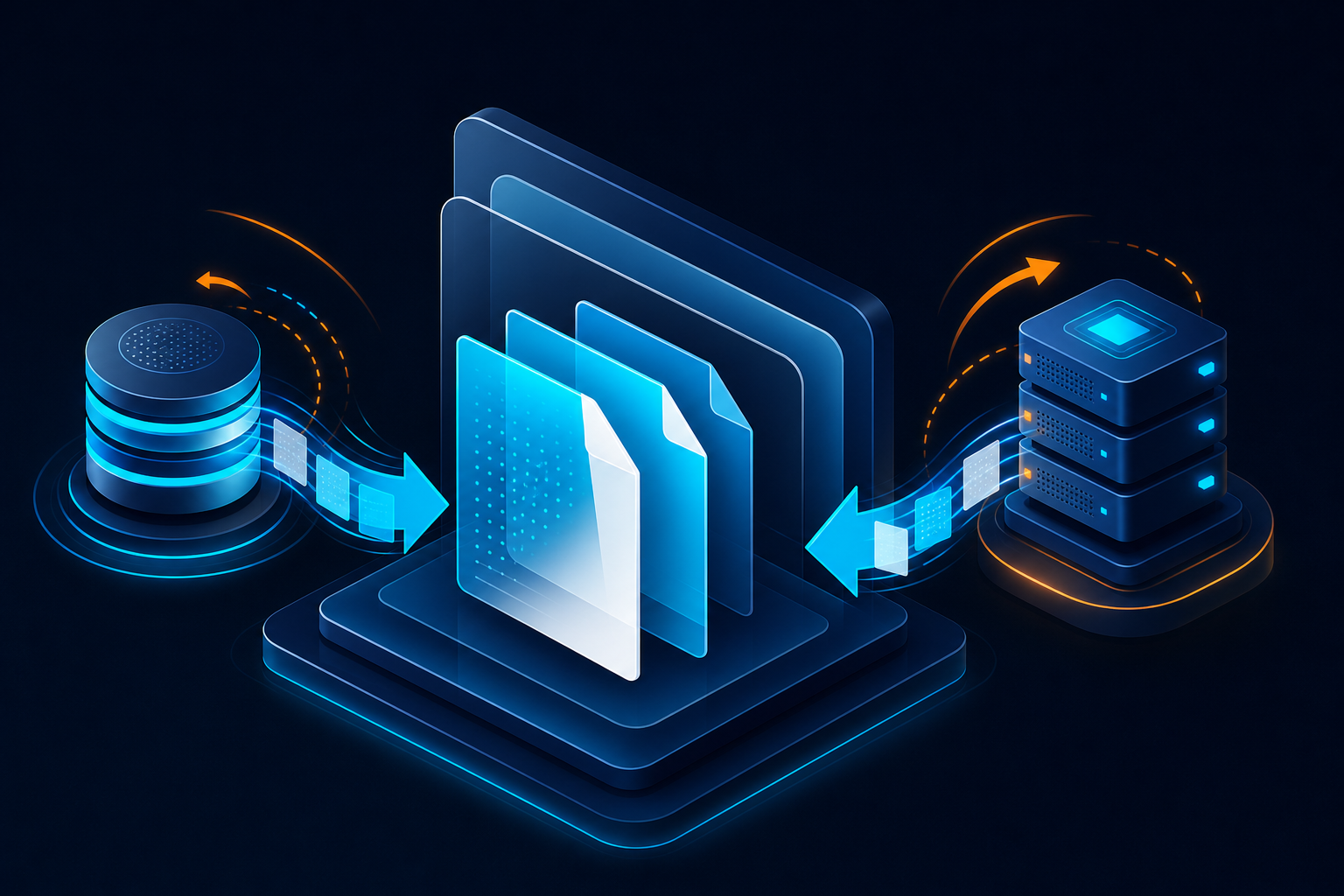
- 200: The file was found, so the problem may be conflicting rules, incorrect load order, or stale generated CSS.
- 404: The requested stylesheet does not exist at that path. The update may have changed or failed to create the file.
- 403: A security rule, file permission, CDN, or host configuration may be blocking the file.
- 500: The server encountered an error while attempting to generate or serve the stylesheet.
- Blocked or mixed content: The page is using an insecure HTTP asset on an HTTPS site, or the browser is blocking it for another security reason.
Click a failed request and compare its URL with your site’s current domain, HTTPS setting, and WordPress installation path. A stylesheet URL pointing to an old domain, staging address, or incorrect subdirectory usually indicates a configuration or generated-file problem rather than a design problem.
For background on WordPress file and code behavior, consult the official WordPress Developer Resources.
3. Regenerate theme or page-builder CSS
Many themes and page builders generate CSS files outside the main theme stylesheet. An update can leave those generated files out of sync with saved design settings.
Open the affected theme or builder settings and look for a tool to regenerate, rebuild, or synchronize CSS. Before doing this, save any pending design changes. Then clear the WordPress and CDN caches and test the page while logged out.
If the problem affects only one page, open that page in its editor and save it without making changes. Some builders rebuild the page’s CSS when it is saved. If this does not work, check whether the page uses a deleted template, an unavailable global style, or a widget supplied by the updated plugin.
A regenerated stylesheet can expose a second issue: file permissions. The web server must be able to read the generated CSS file, and the WordPress process must be able to write to the directory when regeneration is required. Avoid changing permissions broadly. Ask your host to verify the affected directory if the generated file repeatedly disappears or cannot be created.
4. Find a plugin or theme conflict
Updates can change CSS selectors, loading order, or class names. A second plugin may still assume the old markup, or an optimization plugin may combine files in an order that no longer works.
Use a controlled conflict test
- Make a current backup or create a staging copy.
- Record which plugins and theme are active.
- Temporarily disable recently updated plugins, especially page builders, visual effects, optimization tools, and custom CSS tools.
- Reload the affected page in a private window after each change.
- If the layout returns, reactivate the plugins one at a time to identify the conflict.
- Leave the conflicting plugin disabled until its developer provides a compatible update or configuration.
Do not deactivate security, backup, or caching tools on a production site without understanding the effect. A staging site is the safest place for a full conflict test. If you cannot access the dashboard, use your host’s staging tools or a support method that does not delete plugin files.
If the theme is involved, temporarily switch to a default WordPress theme on staging. If the layout returns, inspect the updated theme’s changelog, customizations, child theme, and template overrides. Never overwrite a customized parent theme to solve a CSS problem without preserving your changes.
For a related update problem involving site navigation, see How to Fix a Broken WordPress Navigation Menu After an Update. A menu-specific failure may be caused by markup or JavaScript even when it first appears to be a CSS issue.
5. Check custom CSS and selector changes

Custom CSS saved in the Customizer, Site Editor, a page builder, or a separate CSS plugin may target classes that an update removed or renamed. The rules can still load successfully while no longer matching the new HTML.
Inspect the affected element and compare its current class names with your custom rules. Look for selectors that reference old theme classes, widget wrappers, or page-builder markup. Also check for rules using !important, fixed widths, negative margins, or high z-index values; these can override the updated design unexpectedly.
Make one small change at a time and document it. Avoid placing permanent fixes in a parent theme’s files because a future update can erase them. Prefer a child theme, the WordPress Additional CSS area, or the theme’s documented customization method.
If you need to compare a rule before and after the update, browser developer tools can temporarily disable declarations. This lets you identify the responsible rule without editing the live site.
6. Roll back only after preserving evidence
If the update clearly caused the failure and no compatible setting is available, a rollback can restore the previous working version while you investigate. Back up both the database and files first, and use a staging site whenever possible.
Before rolling back, save:
- The plugin or theme version that is currently installed.
- Browser console errors and failed CSS request URLs.
- Copies of relevant custom CSS and configuration settings.
- A screenshot or description of the affected templates and devices.
Use a reputable rollback method supplied by your host or a maintained rollback tool. Do not download an old plugin or theme from an untrusted source. A rollback may reintroduce security or compatibility problems, so treat it as a temporary recovery step and contact the developer with the evidence you collected.
If an update has caused a wider site failure, the WordPress Site Repair service can be appropriate when you need help preserving the site while isolating the update-related problem.
How to prevent CSS failures during future updates
- Take a backup before updating a theme, page builder, or optimization plugin.
- Test major updates on staging before applying them to production.
- Keep a record of custom CSS and theme overrides.
- Update related plugins and themes according to the developer’s compatibility guidance.
- Purge generated CSS and CDN caches after updates that change front-end assets.
- Check important pages while logged out on desktop and mobile.
- Avoid running several tools that minify or combine CSS at the same time.
For general WordPress administration and troubleshooting references, the official WordPress Documentation is a useful starting point.
When broken CSS needs deeper investigation
Ask for hosting or developer help when stylesheet files continue returning server errors, generated files cannot be written, the problem affects only certain visitors, or the update changed templates across the site. These symptoms can involve permissions, a CDN rule, PHP compatibility, server configuration, or a deeper plugin conflict.
Do not repeatedly reinstall plugins or edit core files as a first response. Preserve the failed request details, identify when the problem began, and test one variable at a time. That approach usually restores the layout faster and prevents a temporary CSS symptom from becoming a larger WordPress outage.
When WordPress Additional CSS Is Not Working
If WordPress Additional CSS is not working, first determine whether the CSS is missing, overridden, or targeting markup that changed during the update. Open the affected page while logged out, then use your browser’s developer tools to inspect the element you intended to change.
- Confirm the rule is present. In the page source or developer tools, search the loaded stylesheets for a distinctive part of your rule. If it is absent, save the Additional CSS again and clear the browser, WordPress, server, and CDN caches. If your theme uses the Customizer or Site Editor, make sure you are editing the active theme’s CSS area.
- Check whether the selector still matches. Inspect the element and compare its current classes, IDs, and surrounding markup with your selector. A plugin or theme update may have renamed a class or changed the page-builder wrapper, so the CSS can load correctly without affecting anything.
- Check the winning rule. In the Styles or Computed panel, look for a rule that overrides yours. More specific selectors, later-loaded stylesheets, inline styles, and
!importantcan all take precedence. Temporarily disable competing declarations to confirm the cause, then make the smallest permanent change needed. - Test generated and optimized CSS. Temporarily disable CSS minification, concatenation, and other optimization features. Regenerate CSS from the theme or page builder if that option exists, purge caches, and test again in a private window.
If only the WordPress dashboard looks broken, inspect the browser’s CSS requests while viewing the affected admin screen. A 403, 404, or 500 response may indicate a blocked, missing, or incorrectly generated admin stylesheet rather than a problem with Additional CSS. Test from another browser and ask the host to check security rules, file permissions, and server errors before changing files.
For CSS tools such as CSS Hero, use the same process: save or regenerate the tool’s generated styles, clear every relevant cache, and verify that its selectors still match the updated theme or plugin markup. Avoid repeatedly rerunning a CSS fix without recording failed URLs, console errors, and the first update associated with the problem.