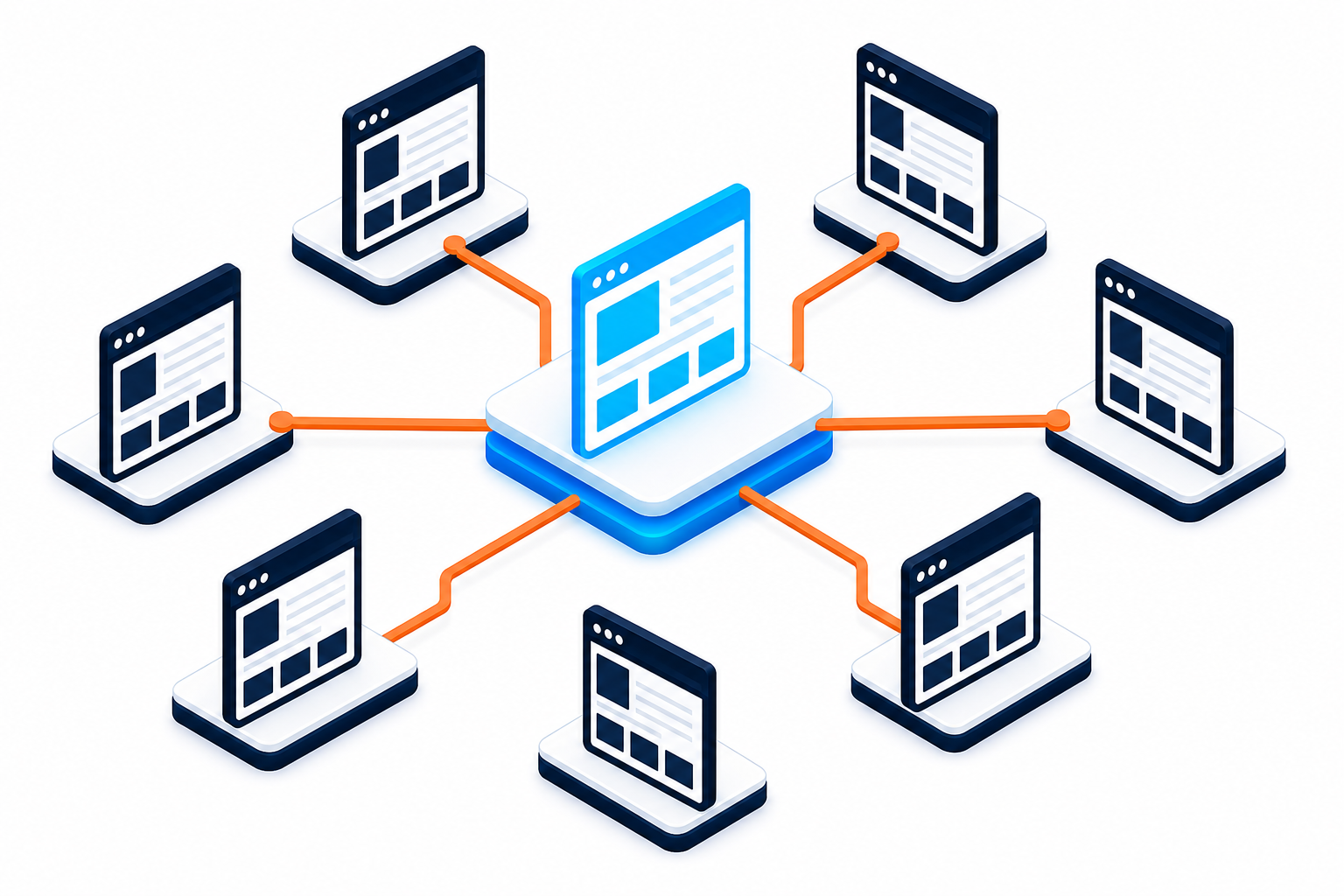

If an SEO crawler reports that a canonical URL has no incoming internal links, it means no page on your site links to the URL marked as the preferred version. That can be harmless when the URL is intentionally excluded from navigation, but it can also reveal an orphaned page, a duplicate URL, or an incorrect canonical tag.
In this guide
The safest fix is not to add random links immediately. First confirm that the canonical URL is correct, accessible, indexable, and useful. Then either link to it from relevant content or change the canonical relationship so search engines receive one consistent signal.
What “canonical URL has no incoming internal links” means
A canonical tag typically appears in the page source like this:
<link rel="canonical" href="https://example.com/preferred-page/">It tells search engines which URL should represent a group of substantially similar pages. An incoming internal link is a link from another page on the same website to that canonical URL.
For example, a filtered product URL might declare the main product page as canonical:
/shop/product-blue/?size=largeis the alternate URL./shop/product-blue/is the canonical URL.- A crawler reports that no internal page links directly to
/shop/product-blue/.
This report does not automatically mean the canonical tag is broken. Google can discover URLs through XML sitemaps, external links, redirects, or other signals. However, internal links help establish which URL matters and make the preferred page easier for visitors and crawlers to find.
Decide whether the report is actually a problem
Before editing templates or SEO settings, inspect the reported canonical URL in a private browser window and while logged out. Check the following:
- It loads successfully: The URL should return the intended page rather than a 404, redirect chain, login screen, or server error.
- It is the preferred version: Confirm the page is the version you want indexed, including the correct protocol, domain, path, trailing slash convention, and language version.
- It is useful: The page should contain meaningful content rather than being a thin filter, attachment, internal search result, or administrative URL.
- It is indexable: Look for an accidental
noindexdirective, restrictive robots rules, or access controls. - Its canonical is self-consistent: Open the preferred page source and confirm it points to itself, unless a deliberate alternate setup exists.
If the page is intentionally hidden and its canonical points to a public parent page, no incoming link may be expected. Document the reason and avoid changing it solely to satisfy a crawler warning.
Find why no page links to the canonical URL
1. The page is orphaned
An orphaned page exists but is not linked from navigation, category pages, related content, products, or other useful site sections. This commonly happens after a redesign, content migration, or removal of an old menu item.
If the page is important, add a contextual link from one or more relevant pages. Link wording should describe the destination naturally. Do not add a block of unrelated links just to increase the link count.
2. The canonical points to the wrong URL
A plugin or theme may generate a canonical URL based on an outdated domain, HTTP address, staging URL, attachment page, parent product, or similar page. This can leave the reported canonical without any legitimate internal links.
Compare the canonical value with the page’s actual permalink. Also check whether WordPress Address and Site Address use the same preferred HTTPS domain. If the canonical differs because of an old migration or domain change, correct the site-wide URL configuration and SEO settings carefully.
3. Internal links use a different URL format
These URLs may resolve to the same content but create confusing signals:

http://example.com/page/instead of HTTPShttps://www.example.com/page/instead of the non-www domain/pageinstead of/page/- A URL containing tracking or filter parameters
- An old URL that only redirects to the canonical
Update important internal links so they point directly to the final preferred URL. This reduces redirect dependence and makes the site structure clearer.
4. The page is only referenced by an XML sitemap
An XML sitemap is useful, but it should not be the only discovery path for an important page. If the URL belongs in search results, connect it to the site’s information architecture through relevant content, category pages, breadcrumbs, or navigation.
How to fix an orphaned canonical URL in WordPress
Step 1: Confirm the preferred URL
Copy the canonical URL into a browser and inspect the final address after redirects. It should resolve to one public, indexable page. If it redirects to another URL, the canonical should generally be updated to the final destination rather than the intermediate address.
For a broader explanation of duplicate URL diagnosis, see our guide to fixing broken canonical tags and duplicate URL issues.
Step 2: Add useful internal links
Choose pages that are genuinely related to the destination. Good locations may include:
- A service or product category page
- A relevant blog article
- A parent topic or pillar page
- Breadcrumb navigation
- A carefully selected primary menu item
Use descriptive anchor text and place the link where it helps the reader. A single strong contextual link is more useful than dozens of footer links that appear on every page.
Step 3: Repair the page’s own canonical setting
Most WordPress SEO plugins provide a canonical URL field in the page or post’s advanced settings. The exact label varies by plugin version. Leave the field empty when the plugin correctly generates a self-referencing canonical, or enter the preferred URL only when you have a documented reason to override the default.
Do not add a second canonical tag in a theme header, custom code snippet, and SEO plugin at the same time. Multiple canonical tags can conflict and make the preferred URL unclear. If you suspect that problem, follow this diagnostic guide for multiple canonical tags.
Step 4: Check menus, taxonomies, and templates
If the page should be part of the site structure, inspect the Navigation editor or menu settings, category and tag archives, related-post widgets, breadcrumbs, and custom theme templates. A redesign may have removed the only link to the page.
For a custom theme or template, inspect the generated HTML rather than assuming the editor contains the missing link. WordPress’s Developer Resources can help when a developer needs to trace template output or query logic.
Step 5: Clear caches and recrawl
Purge page, object, CDN, and browser caches as appropriate. Then view the page source again while logged out. Confirm that the canonical and internal links show the corrected URLs. Re-run the crawler or request a fresh inspection in your search platform after the changes have had time to be processed.
When you should not add an internal link

Adding an internal link is not always the correct answer. Leave the structure unchanged, or use a different fix, when:
- The URL is a private, thin, or utility page.
- The URL is an internal search result or temporary filter.
- The page is deliberately consolidated into a stronger parent page.
- The canonical page is no longer needed and should be redirected or removed.
- The URL belongs to a different language or regional version with a deliberate alternate relationship.
In these cases, review the page’s canonical, redirect, noindex, hreflang, or sitemap settings instead of creating a misleading link. If canonical and hreflang signals disagree, correct the relationship across the complete language set rather than changing only one page.
Common mistakes that create more canonical problems
Adding a self-link everywhere
A site-wide footer link to the canonical URL may technically create incoming links, but it does not repair a weak content relationship. Use contextual links when the destination is relevant.
Canonicalizing unrelated pages
Canonical tags are not a substitute for redirects or a way to combine pages that only share a keyword. The source and preferred pages should be substantially similar or part of a clearly understood duplicate relationship.
Editing page source without finding the generator
A canonical may come from an SEO plugin, theme, multilingual plugin, custom code, or server layer. If you add a hard-coded tag without disabling the original generator, you can create multiple canonical tags.
Changing URLs without a redirect plan
If the preferred URL must change, update internal links, canonicals, sitemaps, and redirects together. Keep the old URL redirecting to the final relevant page rather than creating a chain of redirects.
For related redirect behavior, see how to troubleshoot WordPress redirect loops after SSL or Cloudflare changes.
A practical verification checklist
Use this checklist after making a change:
- Open the canonical URL while logged out.
- Confirm it returns the intended status and content.
- Confirm it does not redirect through several URLs.
- View the source and verify there is one canonical tag.
- Confirm the canonical uses the preferred HTTPS domain.
- Check for accidental
noindexor blocking rules. - Find at least one relevant internal link to the page if it should be discoverable.
- Check that important links use the final canonical URL directly.
- Update the XML sitemap if the page’s status or URL changed.
- Recrawl and monitor the report rather than repeatedly editing the page.
When to get help with canonical URL issues
Professional assistance is worthwhile when different plugins output conflicting canonicals, a migration created many URL variants, multilingual relationships are involved, or the reported URLs change after every cache purge. Avoid making bulk database or template edits until you have a backup and understand which system generates each tag.
For ongoing updates, monitoring, backups, and security maintenance across one or more WordPress sites, WP Fix It Care and Site Manager can provide a managed path. For a single complex repair, you can also review the WordPress site repair service.
The short answer
A canonical URL with no incoming internal links is a diagnostic clue, not an automatic error. If the page is valuable, make sure it is the correct canonical and add relevant internal links from pages that help visitors reach it. If the URL is intentionally excluded, leave the link structure alone and verify that its canonical, redirect, indexing, and sitemap signals are deliberate and consistent.
What to Check When a Canonical Is Missing or Points to HTTP
A crawler may report a missing canonical when it cannot find a valid rel="canonical" element in the page source. This is not automatically an error. A page can still be valid when WordPress or an SEO plugin intentionally omits the tag, but important indexable pages should usually have one clear preferred URL.
- View the rendered source while logged out. Search for
rel="canonical", not just the page editor. The tag may be generated by an SEO plugin, theme, multilingual plugin, or server-side system. - Check the canonical value. It should use the public HTTPS domain and the final path you want indexed. Confirm the protocol, www or non-www version, trailing slash style, and language or regional path.
- Test the HTTP version separately. If
http://redirects to an HTTPS homepage, determine whether that is an intentional site-wide HTTPS redirect or an incorrect redirect caused by a migration, domain setting, or server rule. The HTTPS page should normally contain the canonical; the HTTP URL should not be treated as a separate preferred page. - Check the homepage separately from inner pages. A homepage canonical should point to the preferred HTTPS homepage, not to an old domain, staging address, or unrelated page. An inner page should generally canonicalize to itself unless it is deliberately consolidated with a substantially similar page.
- Find the generator before editing. If the source has no canonical, inspect the SEO plugin’s canonical field and settings, then check for theme or custom-code output. Do not add a second tag until you know why the first one is absent.
After correcting the setting, clear relevant caches and inspect the source again while logged out. Confirm there is one canonical tag, the URL returns the intended page without an unnecessary redirect chain, and important internal links use that final HTTPS URL directly. A crawler may continue showing the old result until it recrawls the page.