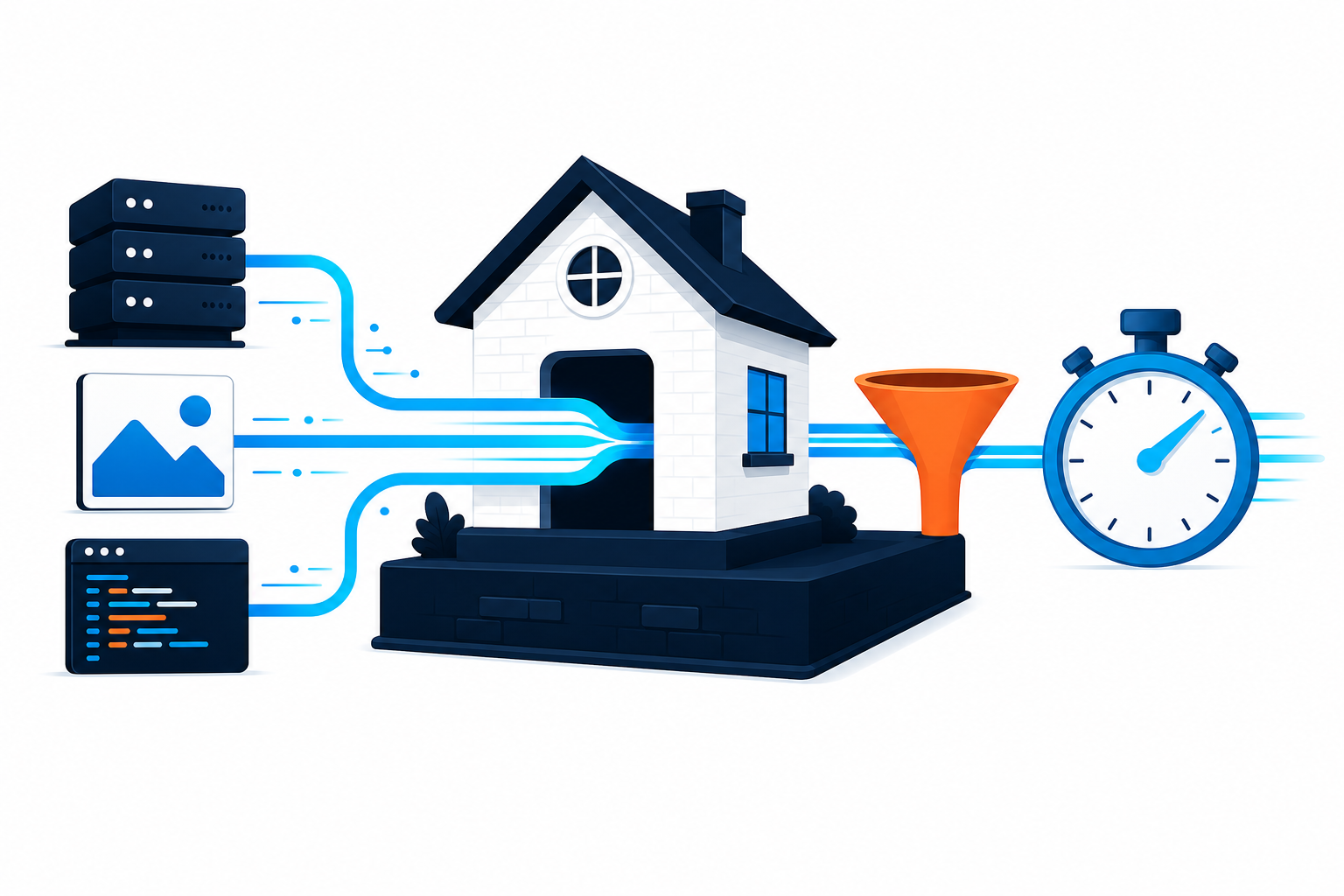

WordPress speed optimization is not simply a matter of installing a caching plugin or deleting a few plugins. The right fix depends on what is slow: the server response, images, JavaScript, CSS, third-party services, or database queries. Start by measuring a representative page, identify the largest bottleneck, and make one controlled change at a time.
In this guide
This approach prevents a common problem: stacking optimization plugins until the site becomes difficult to troubleshoot. It also helps you distinguish a slow WordPress site from a slow test caused by an uncached page, an overloaded server, or a third-party request.
1. Prepare a safe speed test
Before changing anything, make sure you can reverse the change. Create a current backup of the database and files, and use a staging site if your host provides one. Do not run large database cleanup operations or edit wp-config.php, .htaccess, DNS, or server configuration on production without a rollback plan.
Test the right pages
Do not test only the homepage. Check at least one important page from each relevant type:
- The homepage
- A typical blog post or page
- A media-heavy landing page
- A WooCommerce product or category page, if applicable
- The cart or checkout, tested carefully without completing an order
Run each test more than once. The first request may be uncached, while later requests may use the page cache or CDN. Record the page URL, device type, location, test date, and whether the request was a first or repeat visit. Testing from different locations can also reveal a hosting or CDN problem that is not obvious from your own connection.
Useful tools may label measurements differently, but look for patterns rather than one perfect score. Pay attention to server response time, largest content element, layout movement, long JavaScript tasks, total page requests, and the size of downloaded resources.
For background on maintaining a WordPress installation safely, see the official WordPress Documentation.
2. Decide whether the bottleneck is the server or the page
The first useful split is whether the browser is waiting for WordPress to generate the page or whether the page has already arrived and is slow to render.
Signs of a server-side problem
- The initial server response is slow even on a simple page.
- Several unrelated pages are slow at the same time.
- The site becomes much slower during traffic spikes or scheduled tasks.
- Logged-in users experience delays that anonymous visitors do not.
- The hosting account shows high CPU, memory, PHP worker, or disk usage.
Signs of a front-end problem
- The server responds promptly, but the page remains busy loading.
- Large images dominate the transfer.
- JavaScript blocks the page or causes interactions to lag.
- External fonts, advertising, analytics, chat, video, or social widgets load slowly.
- Only one template or page type is affected.
If the server response is consistently slow, reducing image dimensions will not solve the underlying issue. Check hosting resource graphs, PHP error logs, scheduled tasks, object caching availability, and unusually expensive plugins. If you cannot access those records, ask your host which resource is being exhausted rather than upgrading blindly.
3. Confirm caching before adding more optimization tools
A page cache stores generated HTML so WordPress does not rebuild the same page for every anonymous visitor. Many hosts provide caching at the server or platform level; a plugin may also provide page caching. These systems can conflict when several tools attempt to control the same cache behavior.
- Identify whether your host, CDN, or existing plugin already provides page caching.
- Clear the existing cache after a change, then load the page in a private browser window.
- Test once as an anonymous visitor and once while logged in.
- Check whether pages containing personal, cart, or checkout information are excluded from full-page caching.
- Confirm that a newly published or edited page updates correctly after purging its cache.

Do not cache account pages, carts, checkout pages, or other user-specific responses as ordinary public HTML. A caching mistake can expose one visitor’s content to another or make a site appear broken.
If caching is enabled but the first response remains slow, investigate why pages are bypassing the cache. Cookies, query strings, logged-in status, cache exclusions, security rules, and inconsistent HTTP/HTTPS settings can all matter. If only administrators see the delay, compare the same URL while logged out before changing cache settings.
4. Reduce image and media cost without damaging quality
Images are often the largest individual files on a WordPress page. The safest improvement is to upload an image close to the largest size actually displayed instead of sending a very large original and shrinking it with CSS.
- Inspect the image dimensions shown on the page.
- Resize oversized originals before uploading, while keeping an original copy offline if needed.
- Use an appropriate modern format supported by your workflow, and retain a fallback when a tool requires one.
- Compress photographs and illustrations with a reputable image optimization tool.
- Use responsive image behavior so mobile devices do not download desktop-sized files.
- Lazy-load below-the-fold images, but do not lazy-load the main image that should appear immediately.
Do not replace every image with an aggressively compressed version without checking text, product details, transparency, and visual artifacts. Also check background images in the theme or page builder; optimizing Media Library images does not automatically optimize CSS background files.
If featured images are missing rather than slow, treat that as a separate media or theme issue. The WordPress featured image troubleshooting guide covers that problem.
5. Control JavaScript, CSS, and third-party requests
Minification reduces file size by removing unnecessary characters, but it does not automatically make a page fast. Combining, delaying, or deferring files can improve one template and break another, especially when scripts depend on a particular loading order.
Use the least-invasive order
- Remove assets from plugins or features that the page genuinely does not use.
- Remove unused widgets, animations, sliders, and font weights.
- Enable minification in one established optimization system if it is not already handled by the host.
- Test deferred or delayed JavaScript on navigation, forms, menus, sliders, search, login, and checkout.
- Only then consider combining files, and test carefully because HTTP delivery behavior and dependencies vary.
Third-party services deserve special attention. A chat widget, ad script, tracking tool, embedded video, map, review feed, or social feed can delay rendering even though it is not hosted by WordPress. Temporarily disable one service on staging, retest, and compare the result. If the page improves substantially, ask whether the service can load after interaction or be removed from pages that do not need it.
Open the browser developer tools and inspect the Network and Console panels while testing. Look for failed requests, repeated requests, large files, long-running scripts, and requests that wait on an external domain. Do not permanently ignore JavaScript errors just because the page looks acceptable; errors may break menus, forms, or checkout later.
6. Improve slow WordPress generation
When the server is the bottleneck, investigate WordPress execution rather than applying front-end settings at random. Common causes include expensive queries, a plugin that performs work on every request, uncached dynamic content, oversized autoloaded options, slow external API calls, and scheduled jobs running at inconvenient times.
Practical checks
- Compare a simple page with a complex page. If only the complex page is slow, inspect its template, page builder elements, queries, and shortcodes.
- Temporarily disable one suspected plugin on staging and retest. Change only one major variable at a time.
- Review the hosting panel for CPU, memory, PHP worker, database, and disk indicators.
- Check whether backups, imports, search indexing, or other scheduled jobs coincide with slow periods.
- Ask the host whether persistent object caching is available and correctly configured for your plan.
Do not edit the database directly to delete options, transients, revisions, or tables unless you understand the data and have a tested backup. A cleanup plugin can also remove data that a site still needs if its settings are used carelessly.
If a plugin conflict is suspected, use staging or a maintenance window. Disabling all plugins on a busy production site can affect checkout, security, forms, and scheduled tasks. The logged-in versus logged-out troubleshooting guide is useful when the performance difference appears only for administrators.
7. Verify every change and keep a decision log
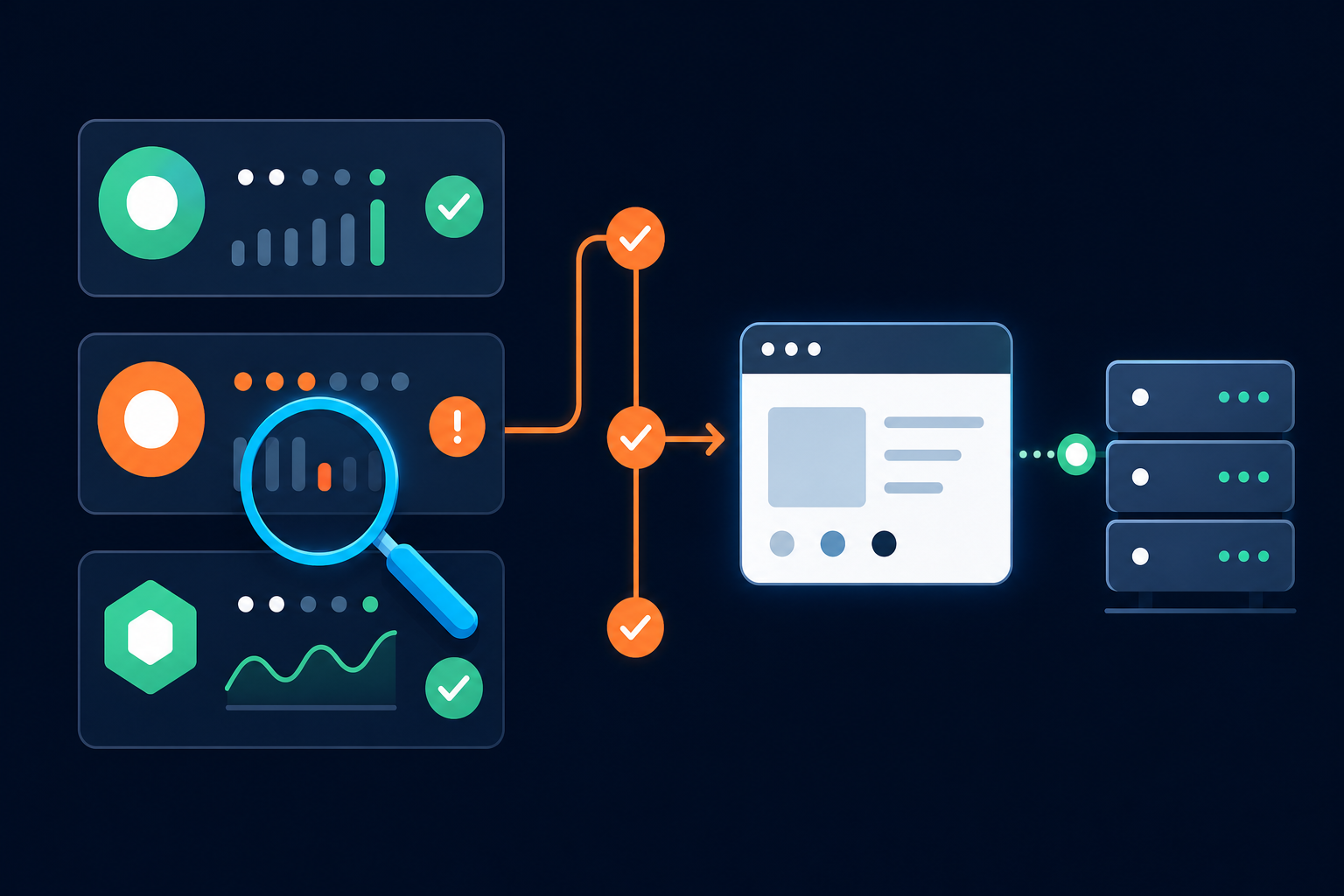
After each change, clear only the relevant caches, repeat the same tests, and check the site as both an anonymous visitor and a logged-in administrator. For an online store, test product selection, cart updates, coupon behavior, checkout fields, payment handoff, order emails, and account pages according to your normal safe test process.
Keep a short record containing:
- The setting or plugin changed
- The page tested
- The before-and-after measurements
- Any visual or functional side effects
- The rollback method
A faster test score is not enough if the main image is delayed, a menu fails, a form stops submitting, or cached content becomes stale. A successful optimization improves the slow measurement while preserving the user journey.
Common WordPress speed problems and the first action to take
- Every page has a slow initial response: check hosting resources, PHP execution, database activity, and cache bypasses before optimizing images.
- Only one landing page is slow: inspect its images, builder elements, embedded media, and page-specific scripts.
- Mobile is much slower: examine image dimensions, responsive behavior, font loading, and mobile-only scripts.
- The site is fast when logged out but slow when logged in: inspect admin-bar assets, personalized queries, WooCommerce fragments, and plugins that run for users.
- The page looks fast but interaction is delayed: inspect long JavaScript tasks and third-party scripts rather than adding more caching.
- Speed changes disappear after clearing the cache: verify whether the improvement came only from a warm cache and investigate the uncached response.
When to use professional speed optimization
Get help when the site has inconsistent server response times, complex WooCommerce behavior, a custom theme, unexplained database load, or production-only failures. The risk is higher when the proposed fix involves database edits, server configuration, CDN rules, DNS, PHP settings, or .htaccess.
A specialist should be able to explain the bottleneck, show the before-and-after evidence, document exclusions, and provide a rollback plan. If you want a structured review rather than trial-and-error plugin changes, WP Fix It offers WordPress Speed & Performance assistance.
Questions to ask before declaring the site faster
Should I install more than one caching plugin?
Usually not without a specific reason. First identify which layer already handles page caching, browser caching, object caching, CDN delivery, and optimization. Overlapping features can create stale content, duplicate processing, or incompatible exclusions.
Why did a speed score improve while the site feels unchanged?
A score may improve because a particular lab test changed, while server response, interaction delay, or your visitors’ network conditions did not. Compare the same pages and look at the underlying measurements, not only the grade.
Can I disable all plugins to find the slow one?
That can be useful on staging, but it is risky on production because security, forms, commerce, caching, and backups may depend on those plugins. On a live site, use a controlled troubleshooting method or ask your host or support provider for a staging copy.
When is faster hosting the correct fix?
Consider hosting changes when a simple uncached page has consistently slow server response, the account repeatedly reaches resource limits, or the host cannot explain the constraint. Move only after confirming compatibility, backups, DNS details, and a rollback plan.