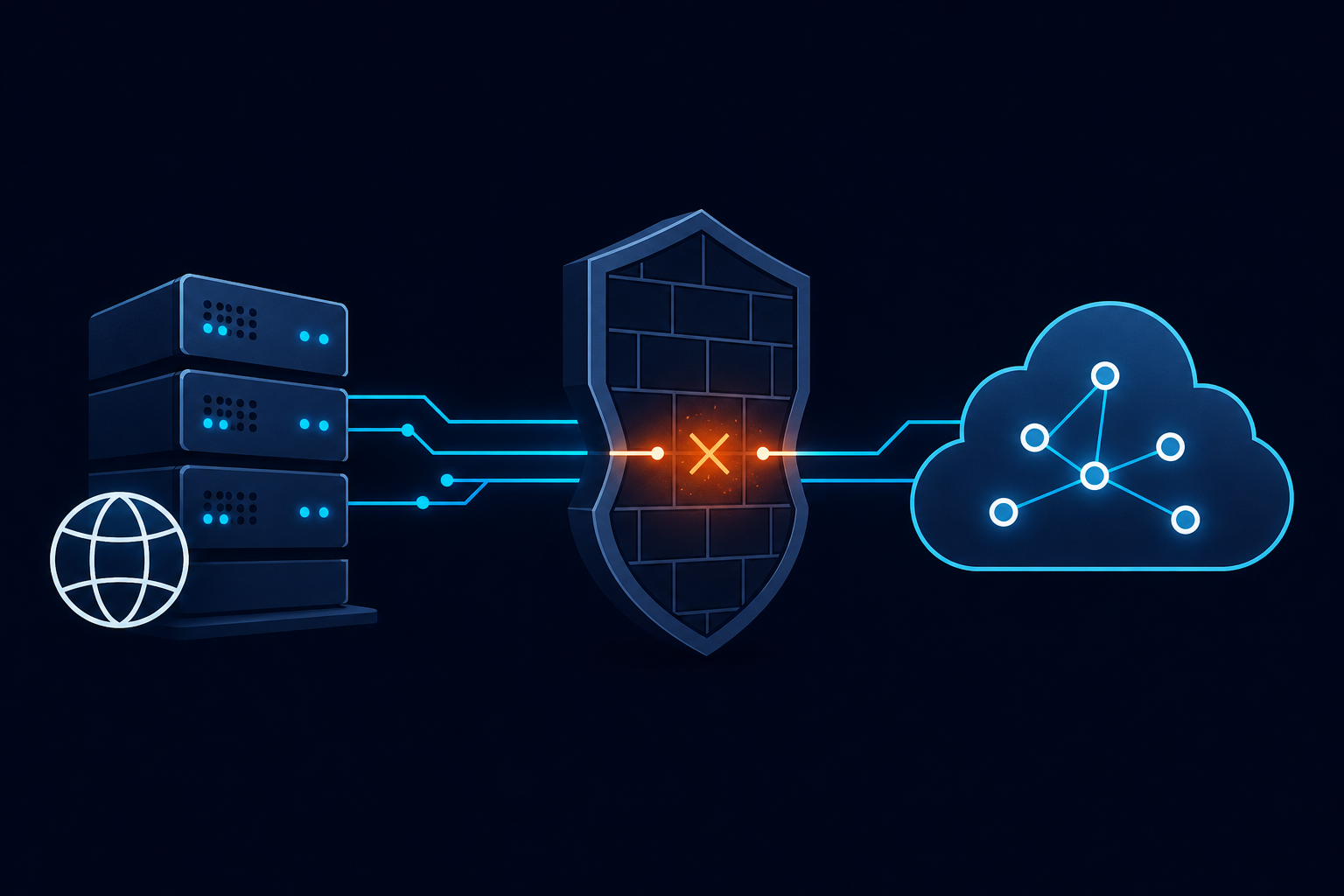

If LiteSpeed Cache reports that QUIC.cloud’s access to your WP REST API seems to be blocked, your WordPress site is usually rejecting a request that QUIC.cloud needs for setup, verification, or communication. The most common causes are a security plugin, web application firewall, hosting rule, Cloudflare configuration, Basic Authentication, or an SSL/DNS problem.
In this guide
This warning does not automatically mean that WordPress itself is broken. Do not immediately disable every security feature or add a broad firewall allow rule. First identify which request is failing, then allow only the required traffic and verify the connection again.
The checks below focus on the QUIC.cloud and LiteSpeed Cache connection rather than general REST API troubleshooting. For a broader REST API diagnosis, see WordPress REST API Blocked: Safe Ways to Find and Fix the Cause.
What the QUIC.cloud warning actually means
LiteSpeed Cache can use QUIC.cloud for services such as online services, image optimization, page optimization, and related cloud-connected features. To communicate, QUIC.cloud must reach your public WordPress site and WordPress must be able to process the request.
A blocked connection can occur in either direction:
- Inbound request blocked: QUIC.cloud reaches your domain, but a firewall, security plugin, host rule, or authentication layer denies the request.
- Outbound request blocked: your server cannot reach QUIC.cloud because of DNS, SSL certificate validation, firewall egress rules, or server networking.
- WordPress response altered: a cache, redirect, maintenance page, login wall, or security challenge returns something other than the expected response.
The exact button names in LiteSpeed Cache vary by plugin version. Open the LiteSpeed Cache area in your WordPress dashboard and review its notification, domain key, connection, and online-service status rather than relying on one exact menu path.
Confirm that the REST API is the failing component
Before changing settings, test the public REST API. In a private browser window, visit https://example.com/wp-json/, replacing the example domain with your site. A working endpoint normally returns JSON or a browser message showing JSON data. It should not redirect to a login page, display a CAPTCHA, return a host-branded block page, or produce a server error.
Also test the same URL while logged out and from a different network, such as a mobile connection. A local browser extension or corporate network can create a misleading result.
Record the response, not just the warning
- 200 response with JSON: the public endpoint is reachable; the problem may be a QUIC.cloud verification, callback, cache, or outbound connection issue.
- 401 or 403: authentication, a security plugin, WAF, or access rule is likely denying the request.
- 301 or 302: inspect whether the endpoint is being redirected to HTTPS, a login page, another hostname, or a challenge page.
- 404: a rewrite, REST-disabling plugin, or unusual server configuration may be interfering.
- 500, 502, 503, or timeout: inspect PHP, hosting, firewall, and server logs before changing WordPress settings.
You can inspect headers from a terminal with curl -I https://example.com/wp-json/. Some servers treat HEAD requests differently, so a browser test and a normal request are useful comparisons. Avoid posting private response headers or security-plugin details publicly.
Check the common blockers in the safest order
1. Temporarily test security and firewall controls
Review security plugins, host-level firewalls, CDN security rules, and login-protection tools. Look for a live traffic, blocked requests, firewall, or activity log entry at the time of the test. The exact labels depend on the product.
Do not start by turning off protection on a busy production site. If the log identifies a specific rule, create the narrowest exception available for the legitimate REST request or QUIC.cloud service. If the plugin offers a short diagnostic pause, take a backup first, use the shortest practical test window, and restore protection immediately after testing.
If the warning disappears only while a security plugin is disabled, re-enable it and use its support documentation or logs to create a targeted allow rule. A blanket rule allowing all requests to /wp-json/ may expose private endpoints and is not automatically safe.
2. Check Basic Authentication, maintenance, and staging restrictions
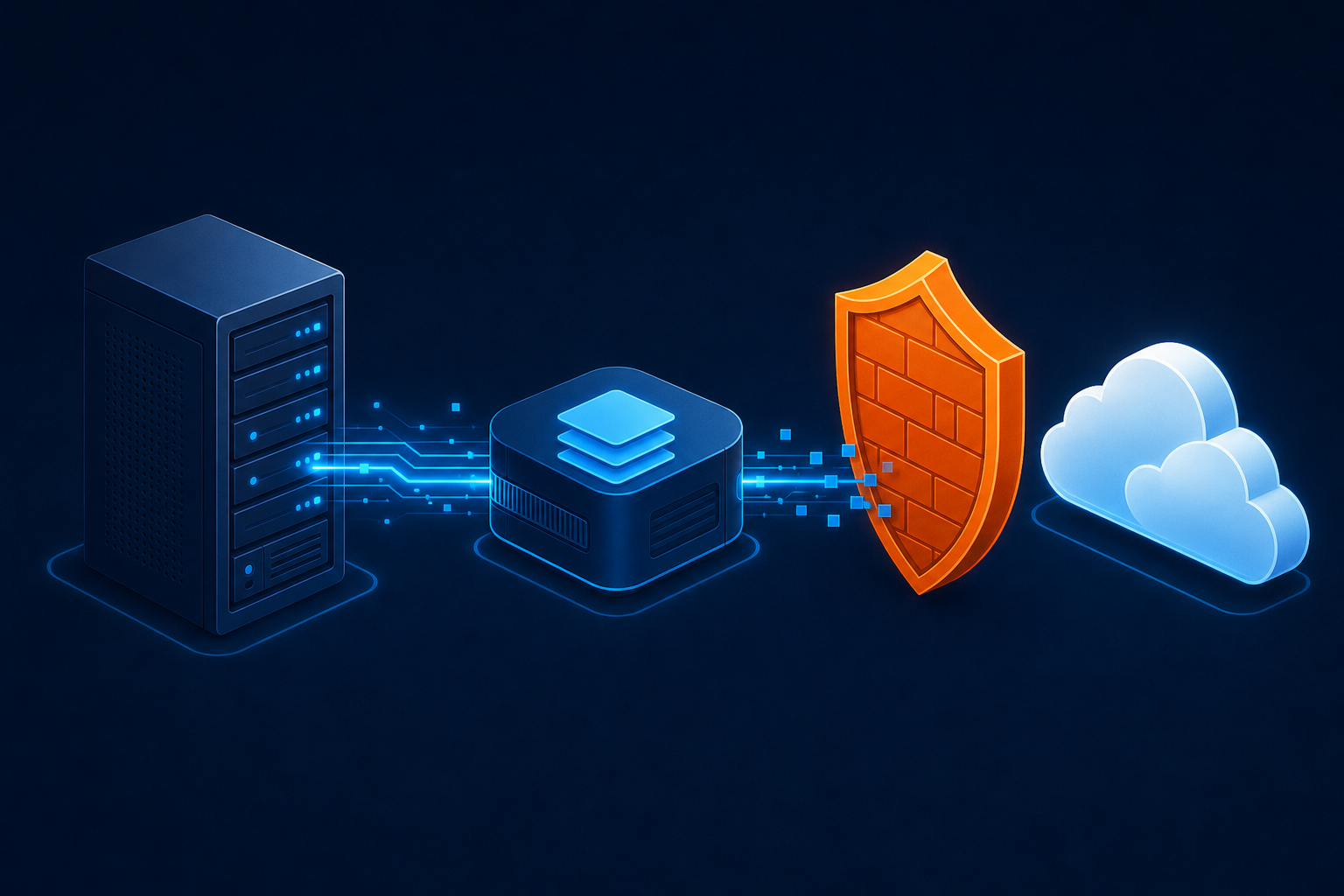
QUIC.cloud cannot complete a public callback if the whole site is protected by a username-and-password prompt, coming-soon page, IP allowlist, maintenance mode, or staging-only access rule. Confirm that the live domain—not only an administrator session—is publicly reachable.
Check the homepage and /wp-json/ in a private window. If either asks for authentication, contact the host or remove the restriction from the live site only if doing so is intended. Do not expose a private staging site simply to make the connection succeed.
3. Inspect Cloudflare or another reverse proxy
If your DNS is proxied through a CDN, inspect its firewall events and security rules during a fresh connection attempt. A managed challenge, bot rule, country restriction, rate limit, or custom expression may block QUIC.cloud while allowing your own browser.
Check the SSL mode and certificate chain as well. The site should load publicly over HTTPS without a redirect loop or certificate warning. Make the smallest rule change possible, purge only the relevant cache if required, and retest from outside your normal network.
For related redirect symptoms, see Fix Redirect Loops: WP_HOME/SITEURL, Cloudflare SSL Modes, Cache Purge Order. If your host does not provide that exact article URL, use its hosting support documentation for the equivalent SSL and proxy checks.
4. Review .htaccess and server rewrite rules
Apache rules can deny REST requests, redirect them unexpectedly, or add authentication headers. Before editing .htaccess, download a copy and confirm that you have hosting-panel or SFTP access. A syntax mistake can make the entire site unavailable.
Look for rules containing wp-json, deny, require, authentication directives, bot blocks, or redirects that apply to every request. Do not delete an unfamiliar security rule without understanding its source. Compare the file with a known-good backup or ask the host to identify the rule that generated the 403 or redirect.
Use Mastering .htaccess for WordPress for background before making a production change. If the problem began after a migration or SSL change, hosting support can often identify server-level rules that are not visible in WordPress.
5. Check DNS, SSL, and the canonical hostname
QUIC.cloud must reach the same public hostname that WordPress uses. In Settings > General, review the WordPress Address and Site Address, noting that labels can vary slightly by version. Confirm that both use the intended HTTPS domain and that the domain resolves to the current server.
Check these variations carefully:
https://example.comhttps://www.example.com, if your site uses wwwhttp://example.com, which should normally redirect once to HTTPS- the hostname shown in the LiteSpeed Cache connection screen
Mixed hostnames, stale DNS, an incomplete certificate chain, or a certificate that does not cover the chosen hostname can prevent verification. Do not change DNS records or WP_HOME/WP_SITEURL blindly. Take a backup, confirm the intended canonical domain with your host, and change one layer at a time.
Reconnect LiteSpeed Cache after the blocker is fixed
Once /wp-json/ is accessible and the site loads cleanly for logged-out visitors, return to the LiteSpeed Cache connection or online-services screen. Use the available reconnect, request-domain-key, or refresh option. The wording differs by version.
- Clear any LiteSpeed Cache plugin notice only after recording the original message.
- Request or refresh the domain key if the screen provides that option.
- Wait for the connection result rather than repeatedly clicking the request button.
- Confirm that the service reports the domain as connected or verified.
- Run one small cloud operation, such as the relevant service check, before starting a large optimization job.
Do not assume that a successful domain-key request proves every QUIC.cloud feature works. Test the particular feature you need, such as image optimization or page optimization, and check its own status or queue.
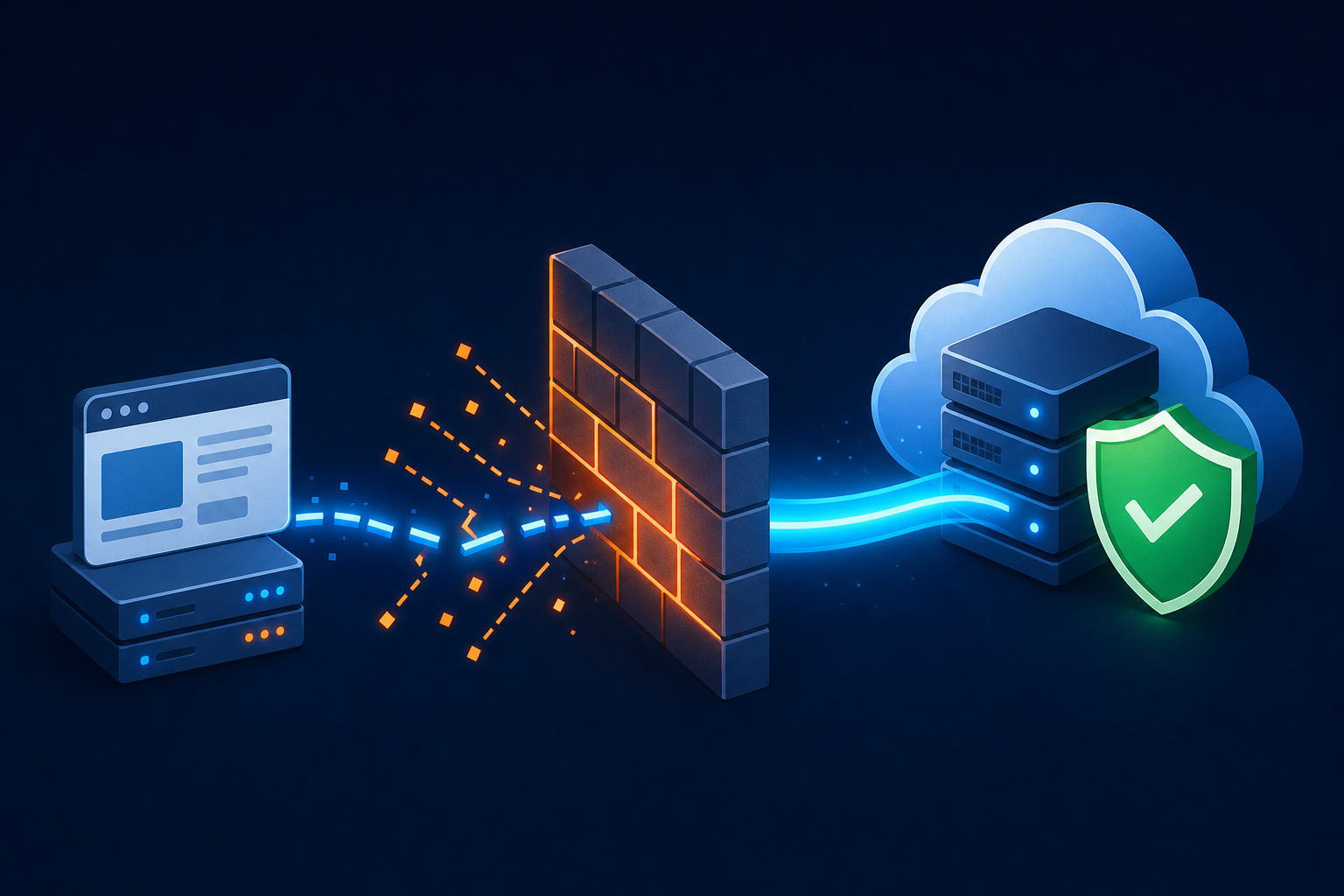
Use logs to find a persistent block
If the connection still fails, collect evidence at the time of a new test:
- the exact REST URL and response status;
- the timestamp and timezone;
- the public IP or request identifier shown in the firewall log, if available;
- the LiteSpeed Cache notification or error text;
- recent changes to plugins, DNS, CDN, SSL, hosting, or server rules.
Ask your host whether inbound requests from QUIC.cloud are being denied, whether outbound HTTPS requests from the server are restricted, and whether a WAF rule is generating the response. Hosts may need to inspect web-server, ModSecurity, PHP, or network logs that WordPress cannot show.
If other external services also fail, compare this problem with cURL Error 28 and timeout troubleshooting. If only WordPress updates and REST responses fail, the invalid JSON response guide may reveal a shared URL, SSL, or firewall cause.
Decision guide: likely cause and next action
- 403 in a firewall log: identify the matching rule and create a narrow exception; do not disable the entire WAF permanently.
- Login or CAPTCHA response: remove the public access barrier from the intended live site or configure an appropriate trusted-service exception.
- REST works, but connection still fails: inspect outbound server access, DNS, SSL, LiteSpeed Cache connection state, and QUIC.cloud service status.
- Redirect loop or wrong hostname: resolve HTTPS, proxy, and WordPress URL consistency before reconnecting.
- 500 or timeout: involve the host and inspect server/PHP logs; changing REST permissions will not repair a server failure.
When to stop changing settings
Stop and obtain a backup or professional help if you are being asked to edit production database values, wp-config.php, DNS, server firewall rules, or rewrite files without a rollback plan. A security exception that fixes QUIC.cloud but allows arbitrary unwanted traffic is not a complete fix.
For a site that remains blocked after the host and security logs have been checked, WordPress Site Repair can help trace the request path across WordPress, the firewall, and hosting stack.
Questions readers commonly ask
Can I disable the WordPress REST API to solve the warning?
No. Disabling the REST API removes the channel QUIC.cloud is trying to use and can also affect the editor, integrations, and other legitimate services. Find the rule blocking the required request instead.
Why does the endpoint work when I am logged in but not when logged out?
Your logged-in session may bypass a security rule or authentication requirement. Test privately and review firewall logs; QUIC.cloud does not share your administrator session.
Will clearing every cache fix the problem?
Usually not if the response is a 403, authentication prompt, DNS failure, or server timeout. Clear the relevant WordPress or CDN cache only after correcting the underlying block, then retest the public endpoint.
What should I send LiteSpeed or hosting support?
Provide the exact warning, public domain, REST response code, timestamp, recent infrastructure changes, and relevant firewall or server-log entry. Do not send administrator passwords, API secrets, or full private configuration files.
For WordPress API background and safe development guidance, consult the official WordPress Developer Resources.