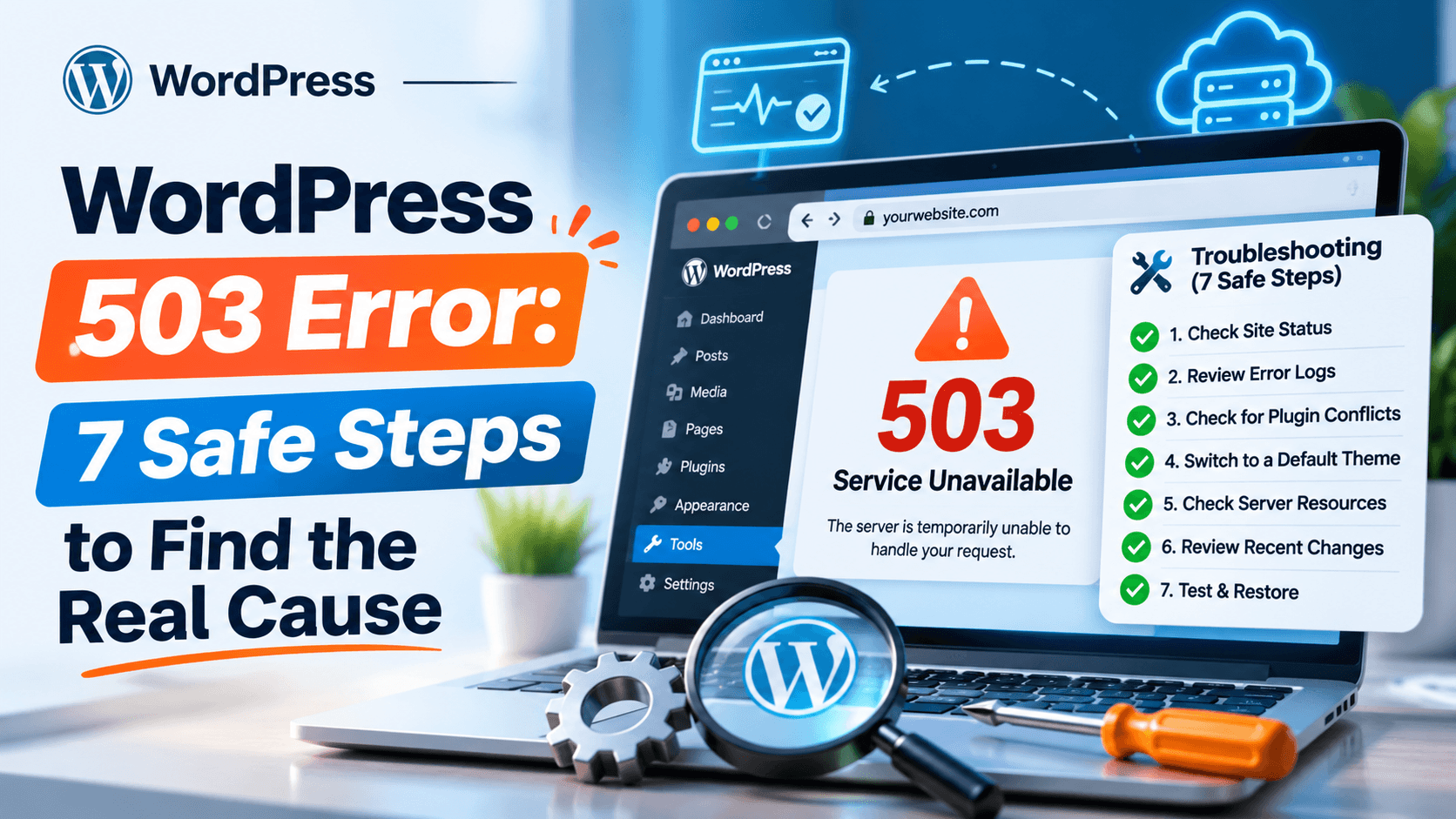

A WordPress 503 error means the web server is temporarily unable to complete a request. It does not identify the cause by itself. The site may be overloaded, a PHP worker limit may have been reached, a plugin may be consuming resources, scheduled tasks may be piling up, or a hosting platform may be restarting or protecting the server.
In this guide
Start by determining whether the failure affects every visitor, only one URL, or only requests passing through a CDN or firewall. Then work through the least-invasive checks below. Avoid repeatedly refreshing the site or changing several production settings at once; both actions can make an overloaded server harder to diagnose.
What a 503 error tells you—and what it does not
HTTP status code 503 means Service Unavailable. The server is reachable, but it is declining or unable to serve the request at that moment. WordPress may never load far enough to display its own error page, so the message can originate from the web server, PHP handler, hosting platform, reverse proxy, CDN, or security layer.
A 503 is different from a WordPress fatal error. A fatal error usually points toward incompatible PHP code, a plugin, or a theme. A 503 more often points toward temporary capacity, process limits, maintenance, or an upstream service. However, a faulty plugin or theme can still trigger repeated PHP processes and indirectly produce a 503.
1. Confirm the scope before changing anything
- Open the homepage in a private browser window and from a different network, such as mobile data. Do not rely only on an already-cached browser session.
- Test the homepage, one ordinary post,
/wp-login.php, and/wp-admin/. Record which URLs fail and the exact status code. - Ask whether logged-in users, logged-out visitors, or everyone sees the problem.
- Check whether the error is intermittent or constant. A page that works after several minutes may indicate capacity or a server restart rather than a broken URL.
- Check your hosting provider’s status page and account notices. Hosts may temporarily restrict an account after CPU, memory, process, or traffic limits are exceeded.
Use a response-header check if you are comfortable with the command line:
curl -I https://example.com/Replace the example URL with your site. Look for the HTTP status and headers identifying a proxy, CDN, or server. If the site works from one network but returns 503 from another, a cache, firewall, geographic rule, or upstream edge service may be involved rather than WordPress itself.
2. Rule out maintenance mode and an incomplete update
WordPress briefly creates a .maintenance file in the site’s root directory during some updates. If that file remains after an interrupted update, visitors may see a maintenance message or a service-unavailable response.
First, wait a few minutes if an update is visibly running. If the site remains unavailable, use your host’s file manager or SFTP to inspect the directory containing wp-admin, wp-content, and wp-includes. Download a copy of any unfamiliar file before removing it. If a .maintenance file exists and no update is running, deleting that single file is generally a low-risk recovery step.
Do not delete WordPress core files or reinstall WordPress as a first response. An interrupted plugin or theme update may need a separate rollback or reinstallation, and the host’s PHP error log can show which operation failed. For background on preserving plugin files before reinstalling, see how to preserve installed WordPress plugin files.
3. Check hosting resource limits and server logs
When a 503 appears across the entire site, hosting limits are one of the most useful places to look. Depending on the provider, the relevant limit may be PHP workers, concurrent processes, memory, CPU, database connections, entry processes, or disk space. The exact labels vary by host.
What to ask your host
- Which resource limit was reached at the time of the 503?
- Was the account throttled, suspended, or restarted?
- Are PHP-FPM workers, Apache processes, database connections, or disk space exhausted?
- Do the server logs identify a URL, plugin, cron request, or IP address creating the load?
- Was there a host-level outage or maintenance event?
Look in your hosting control panel for error logs, resource usage, PHP logs, or account statistics. Menu names differ, so use the host’s documentation if you cannot locate them. Record timestamps from your own tests and give those timestamps to support.
Do not raise PHP memory or process limits blindly. A higher limit can hide the symptom while exhausting the account more quickly, and some limits can only be changed by the host. A full disk is especially important: backups, logs, cache files, and database operations can all fail when the account has no space left.
4. Test whether a plugin, theme, or custom code is causing repeated load
If the error began after an update or occurs only on particular pages, suspect code that triggers expensive queries, external requests, image processing, imports, checkout operations, or a PHP loop.
If you can access the dashboard, pause recent changes one at a time and test after each change. If the dashboard is unavailable, use SFTP or the hosting file manager to rename the suspected plugin directory inside wp-content/plugins. Renaming a plugin folder prevents WordPress from loading it; keep the original name available so you can restore it after testing.
If you cannot identify a specific plugin, temporarily rename the entire plugins directory to a temporary name. This disables plugins without deleting their files. If the site recovers, restore the directory name and isolate the plugins individually. If it does not recover, the cause may be the active theme, server limits, a database problem, or an upstream service.
Switching themes through the database is more invasive and should be done only after a backup and with accurate database access. Do not edit production database rows casually. If the error started after a theme change, ask your host or developer to switch to a known-compatible theme safely.
For a systematic conflict test, see WP Fix It’s plugin conflict troubleshooting guidance if that destination is available on your site, or use your host’s staging environment where possible. Never perform broad disabling on a busy production store without considering checkout, caching, and security dependencies.
5. Investigate cron jobs, traffic spikes, and expensive requests
WordPress scheduled tasks can create bursts of work when many jobs run together. Imports, backups, security scans, email queues, search indexing, and WooCommerce actions are common examples. A traffic spike, bot crawl, or repeated API request can have a similar effect.
Look for a clear time relationship between the 503 and a scheduled job, backup, scan, import, or campaign. Review access logs for repeated requests to the same URL and review WordPress or plugin logs when available. If you use a CDN or web application firewall, inspect its analytics as well as the origin server logs; an edge layer may be retrying requests or passing unusually high traffic to the origin.
Temporarily pause a known nonessential import, backup, scan, or queue only if you understand how to resume it safely. Do not delete cron entries from the database just because they look unfamiliar. For persistent cron congestion, a developer or host can inspect scheduled actions and move processing to a real server cron job.
6. Separate WordPress from the CDN, cache, and firewall
A 503 generated by Cloudflare, a host proxy, a load balancer, or another edge service can look like a WordPress problem. Compare the response headers, page appearance, and timestamps. If the origin server has a separate temporary URL or host-provided preview address, test it according to the host’s instructions.
Do not switch DNS records or SSL modes during an outage unless you know which service is authoritative and have documented the current settings. A DNS change can take time to propagate and can create a second problem. Instead, ask the CDN or hosting provider whether the origin is reachable and whether their logs show an origin timeout, connection refusal, rate limit, or health-check failure.
If clearing a page cache restores the site briefly, that does not prove caching was the root cause. The cache may simply have reduced the number of requests reaching an overloaded origin. Continue investigating resource usage and slow requests.
7. Verify the fix and prevent a repeat outage
After each change, test from a private browser window and a second network. Check the homepage, an inner page, login, the dashboard, forms, and—if applicable—cart and checkout. Confirm that the response is a normal success response rather than an old cached page.
Monitor the site for several minutes while checking hosting resource graphs and logs. Restore any temporarily renamed plugin or directory only after taking a backup and testing one change at a time. If the 503 returns immediately after restoring one component, keep it disabled and identify an update, configuration, compatibility, or workload fix.
Document the exact start time, affected URLs, recent changes, resource graphs, server-log lines, and actions taken. This gives hosting support enough context to distinguish a transient outage from a repeatable application problem. If you need hands-on assistance, WordPress Site Repair can help investigate a production outage without guessing at destructive changes.
Quick decision guide
- Everything fails continuously: check host status, resource limits, disk space, PHP/server logs, and CDN-to-origin connectivity.
- The site fails only during traffic or scheduled jobs: investigate PHP workers, CPU, database load, cron, imports, backups, and bot traffic.
- The failure began after an update: isolate the updated plugin, theme, or custom code and review compatibility logs.
- Only one URL fails: inspect the request’s plugin, template, query, media processing, or external API rather than changing global server settings.
- Only one network or country fails: inspect CDN, firewall, DNS, rate-limit, and geographic rules.
When a 503 needs immediate professional help
Contact your host promptly when the error affects all visitors, resource usage is at a hard limit, the server cannot write logs, or the site repeatedly returns after a restart. Escalate to a WordPress specialist when you see a repeatable plugin or theme trigger, database queries consuming the server, a broken update, or a WooCommerce process failing under real traffic.
Before anyone changes wp-config.php, .htaccess, DNS, server limits, or database records, request a backup or snapshot and keep a copy of the current configuration. WordPress’s official documentation is useful for confirming core behavior, but hosting-specific limits and proxy errors must usually be diagnosed from the server side.
Questions readers commonly ask
Can a plugin cause a WordPress 503 error?
Yes. A plugin can create expensive database queries, repeated external requests, memory pressure, or long-running processes. Disable the suspected plugin without deleting it, test the site, and review logs before reinstalling or replacing it.
Is a 503 always caused by too much traffic?
No. Traffic is one cause, but maintenance files, scheduled jobs, a full disk, PHP worker limits, server restarts, firewall rules, and incompatible code can produce the same status.
Should I increase PHP memory to fix the error?
Not automatically. A memory setting can be relevant, but increasing it may worsen account-level exhaustion or have no effect if the limit is imposed by PHP-FPM, the host, or the database. Confirm the failing limit in logs first.
Why does clearing the cache sometimes fix a 503?
Clearing cache can remove a bad cached response or reduce repeated requests temporarily. It does not necessarily fix an overloaded origin, a failing plugin, or a host-level limit. If the error returns, inspect the origin logs and resource usage.