
A fatal error in a WordPress theme usually means PHP could not complete code loaded by the active theme. Common triggers include a theme update, a custom snippet in functions.php, an outdated parent theme, a broken child-theme override, or a PHP-version incompatibility. The safest solution is to identify the exact file and line, switch temporarily to a default theme, and then roll back or repair the responsible theme code.
In this guide
Your posts, pages, media, and database content normally remain intact. Do not delete the theme folder or edit production files blindly. First preserve a backup, record the error, and determine whether the problem affects the entire site, only the front end, or only a particular template.
If the screen says “There has been a critical error on this website,” use the recovery email link if WordPress sent one. For background on that message, see the general WordPress critical error guide. The steps below focus specifically on a theme as the likely cause.
1. Confirm that the theme is causing the fatal error
Before changing files, note when the failure began and what changed immediately beforehand. A theme update, child-theme edit, PHP upgrade, new widget, custom template, or code-snippet change is a strong clue.
Check the error details
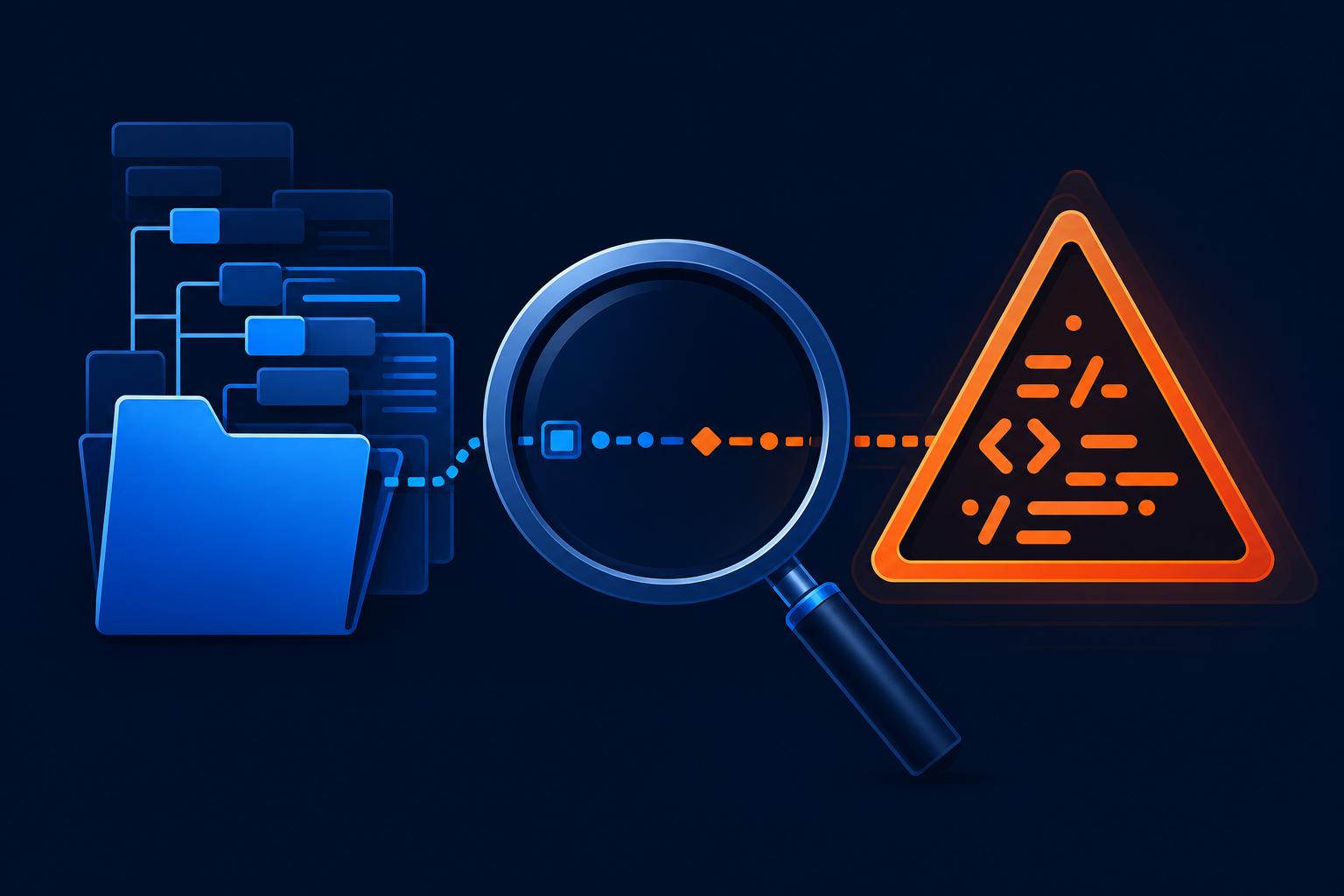
Look for the PHP error in the recovery email, your host’s error log, or WordPress debugging output. The useful part usually includes:
- The error type, such as “Call to undefined function” or “Cannot redeclare”
- The theme directory and file name
- The line number where PHP stopped
- The first theme function or class named in the trace
A path containing /wp-content/themes/ points toward a theme, but it does not prove that the theme is the root cause. A plugin can call a theme function incorrectly, and a PHP version change can expose old code that previously appeared to work.
If you can access the dashboard, temporarily activate a current default WordPress theme under Appearance and the theme-management screen. Exact labels vary by WordPress version. If the fatal error disappears, the active theme or its child theme is the leading suspect. This test changes the design temporarily; it does not delete your content.
2. Protect the site before repairing theme files
Take a complete backup of both the database and WordPress files before editing or replacing a theme. Confirm that the backup can be downloaded and that you know how your host restores it. A database-only backup does not preserve custom theme files, and a files-only backup does not preserve recent content.
If the site is receiving visitors, make changes during a low-traffic period when possible. Copy the original file before editing it, and keep a record of every change. Do not paste code from an untrusted forum into functions.php; a syntactically valid snippet can still create a security or compatibility problem.
For a site that is completely inaccessible, use your host’s file manager or SFTP. SFTP is preferable to plain FTP when your host supports it. Ask the host for a temporary staging copy if you are not comfortable working on production files.
3. Regain access by switching to a default theme
When wp-admin is unavailable, you can often deactivate the active theme without deleting it. The exact method depends on the access provided by your host.
Option A: Use WordPress recovery mode
- Open the recovery link from the administrator email.
- Sign in through the limited recovery session.
- Inspect the error details and deactivate or switch away from the reported theme if WordPress offers that action.
- Open the site in a normal browser window after leaving recovery mode.
Recovery mode is temporary. It does not repair the theme, so continue with diagnosis after the site becomes accessible.
Option B: Rename the theme folder through SFTP or hosting file manager
Navigate to wp-content/themes/ and rename the active theme folder, for example from custom-theme to custom-theme-disabled. WordPress may fall back to an installed default theme. Rename only the suspected theme folder, and do not rename the entire themes directory.
If no default theme is installed, ask your host or administrator to install a matching current default theme through a trusted source. Renaming a theme does not remove posts or pages, but its menus, widgets, customizer settings, and visual templates may not display until the original theme is restored.
Option C: Use the database only when necessary
Changing the active theme directly in the database is a higher-risk recovery method. It requires a verified database backup and accurate knowledge of the site’s table prefix. The active theme values are commonly stored in the options table, but table names and prefixes vary. Ask your host to perform this change if you do not routinely work with phpMyAdmin or SQL.
4. Repair the most common theme causes
Undo a recent edit in functions.php
A missing semicolon, unmatched brace, duplicate function, or pasted snippet can stop the entire site because functions.php loads early. Restore the last known-good copy if you have one. If you must edit the file, use a code editor that shows line numbers and make one controlled change at a time.
Do not place custom code directly in a parent theme when a child theme or purpose-built code solution is appropriate. Parent-theme updates can overwrite modifications, while a child theme can introduce its own errors if it calls unavailable functions or uses an incorrect template structure.
Check parent and child theme compatibility
A child theme depends on its parent theme. Confirm that the parent theme folder exists, that its directory name matches the child theme’s declaration, and that both themes are compatible with the current release. A child theme can fail after a parent update when it overrides a function, template, or hook whose behavior changed.
If the error is in a child-theme file, switch temporarily to the parent theme or a default theme. If the parent works, compare the child theme’s recent changes rather than reinstalling WordPress.
Roll back a failed theme update
If the failure began immediately after updating the theme, restore the previous theme version from a backup or staging copy. Avoid downloading a random older ZIP from an unofficial site. A rollback is a temporary diagnostic step; investigate why the update failed before attempting it again.
Investigate PHP compatibility
Theme code may use PHP functions, syntax, or behavior that is unavailable or deprecated on the server’s current PHP version. Check the PHP version in your hosting panel or ask the host, then compare it with the theme developer’s documented requirements. Do not switch PHP versions repeatedly on a production site without a backup and a maintenance plan.
If the theme is old and unmaintained, replacing it may be safer than permanently running an outdated PHP version. For a controlled compatibility review, see the WordPress PHP Compatibility service.
5. Use debugging to identify the exact line
When the message is vague, WordPress debugging can record the underlying PHP error. On a backed-up site, enable logging in wp-config.php by placing the settings before the line that says WordPress has stopped editing:
define( 'WP_DEBUG', true );
define( 'WP_DEBUG_LOG', true );
define( 'WP_DEBUG_DISPLAY', false );
This records errors in wp-content/debug.log without displaying technical details to visitors. The exact configuration may already contain these constants, so do not define the same constant twice. Keep debugging display disabled on a public site because error output can reveal paths and configuration details.
Reproduce the failure once, review the newest entries, and look for the first relevant theme path. Then disable debugging or return the settings to their previous values. WordPress’s official documentation explains that available debugging behavior can vary by environment.
6. Isolate a theme and plugin conflict
A theme fatal error can actually be triggered by a plugin that hooks into the theme. After switching to a default theme, test the site with plugins unchanged. If the error returns only when the original theme is active, reactivate plugins one at a time on a staging site or during a controlled maintenance window.
Pay special attention to plugins that add page builders, custom fields, widgets, ecommerce templates, performance optimizations, or theme-specific extensions. If the error appears after one plugin is reactivated, update both components from trusted sources and check their compatibility notes. If the issue remains unclear, the WordPress Site Repair service can help isolate it without guessing at production files.
7. Verify the repair before restoring the design
- Load the homepage in a private browser window.
- Check several posts, pages, categories, search results, menus, and forms.
- Test both logged-out and logged-in views.
- Review the latest PHP and WordPress debug logs for new fatal errors.
- Clear only the relevant page, server, CDN, and browser caches after the site works normally.
- Confirm that the restored theme is receiving updates and that its parent-child relationship is intact.
Do not treat a homepage that loads as proof that the repair is complete. A fatal error may affect only a custom post type, a checkout template, a mobile menu, or a particular page template. Test the URL patterns your visitors actually use.
8. Quick decision guide
- Error path names the theme: restore the affected file or roll back the theme, then test with a default theme.
- Error began after a PHP change: confirm the theme’s PHP requirements and test on staging before changing the server version.
- Only the child theme fails: verify the parent theme and inspect child overrides, hooks, and custom functions.
- Theme works with plugins disabled: isolate the conflicting plugin before reactivating everything.
- No theme files are named: enable safe logging, inspect the complete trace, and test the theme independently rather than assuming it is guilty.
Questions to ask when the theme still fails
Will switching themes delete my content?
No. Posts, pages, media, and most database content remain. The layout, widgets, menus, customizer settings, and theme-specific features may not appear until the original theme is repaired or a compatible replacement is configured.
Can I simply reinstall the theme?
Only after preserving custom files and confirming the source is trustworthy. Reinstallation can overwrite child-theme-free customizations and may not fix a plugin conflict or PHP incompatibility. Compare the file and error history first.
Why does the error return after I restore a backup?
The backup may include the same faulty theme file, or the server environment may have changed since it was created. Compare the PHP version, theme version, plugin versions, and database state rather than restoring repeatedly.
Should I edit wp-config.php or the database myself?
Use debugging settings carefully, but treat database edits and server configuration changes as advanced work. Keep a verified backup, use staging where possible, and involve your host or a WordPress professional if you cannot explain the change and its rollback.