
Need to Force Reinstall WordPress Plugins?

WordPress plugins are such a major part of using the platform. Plugins enhance the functionality of a website and bring many additional features and just super cool things to the WordPress platform.
The average WordPress website has about 10 active plugins installed and here at WP Fix It with the majority of the websites that we provide support for there are 20 or more active plugins running on their website.
One of our main services here is infection removal and the majority of these support situations where we have to remove malicious files from a person’s WordPress website, the malicious code has been injected into the plugin files installed on the website.
The easiest way to ensure that a plugin file is clean of all malicious code is to reinstall the newest version directly from the WordPress.org plugin repo.
Now there are a few different ways that you can do this and depending on which way you select will dictate how long it takes to complete the entire process.
Let’s take a look below at the different ways that you can force reinstall WordPress plugins.
First Option to Force Reinstall WordPress Plugins
You could use an infection scanner plugin to scan all of the plugins that are installed on your website and isolate the files that contain malicious code.
You can then access these files using your web hosting control panel file manager or a FTP client in order to open up the file and remove the malicious code that exists within the file. After you do this step you save the file and re-upload it to your server.
This will do the trick but can be very time-consuming and if you are not familiar with using your web hosting control panel or a FTP client it might be difficult for you to complete it.
Let’s look at another option below.
Second Option to Force Reinstall WordPress Plugins
You can make an entire list of all the WordPress.org plugins that are installed on your website and then deactivate all of them and delete their files.
Then you would go one-by-one based on the list that you made and add them in back in using the built in WordPress’s plugin installation process in your administrative area.
While this method to force reinstall WordPress plugins will work in the end you might run into some problems because depending on how the plugin was created, deactivating it and deleting it may remove some of the data the plugin has saved.
Let’s look at another option below.
BEST Option to Force Reinstall WordPress Plugins
What if there was a way that would allow you to force reinstall WordPress plugins with just a few clicks of your mouse?
Well there is a way because we have created a FREE plugin that will allow you to do just that.
With our very own Fresh Plugins plugin, you can force reinstall WordPress plugins on your website to ensure that you have the newest and cleanest version running on your site.
Fresh Plugins is a simple plugin to allow plugin re-installation, by using WordPress’s standard plugin update process. Use this plugin to install a fresh copy of any plugins that are on your site from the WordPress.org plugin repo. The plugin installed will be the newest version of the plugin and replace your current version.
When this plugin is active it will add a refresh plugin link to the details of every installed plugin on your website. Take a look at the image below for what this link will look like.
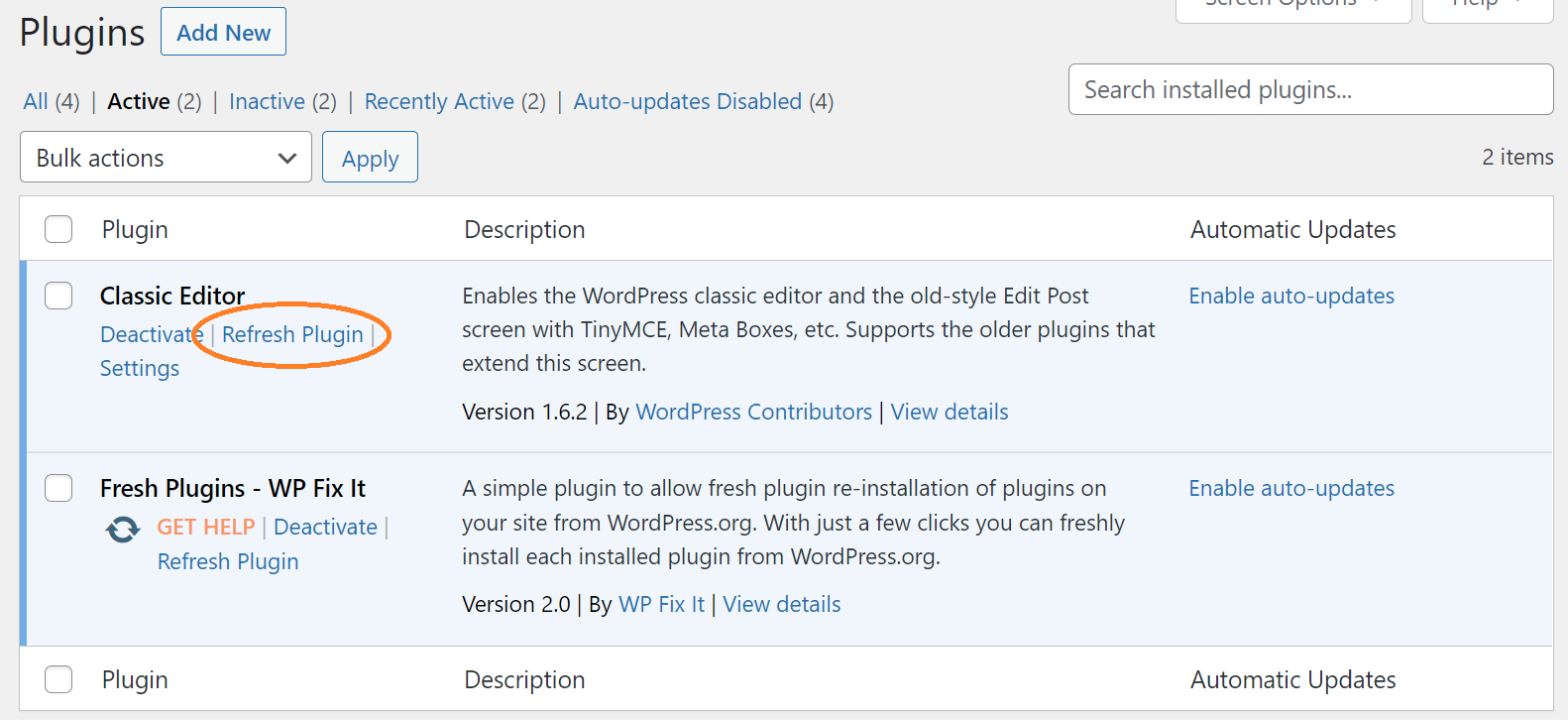
Behind the scenes a simple process takes place when the refresh plugin link is clicked on it will trigger the built-in WordPress updater and immediately display that the installed plugin is in need of an update.
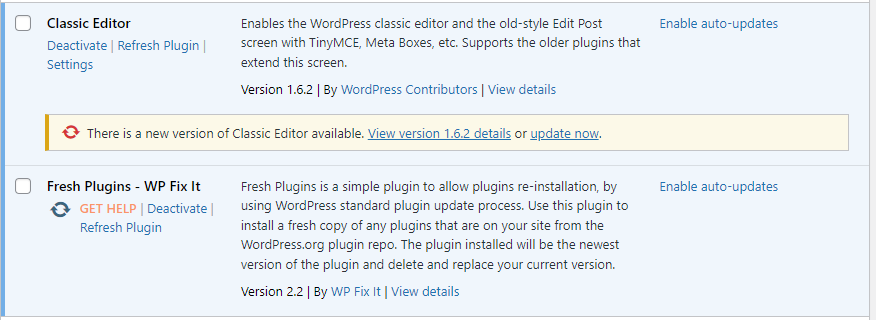
Once you complete the update you will now have a fresh installation of the plugin which of course will be clean of malicious code.
You also can bulk select all of the installed plugins on your website and select the Refresh Plugin action in the action drop down on your plugins page. This will trigger an update notice for all of the installed plugins from WordPress.org.
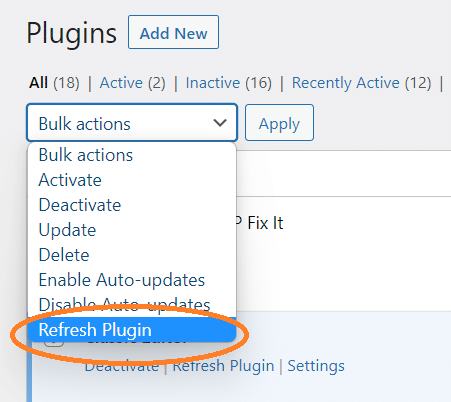
It’s important to understand that this will only work on plugins that are available in the WordPress.org repo.
If you have any premium plugins on your website that you wish to install freshly you will need to get those plugins directly from the plugin company or make sure a license is connected if they offer automated updates.
GET THIS Force Reinstall WordPress Plugin for FREE below!

https://wordpress.org/plugins/fresh-plugins/
How to Preserve Plugin Files Before Reinstallation
Before you force reinstall a plugin, preserve a copy of the currently installed files and confirm where the plugin stores its settings. Reinstalling replaces the plugin’s code, but it does not guarantee that custom files, modifications, or plugin data can be restored.
- Record the plugin name and version. In the Plugins screen, note whether it comes from WordPress.org, a vendor, or a custom source. The Fresh Plugins process applies to plugins available from the WordPress.org repository.
- Create a backup of the plugin directory. Use your hosting file manager or FTP to download the relevant folder from
wp-content/plugins/. Keep the folder in a separate location rather than leaving the only copy on the same server. - Back up the database and uploads. Plugin settings are commonly stored in the WordPress database, while some plugins save files in
wp-content/uploads/or another custom directory. A plugin folder backup alone may not preserve this information. - Check for custom changes. If the plugin contains edited files, document those changes before replacing the directory. A clean copy from WordPress.org will overwrite them.
- Reinstall from the correct source. For a WordPress.org plugin, use the normal WordPress update process or the Fresh Plugins refresh action. For a premium or custom plugin, download a fresh package from the original vendor and confirm that its license or update connection is available.
If the site is infected, do not assume that replacing one plugin proves the entire installation is clean. Scan the WordPress files and database, review administrator accounts, and investigate other plugins, themes, and core files as needed. Also, reinstalling a plugin is different from repairing or reinstalling WordPress itself: this procedure replaces selected plugin files and does not replace WordPress core files or resolve every site-wide installation problem.