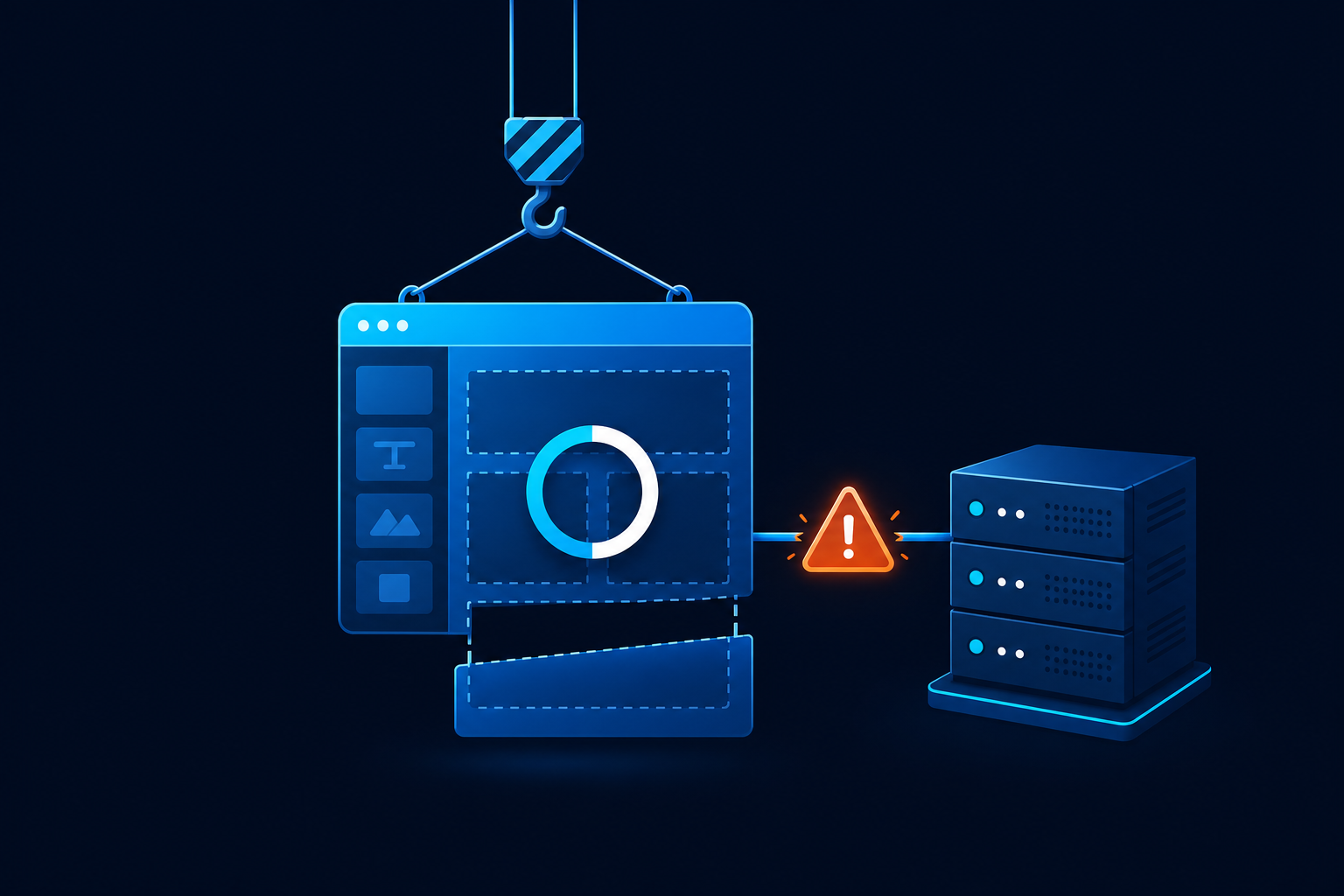

An Elementor Pro loading problem usually means the editor cannot finish its requests to WordPress, not that the page itself is permanently lost. You may see an endless spinner, a blank editing canvas, missing widgets, or an editor that loads only after several refreshes. The safest approach is to identify whether the failure is limited to one browser, one page, the Pro plugin, or the whole WordPress installation before changing files or the database.
In this guide
This guide concentrates on Elementor Pro-specific loading failures. It is different from a general Elementor display problem: the public page may look normal while the editor or Pro widgets fail behind the scenes.
First, identify exactly what is not loading
Open the affected page in Elementor and record the symptom before making changes. These distinctions narrow the search considerably:
- Endless loading spinner: the editor shell opens but one or more background requests never finish.
- Blank canvas or blank panel: JavaScript may be failing, or the server may be returning an incomplete response.
- Free Elementor works but Pro widgets are missing: Pro may be inactive, out of date, disconnected from its dependency, or failing to initialize.
- Only one page fails: that page may contain damaged layout data, a problematic widget, or an unusually large design.
- The whole dashboard is slow or unavailable: investigate WordPress, hosting, PHP, or a broader plugin conflict first.
Test the same page in a private browser window and, if possible, from a second browser. Also test a new temporary page with a small amount of content. Do not overwrite the original page while diagnosing it.
Before changing anything: make a safe baseline
Confirm that you can access the WordPress dashboard and that the public website still works. Make a current backup of the files and database through your host or backup system. If the site is important, perform experiments on a staging copy instead of production.
Write down the active versions of WordPress, the Elementor plugin, Elementor Pro, the active theme, and PHP. The exact screens vary by WordPress and plugin version, but plugin versions are normally visible under Plugins, and the site’s PHP details may be available under Tools > Site Health or in your hosting panel.
Do not delete Elementor data, edit the database, or replace wp-config.php yet. Those actions can remove design data or hide the original cause.
1. Rule out a browser cache or extension problem
Start with the least-invasive check. Open the editor in a private window with browser extensions disabled. If it works there, clear the site’s cached files in your normal browser and disable extensions one at a time. Ad blockers, script managers, security extensions, and browser developer tools can interfere with the editor even when the public page is fine.
Also clear any page or object cache that your site uses, but do not repeatedly purge every cache while testing. Change one thing, reload the editor, and record the result. If a private window fails in the same way, the cause is more likely on the WordPress, server, or network side.
2. Check whether WordPress requests are being blocked
Elementor’s editor relies on background requests. A firewall, security plugin, server rule, maintenance layer, or authentication setting can block them. In the browser, open developer tools, select the Console and Network panels, then reload the editor. You are looking for failed requests—not for every warning.
- A 401 or 403 commonly points to authentication, permissions, a firewall, or a security rule.
- A 404 can indicate an incorrect URL, rewrite issue, or missing endpoint.
- A 500 or 503 suggests a PHP fatal error, exhausted resources, or a server failure.
- A request that remains pending can indicate a timeout, overloaded server, blocked REST request, or network policy.
Compare the failed request with the public site and with a new test page. Do not permanently disable security protection just to make the editor load. If you need to test a firewall, make a short, documented test with your host or security provider and restore protection immediately afterward. For background-request diagnosis, see the related guide on blocked WordPress REST API requests.
3. Confirm Elementor and Elementor Pro compatibility
Elementor Pro depends on the base Elementor plugin. Both should be active and compatible with each other. Under Plugins, check that neither plugin is inactive, showing an update failure, or reporting a dependency notice. Exact labels can vary by version.
Do not update several unrelated plugins at once while investigating. First make a backup, then update the base Elementor plugin and Pro only if the available update is compatible with your WordPress and PHP environment. If the problem began immediately after an update, record that fact before attempting a rollback.
Check the Pro license or connection status only as a secondary step. A license issue can affect updates or premium features, but it does not explain every editor spinner. Avoid disconnecting and reconnecting repeatedly, especially on a production site where another administrator may be using the same account.
4. Test for a plugin or theme conflict
A conflict is one of the most common causes when Elementor Pro loads on a test page but not on the original site. Optimization, security, translation, custom-code, and other page-builder extensions can alter scripts or requests.
The safest test is on staging. If staging is unavailable, choose a low-traffic period, make a backup, and use a conflict-testing method that temporarily leaves only the required Elementor plugins active. Change the theme only if the test method and your theme support it. Never deactivate security or payment plugins casually on a live store.
- Test the failing page with the current setup and note the result.
- Temporarily deactivate likely conflicting extensions in a controlled test.
- Reload the editor after each logical group or plugin change.
- When the issue disappears, reactivate items one at a time to identify the specific conflict.
- Restore unaffected plugins and replace, configure, or report the conflicting extension.
Keep a short change log. This prevents a temporary test state from becoming an accidental production configuration. The general JavaScript troubleshooting process in WordPress JavaScript errors can help when the browser console identifies a script failure.
5. Check PHP memory and server limits
Large Elementor layouts, dynamic widgets, image processing, and multiple active plugins can exceed available PHP memory or execution time. Symptoms include a spinner followed by a server error, a partially loaded editor, or failure only on complex pages.
Review the site’s health information and hosting control panel for PHP memory, execution time, PHP version, and error logs. The exact limits and labels are host-dependent. Ask the host to check the timestamp of a failed editor request and whether PHP recorded a fatal error or resource limit.
If your host confirms insufficient memory, increase limits through the host’s recommended method. Editing wp-config.php, PHP configuration, or server settings without a backup and a rollback plan can take the site offline. Do not assume that adding a memory constant solves a host-level limit; the effective value must be confirmed by the server.
6. Rebuild generated files and test the affected page
Elementor can use generated CSS and cached data. If the editor loads but the design appears outdated, missing, or inconsistent, use the regeneration or cache tools provided in your installed Elementor version. The exact menu names can change, so use the plugin’s current Tools or maintenance screen rather than copying an old menu path blindly.
Purge page, object, CDN, and browser caches only after saving the current design. Then test the original page in a private window and as a logged-out visitor. If only one page remains broken, duplicate it for testing or remove recently added widgets from the copy. This can reveal corrupted or incompatible content without risking the original.
7. Use logs when the editor still will not load
If the previous checks do not identify the cause, enable WordPress debugging only with care and preferably on staging. Logging should record errors without displaying them to visitors. Your host or developer can review the resulting log and match entries to the time of the failed Elementor request.

Look for fatal errors naming a plugin, theme file, PHP function, memory exhaustion, timeout, or blocked request. Do not paste sensitive credentials, full database details, or private paths into public support forums. After diagnosis, turn off temporary debugging and remove or protect any log that may contain sensitive information.
When the message points to a plugin or theme, use the smallest possible rollback or configuration change. If it points to the server, provide the host with the request time, affected URL, HTTP status, and relevant log entry.
Quick cause-and-action guide
- Works in a private window: clear browser data and isolate an extension.
- Only Pro widgets fail: verify the base Elementor/Pro pair, activation, compatibility, and update state.
- Only one complex page fails: test a duplicate or simple page, then isolate recently added widgets.
- Network request returns 401 or 403: investigate login protection, firewall, security rules, or permissions.
- Network request returns 500 or 503: inspect PHP and server logs before changing Elementor data.
- Everything is slow: check hosting resources, PHP limits, caching, and other plugins rather than focusing only on Elementor.
How to confirm the fix
After each change, reload the editor in a private window and open the previously failing page. Confirm that the widgets panel, canvas, responsive controls, and save or publish action all work. Then check the public page while logged out and test at least one other page.
Finally, review the browser Network panel for repeated failed requests, check that no new PHP errors appeared, and confirm that caches were purged only where needed. If the fix involved a plugin conflict, document the incompatible component and keep it updated or replaced rather than reactivating it without a plan.
When to stop troubleshooting yourself
Get help before editing production files or the database if the site shows a critical error, the dashboard is inaccessible, a live store is affected, or the logs point to several interacting failures. A specialist can work from a backup or staging copy, preserve Elementor data, and coordinate with the host. For a site that must be restored quickly, see Emergency WordPress Support or the WordPress Site Repair service.
Questions to answer before the next step
Why does Elementor Pro load on one page but not another?
The failing page may contain a widget, shortcode, custom code, or layout data that triggers a PHP or JavaScript error. Test a simple page and a duplicate of the affected page to separate page content from the site-wide environment.
Can an expired Elementor Pro license cause the editor to spin forever?
It can affect updates and premium services, but an endless spinner also commonly comes from blocked requests, conflicts, or server limits. Check the browser request status and PHP logs before treating licensing as the sole cause.
Should I reinstall Elementor Pro?
Not as a first step. Reinstalling may remove the visible symptom while leaving the conflict or server failure in place. Back up first, confirm the downloaded package is legitimate, and use reinstallation only after checking compatibility and preserving site data.
Where can I learn more about safe WordPress troubleshooting?
The official WordPress Documentation provides current guidance for administration, Site Health, debugging, and core configuration. Use it alongside your host’s documentation because server controls and PHP limits vary.