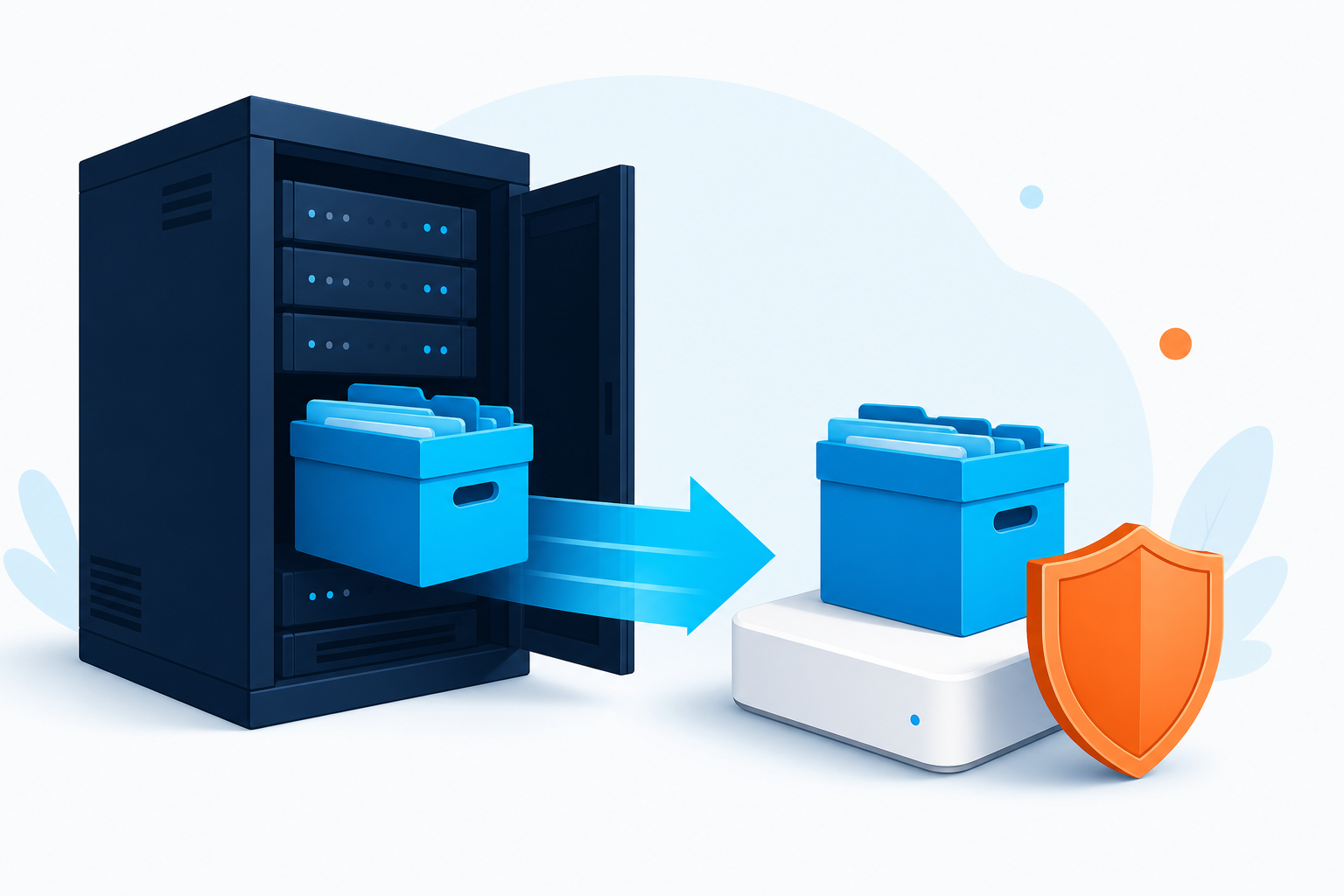

If you need to reinstall a WordPress plugin but no longer have its ZIP file, you can usually preserve the installed copy from your site. The main plugin files are stored in wp-content/plugins/. Copying that directory, or the specific plugin folder inside it, gives you a recoverable file copy before an update, removal, migration, or troubleshooting test.
In this guide
However, plugin files are not the same as plugin settings, uploads, license data, or database records. A safe reinstallation plan preserves both the files and the parts of the database or uploads directory that the plugin needs. Do not delete the live plugin until you have a verified backup and a way to access your site if the replacement fails.
What you need to preserve
A WordPress plugin can use several locations. The correct backup depends on what you are trying to restore.
- Plugin code: Usually the plugin’s folder under
wp-content/plugins/. - Plugin settings: Commonly stored in the WordPress database, not in the plugin folder.
- Uploaded or generated files: Some plugins use
wp-content/uploads/or another custom directory. - License and connection data: These may be stored in the database, in a configuration file, or with the plugin vendor’s account.
- Custom edits: Changes made directly to plugin files can be overwritten by an update and should be documented separately.
If you only copy the plugin folder, you are preserving the executable files. You are not necessarily creating a complete plugin backup.
Before copying plugin files: make a safe plan
Start by identifying the exact plugin folder and the reason for the reinstallation. A plugin may appear in the dashboard under a friendly name while its folder uses a different name. For example, the folder may not exactly match the plugin’s display name.
- Record the plugin name, current version, and active or inactive status from Plugins in the WordPress dashboard.
- Note whether the plugin is downloaded from WordPress.org, a commercial vendor, or a private source.
- Check whether the vendor provides an original ZIP file. That is usually preferable to treating a live site copy as the only installation source.
- Create a full database and file backup before changing the live site.
- Perform the work during a low-traffic period, especially if the plugin controls checkout, forms, security, caching, or authentication.
Keep the backup outside the live website directory when possible. A backup stored only inside the same hosting account may be lost if the account, files, or database are damaged.
Method 1: Download the plugin folder from hosting or FTP
This is the most direct way to preserve installed plugin files when you can access your hosting file manager or an FTP/SFTP client.
Using a hosting file manager
- Open your hosting control panel and launch its file manager. The exact label varies by host.
- Open the directory containing your WordPress installation. In many installations this is named
public_html, but the location can differ. - Open
wp-content, thenplugins. - Locate the specific plugin folder. Do not assume the folder name from the dashboard is exact.
- Select the folder and use the file manager’s archive or compress option to create a ZIP archive if available.
- Download the ZIP archive to your computer or another secure storage location.
- Open the archive locally and confirm that it contains the plugin’s main files and subdirectories rather than an empty folder or a shortcut.
If you want a broader safety copy, archive the entire wp-content/plugins/ directory. This will be larger, but it preserves inactive plugins and makes it easier to recover from a failed troubleshooting change.
Using SFTP or FTP
With an SFTP or FTP client, connect using the credentials supplied by your host, then download the plugin folder from wp-content/plugins/. SFTP is preferable when available because it encrypts the connection. Preserve the folder structure and do not open and resave PHP files in a text editor just to create a copy.
FTP transfers can fail silently when many files are involved. Compare the local folder’s size and file count with the remote copy when your client provides those details. If the transfer reports skipped or failed files, download the folder again before relying on it.
Method 2: Preserve files from the WordPress dashboard
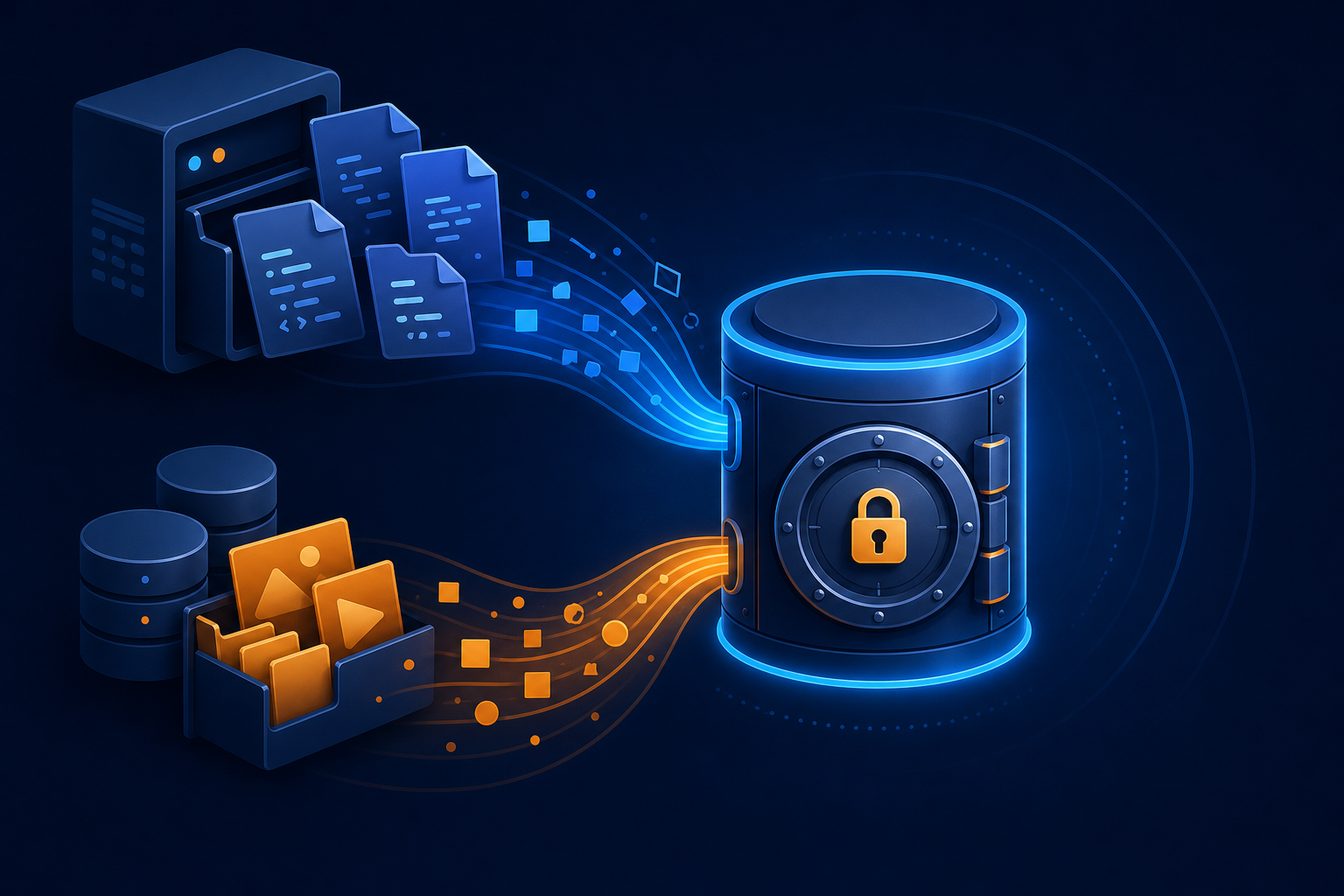
Some backup or migration plugins can include installed plugins in a complete site backup. This may be convenient, but the exact contents and restore process vary by plugin. Confirm that the backup includes files, not only the database.
If the plugin is hosted on WordPress.org, you may be able to download a clean ZIP from its official directory. A clean download is often better than preserving a potentially modified live copy, provided it is compatible with your WordPress version and the plugin settings remain available.
Do not install an unknown ZIP simply because its filename resembles the plugin name. If the plugin came from a vendor, obtain the installer from the vendor account or support channel. For general WordPress administration guidance, consult the official WordPress Documentation.
Method 3: Copy the plugin with a command line
Command-line access is useful on managed hosting or a server where you already use SSH. Run commands from the WordPress installation directory only after confirming the path.
To create a compressed copy of one plugin folder, a typical Unix-like command is:
tar -czf plugin-backup.tar.gz wp-content/plugins/plugin-folderReplace plugin-folder with the actual directory name. To copy the complete plugin directory:
tar -czf plugins-backup.tar.gz wp-content/pluginsThese commands create an archive in the current directory. Move the archive to secure storage and avoid leaving sensitive backups publicly accessible inside the web root. If your host does not provide SSH or you are not comfortable confirming paths and permissions, use the hosting file manager or ask the host to help.
How to preserve plugin settings and data
Copying files alone may not make a plugin fully restorable. Settings are generally stored in the WordPress database, often in options, custom database tables, or post metadata. Some plugins also create scheduled tasks, user roles, or uploaded files.
Before removal, check the plugin’s documentation for terms such as uninstall data, delete settings, export, or migration. A plugin may offer an export file or a setting that controls whether its data is deleted during uninstall. The labels vary by plugin and version, so do not assume that deactivation removes data or that uninstall preserves it.
For a complete recovery point, make both:
- A file backup containing at least
wp-content/plugins/and any plugin-specific uploads. - A database backup from your host, backup system, or database tool.
Never edit production database tables just to remove leftover plugin data unless you have a tested backup and know the table names and relationships. A mistaken database change can affect more than one plugin or the entire site.
Reinstall the preserved plugin safely
- Put the site in a maintenance window if the plugin affects public functionality.
- Deactivate the plugin from Plugins if the dashboard is available. If the dashboard is inaccessible, use the host’s file manager to rename the plugin folder temporarily; do not delete it.
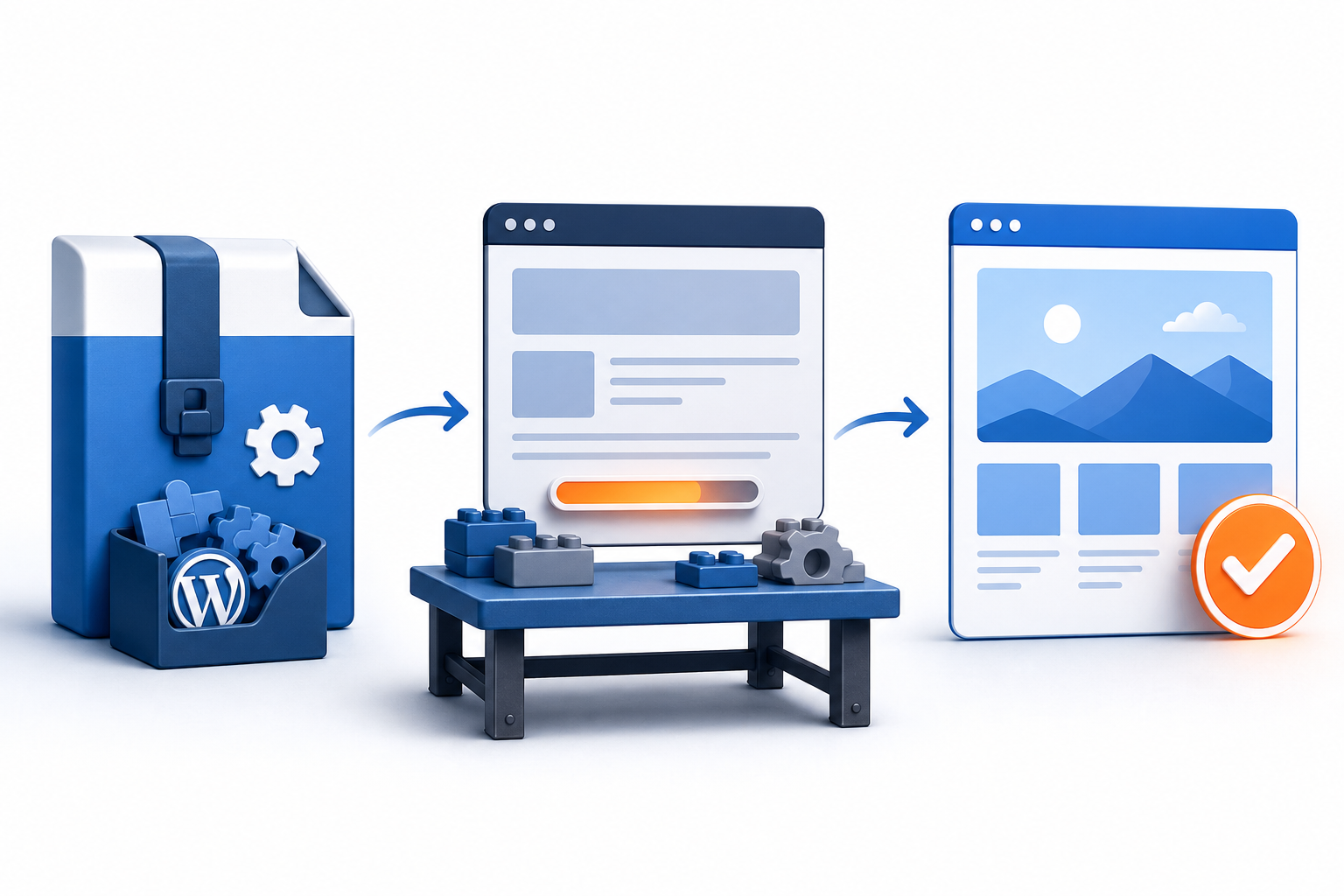
- Install the vendor’s clean ZIP or upload the preserved ZIP through the dashboard’s plugin installer, if that method is available.
- If uploading manually, extract the folder into
wp-content/plugins/and confirm that the main plugin file is directly inside the plugin folder, not nested in an extra folder. - Activate the plugin and review its settings, license status, scheduled tasks, and connected services.
- Test the site while logged out and logged in. Check the plugin’s main feature, forms, admin screens, and relevant email or checkout workflows.
If WordPress reports that the plugin is already installed, stop rather than overwriting files repeatedly. Rename the old folder as a temporary backup, upload the replacement, and keep the old copy until verification is complete.
Diagnose a failed reinstallation
If the site breaks after activation, first deactivate the plugin if you can. If the dashboard will not load, rename the plugin directory through hosting access or SFTP. This is safer than deleting the files because you can restore the original folder name later.
Look for a specific error in the site or server logs rather than guessing. A PHP version mismatch, missing dependency, incomplete upload, file permission problem, or conflict with another plugin or theme can all appear after reinstallation. A critical error may require the recovery link sent by WordPress or hosting-level access; see this guide to fixing a WordPress critical error.
If an update or download is failing rather than the activation itself, server communication can be part of the problem. Review WordPress cURL timeout errors before repeatedly retrying downloads.
Quick decision guide
- You need the original installer: Download it from the official WordPress directory or the plugin vendor whenever possible.
- You need a copy before deleting a plugin: Archive the exact folder in
wp-content/plugins/and retain a full database backup. - The dashboard is unavailable: Use hosting file manager or SFTP; rename the folder instead of deleting it.
- The plugin stores media or exports: Identify and back up its directory under
wp-content/uploads/or another documented location. - The replacement activates but settings are missing: Restore or verify the database backup and check whether the plugin has an export/import process.
- You suspect modified or infected files: Do not preserve them as your trusted installer. Obtain a clean package and investigate the site before restoring code.
How to verify the backup before you need it
A backup is useful only if it can be read and restored. Confirm that the archive opens, contains the expected plugin folder, and is stored somewhere separate from the live site. Keep a note of the WordPress version, plugin version, folder name, backup date, and any required PHP version or license information.
For higher-risk sites, test restoration on a staging copy rather than on production. Activate the plugin there and check its primary workflow. If you are moving the whole site, a migration test can expose missing uploads, database settings, or server requirements before visitors encounter them. Do not test by overwriting production unless you have a current, independently stored rollback backup.
Questions to ask before deleting the old files
Can I reinstall a plugin from its folder alone?
Usually, the folder contains the code WordPress needs, but it may not contain settings, license information, uploaded files, or database tables. Treat it as a file copy, not a complete backup.
Should I preserve inactive plugins?
Preserve an inactive plugin if you may need its files later, if it contains custom code, or if you are investigating a site issue. Remove unused plugins only after confirming that you have a backup and no theme or custom code depends on them.
Can I copy plugin files while the plugin is active?
Usually yes for a read-only archive, but files may change during updates or background processes. For the most consistent copy, deactivate the plugin during a maintenance window, or create a complete host snapshot before copying.
What if I cannot identify the plugin folder?
Open the plugin’s main PHP files and look for the plugin header, or ask the plugin vendor or host to identify it. Do not delete folders based only on similar names. If the site is already failing, isolate plugins one at a time by renaming folders and record every change.
When a plugin must be preserved during a larger recovery, migration, or conflict investigation, a professional WordPress site repair service can help create a rollback plan before changes are made.